
Feature walkthroughs
See it working, screen by screen
Every picture below is a real screenshot of the running product, with the buttons marked in the order you press them. Follow a whole feature end to end without signing up, and without sitting through a demo call.
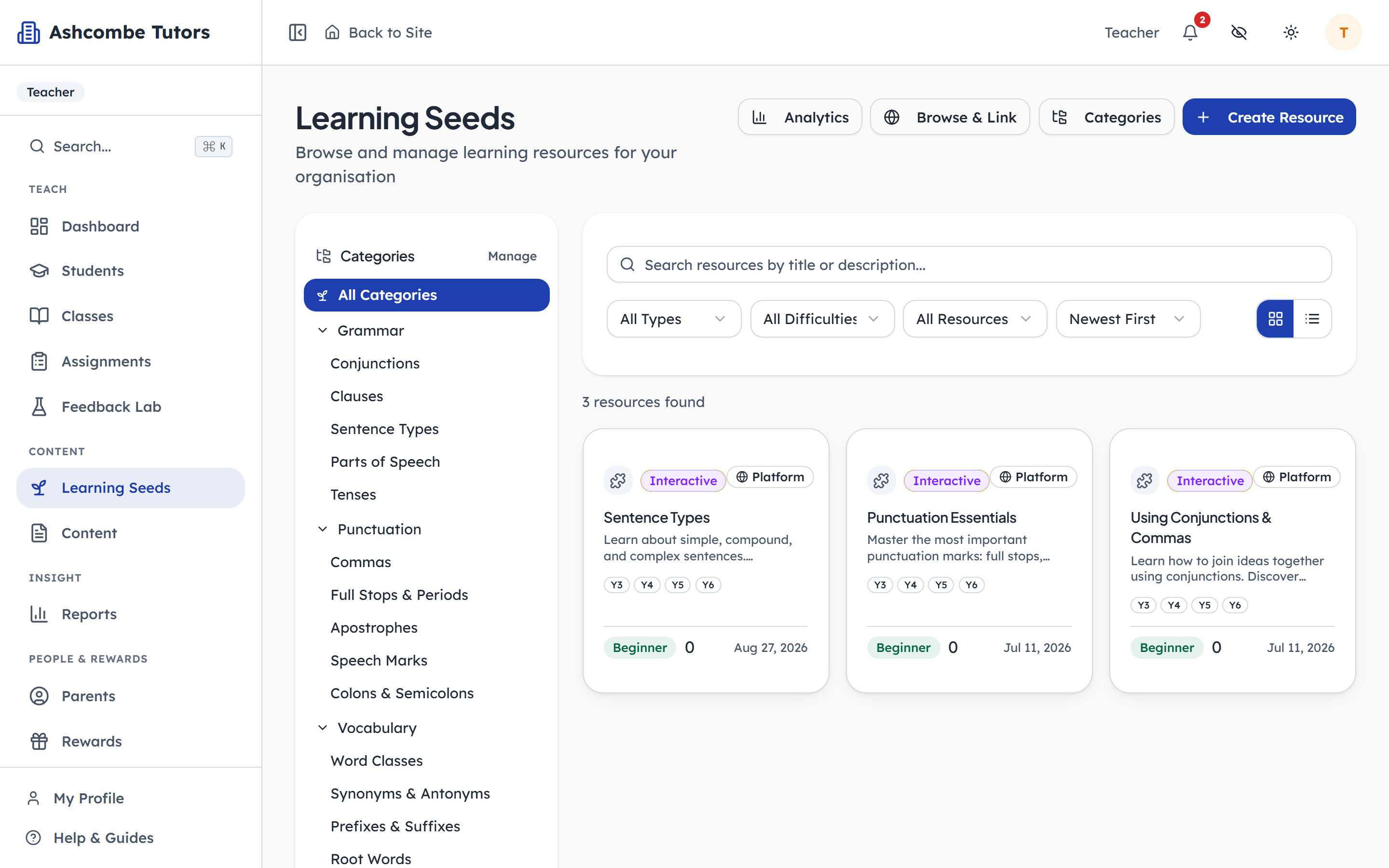
Assigning teaching resources with Learning Seeds
A teacher shares an interactive chapter with a class, the child finds it on their own page and works through it, and the teacher reads the class analytics afterwards.
TeachersCentre adminChildren8 steps · 3 parts
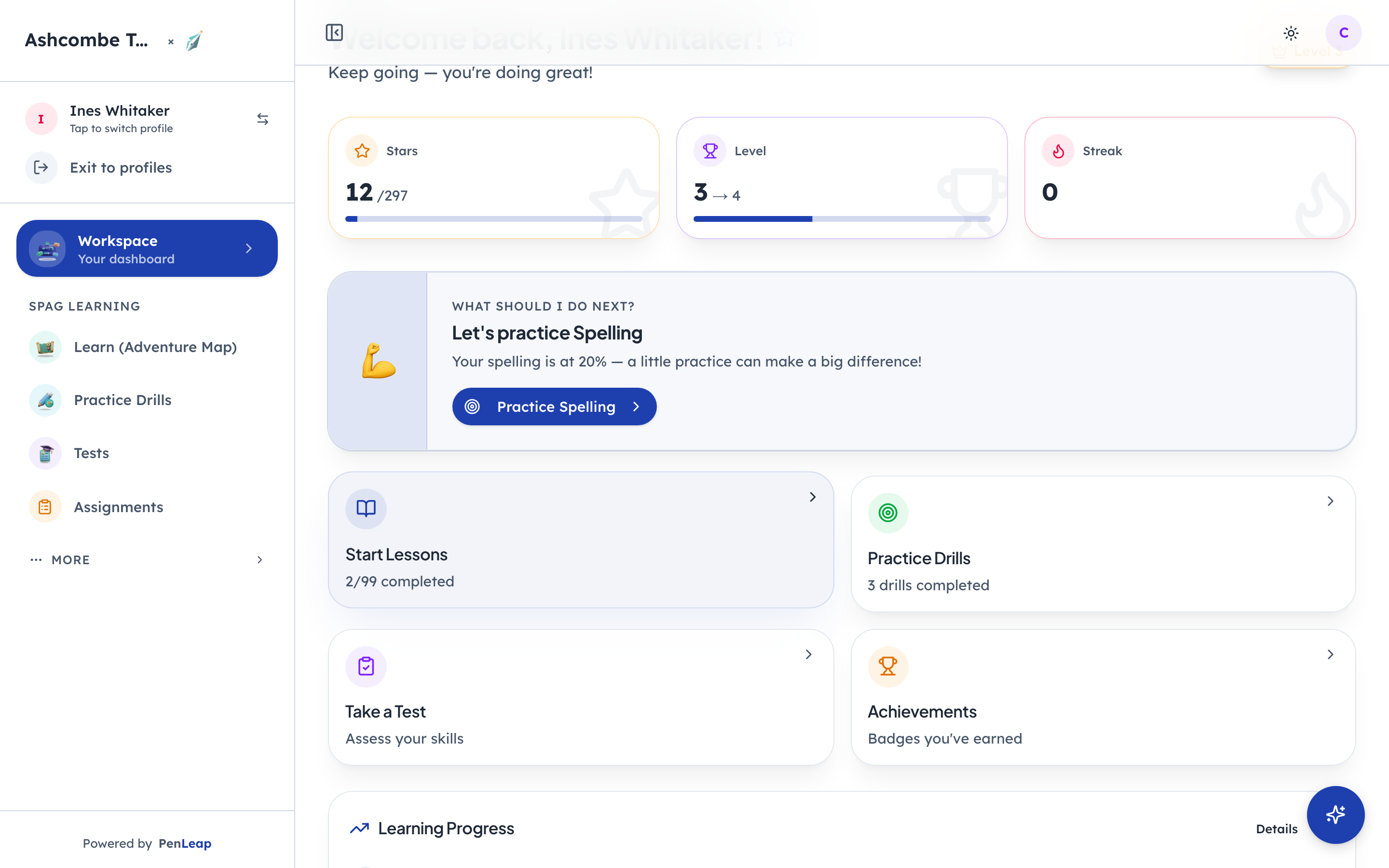
How a child learns: map, lessons, practice and tests
A child's own view of PenLeap: a course drawn as a map, narrated lessons, practice drills aimed at their weakest strand, timed tests, and the analytics the family and the teacher see.
ChildrenParentsTeachers10 steps · 5 parts
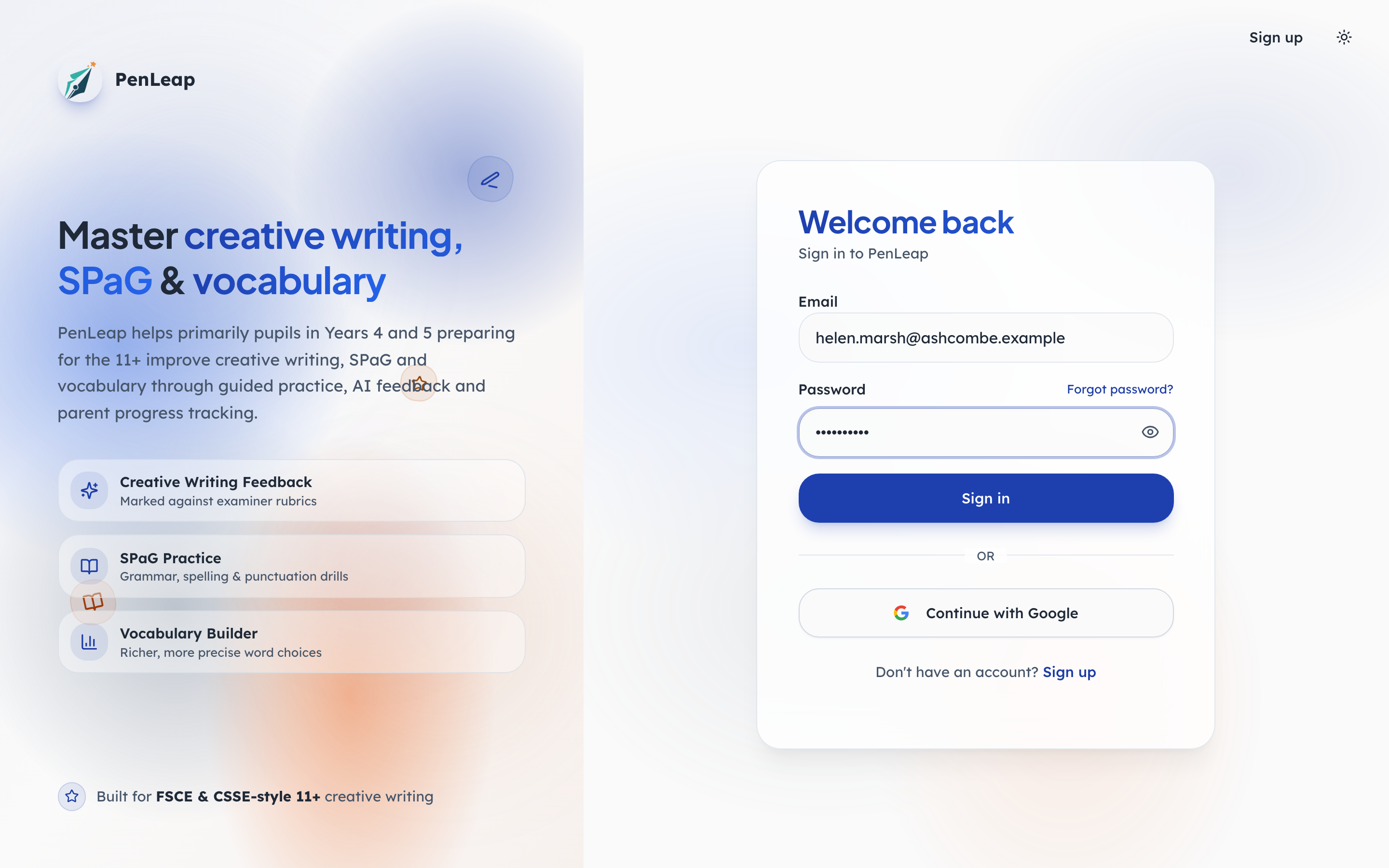
How homework works, start to finish
A tutor sets the work, a family does it on paper and on screen, a teacher marks it, and the office keeps track. Every screen below is the real product.
Centre adminTeachersParentsChildren28 steps · 5 parts
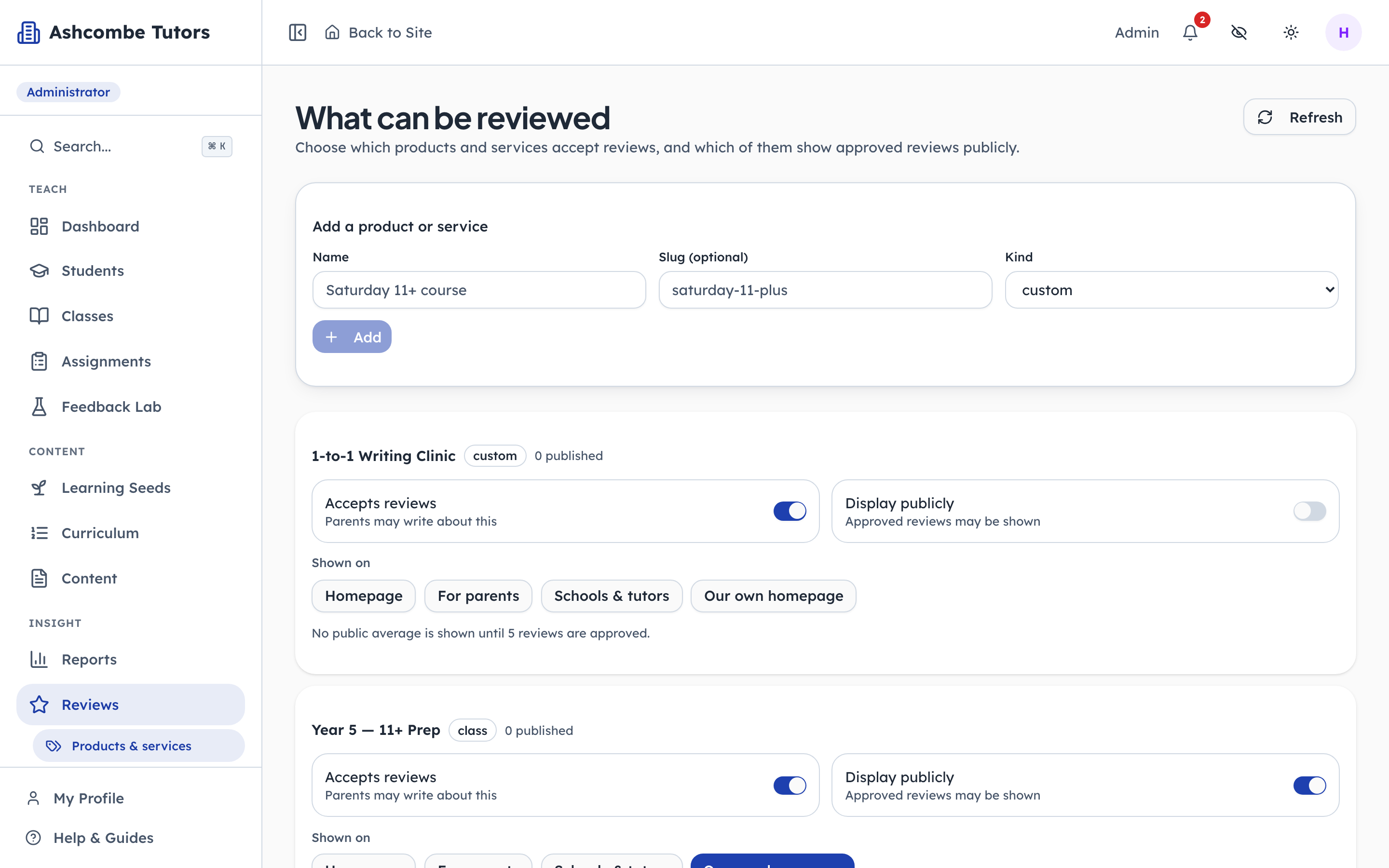
How a parent's review reaches your website
A centre decides what can be reviewed, a parent writes one, a moderator checks it for a child's name before a word of it is published, and only then does it appear. Four switches, all of them visible.
Centre adminParents10 steps · 4 parts
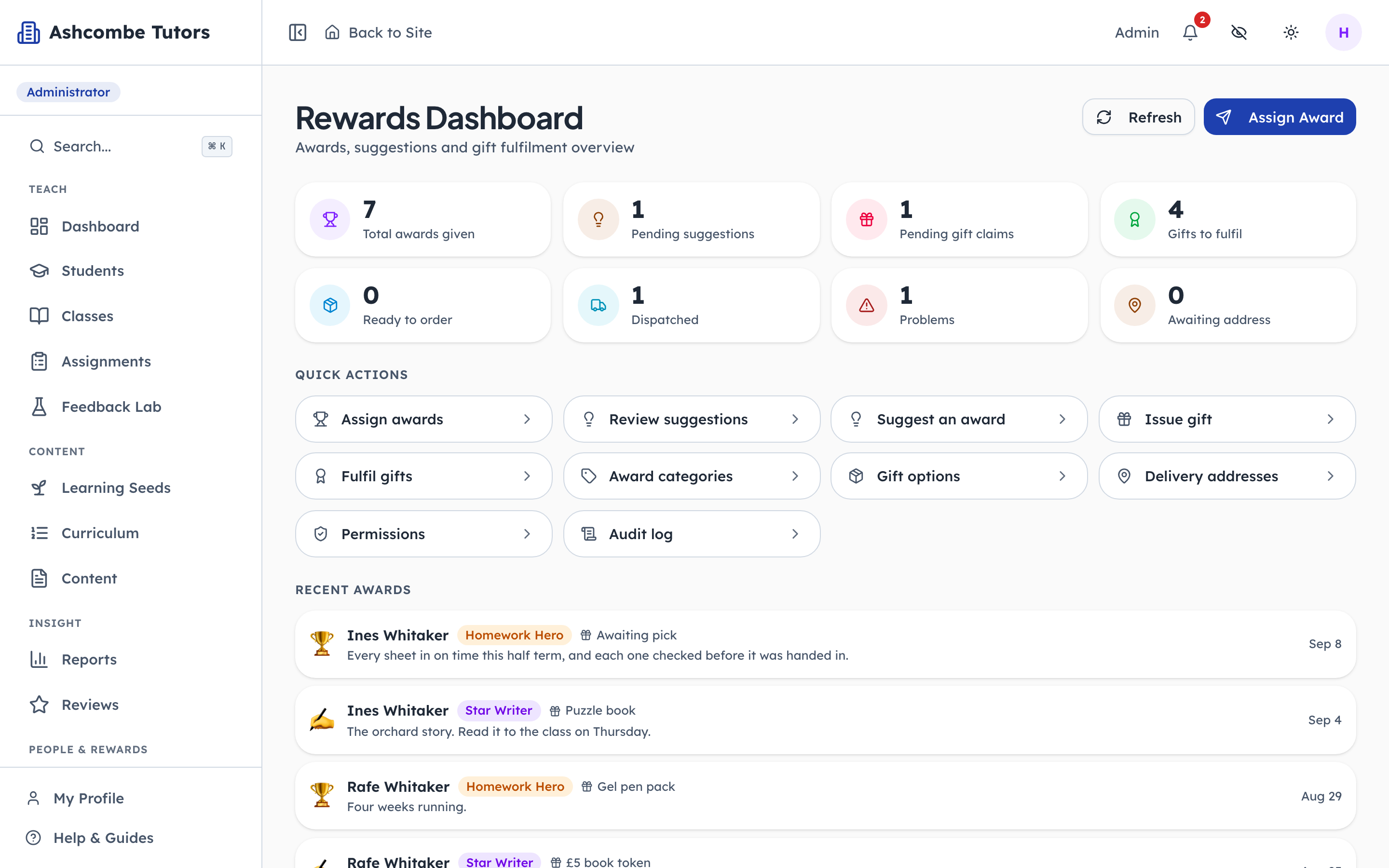
How rewards and gifts work
The admin builds a gift catalogue and names the awards, a tutor proposes one, the admin gives it, the child picks a gift, and the office tracks it to the child's hands.
Centre adminTeachersChildren14 steps · 5 parts
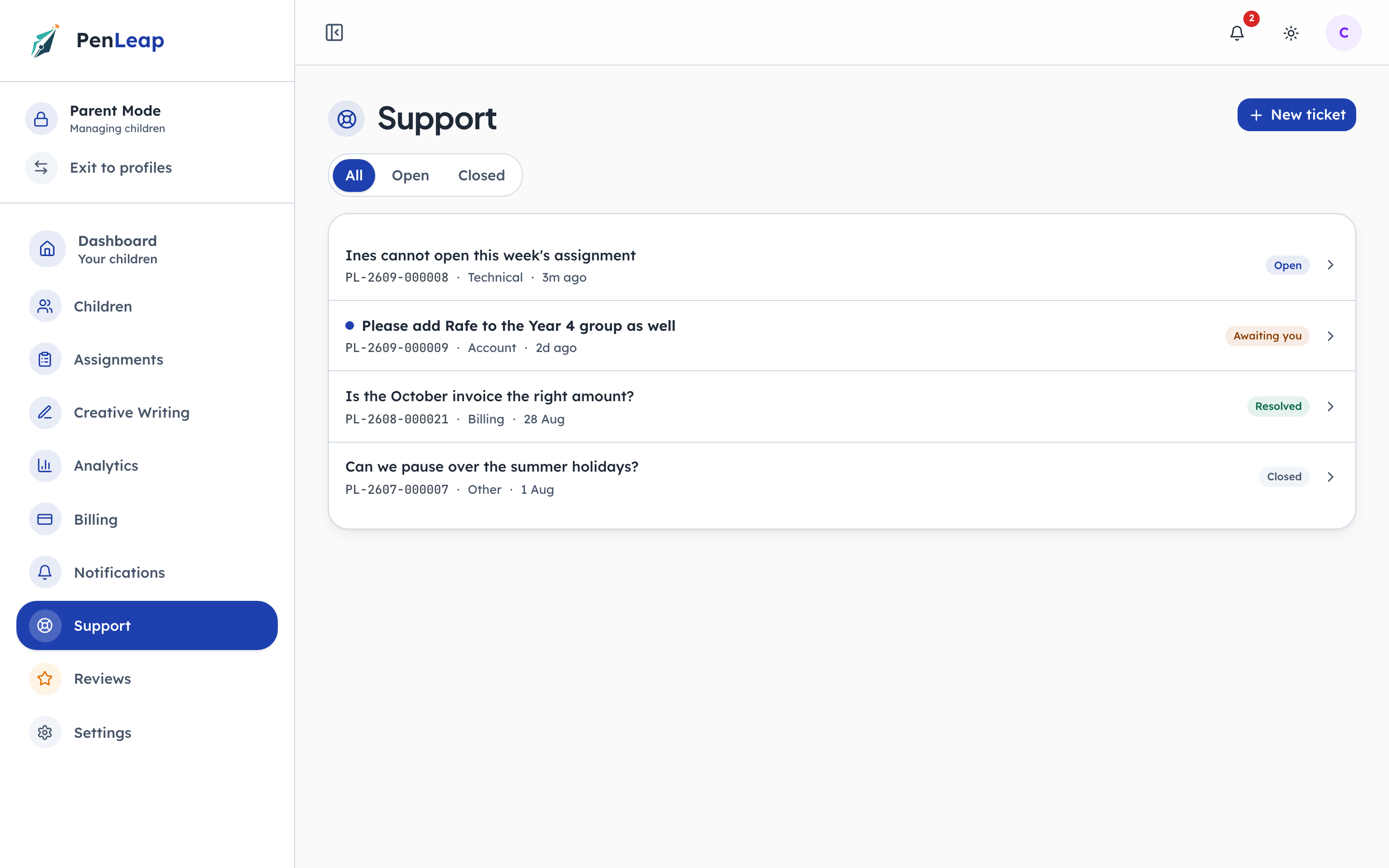
How a question from a family gets answered
A parent asks for help from inside their own account, the centre answers it from one queue, and the reply lands back where the question started. Every screen below is the real product.
ParentsCentre adminTeachers10 steps · 3 parts
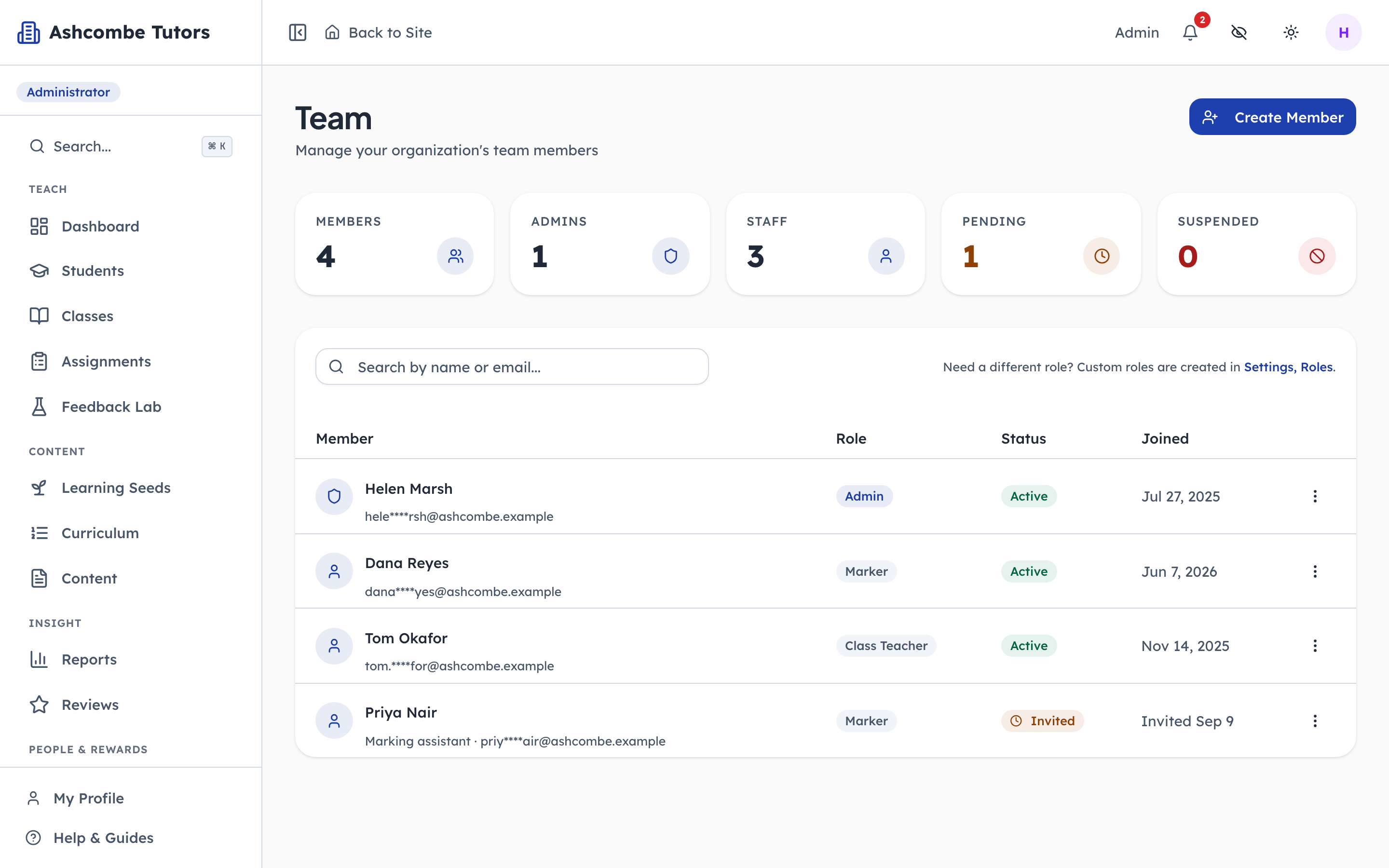
Running your team: members, roles, and who marks what
Add a member of staff, decide what they can do, and route the marking to them: automatically by share, in bulk from the queue, or one piece at a time.
Centre adminTeachers11 steps · 4 parts
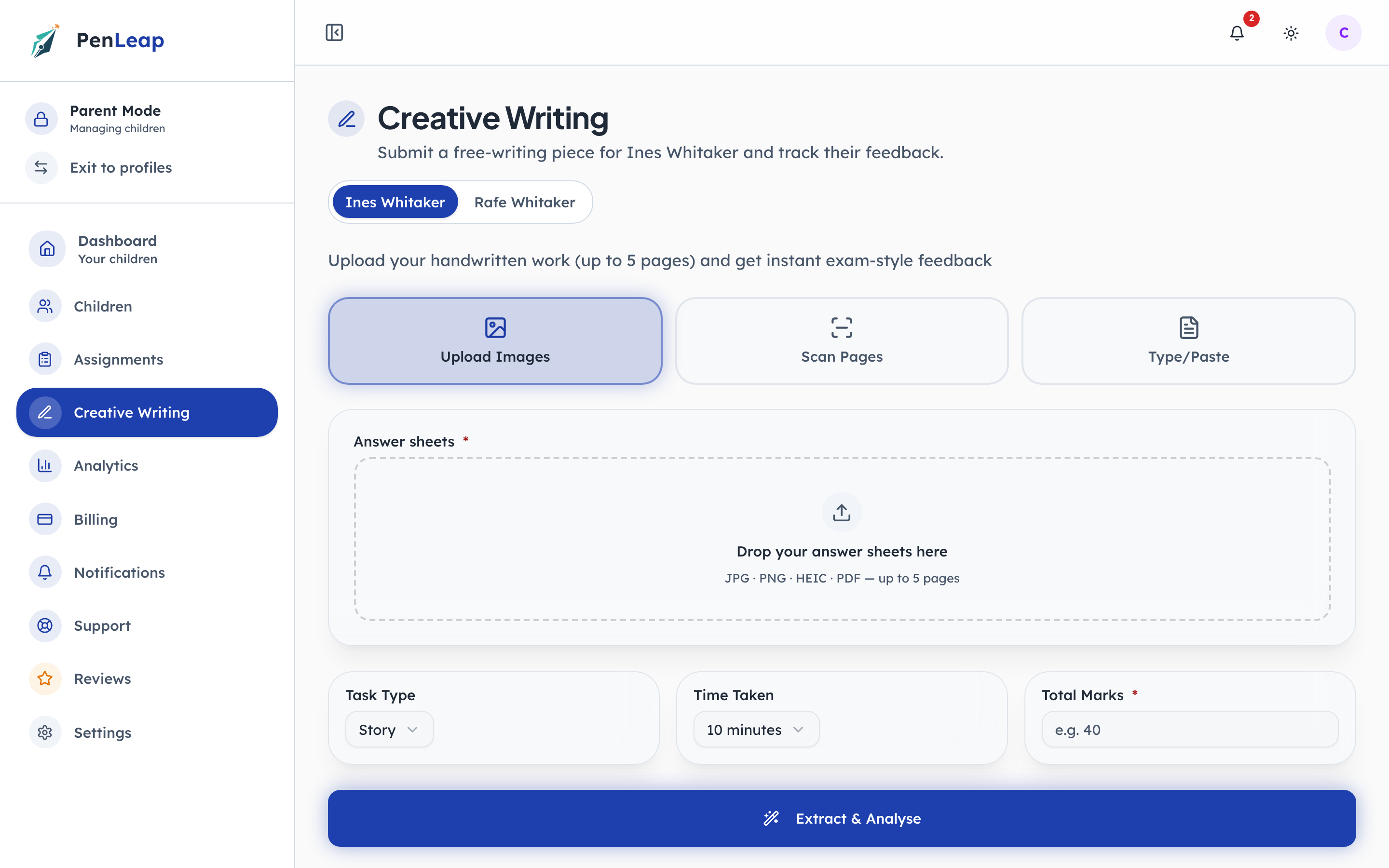
How a piece of writing gets marked
A family sends in a story, a teacher marks it or the AI does, and the child and parent read the same report. Every screen is the real product.
ParentsTeachersChildrenCentre admin10 steps · 5 parts
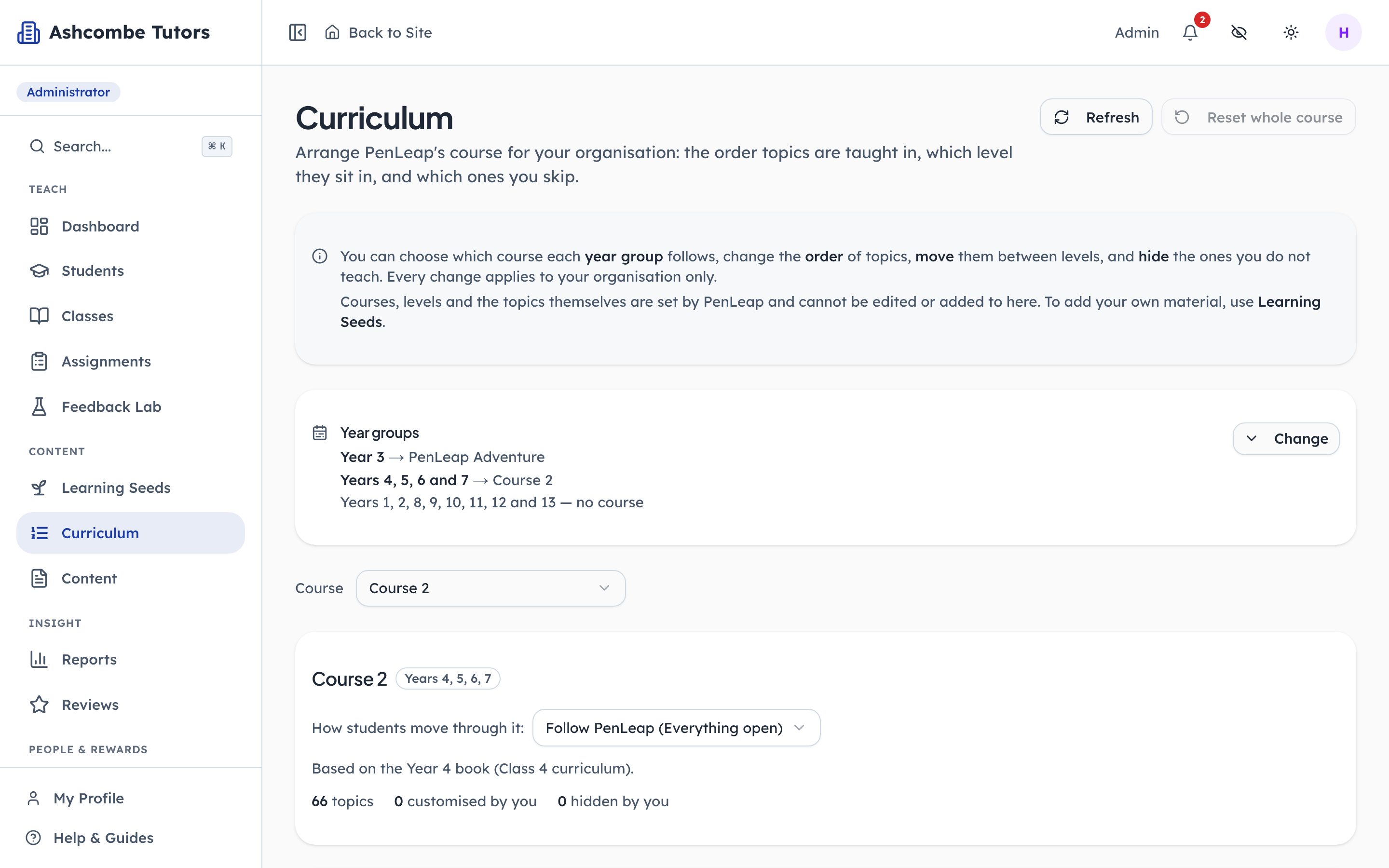
How your curriculum is set: what PenLeap publishes, and what you change
PenLeap publishes a course; your centre arranges it. Change the order, move topics between levels, skip the ones you do not teach — all as your own layer, which you can undo in one click.
Centre adminTeachers8 steps · 4 parts
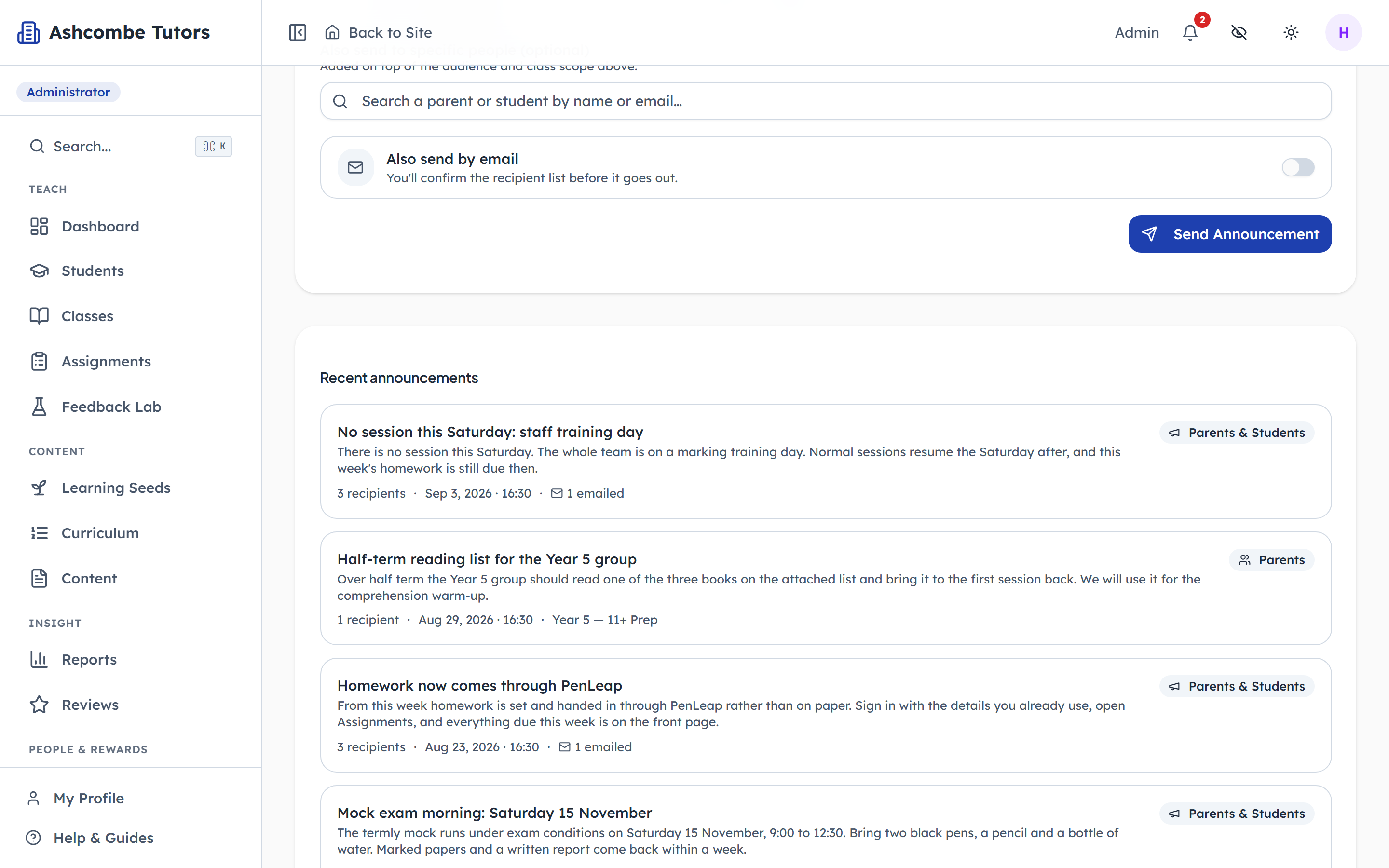
Keeping families informed: announcements, notifications and support
The centre broadcasts an announcement to families, a parent sees it arrive with everything else that concerns their child, and raises a support ticket that staff answer in a thread.
Centre adminParents11 steps · 4 parts
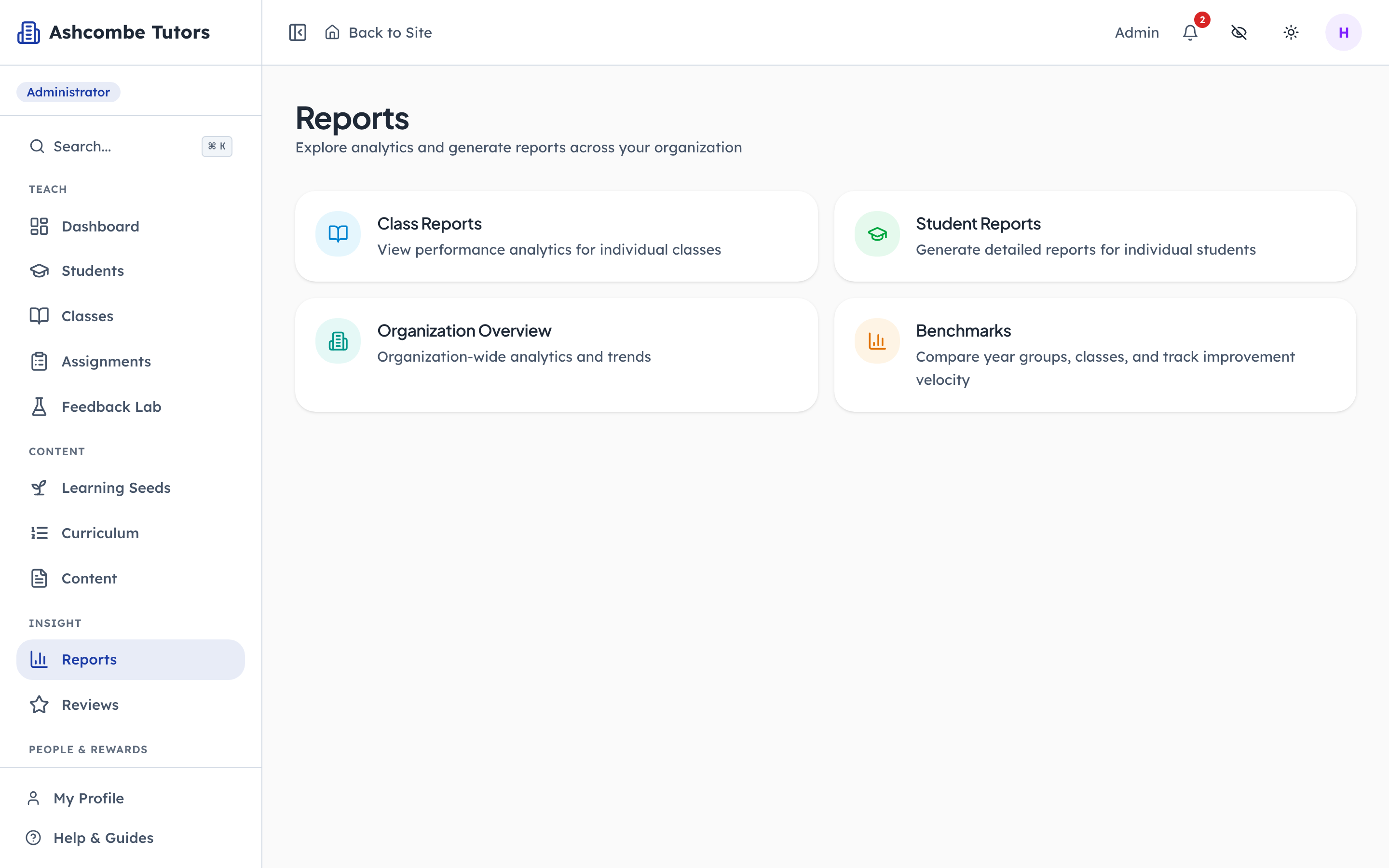
Reading your centre's reports: the whole centre, a class, one child
Four reports that answer four different questions, all built from the same marked work: how the centre is doing this month, how a class is keeping up, what one child needs next, and which group is drifting.
Centre adminTeachers12 steps · 4 parts
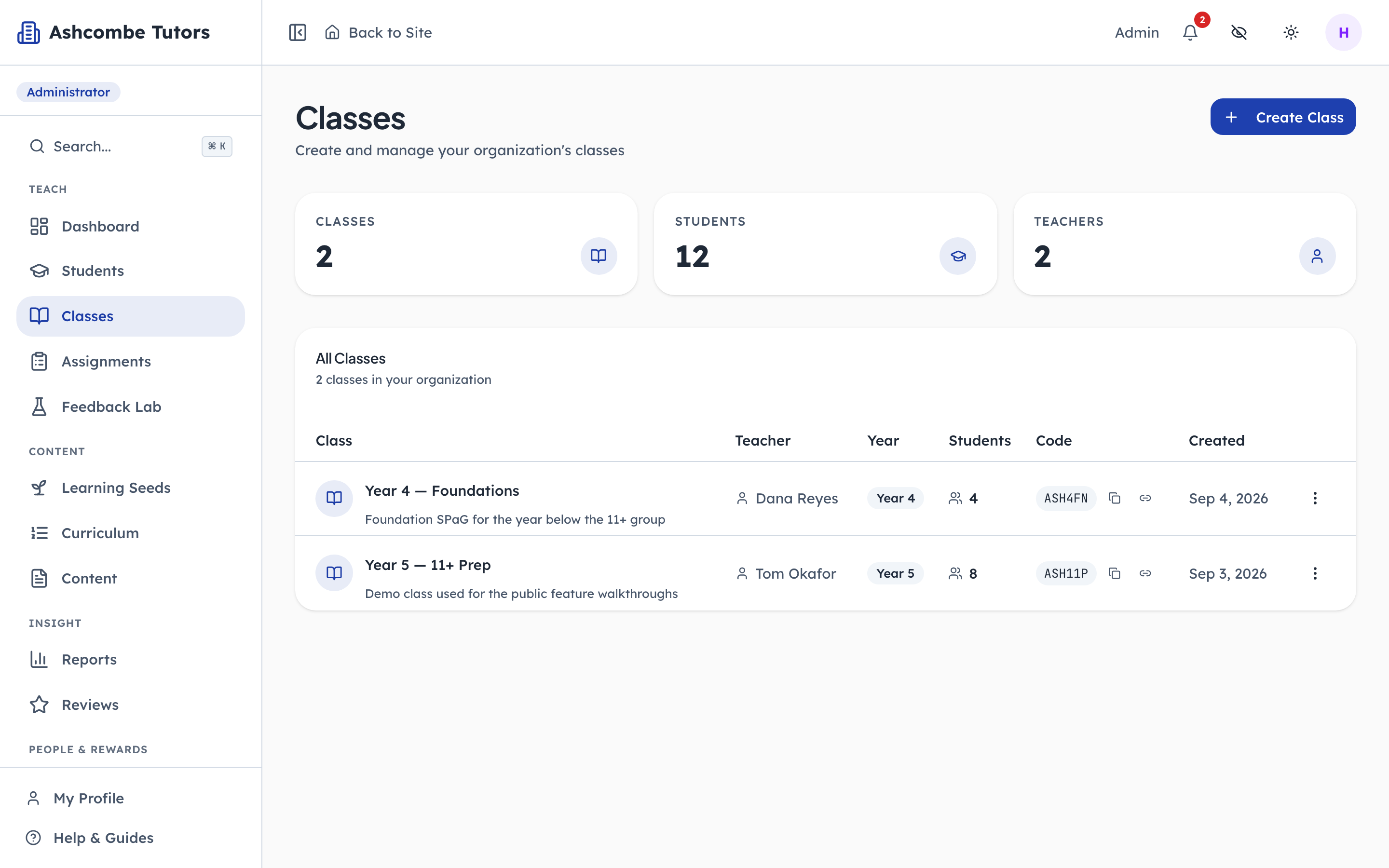
Setting up your centre: classes, children and parents
Create a class, add children one at a time or from a spreadsheet, link each one to a parent, and see what the family does on their first day.
Centre adminParentsChildren11 steps · 4 parts
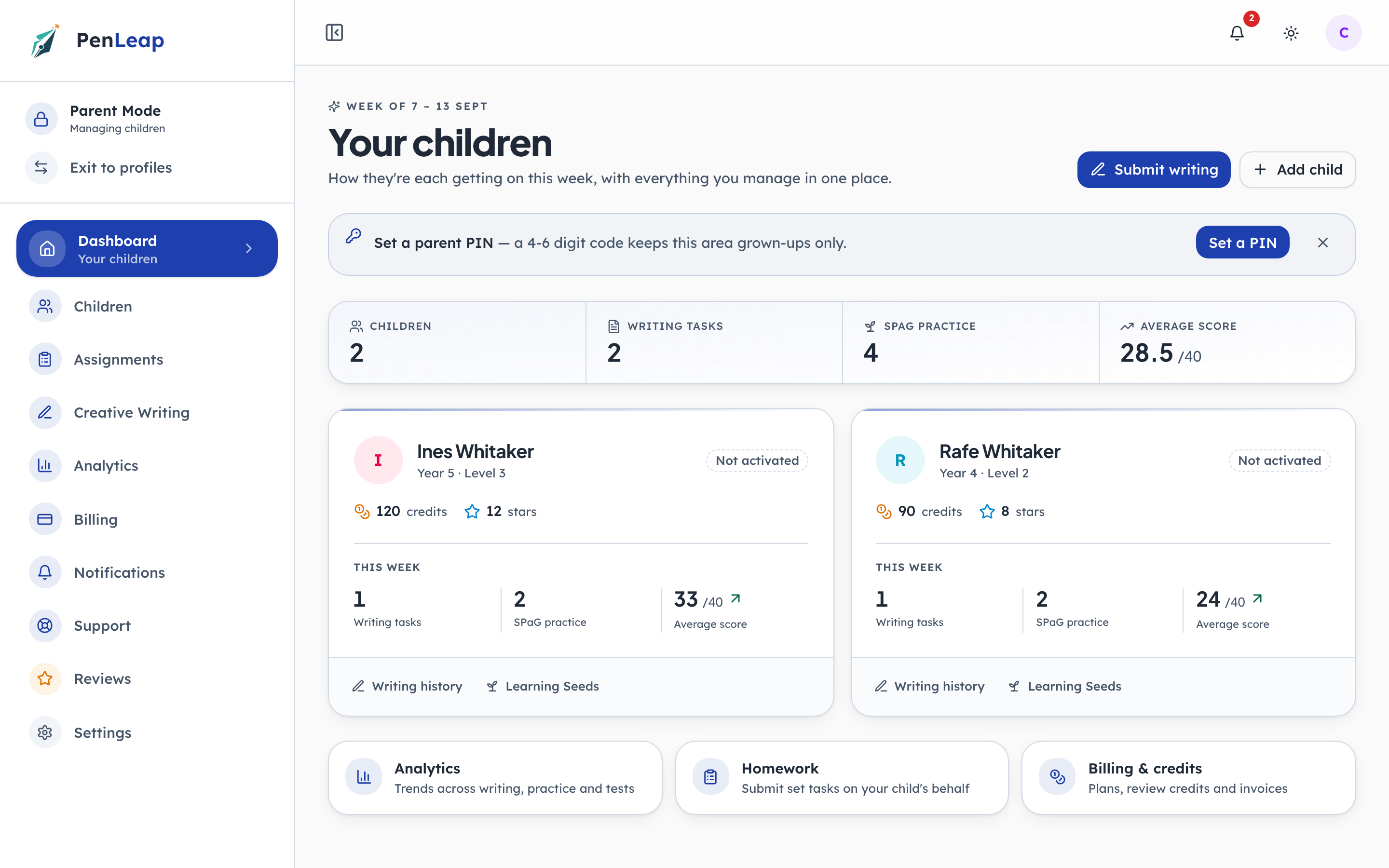
The report a parent gets, and where every number on it comes from
A weekly summary a parent can act on: what their child wrote, the mistakes that keep coming back, and which way the marks are going — built from exactly the same marked work the centre sees.
ParentsTeachersCentre admin7 steps · 4 parts

Your first ten minutes: from applying to the screen you will live on
How a tuition centre actually starts: apply, get approved, activate an account through a link only you can use, and land on a dashboard already narrowed to your job.
Centre adminTeachers8 steps · 4 parts