
14 steps · 5 parts · 3 roles
How rewards and gifts work
The admin builds a gift catalogue and names the awards, a tutor proposes one, the admin gives it, the child picks a gift, and the office tracks it to the child's hands.
Everything below is the real product, photographed automatically. The school, its staff and its pupils are invented for this walkthrough — no real family appears on this page.
The admin sets up the programme
Steps 1–5Org Admin- penleap.com/dashboard/rewardsSigned in as Org Admin
1One screen runs the whole reward programme 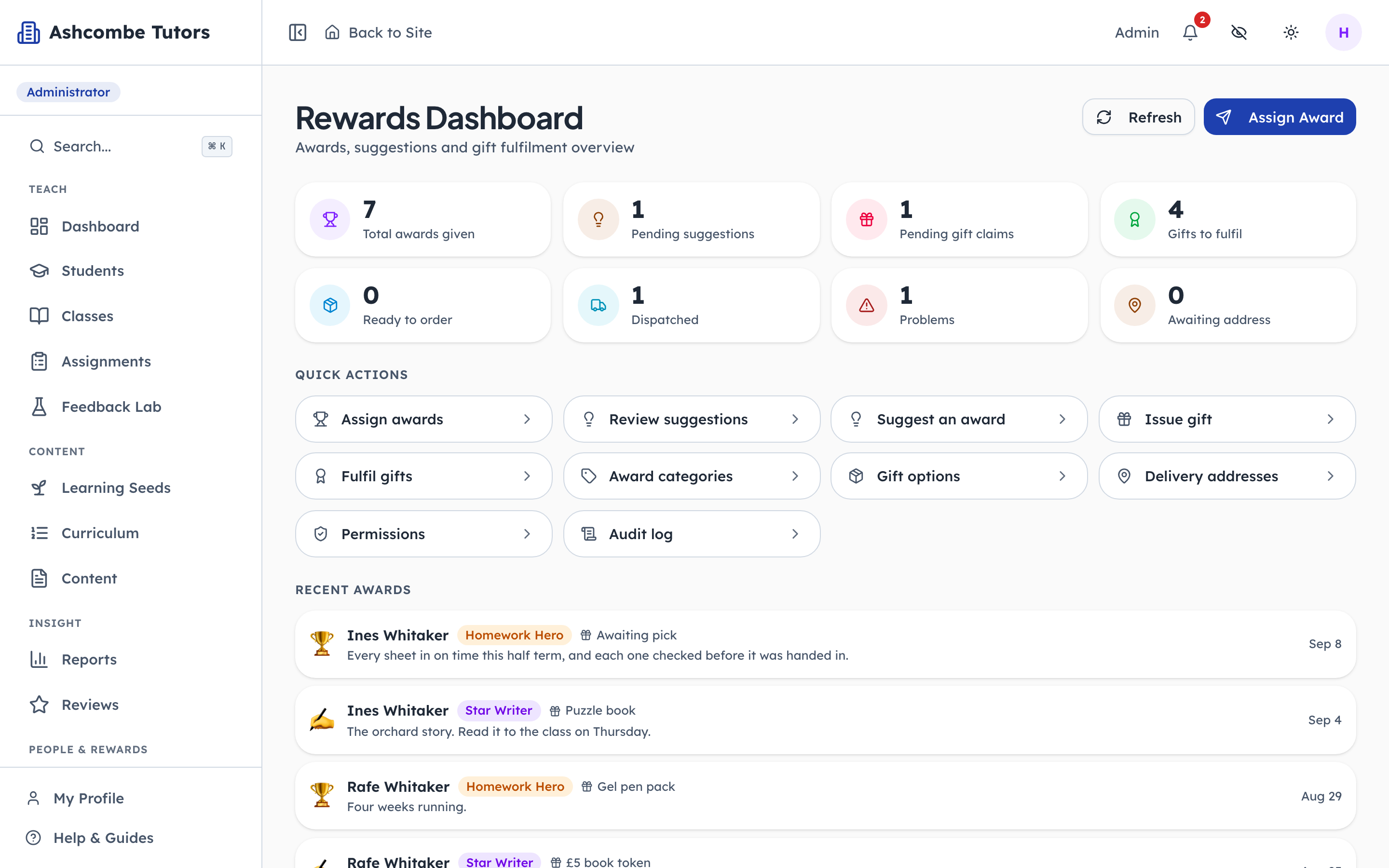
- 1Notice: The queue to keep an eye on
- 2Click: Set up gifts first
- 3Notice: Then name the awards
The tiles along the top are the numbers that matter today: awards given, suggestions waiting on a decision, children who still need to choose a gift, and gifts the office has yet to deliver. The quick actions below are the only places you ever need to go. Setting up is done in two of them, in this order: gifts first, then awards.
- penleap.com/dashboard/rewards/giftsSigned in as Org Admin
2Physical gifts live in categories 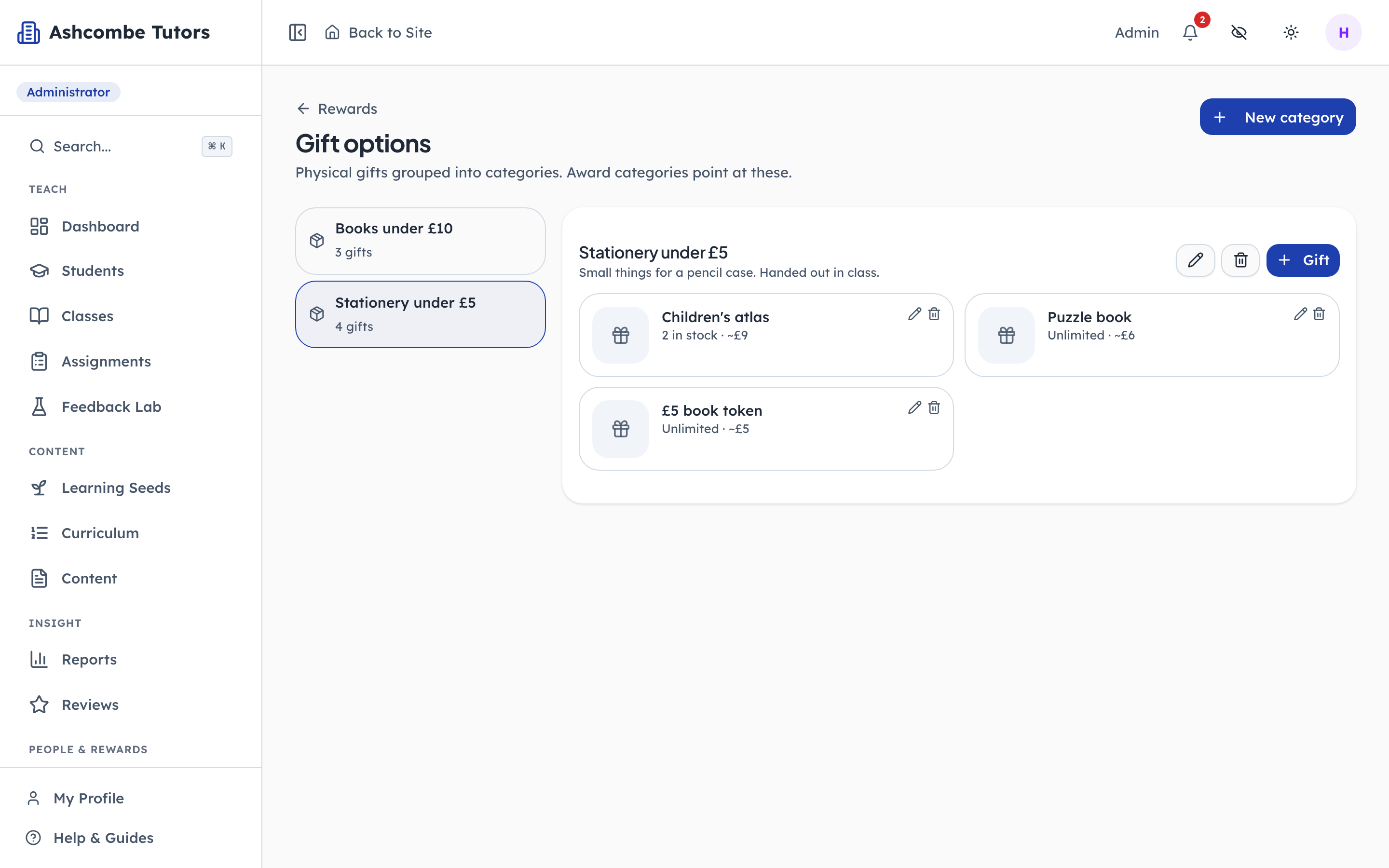
- 1Click: Pick a category to see its gifts
- 2Notice: Add another pool
- 3Click: Add a gift to this pool
A category is a pool a child will later choose from, so it should hold things of roughly the same value. Two is plenty to start: something for a pencil case, and something to read. Each gift can carry a stock count, and a gift that runs out simply stops being offered.
- penleap.com/dashboard/rewards/giftsSigned in as Org Admin
3Adding a gift: a name, a stock count, a rough value 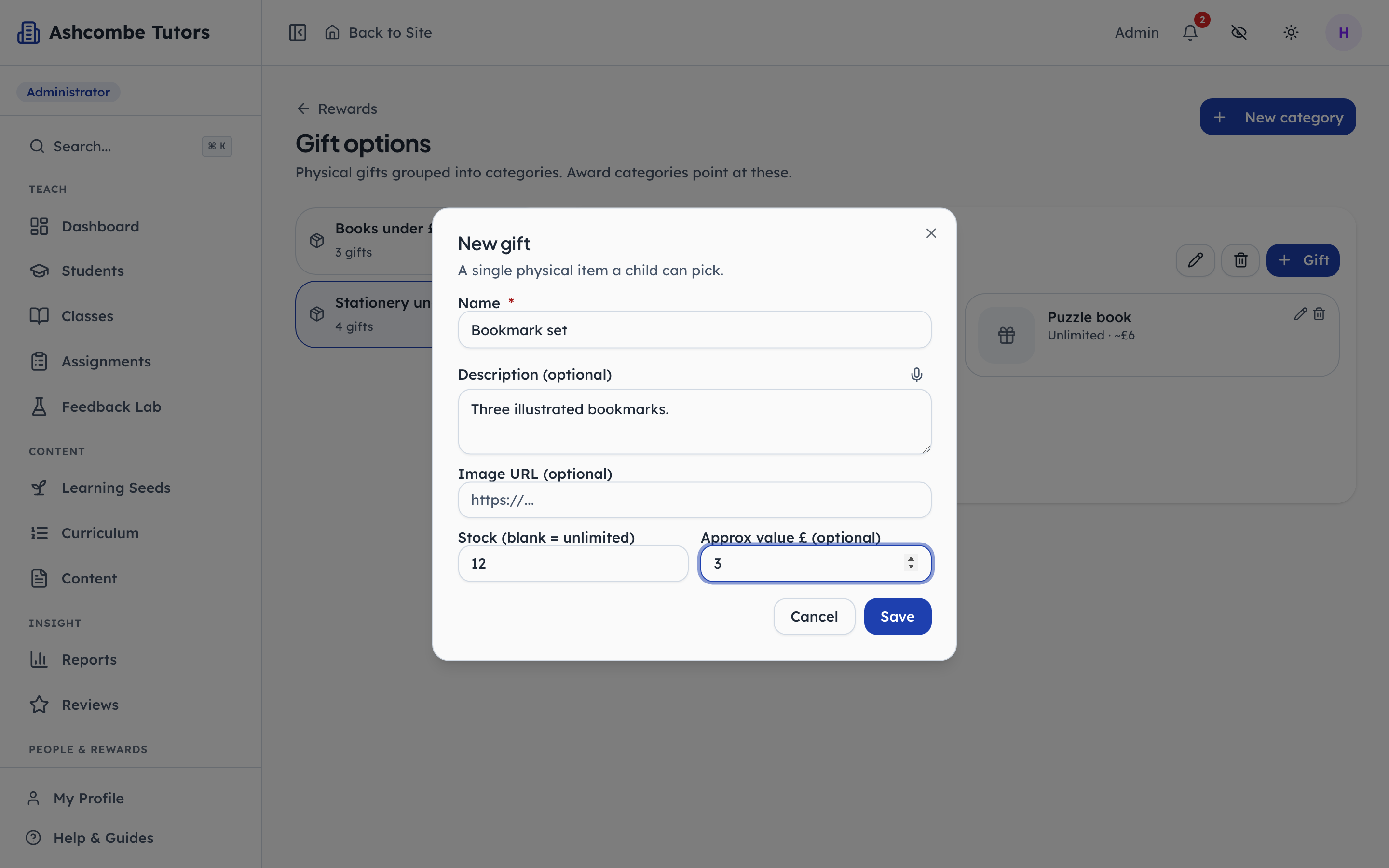
- 1Type in: What it is
- 2Type in: Blank means unlimited
- 3Type in: For the office, not the child
- 4Click: Save it
Stock is optional. Leave it blank for something you can always get more of, or set a number and the gift disappears from the child's choices when it hits zero. The value is only for the office, so a report can tell you what the programme cost.
- penleap.com/dashboard/rewards/award-categoriesSigned in as Org Admin
4Awards are named. Some carry a gift, some are recognition only 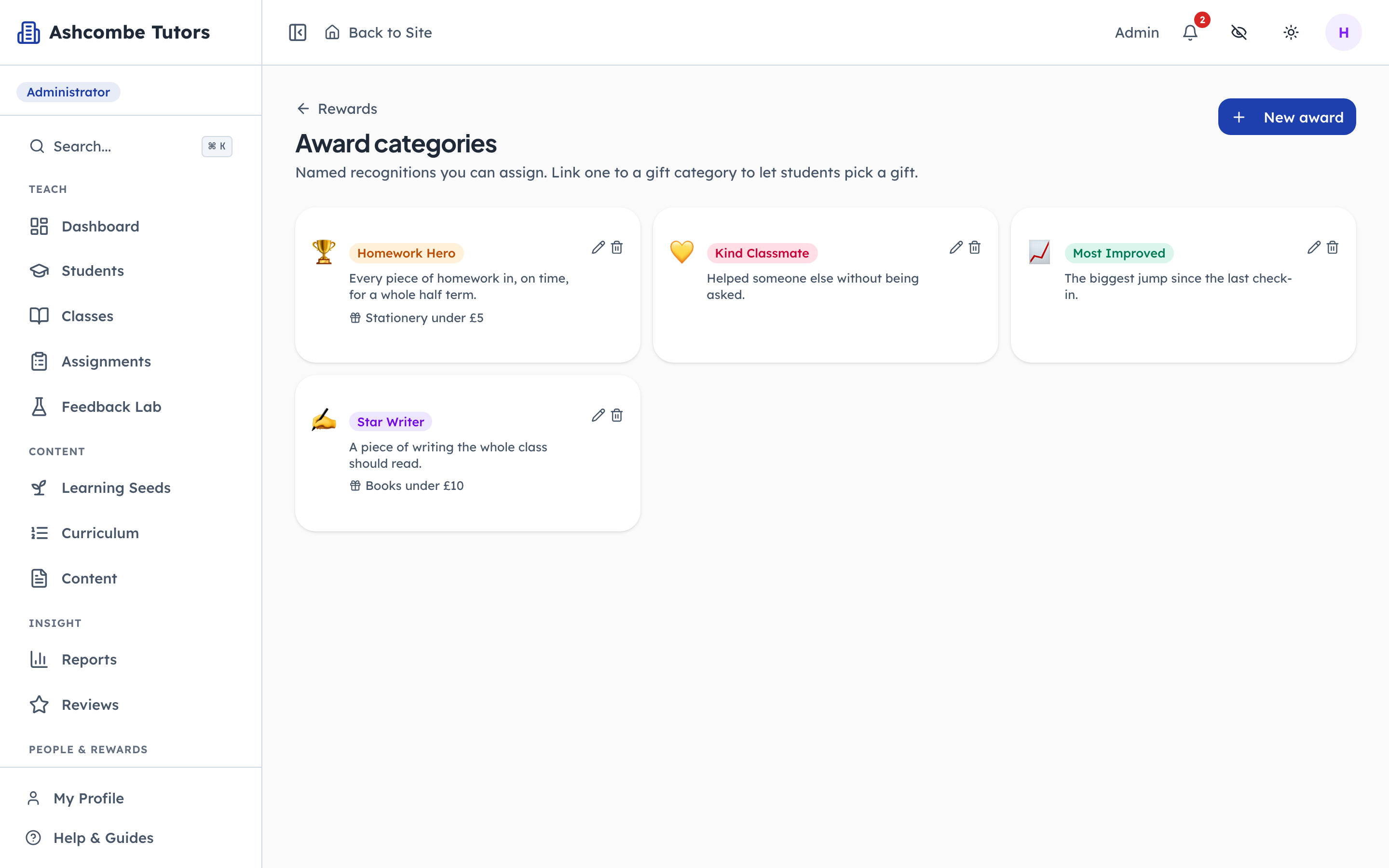
- 1Notice: This award comes with a gift
- 2Notice: This one is recognition only
- 3Click: Name a new award
An award is what a child actually receives: a name, an icon and a colour that appear on their own rewards page. Pointing an award at a gift category is what turns it into a gift-bearing award. Most Improved and Kind Classmate here deliberately carry nothing, because the recognition is the point.
- penleap.com/dashboard/rewards/award-categoriesSigned in as Org Admin
5Creating an award, and choosing whether it carries a gift 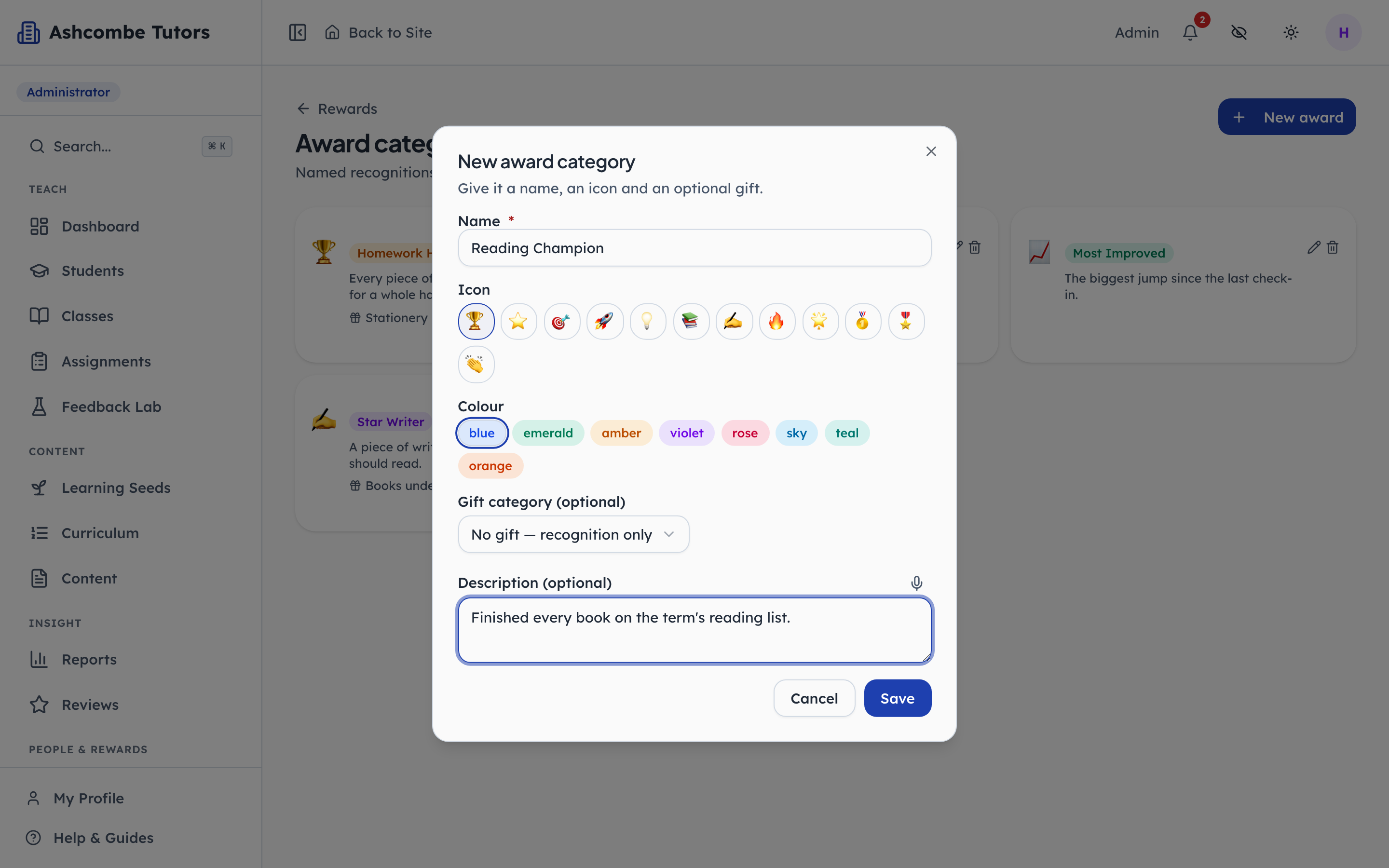
- 1Type in: The name the child sees
- 2Click: Attach a gift pool, or leave it free
- 3Click: Save it
The gift category is the one decision with a cost attached, and it is a single dropdown. Leave it on recognition only and the award is free to give. Attach a pool and every child who earns it will be asked to choose something from it.
A tutor suggests an award
Step 6Marker- penleap.com/dashboard/rewards/suggestSigned in as Marker
6Anyone who teaches a child can propose an award for them 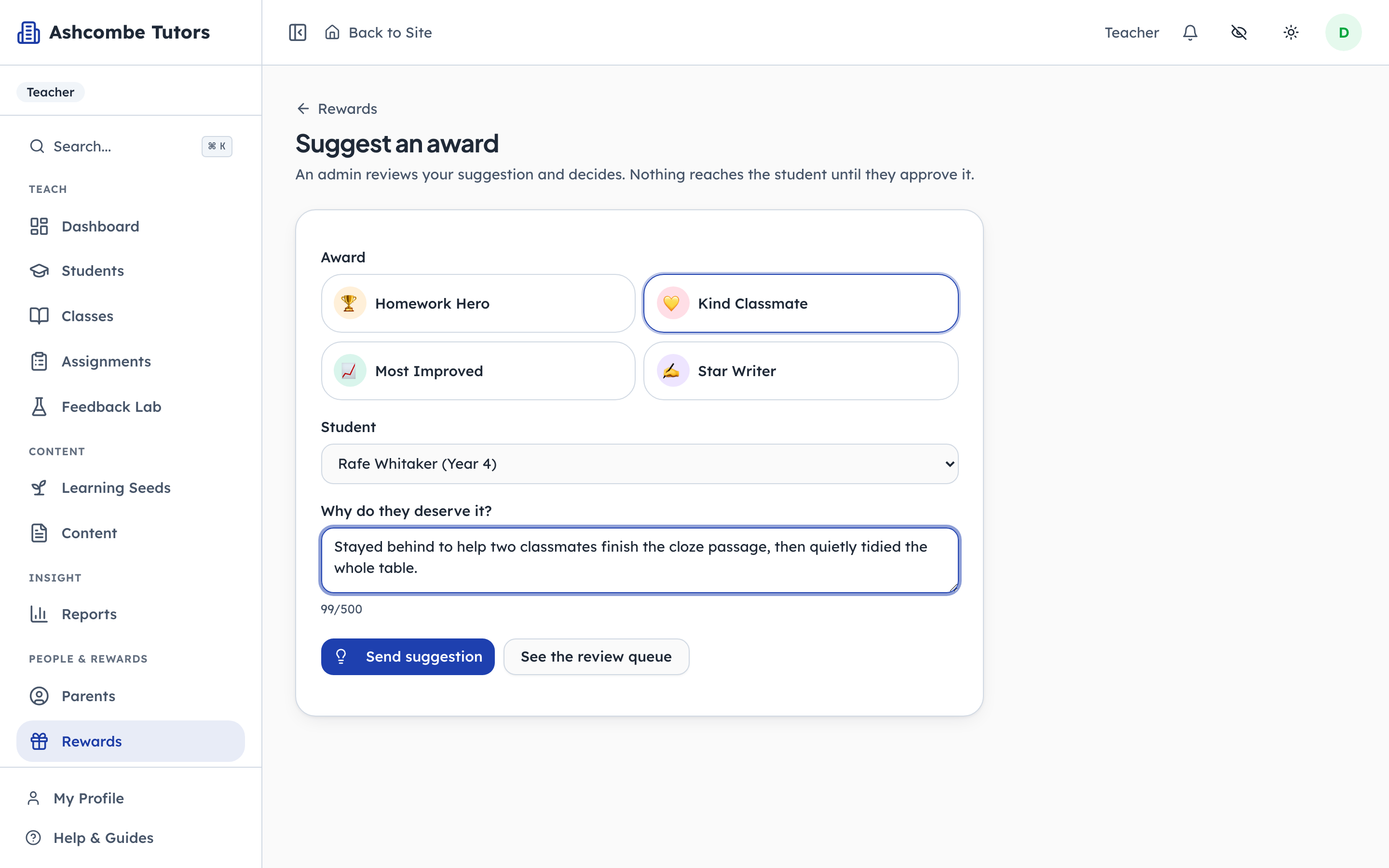
- 1Click: Which award
- 2Click: Which child
- 3Type in: What you saw, for the admin
- 4Click: Send it for a decision
The person in the room on Thursday is the one who notices a child deserves something. But an award can carry a gift that costs the centre money, so proposing and giving are split. A tutor writes what they saw, in their own words, and an admin decides. The reason is required, because the admin was not there.
The admin decides, and gives the award
Steps 7–9Org Admin- penleap.com/dashboard/rewards/suggestionsSigned in as Org Admin
7Suggestions wait here for a yes or a no 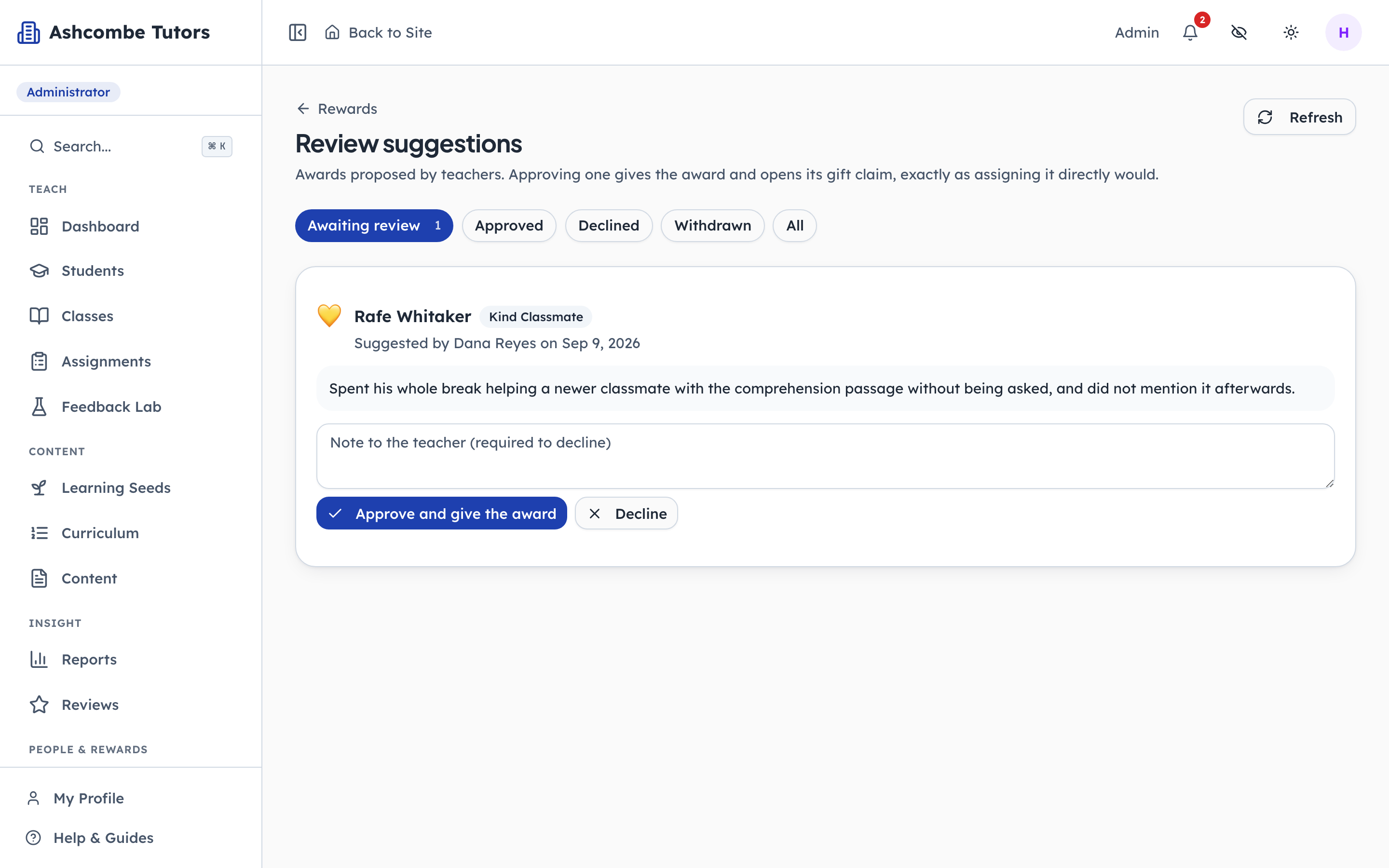
- 1Notice: Who proposed it, and when
- 2Click: Give it, gift claim included
- 3Notice: Declining needs a reason they will see
Approving gives the award exactly as if the admin had assigned it directly, gift claim and all. Declining needs a note, and the tutor who suggested it will read that note. Nothing is refused silently.
- penleap.com/dashboard/rewards/assignSigned in as Org Admin
8Or give an award directly to one child or a whole class 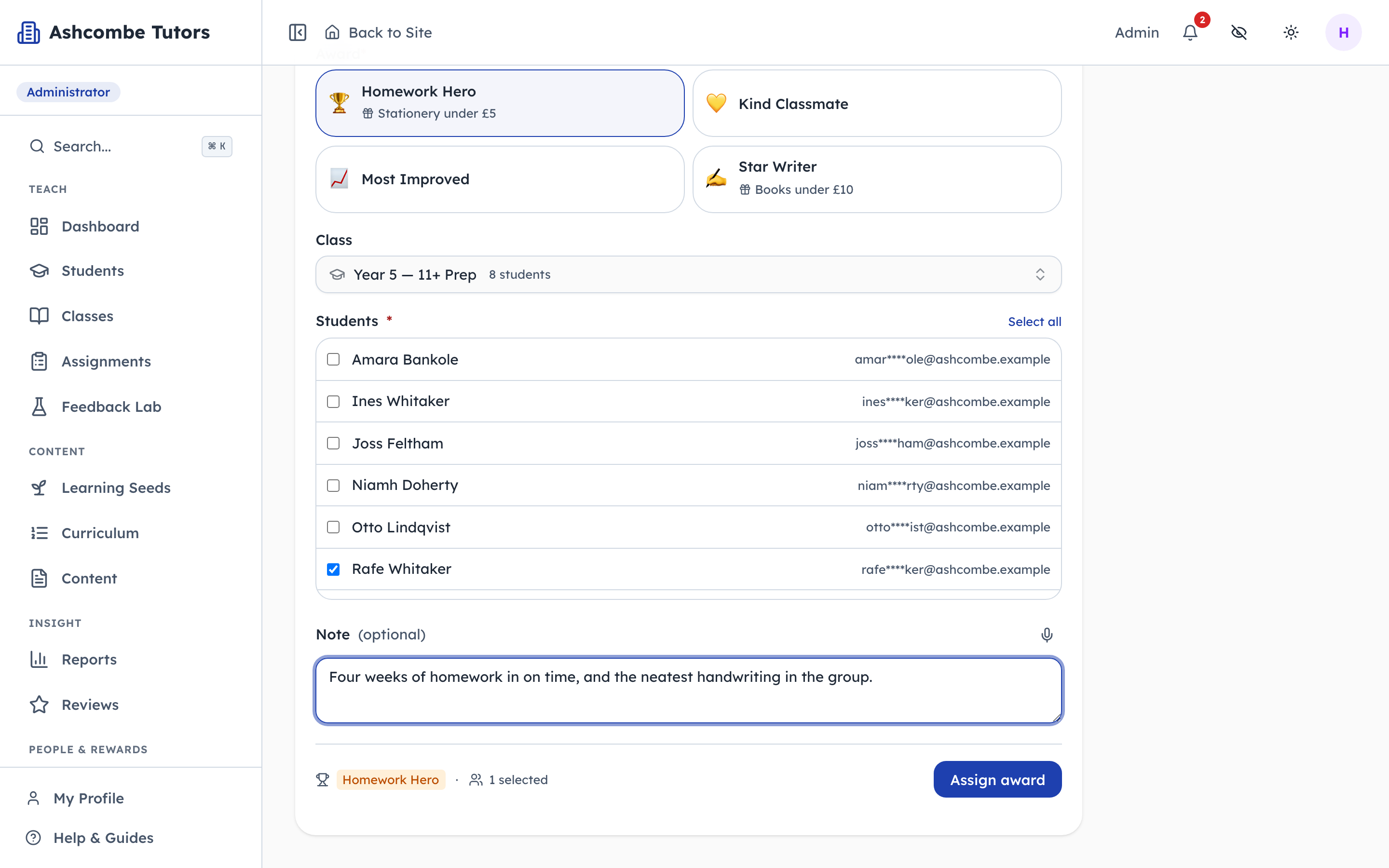
- 1Click: Which award
- 2Click: Tick each child who earned it
- 3Type in: Written to the child
- 4Click: Give it
Pick the award, pick the class, tick the children. Each ticked child gets their own award record with your note on it, which they will read on their own rewards page, so write it to them. If the award carries a gift, each child gets their own claim to choose from.
- penleap.com/dashboard/rewardsSigned in as Org Admin
9Every award lands on the feed, with where its gift has got to 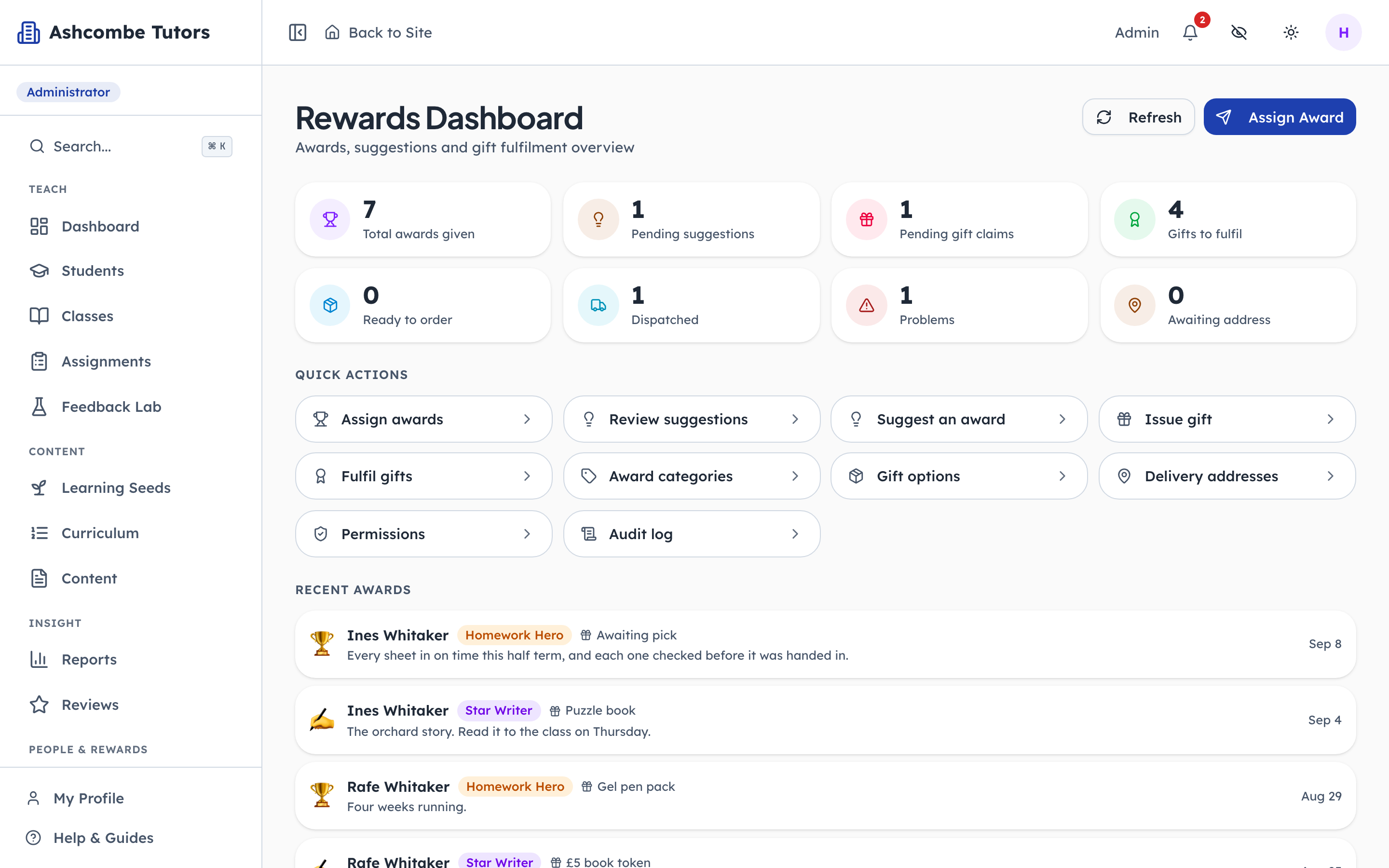
- 1Notice: Children who have not chosen yet
- 2Notice: This child still has to choose
- 3Notice: Decisions waiting on you
The dashboard feed is the running record. Each row shows the award, your note, and the state of any gift attached: waiting for the child to pick, chosen, ordered, on its way. The tiles above it are the same information as counts.
The child chooses a gift
Steps 10–12Child- penleap.com/select-profileSigned in as Child
10The child takes over the screen 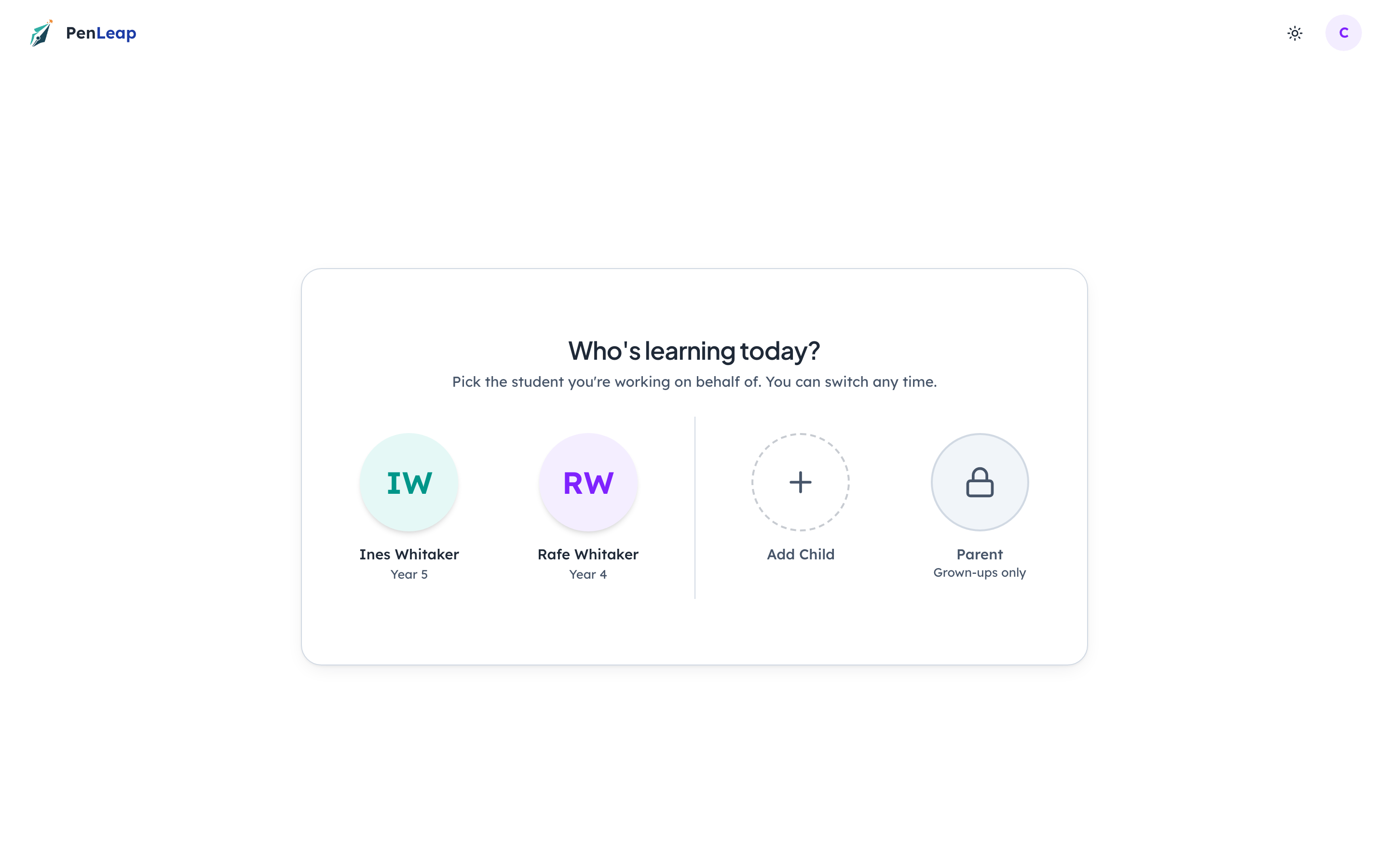
- 1Click: Tap your name
Children in a school account have no separate login. A grown-up signs in, then hands the device over here and the child enters their four-digit PIN.
- penleap.com/profile/rewardsSigned in as Child
11Every award the child has earned, and a gift waiting to be chosen 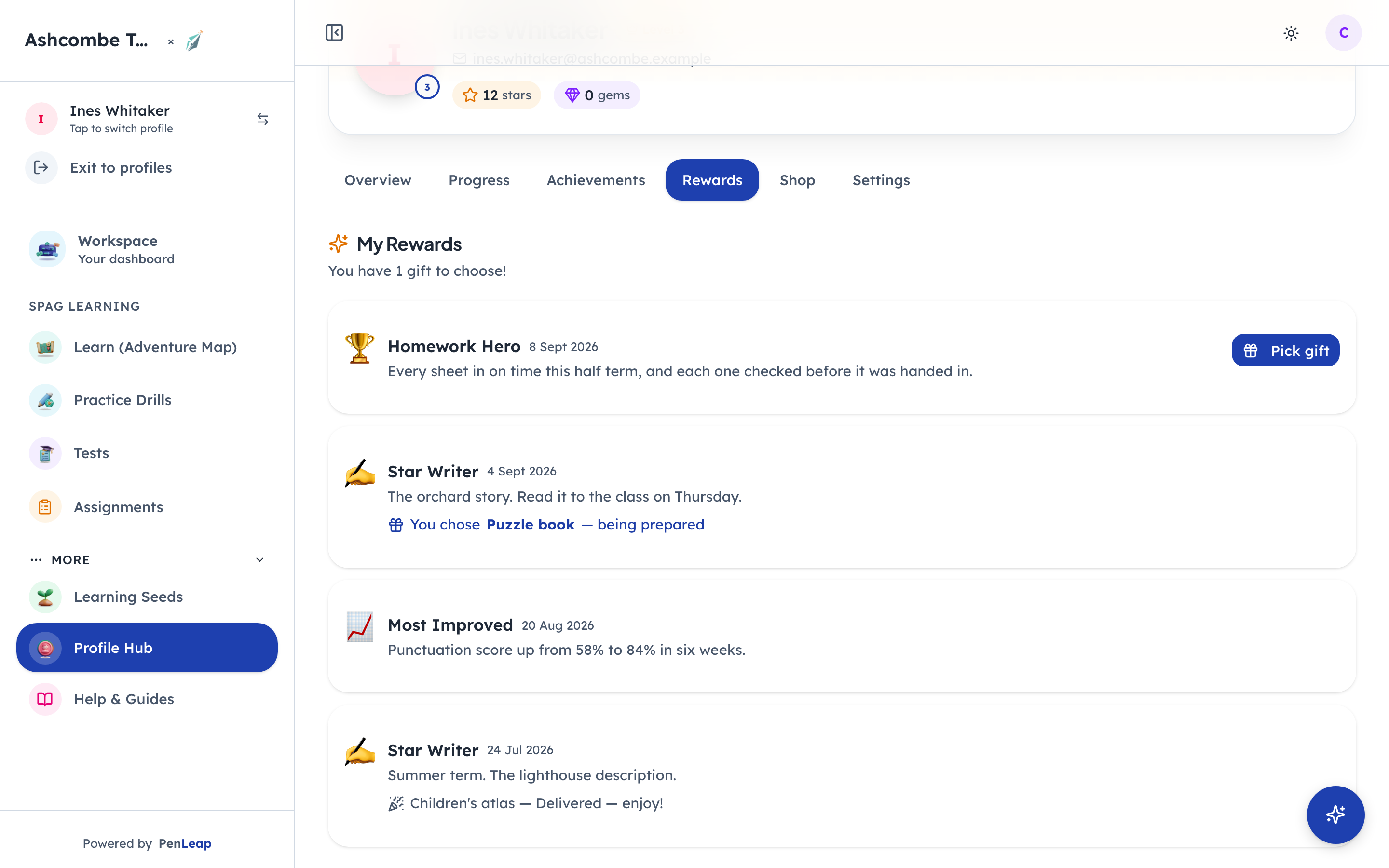
- 1Click: Choose your gift
- 2Notice: A gift already chosen, and where it is
The note the admin wrote is right there under the award. A gift-bearing award shows a Pick gift button until the child chooses. Once they have, the same row tells them what they chose and, in plain words, where it is now. Nothing on this page mentions suppliers, stock or tracking numbers.
- penleap.com/profile/rewardsSigned in as Child
12Choosing from the pool the award was pointed at 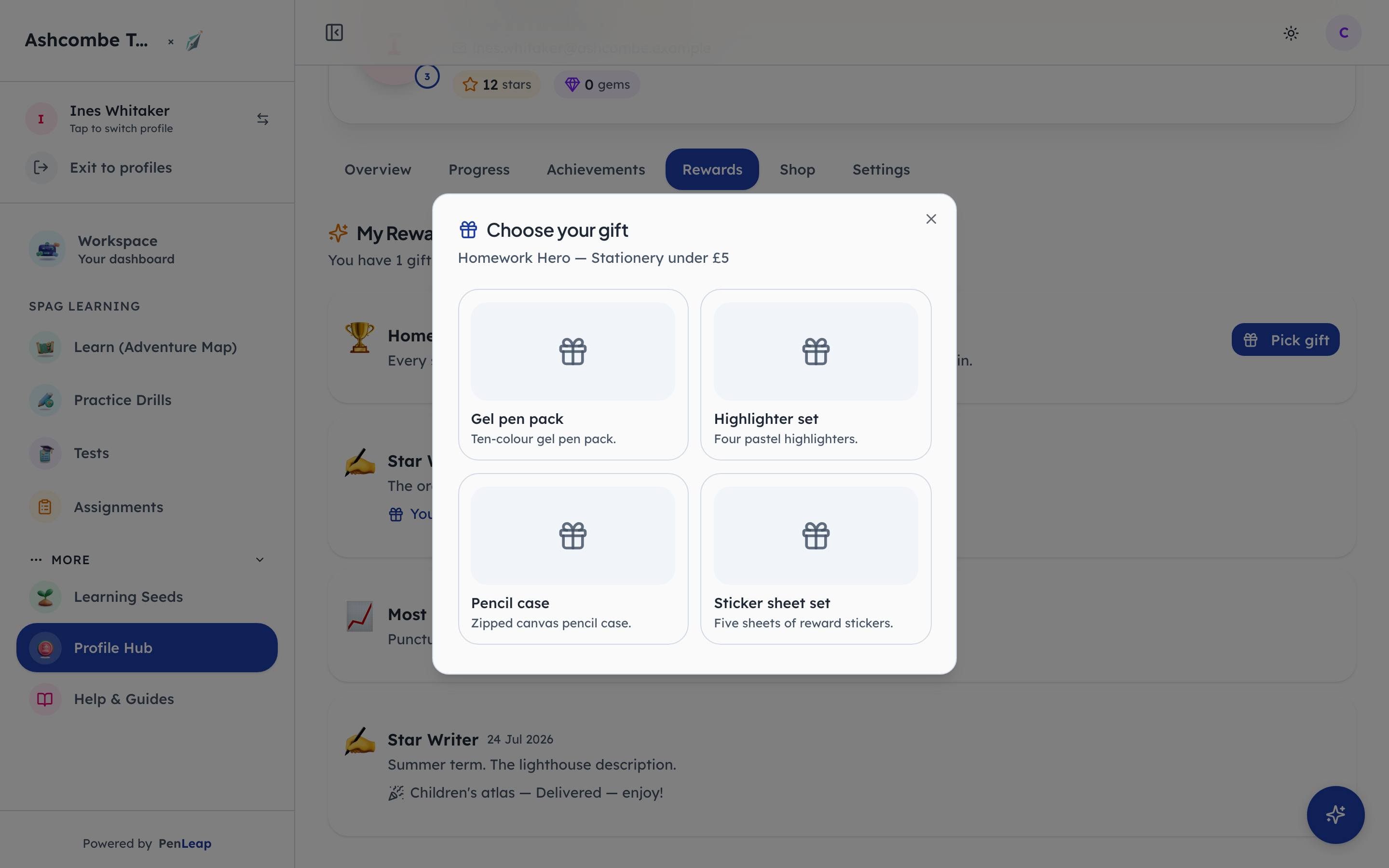
- 1Click: Tap one to choose it
- 2Notice: Only what is in stock is offered
The child only ever sees the gifts in that award's category, and only the ones still in stock. One tap chooses. From here the claim belongs to the office.
The office gets the gift to the child
Steps 13–14Org Admin- penleap.com/dashboard/rewards/fulfilSigned in as Org Admin
13Every chosen gift, and exactly what to do with it next 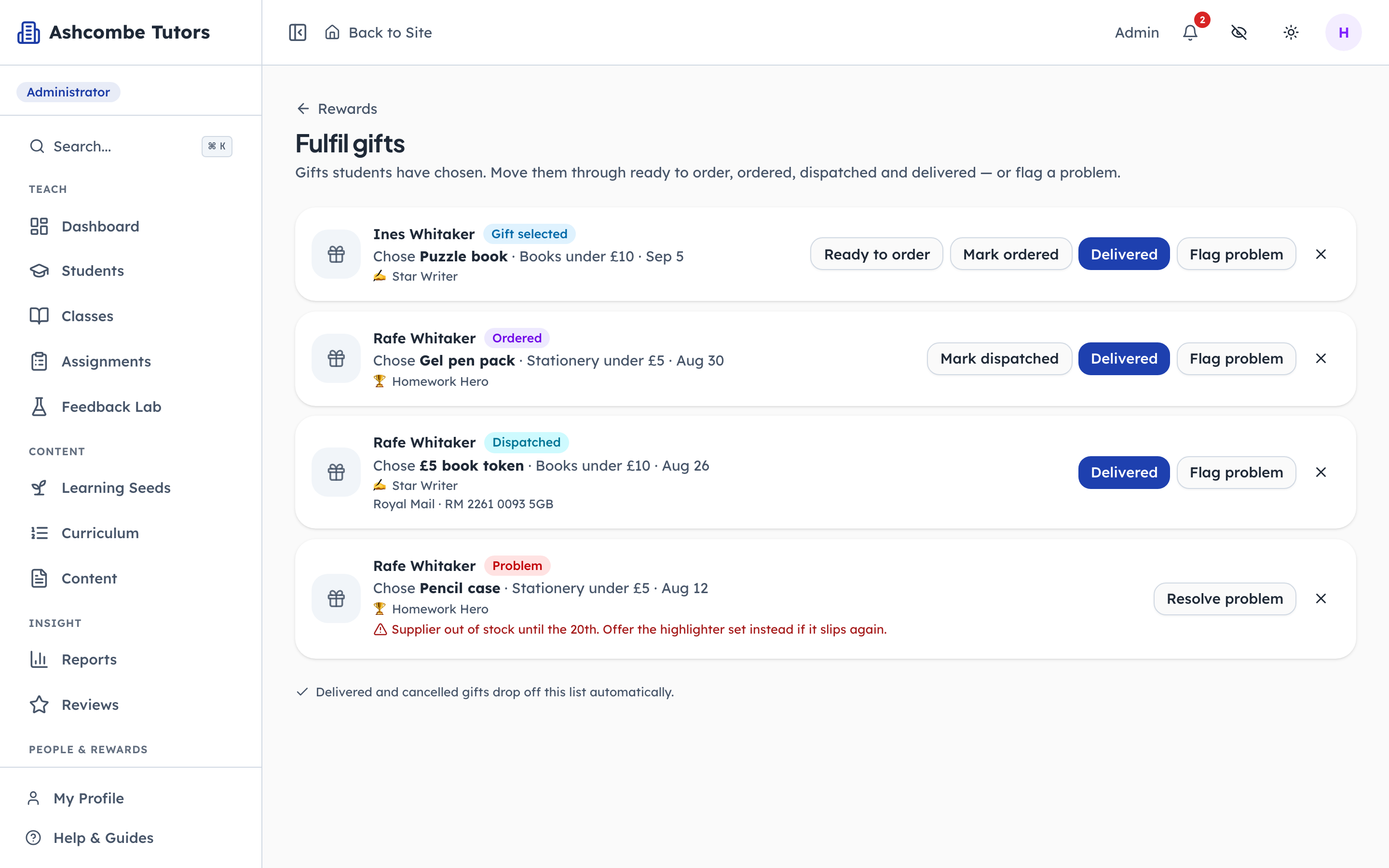
- 1Notice: Just chosen by the child
- 2Click: The next step, and only that
- 3Notice: A flagged problem says why
The queue shows only gifts that need something from the office. Each row offers the next legal step and nothing else: a chosen gift can be marked ready to order, an ordered one dispatched, anything delivered. A flagged problem shows its reason in red so the next person knows what to fix. Delivered and cancelled gifts drop off by themselves.
- penleap.com/dashboard/rewards/fulfilSigned in as Org Admin
14Marking a gift as dispatched, with the carrier and a tracking reference 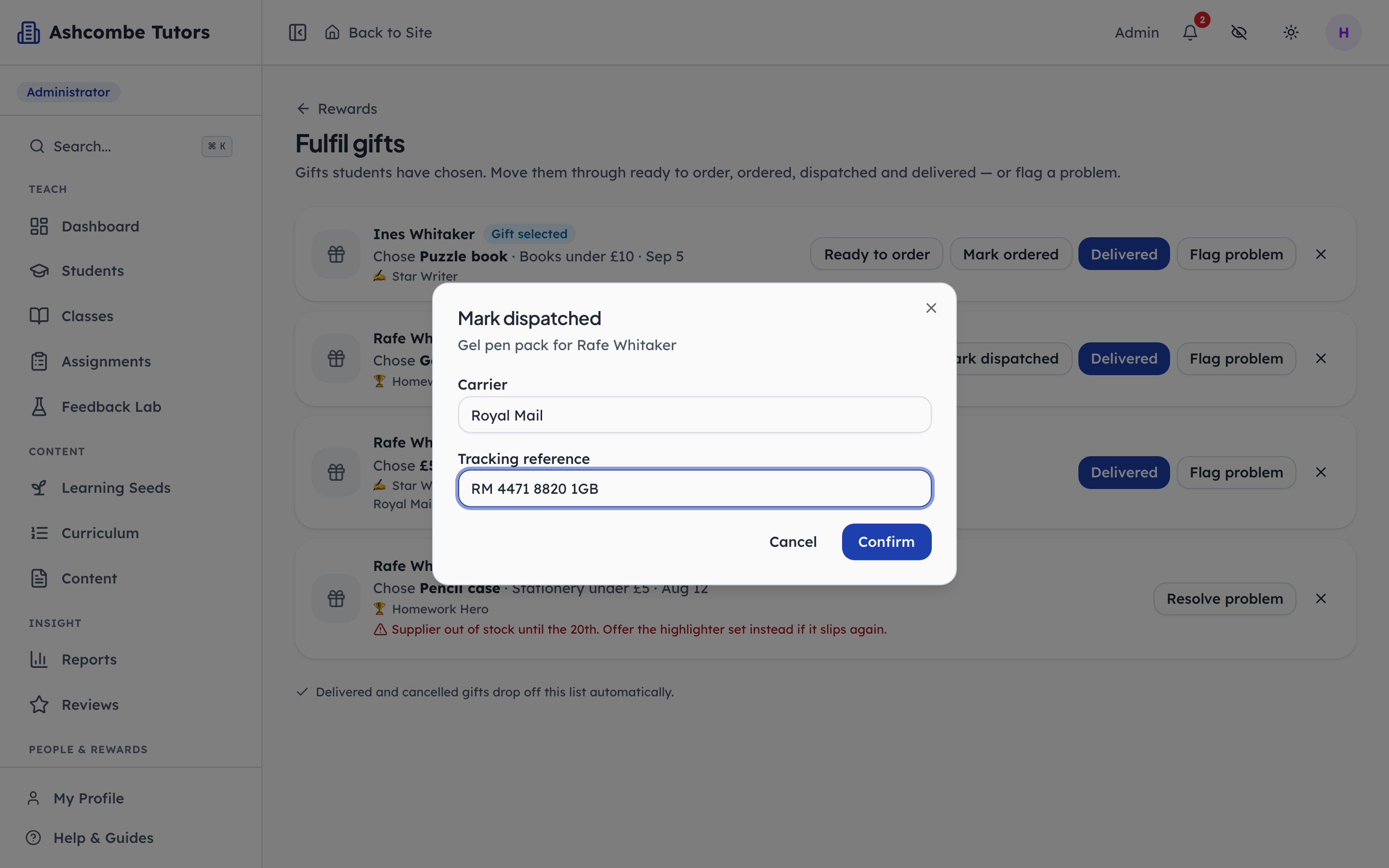
- 1Type in: Who is carrying it
- 2Type in: Tracking, if there is one
- 3Click: Move it along
The carrier and reference are kept on the claim for the office. The child's own page translates this into a single line, Your gift is on its way, and nothing more.
- penleap.com/dashboard/rewards/auditSigned in as Org Admin
V1Every action in the programme is on the record 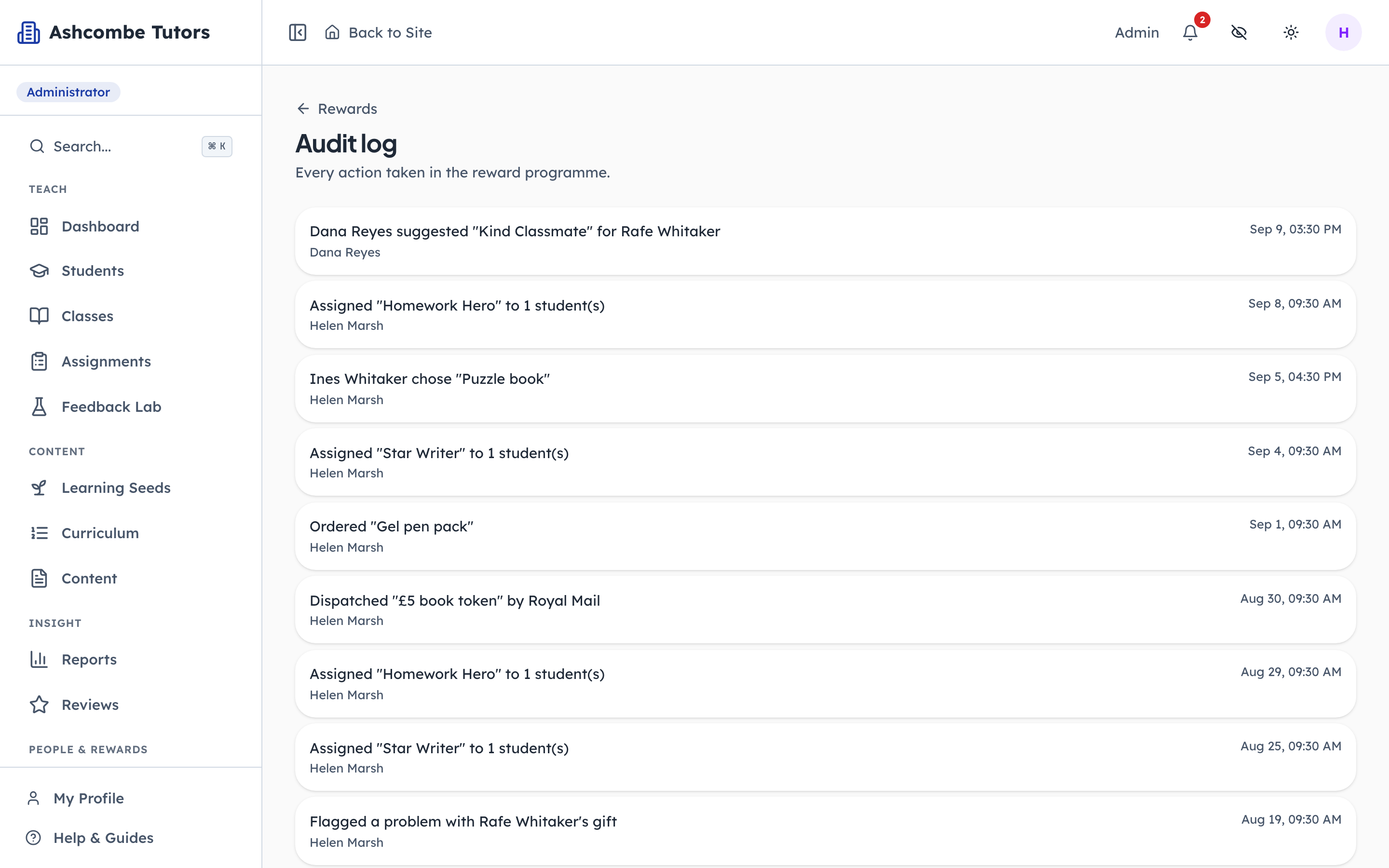
- 1Notice: The full trail
Who created a category, who gave which award, who marked what as ordered, who flagged a problem. It exists so that a question about a missing gift has an answer.
- penleap.com/dashboard/settingsSigned in as Org Admin
V2A role that can fulfil gifts and do nothing else 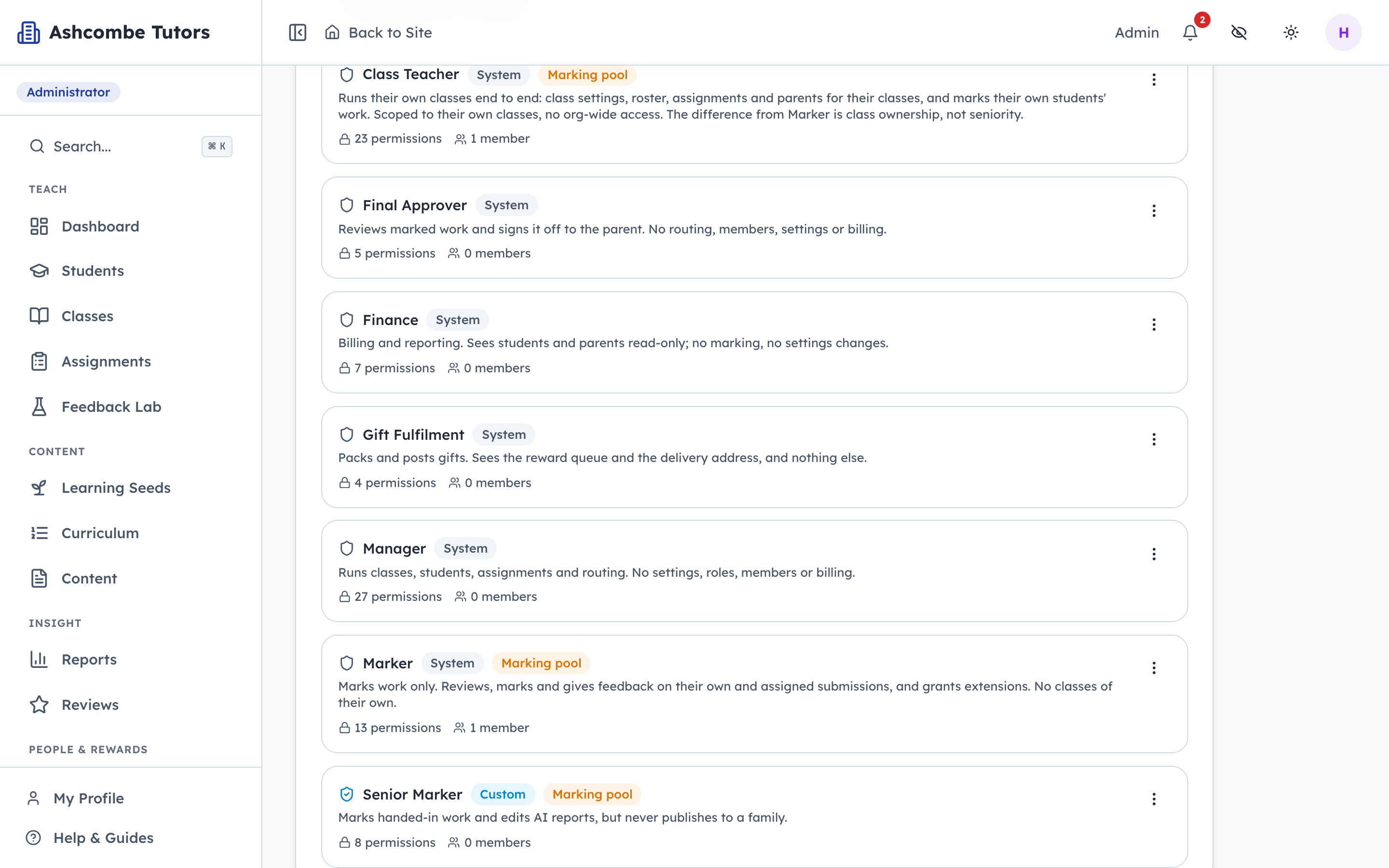
- 1Notice: Queue and addresses only
Whoever runs the post at the centre does not need to see marking, billing or settings. The Gift Fulfilment role ships with every organisation and holds exactly the queue and the delivery addresses. Give it to the person with the parcels.