
9 steps · 4 parts · 2 roles
How your curriculum is set: what PenLeap publishes, and what you change
PenLeap publishes a course; your centre arranges it. Change the order, move topics between levels, skip the ones you do not teach — all as your own layer, which you can undo in one click.
Everything below is the real product, photographed automatically. The school, its staff and its pupils are invented for this walkthrough — no real family appears on this page.
What PenLeap publishes
Steps 1–3Org Admin- penleap.com/dashboard/curriculumSigned in as Org Admin
1A published course, and the parts of it that are yours to move 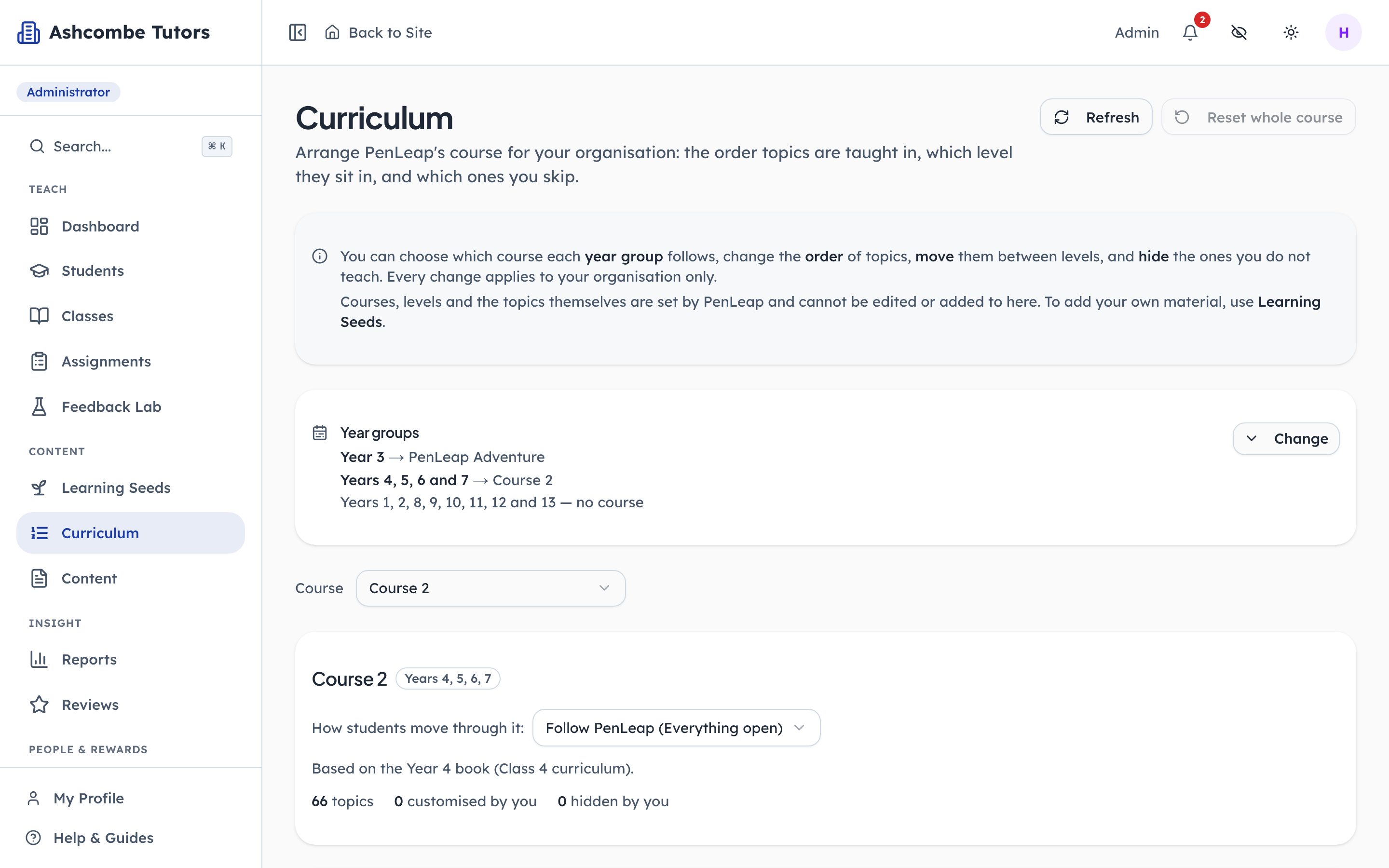
- 1Notice: What you may change
- 2Notice: Your own material goes here
- 3Notice: Undo everything, always
The panel opens by saying plainly what can and cannot be changed. Order, level and visibility are yours. The courses, the levels and the topics themselves are PenLeap's, and the note points anyone wanting their own material at Learning Seeds instead of leaving them to hunt for an Add topic button that does not exist.
- penleap.com/dashboard/curriculumSigned in as Org Admin
2Which year group follows which course 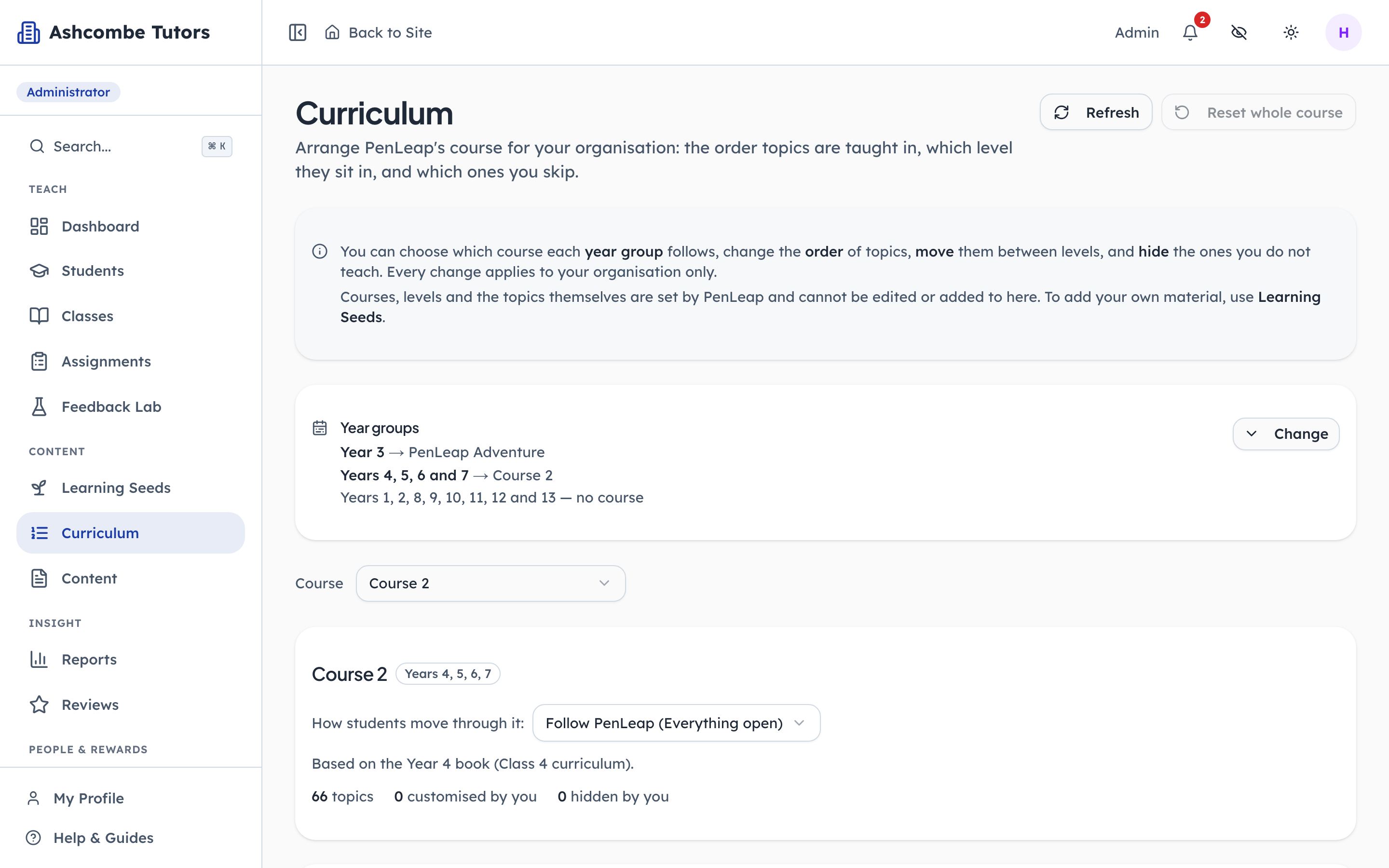
- 1Notice: Year by year
- 2Click: Reassign a year group
A centre teaching Years 4 to 7 does not want a Year 3 course in front of a Year 7 child. This map is the first decision and everything below it follows: choose the course per year group, and the years you do not teach simply have none. It is set centre-wide, not per class, because a child's year is a property of the child.
- penleap.com/dashboard/curriculumSigned in as Org Admin
3And how strictly students move through it 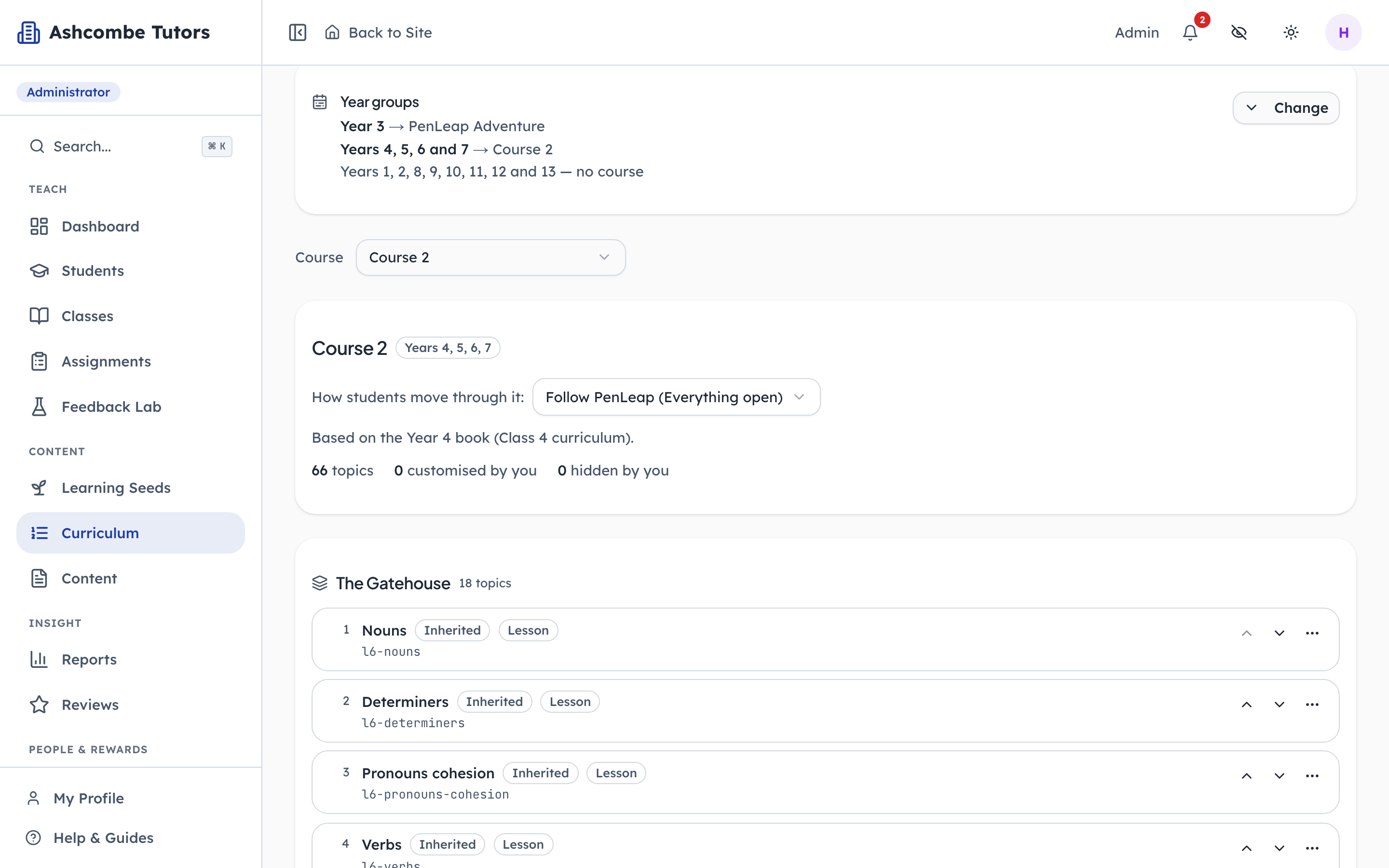
- 1Click: Open, or in strict order
- 2Notice: What the course holds
- 3Notice: How much of it you have changed
Follow PenLeap leaves the progression as published — everything open, children move at their own pace. A centre running a strict Saturday syllabus can tighten that instead. The counters underneath are the honest summary of your own layer: how many topics there are, how many you have moved, and how many you have chosen to skip.
Making it yours
Steps 4–5Org Admin- penleap.com/dashboard/curriculumSigned in as Org Admin
4Every topic, in the level and the order your students meet it 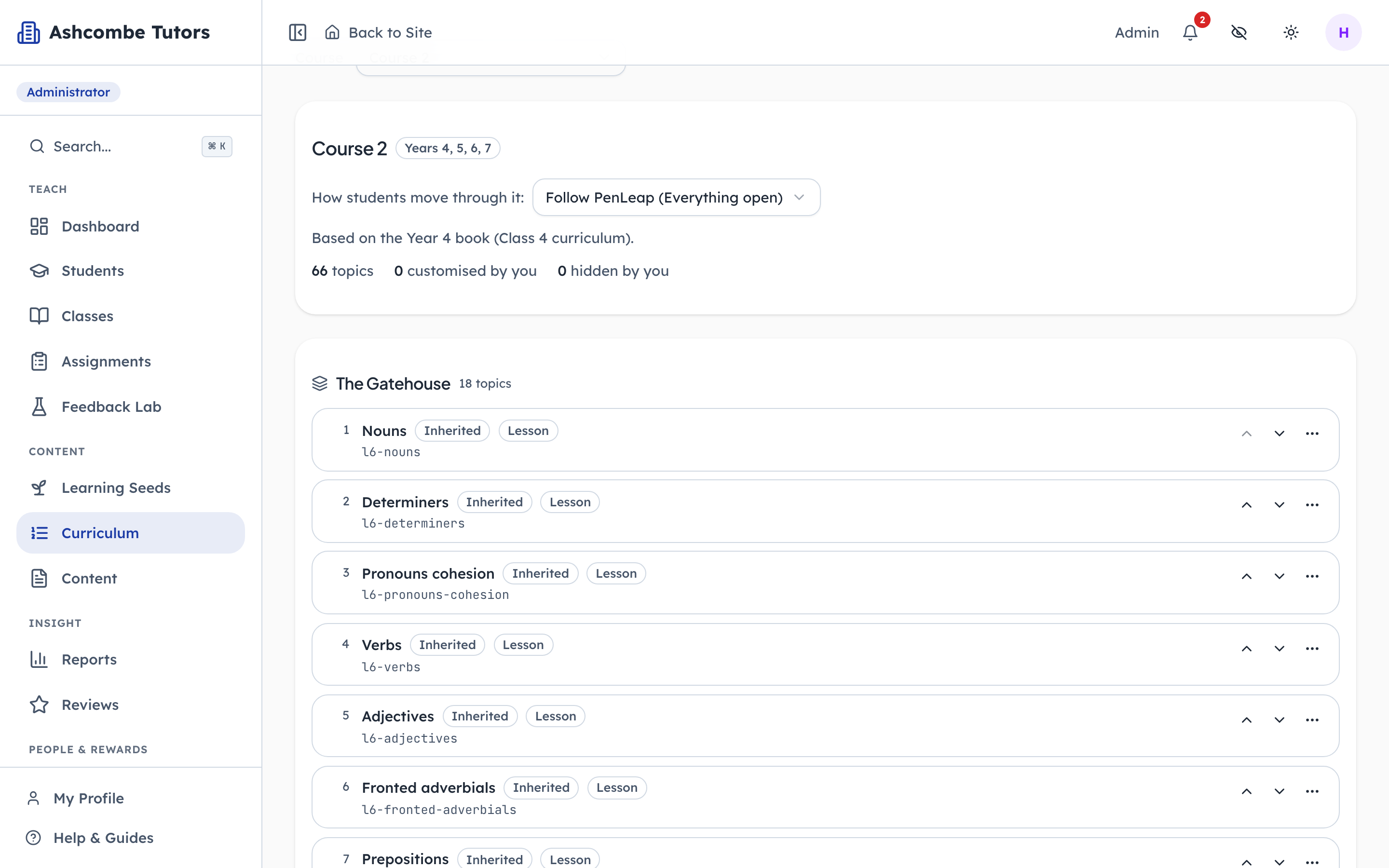
- 1Click: Teach this one earlier
- 2Click: Or later
- 3Click: Everything else lives here
This is the teaching order, level by level. The arrows move a topic within its level and take effect for your centre only — nobody else's students see it move, and PenLeap's own course is untouched.
- penleap.com/dashboard/curriculumSigned in as Org Admin
5Move it to another level, or stop teaching it altogether 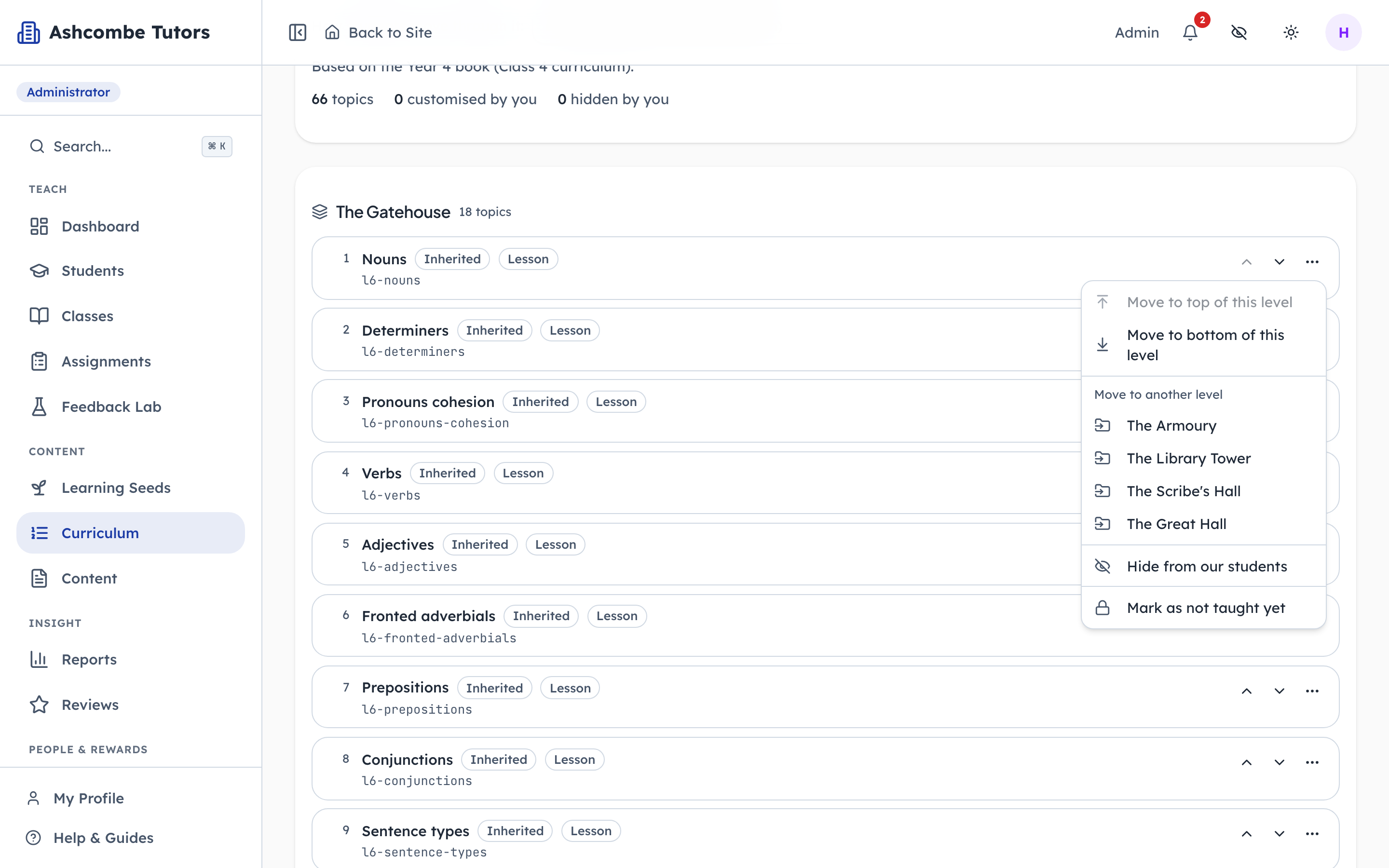
- 1Click: Straight to the front
- 2Notice: Or into a different level
- 3Click: Skip it — reversibly
Moving a topic between levels is the change a centre makes most: a group that has already covered something in school does not need it in level 2. Hiding is the other one, and it is worth being precise about what it means — the topic disappears for your students, stays visible to you, and can be brought back at any time. It is not a deletion, because it is not yours to delete.
- penleap.com/dashboard/curriculumSigned in as Org Admin
V1And one button that puts everything back 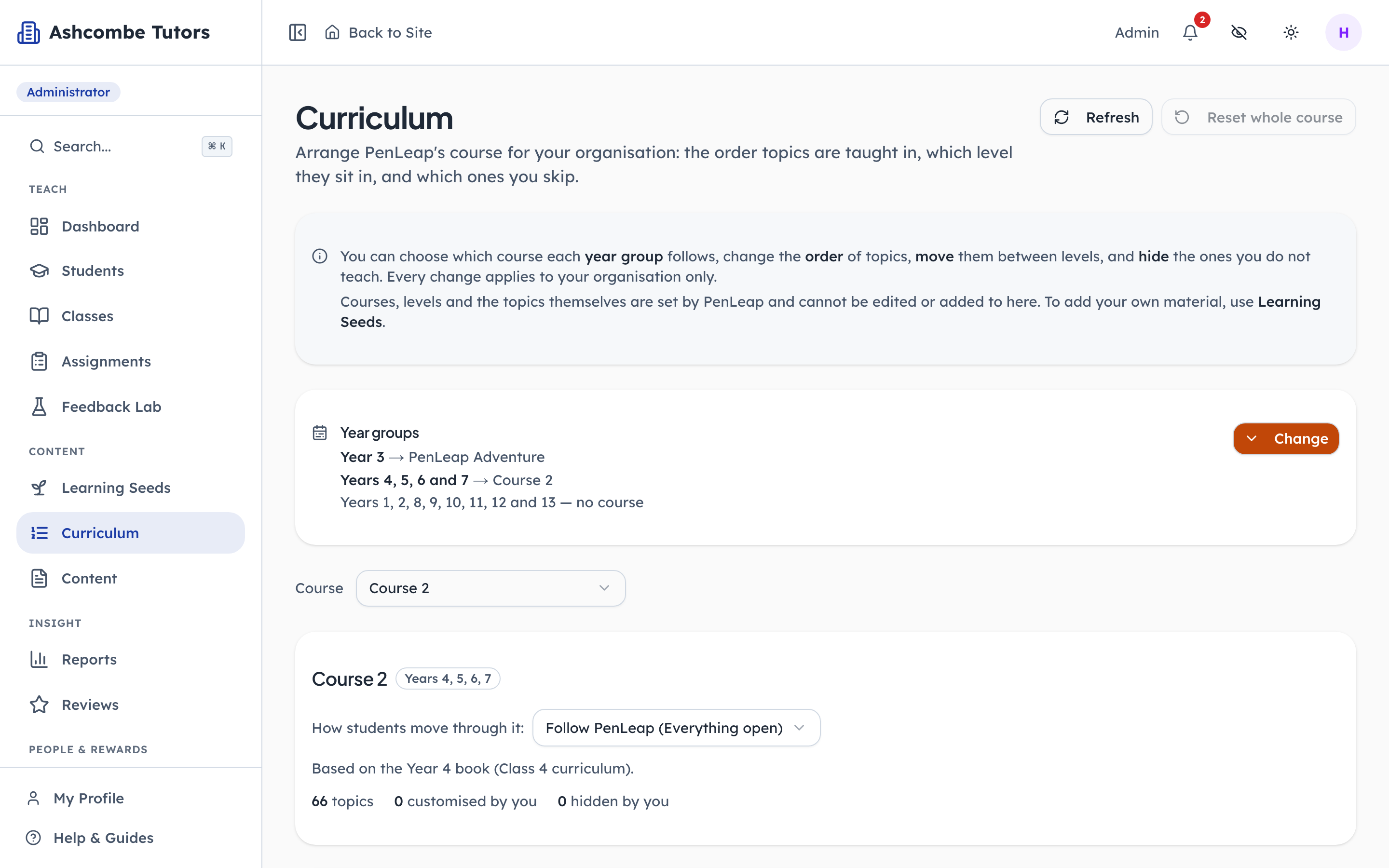
- 1Click: Back to PenLeap's version
The reason an admin can experiment at all. Reset drops every override this centre has made and returns the curriculum to exactly what PenLeap publishes. Because your changes are a layer rather than a copy, there is always something coherent underneath to fall back to — and a topic PenLeap improves next term still reaches you with your arrangement intact.
The material that is yours
Steps 6–7Org Admin- penleap.com/dashboard/learning-seedsSigned in as Org Admin
6Your own teaching material has a different home 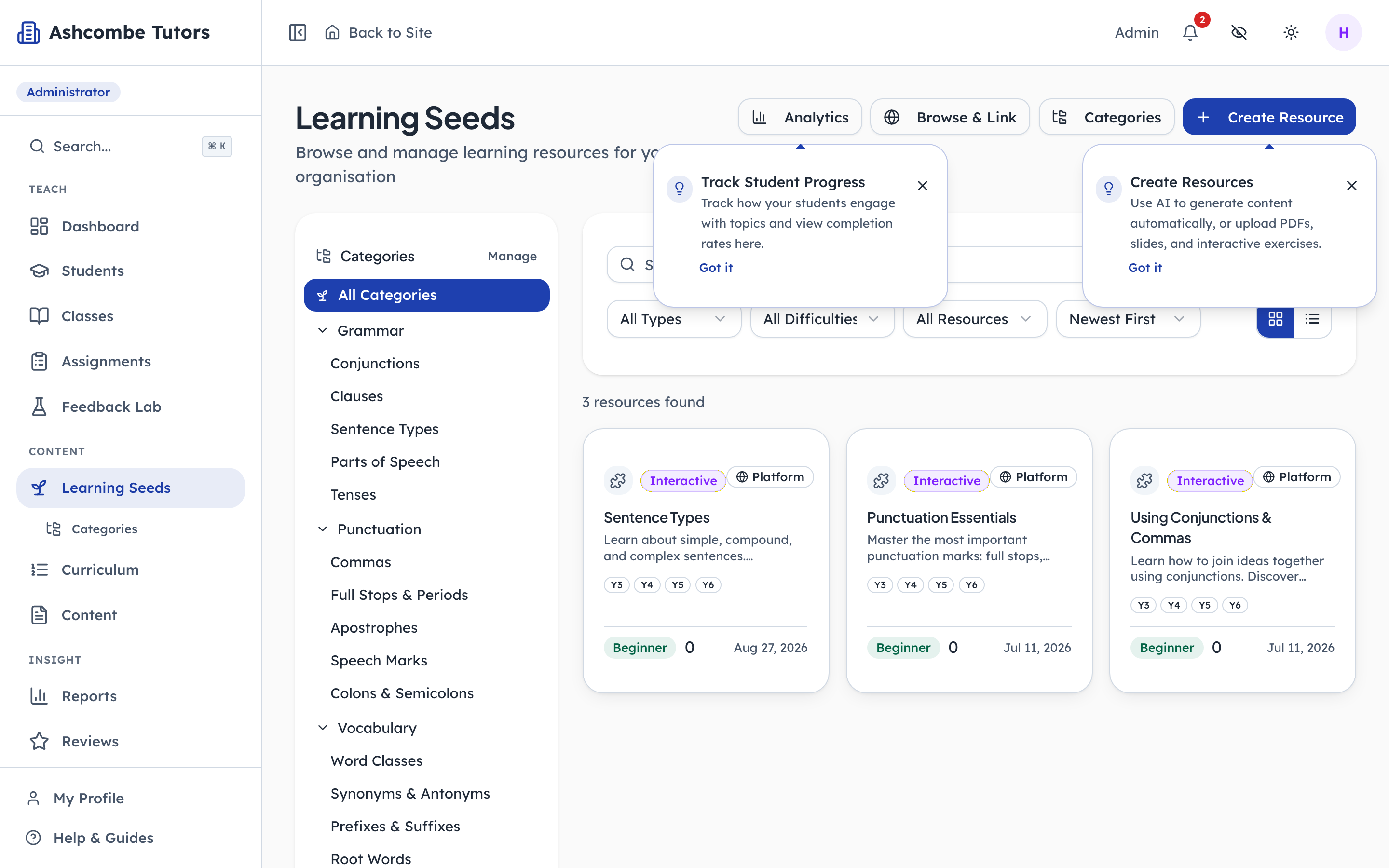
- 1Notice: Your material, not PenLeap's
The curriculum screen arranges PenLeap's course; it does not accept your worksheets. Those live here, where a centre can write its own topics, share them with a class and see who has read them. Keeping the two apart is what lets PenLeap keep improving the published course without ever touching a centre's own material.
- penleap.com/dashboard/contentSigned in as Org Admin
7And your own questions and tests, if you write them 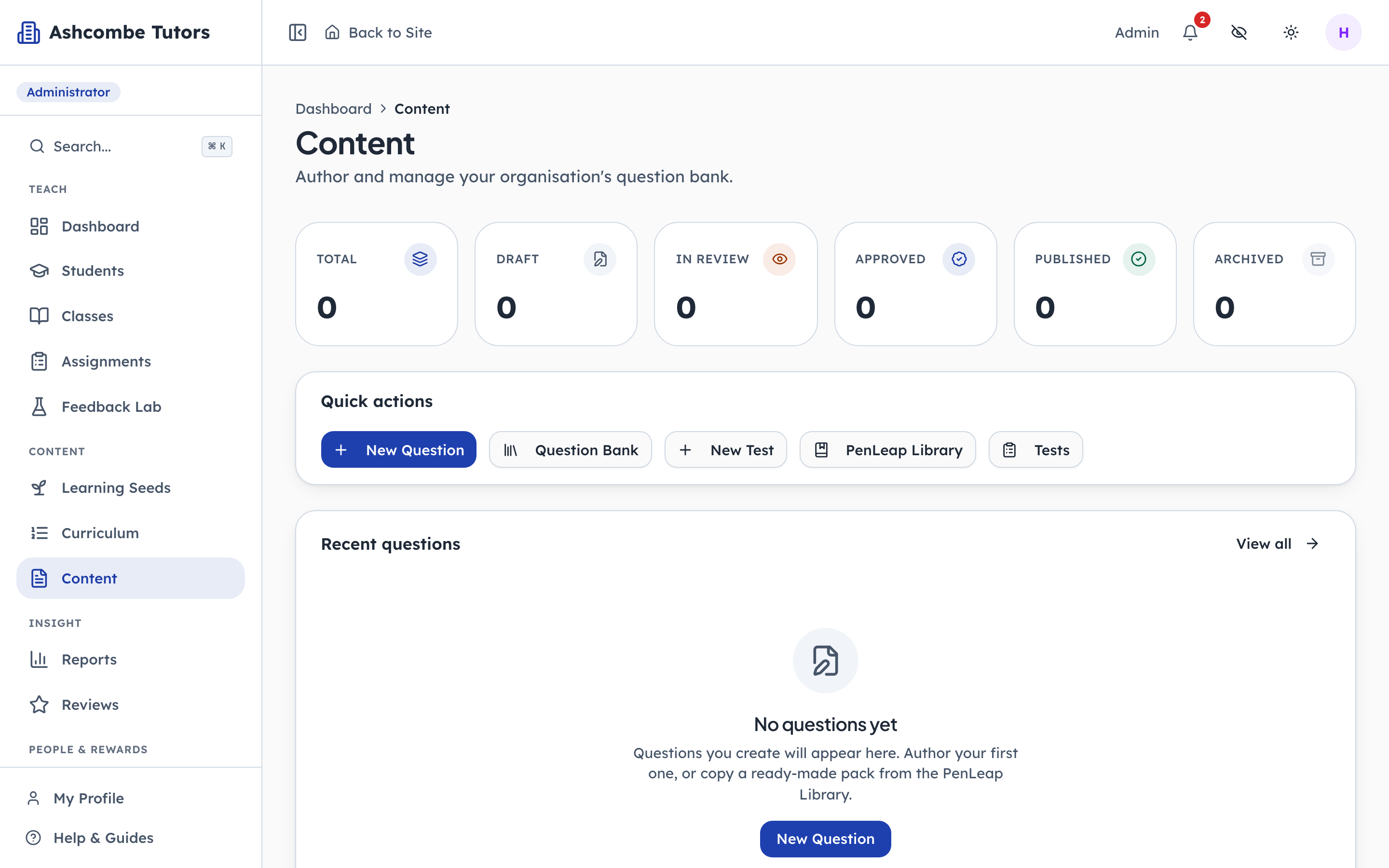
- 1Notice: Questions and papers of your own
A centre with the content feature turned on can author its own questions and papers alongside the published ones. It is the same separation again: PenLeap's course, your additions, and no way for either to overwrite the other.
And what the child actually gets
Steps 8–9Child- penleap.com/select-profileSigned in as Child
8A child has no login — a grown-up opens their profile 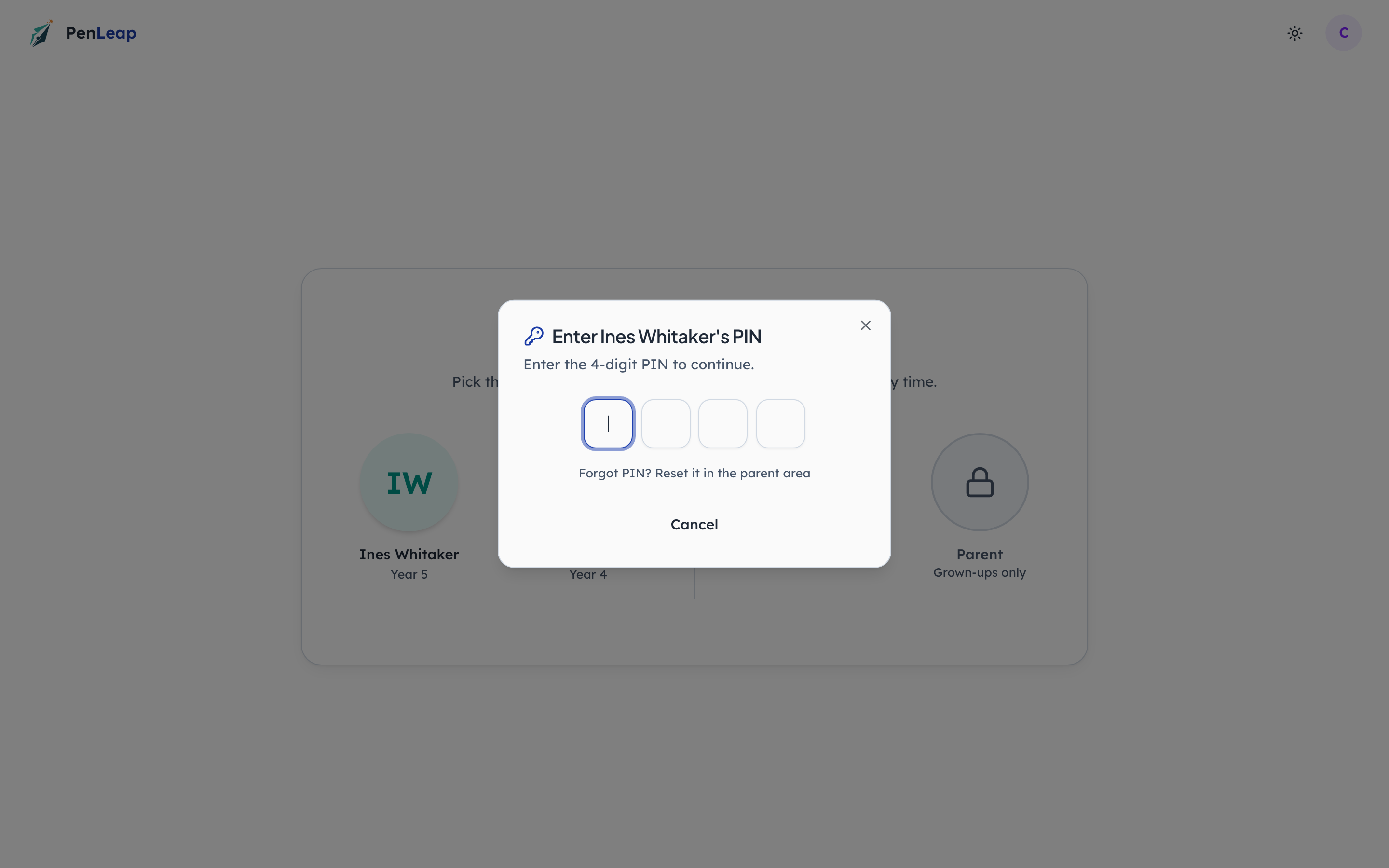
- 1Click: Pick the child
Children in a school account do not have passwords. The parent signs in and enters the child's profile with a four-digit PIN, which is the only path there is. It is also the truer screenshot: this is how every child in a centre actually starts.
- penleap.com/map?level=5Signed in as Child
9The arrangement you chose, drawn as somewhere to walk 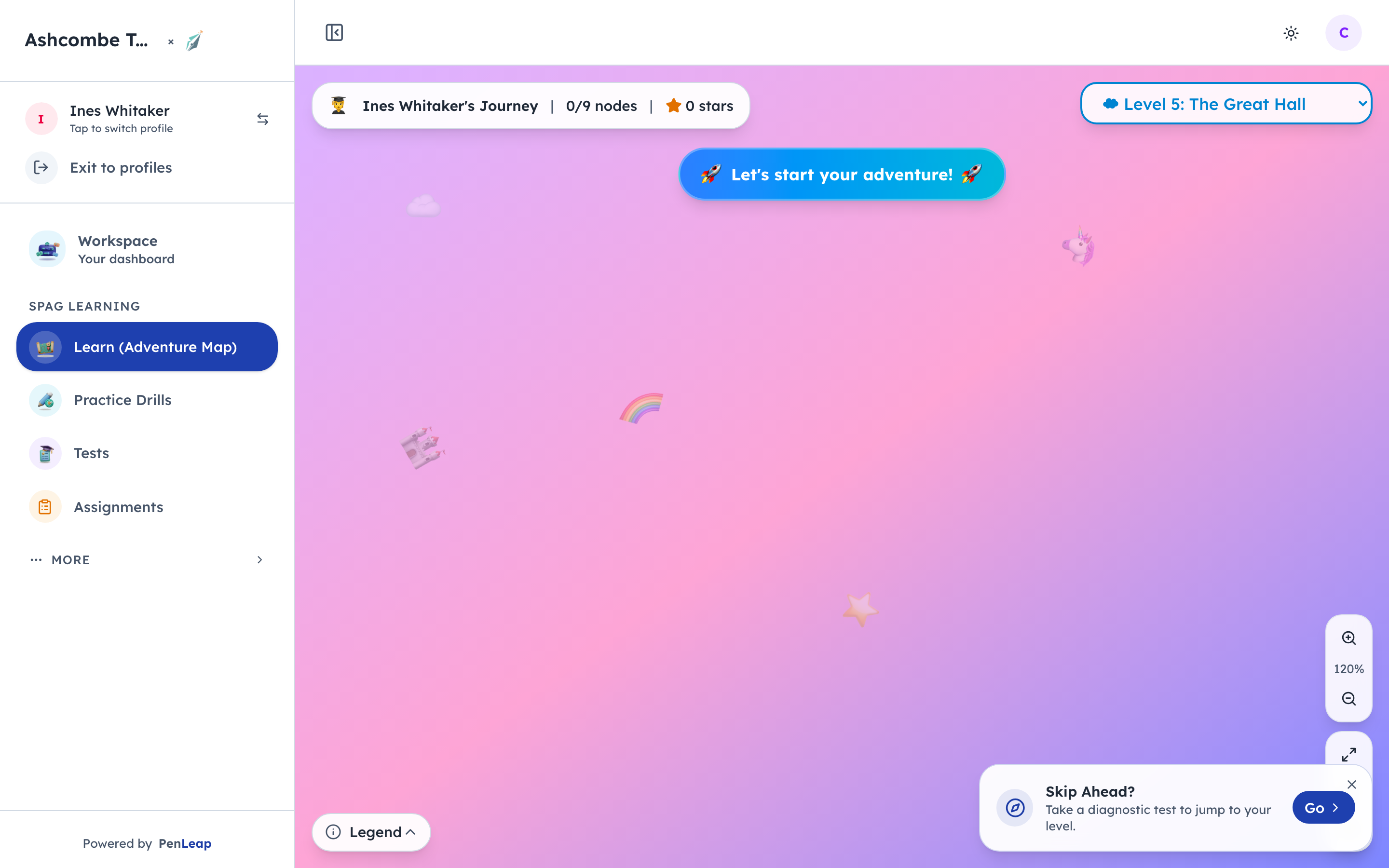
- 1Notice: One map per level you arranged
Every ordering decision from the first two acts ends up here. The child is never told which topics their centre skipped or moved — they simply see the course their centre teaches, in the order it teaches it, as a path with a next step on it.