
8 steps · 3 parts · 2 roles
Assigning teaching resources with Learning Seeds
A teacher shares an interactive chapter with a class, the child finds it on their own page and works through it, and the teacher reads the class analytics afterwards.
Everything below is the real product, photographed automatically. The school, its staff and its pupils are invented for this walkthrough — no real family appears on this page.
The teacher shares a resource with the class
Steps 1–5Class Teacher- penleap.com/dashboard/learning-seedsSigned in as Class Teacher
1The library: PenLeap's chapters and the centre's own, side by side 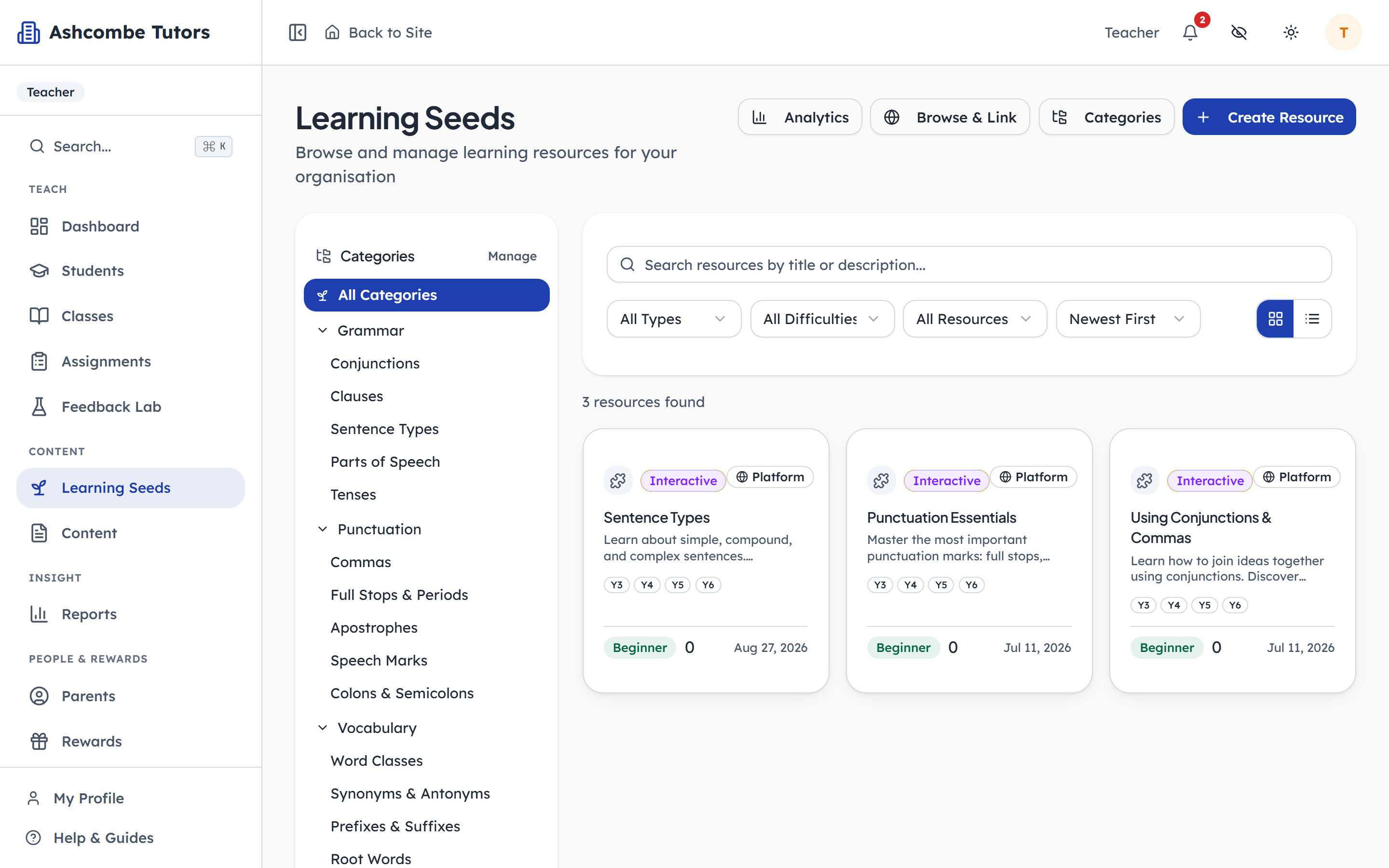
- 1Type in: Find a topic
- 2Click: Open a chapter
- 3Notice: How the class is doing
Everything a teacher can assign lives here. Filter by type, difficulty, or whether it is PenLeap's material or the centre's own. A resource opens to a page with a Share button, which is where assigning happens.
- penleap.com/dashboard/learning-seeds/…Signed in as Class Teacher
2A resource, and the one button that gives it to children 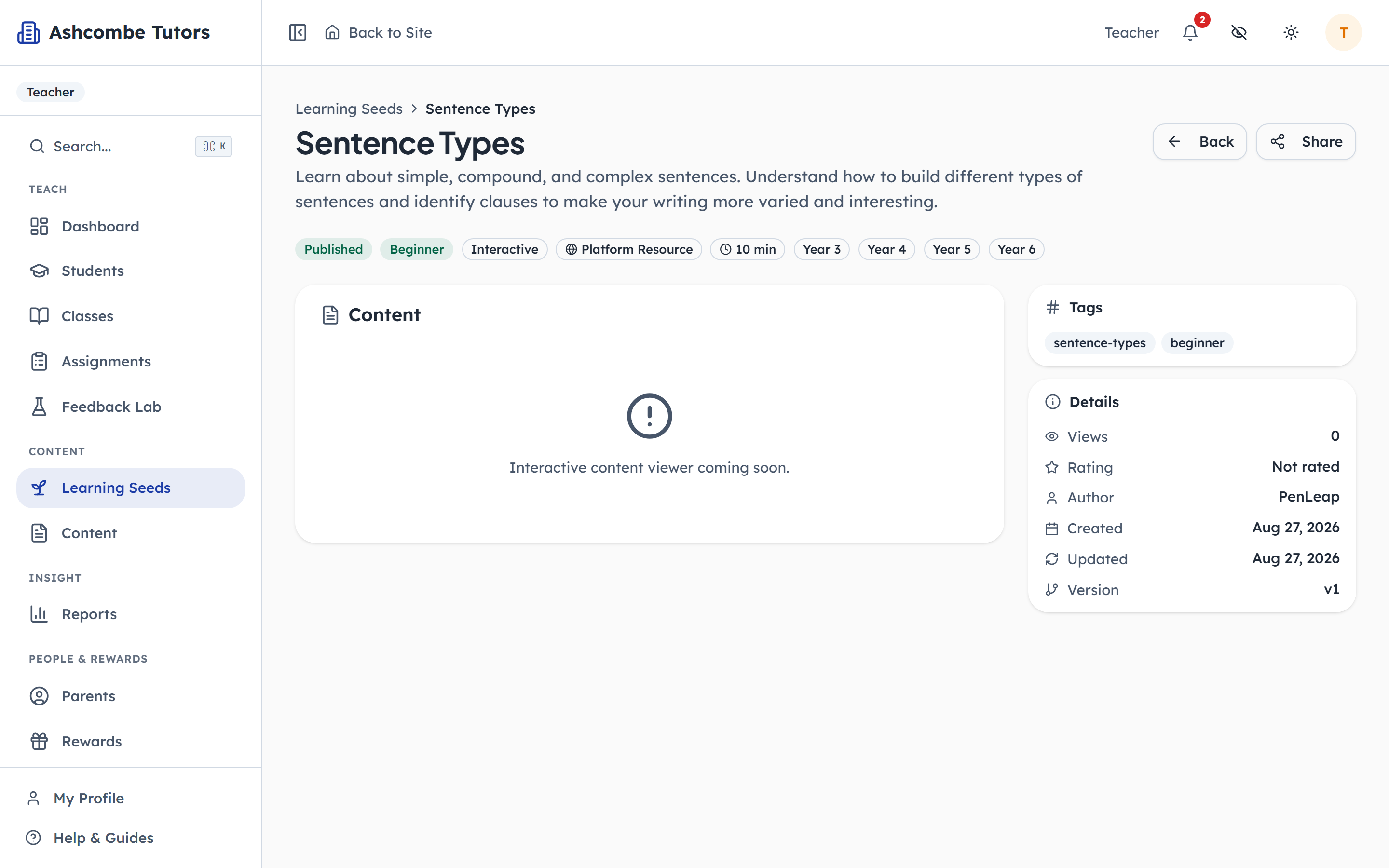
- 1Click: Give it to children
- 2Notice: Back to the library
A chapter has a difficulty, a length, and a category. Share is how it reaches children. A teacher can share to their own classes; only an admin can share to a whole year group at once.
- penleap.com/dashboard/learning-seeds/…Signed in as Class Teacher
3Who is it for: a year group, a class, or named children 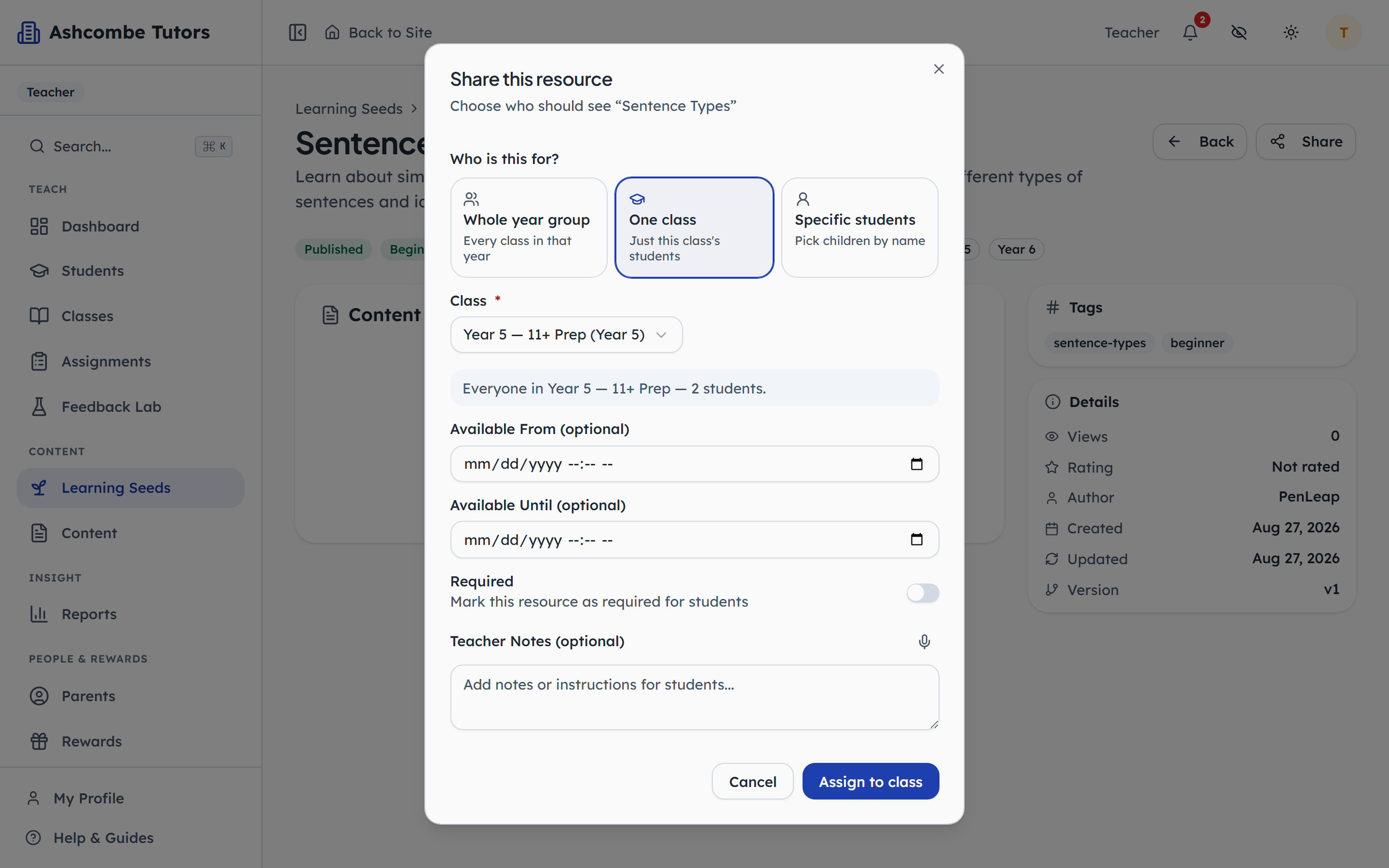
- 1Notice: Every class in the year
- 2Click: Just this class
- 3Notice: Two or three by name
- 4Click: Which class
Three audiences, and the choice is final once shared. A class is the usual one. Named children is for the two or three who need a chapter the rest do not. The summary line underneath says in plain words who will see it.
- penleap.com/dashboard/learning-seeds/…Signed in as Class Teacher
4A date window, whether it is required, and a note to the children 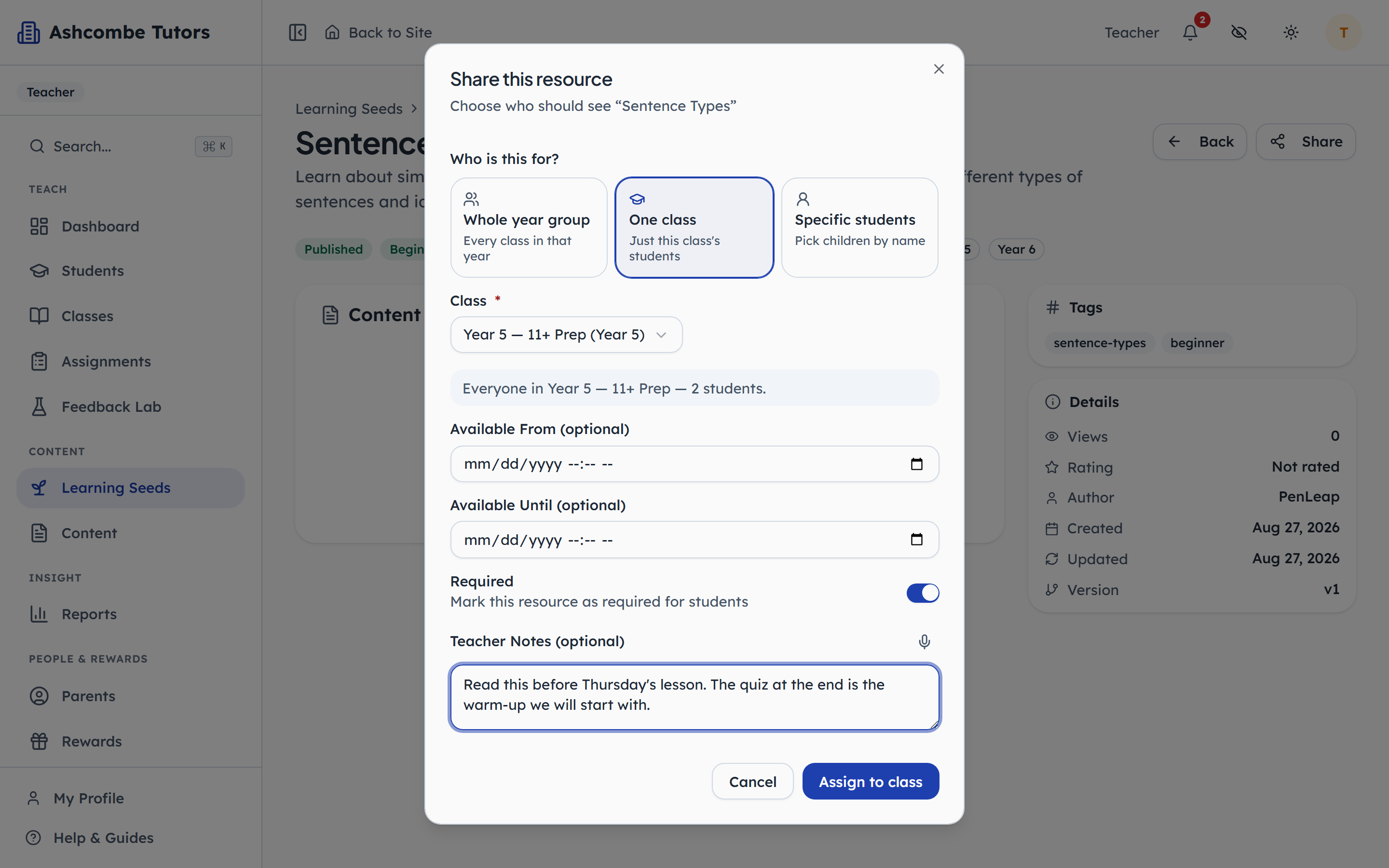
- 1Notice: Blank means now
- 2Click: Counts in the analytics
- 3Type in: The first thing they read
- 4Click: Share it
Leave the dates blank and it is available now, for good. Required marks it so on the child's page and counts it in the analytics. The note is the first thing the child reads when they open it.
- penleap.com/dashboard/classes/…/learning-seedsSigned in as Class Teacher
5Everything shared with a class, in order 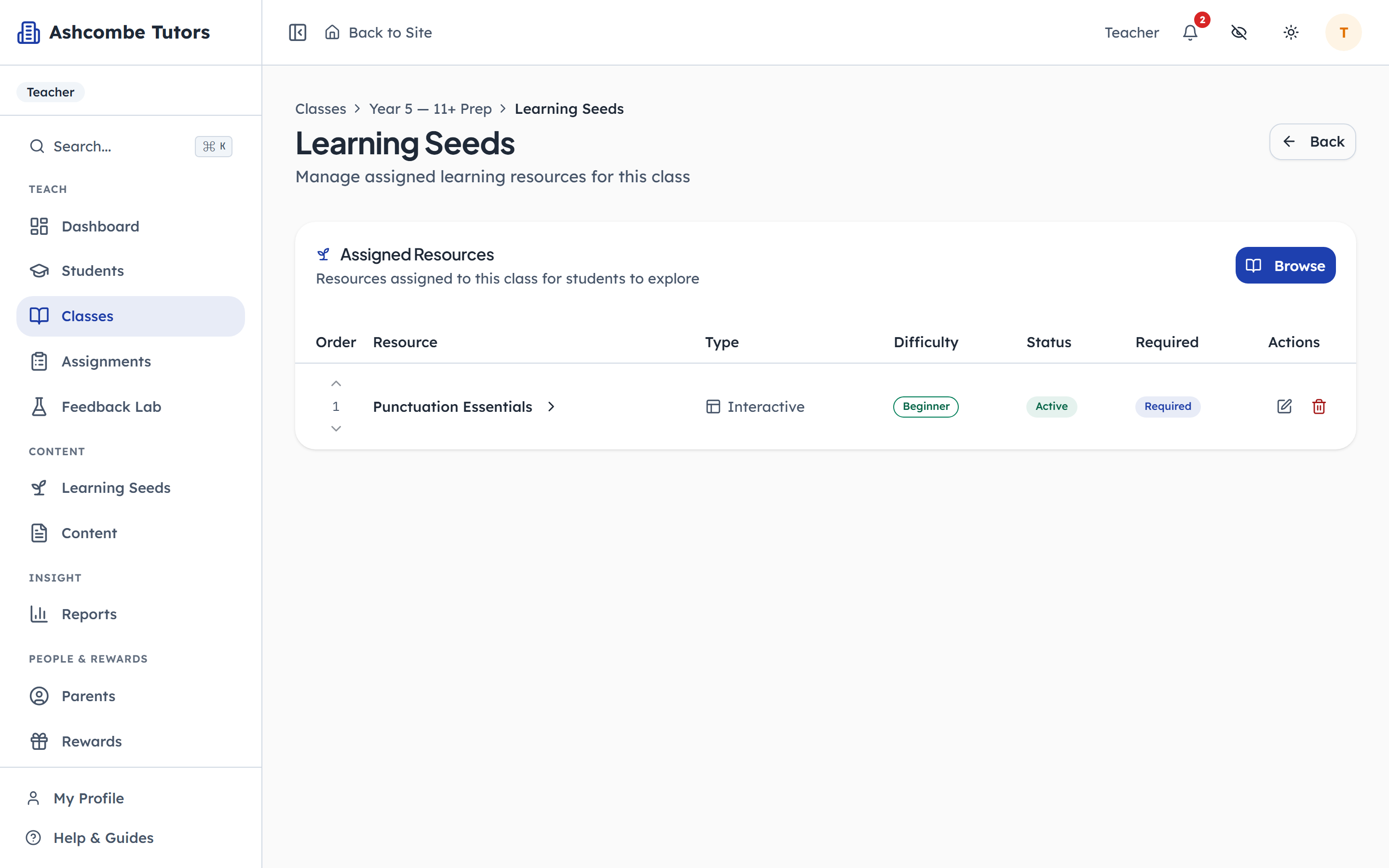
- 1Notice: Already shared with this class
- 2Notice: Required or optional
- 3Notice: Live, scheduled, or expired
From the class page, the list of what its children have been given: type, difficulty, whether it is live or scheduled, and whether it is required. The order here is the order the children see.
The child finds it and works through it
Steps 6–7Child- penleap.com/workspace/learning-seedsSigned in as Child
6The child's Learning Seeds page: what to continue, what is required 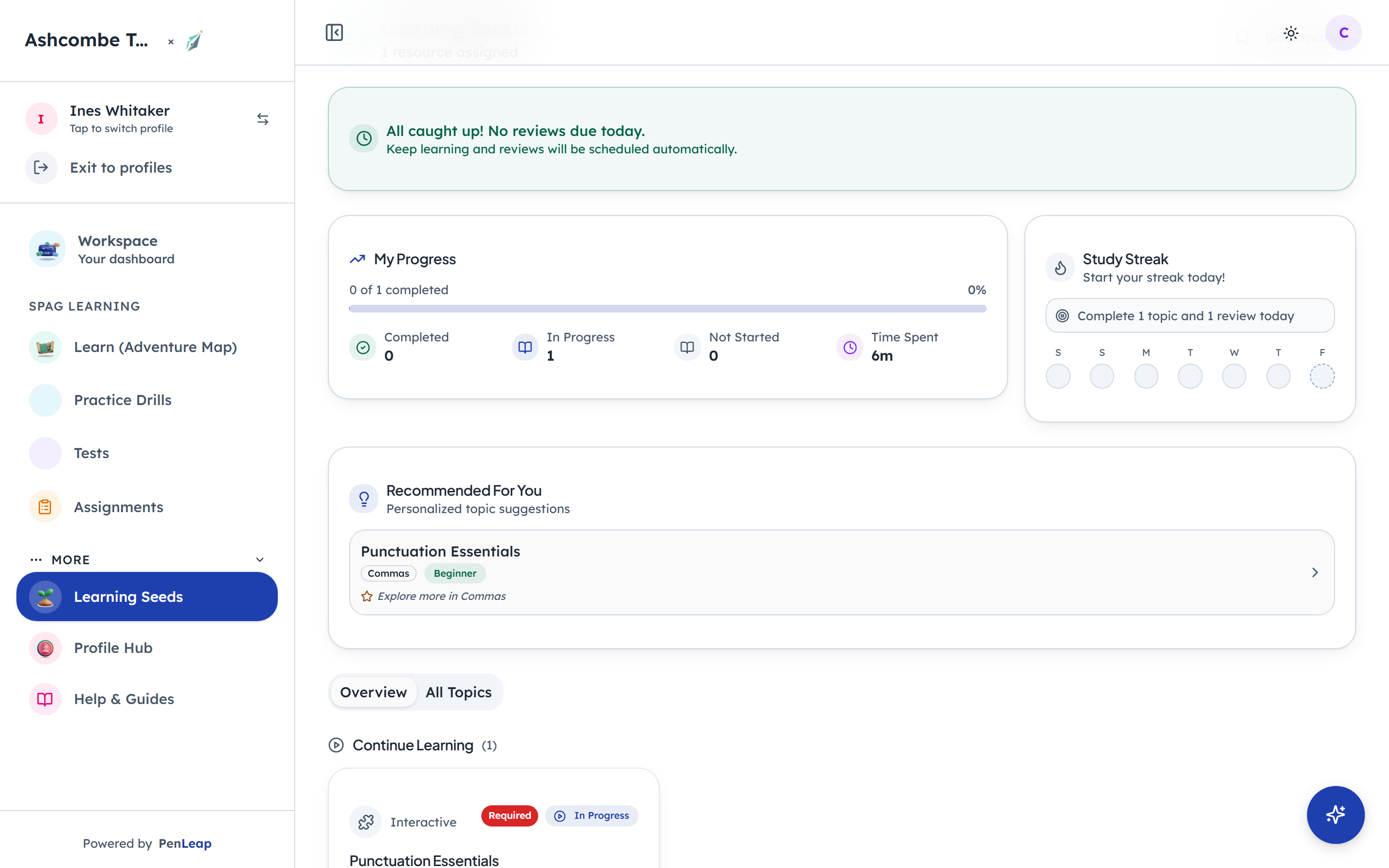
- 1Notice: Assigned, and how many done
- 2Click: Open one
- 3Notice: The teacher marked it required
Resources are grouped by state. A required one is badged. Progress is a bar per card, and the streak and review cards nudge the child back to anything they left half done.
- penleap.com/workspace/learning-seeds/…Signed in as Child
7Inside: the teacher's note first, then the chapter 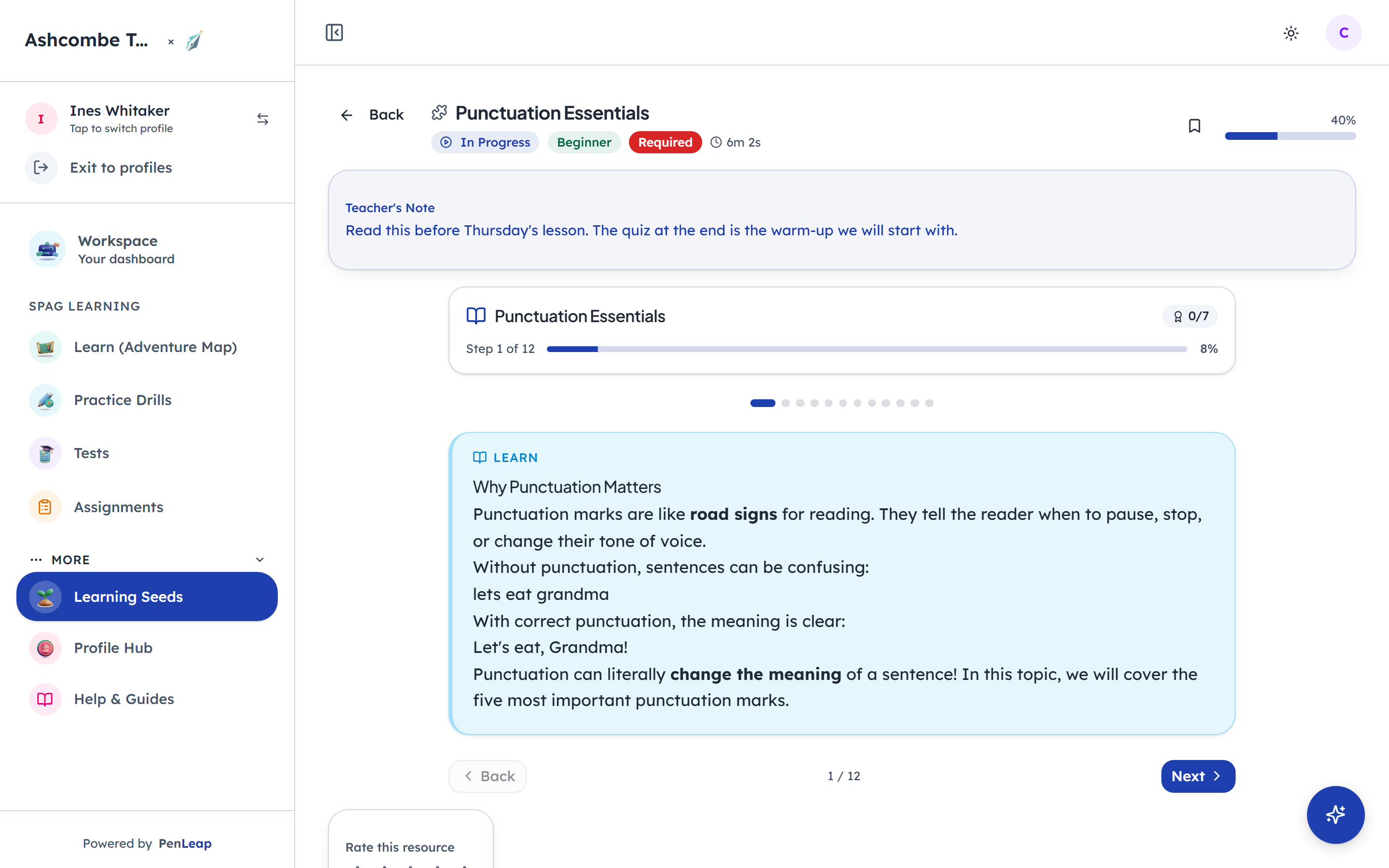
- 1Notice: The teacher's note, first
The note the teacher wrote sits at the top, so the child knows why they were given this. Mark as Complete records it; an attached quiz is offered at the end. Both feed the analytics the teacher sees.
The teacher reads the class analytics
Step 8Class Teacher- penleap.com/dashboard/learning-seeds/analytics/class/…Signed in as Class Teacher
8Per class: completion, quiz scores, and who has not started 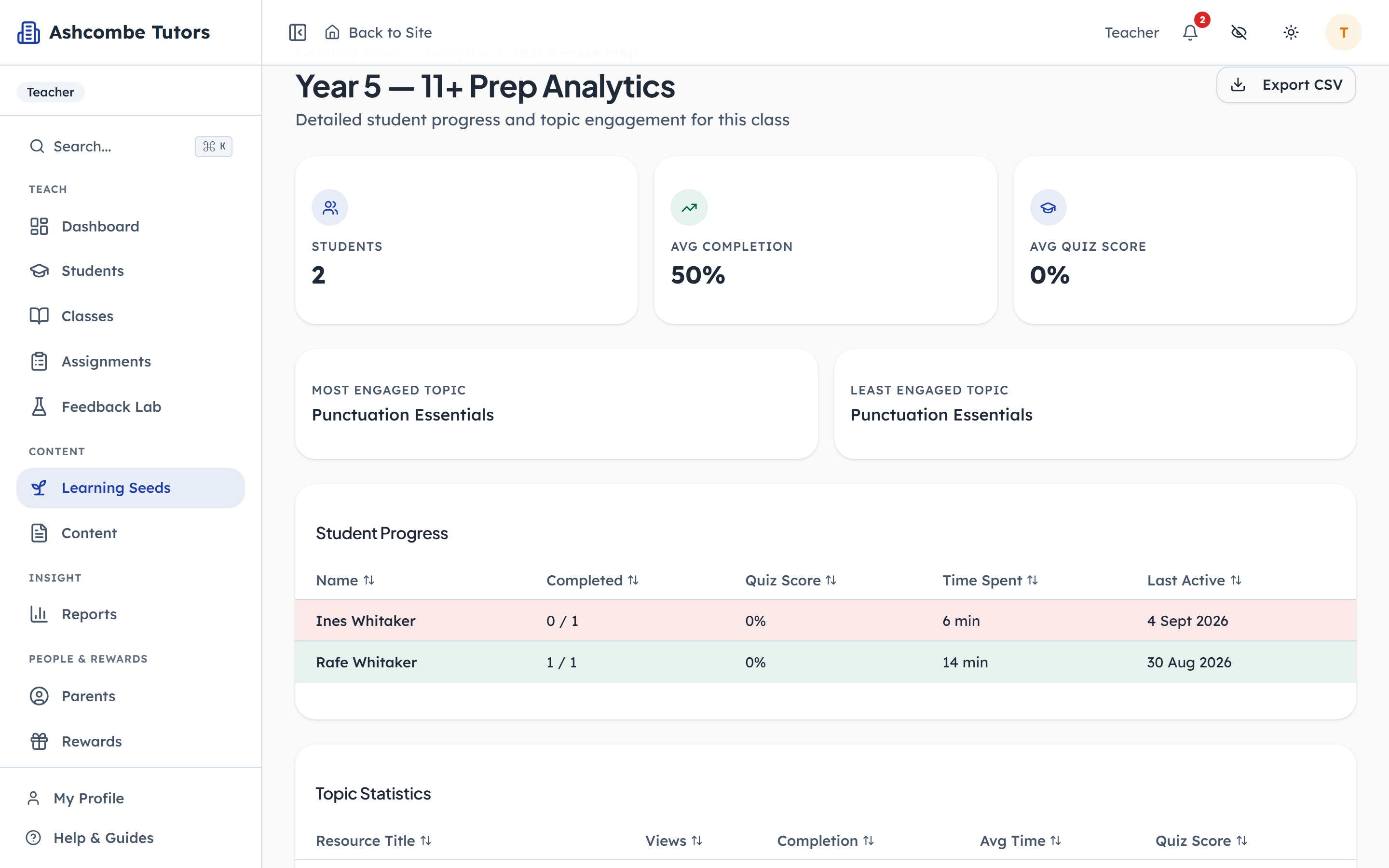
- 1Notice: Across the class
- 2Notice: One row per child
- 3Click: Open a child's own view
Three numbers at the top, then a row per child: how many resources they have finished, their quiz average, time spent, and when they were last active. A child who reads Never is the one to talk to on Thursday.