
13 steps · 4 parts · 2 roles
Setting up your centre: classes, children and parents
Create a class, add children one at a time or from a spreadsheet, link each one to a parent, and see what the family does on their first day.
Everything below is the real product, photographed automatically. The school, its staff and its pupils are invented for this walkthrough — no real family appears on this page.
Classes come first
Steps 1–3Org Admin- penleap.com/dashboard/classesSigned in as Org Admin
1Classes are what everything else hangs off 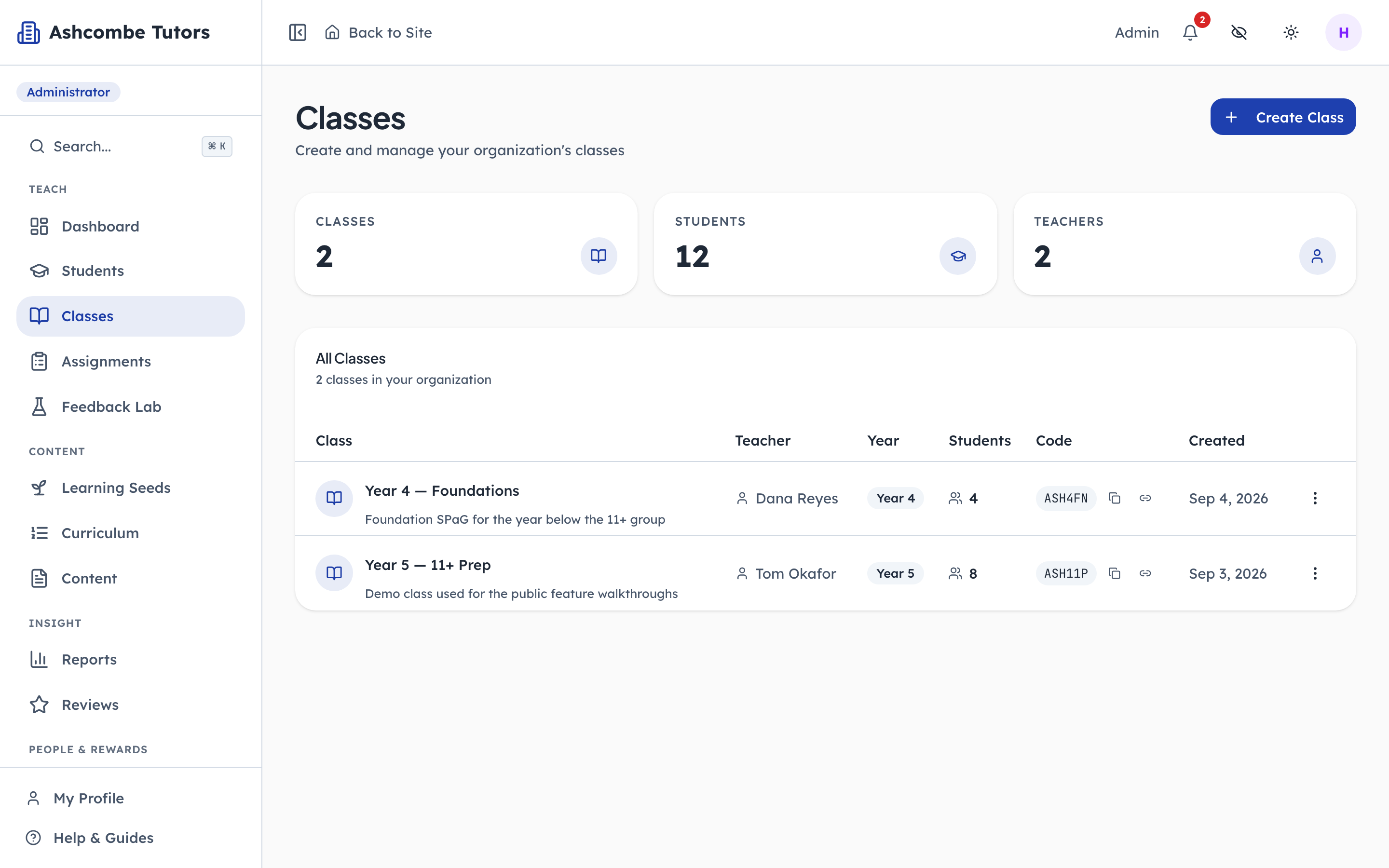
- 1Click: Start here
- 2Notice: The owner sees its children
- 3Notice: Parents join with this
Assignments are set to a class, marking is scoped to a class, reports are per class. Each one has an owner, who sees its children everywhere in the product, and a six-character code that parents can use to join it.
- penleap.com/dashboard/classes?create=1Signed in as Org Admin
2A class is a name, a year group, an owner, and a joining rule 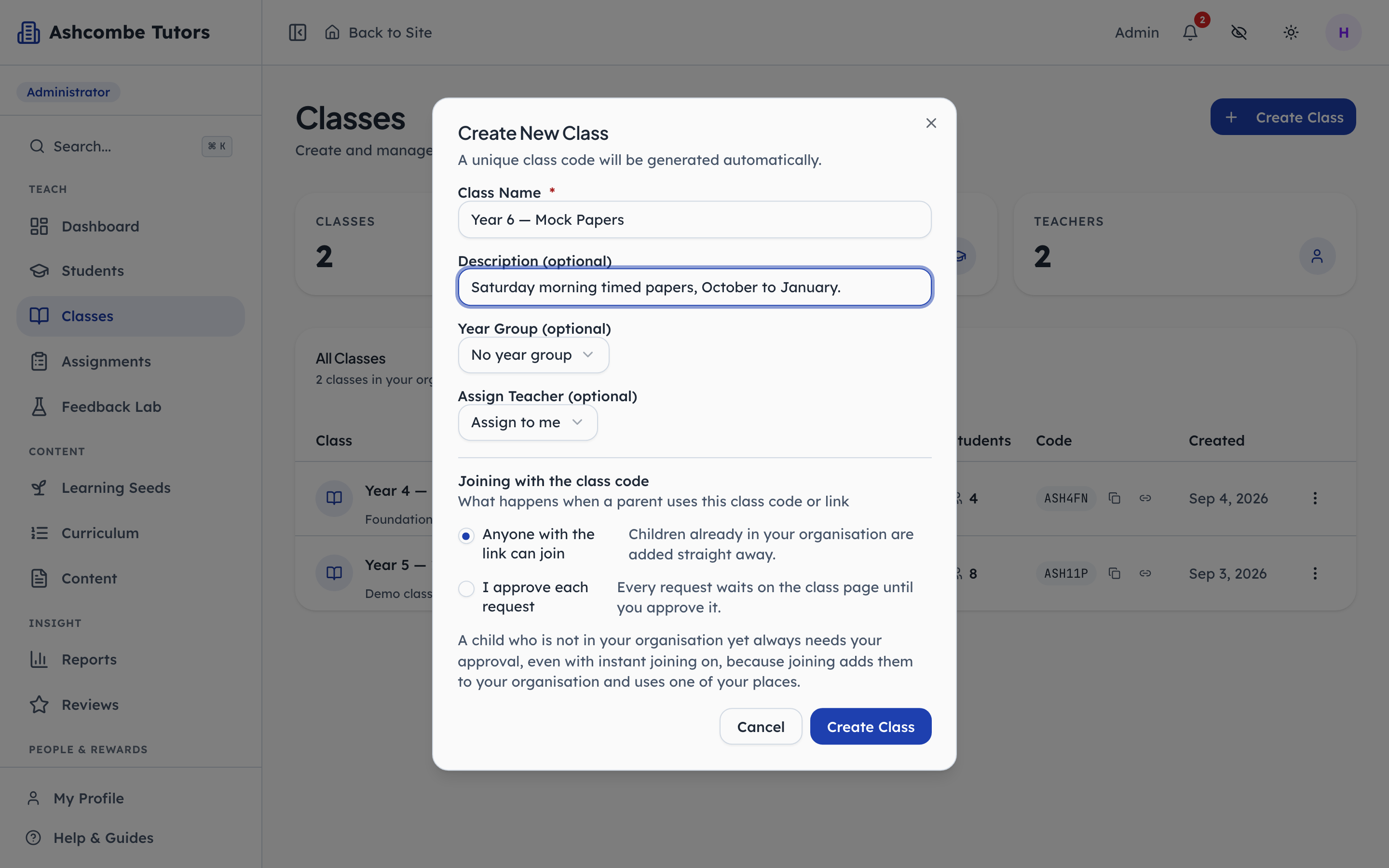
- 1Type in: Name it the way families say it
- 2Click: Who owns it
- 3Notice: Vet every join, or not
- 4Click: Create it
The joining rule is the one to think about. Let anyone with the link join, and a parent who already belongs to your centre adds their child in one tap. Approve each request, and every join waits for you on the class page. A child who is new to the centre always needs approval, because joining uses one of your places.
- penleap.com/dashboard/classes/…Signed in as Org Admin
3Every class has a code and a link to share with parents 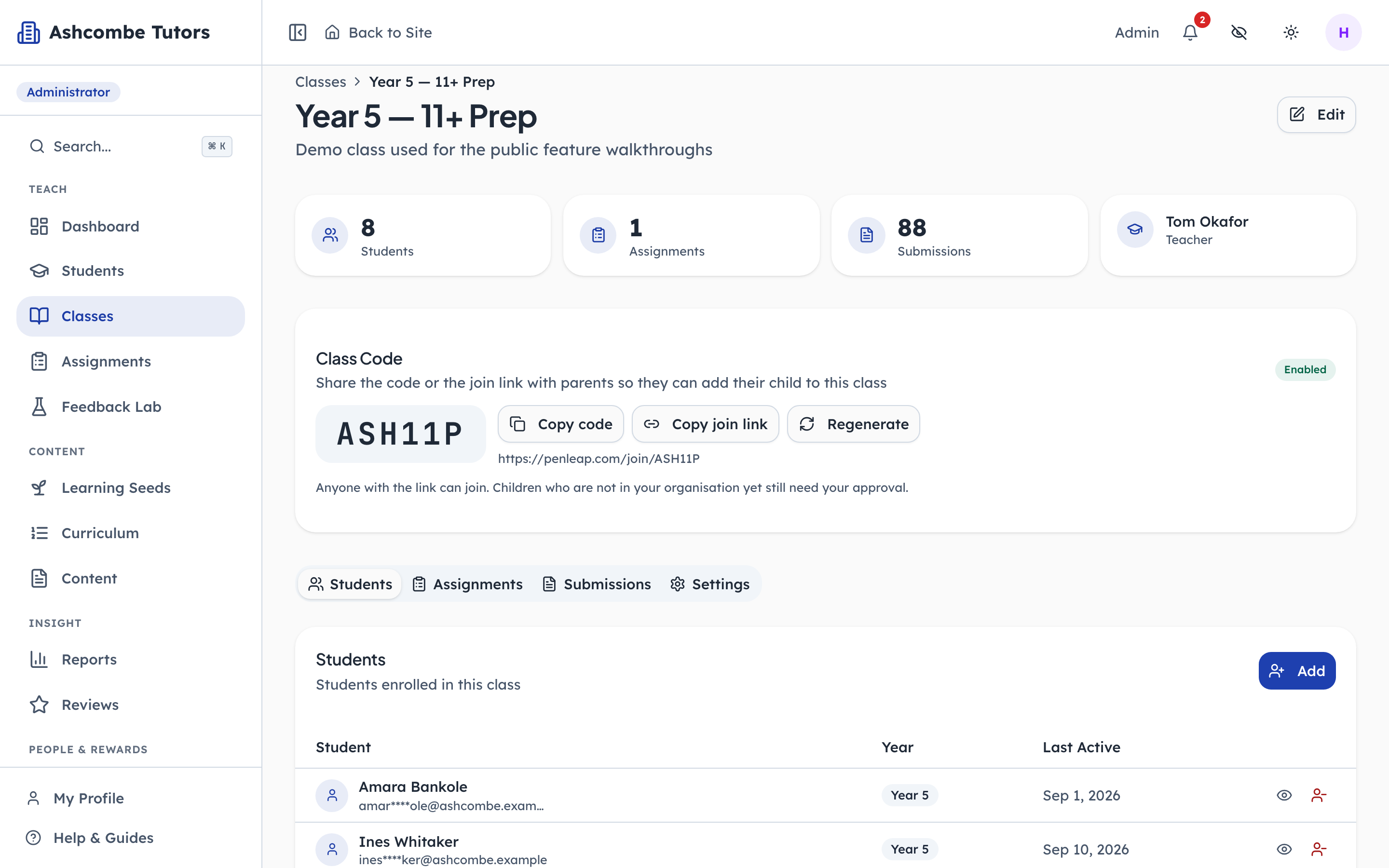
- 1Notice: The code
- 2Click: Or the link, for a message
- 3Notice: If it leaks
Copy the link into a message or the code onto a letter. Either takes a parent to a page that names the class and lets them add their child. If a code gets out, regenerate it and the old one stops working.
Children, and the parent behind each one
Steps 4–8Org Admin- penleap.com/dashboard/studentsSigned in as Org Admin
4Every child, with the grown-up who signs in for them 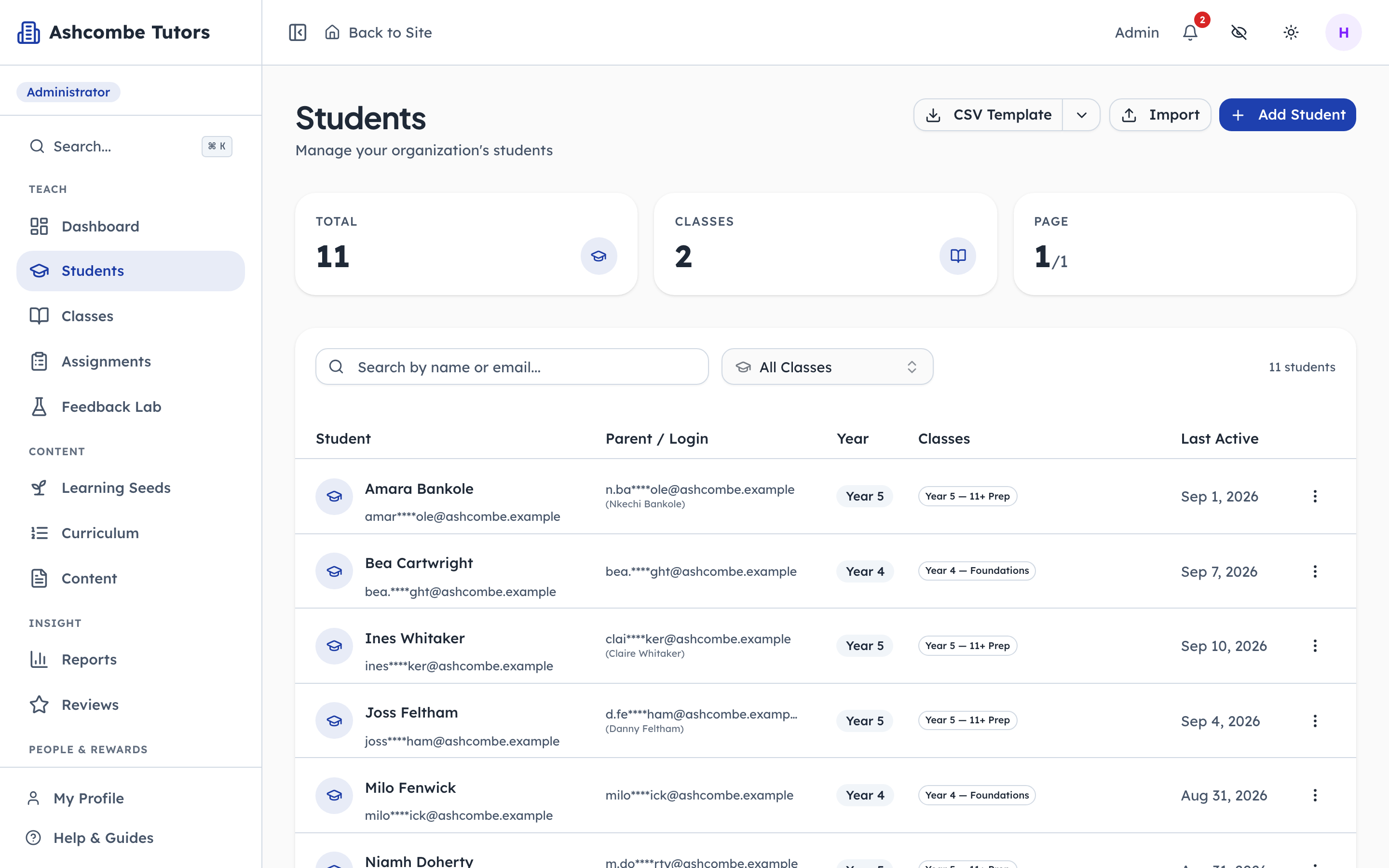
- 1Notice: The account that signs in
- 2Click: One at a time
- 3Notice: Or a spreadsheet
Children do not have logins of their own here. The Parent column is the account that does, and it is required: a child cannot be added without one. Add children one at a time, or import a whole spreadsheet.
- penleap.com/dashboard/studentsSigned in as Org Admin
5Adding a child: a name, a year, a class 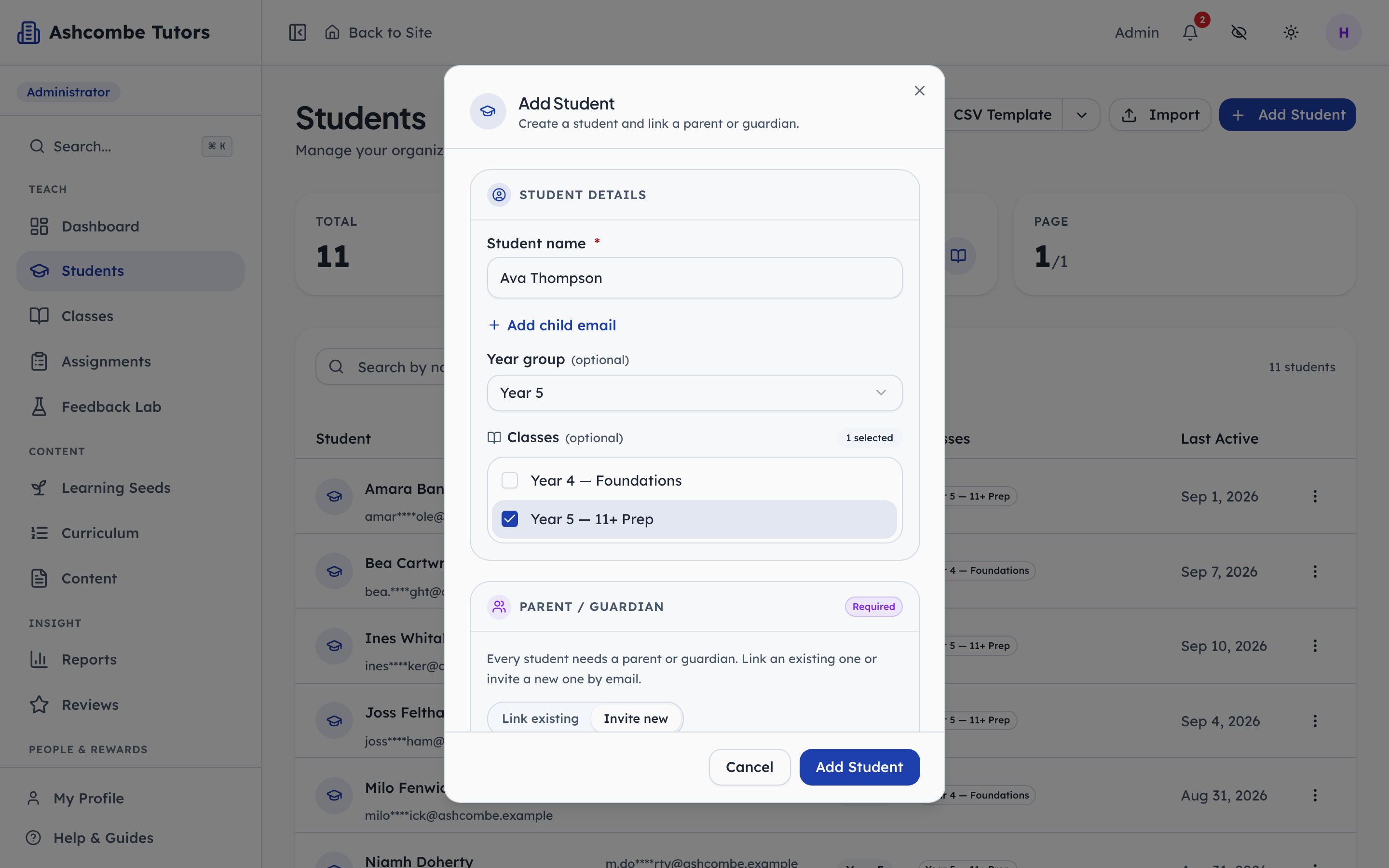
- 1Type in: Their name
- 2Click: Decides their course
- 3Click: Put them in a class
A name is enough to create the child. The year group decides which course they are placed on, so it is worth getting right. The email is only needed if the child will ever sign in directly, which in a centre they usually do not.
- penleap.com/dashboard/studentsSigned in as Org Admin
6And the parent, linked now or invited by email 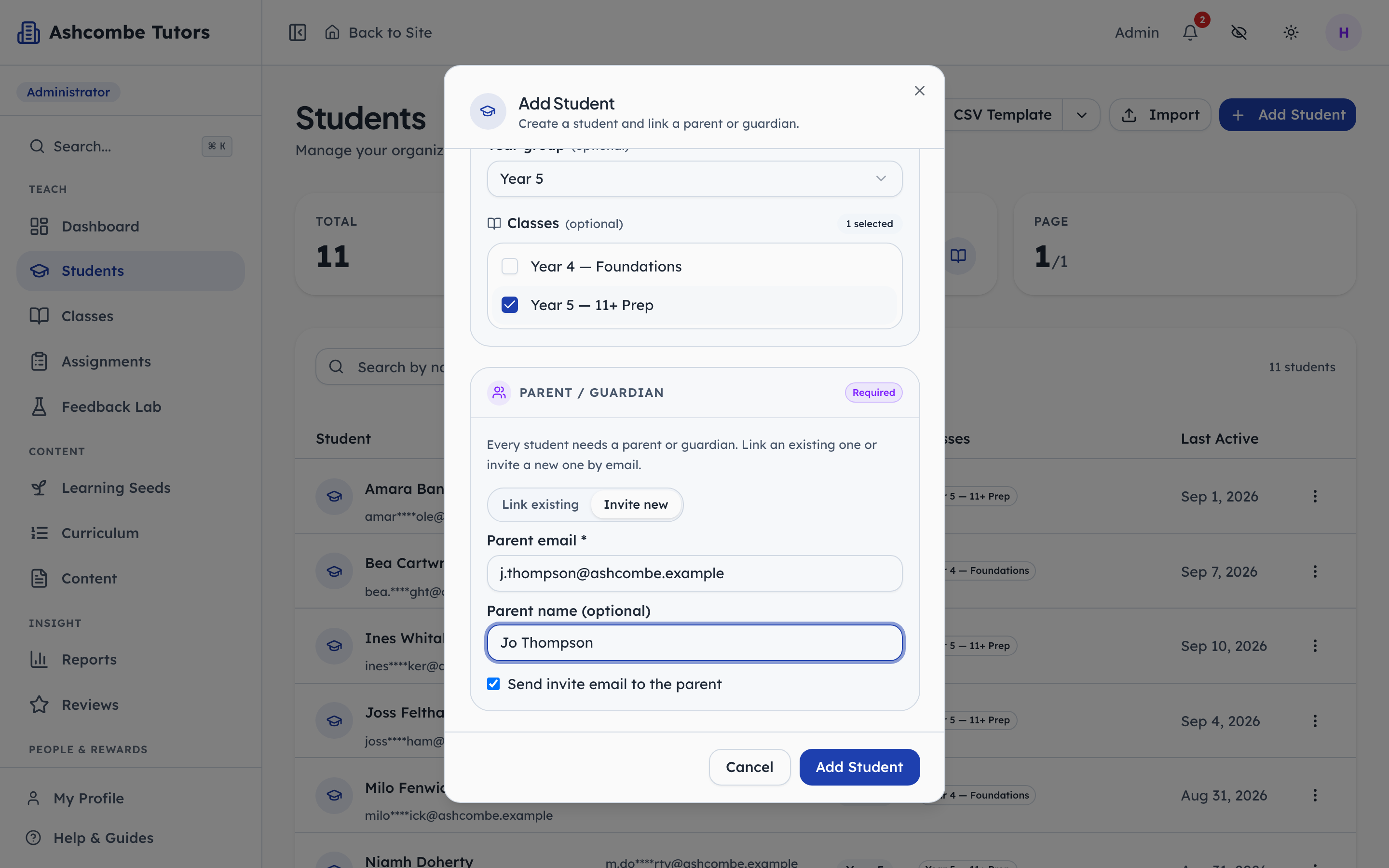
- 1Notice: A parent already here
- 2Type in: Or invite a new one
- 3Click: Create both
Link a parent who already has an account, or invite a new one. An invited parent gets a setup link; until they use it the child is still fully set up and can be taught, the family just cannot see anything yet.
- penleap.com/dashboard/studentsSigned in as Org Admin
7Or bring in the whole register from a spreadsheet 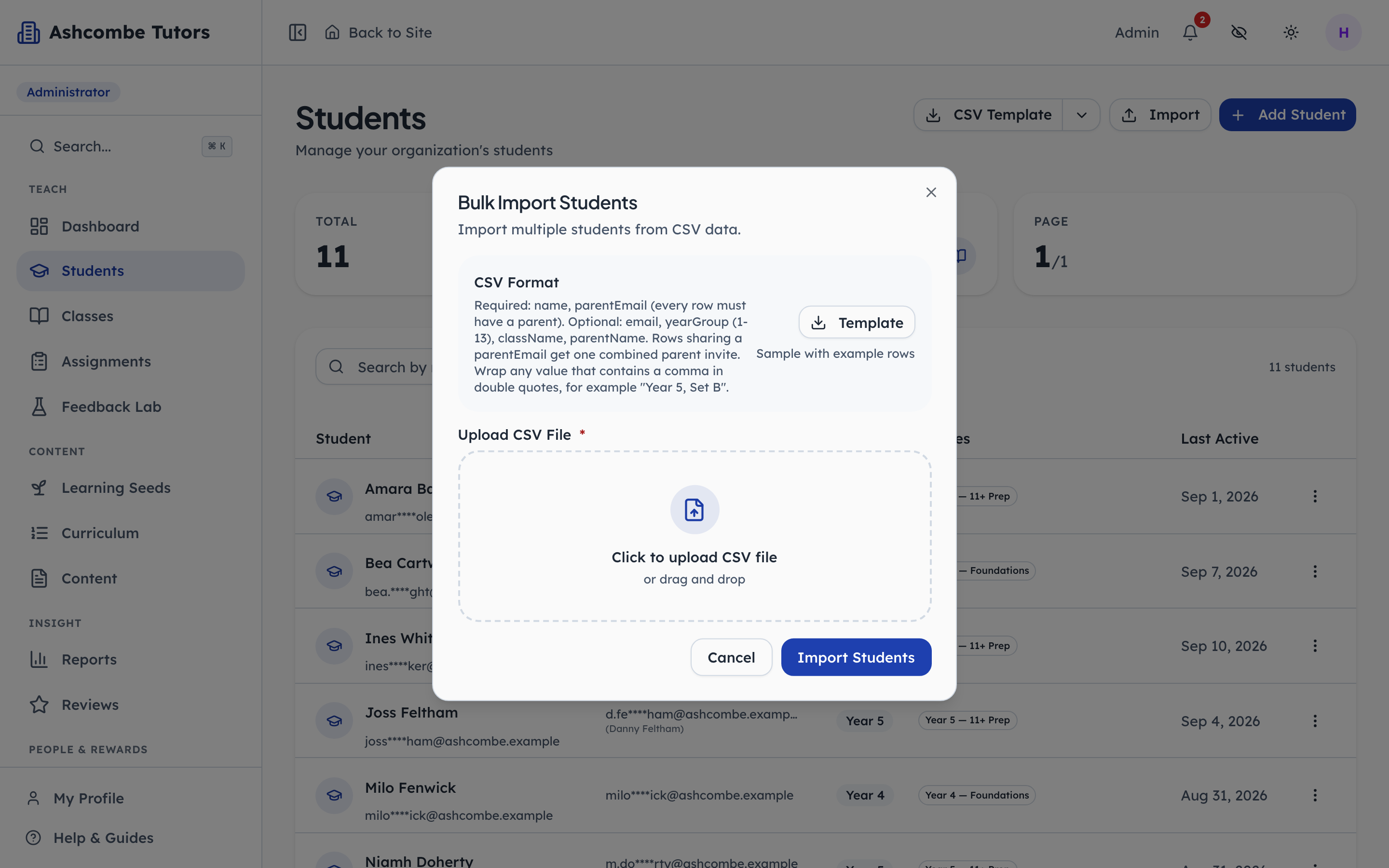
- 1Notice: Only two columns are required
- 2Click: Start from the template
- 3Notice: Drop the finished file here
Two columns are required, the child's name and a parent email. Children who share a parent email get one combined invite. Download the template, fill it in, drop it here, and check the preview before you commit.
- penleap.com/dashboard/parentsSigned in as Org Admin
8Parents, and which children each one can see 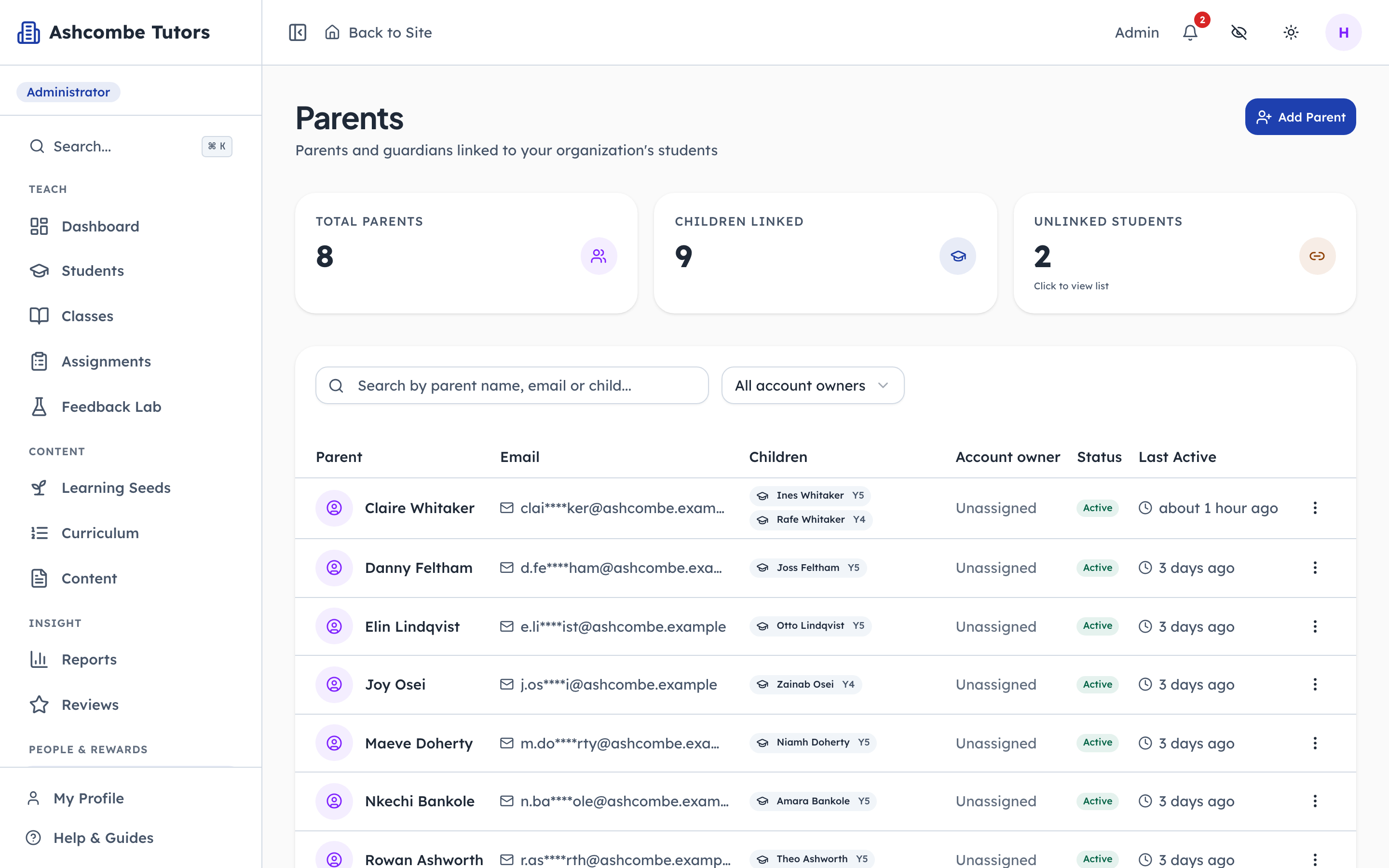
- 1Notice: Who they can see
- 2Notice: Invited, or already in
- 3Click: A second grown-up
One parent can be linked to several children, and a child can have more than one grown-up. This list is where you check who sees whom, and where a second parent or a guardian is added.
The family's first day
Steps 9–13Parent- penleap.com/parentSigned in as Parent
9A parent signs in and sees every child at once 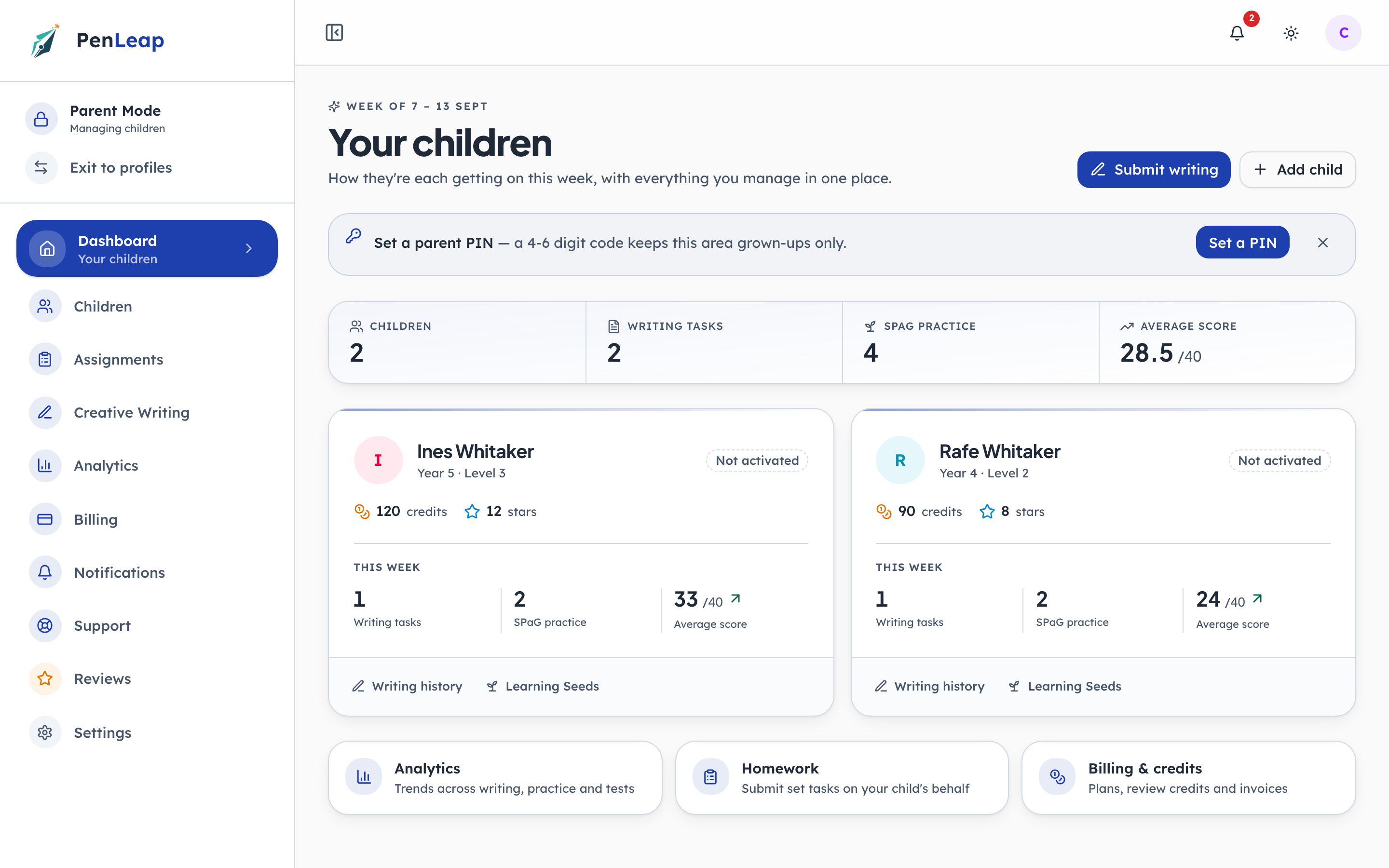
- 1Notice: One card per child
- 2Click: Keep this area for grown-ups
One card per child, with their week on it. Everything a parent does starts here: submitting writing, checking homework, reading reports. The nudge at the top asks them to set a parent PIN, which keeps this area for grown-ups once a child has the device.
- penleap.com/parent/childrenSigned in as Parent
10Each child needs their own four-digit PIN 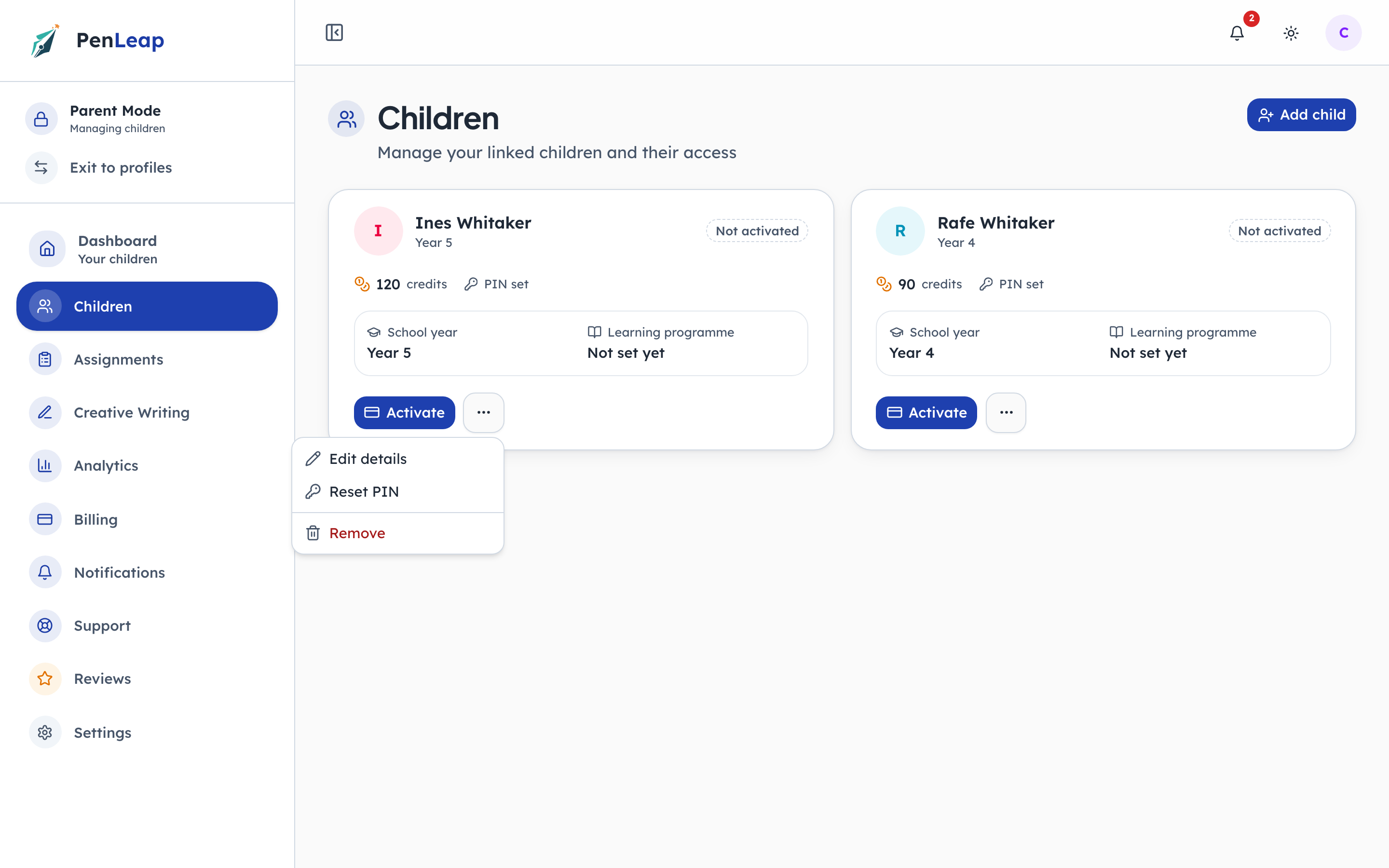
- 1Notice: This child has one
- 2Click: Set it, or reset it
The child's PIN is what lets them open their own profile on a shared tablet without seeing a sibling's work or the parent's area. A parent sets it here and can reset it at any time.
- penleap.com/parent/childrenSigned in as Parent
11Four digits, typed twice 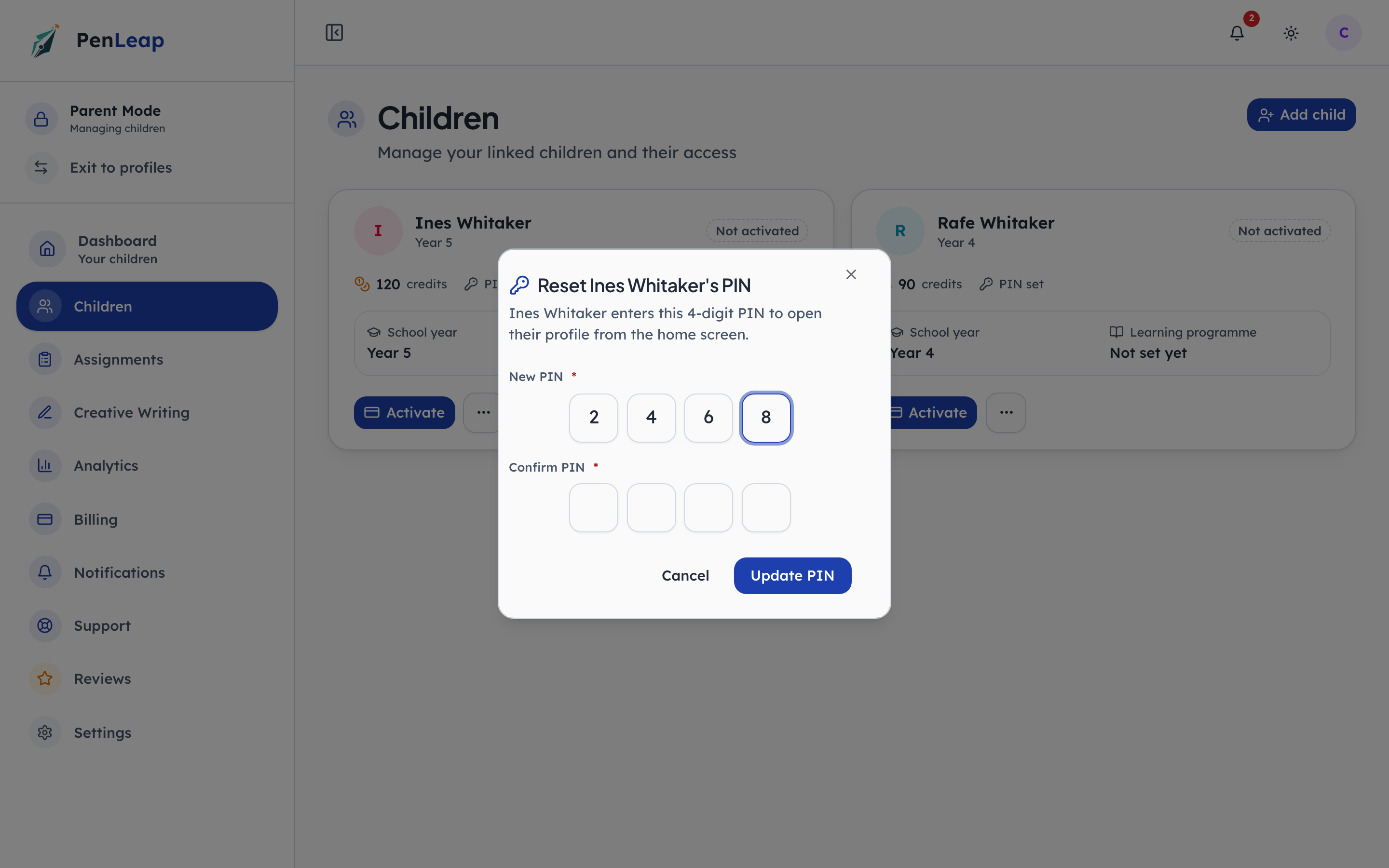
- 1Type in: Four digits
- 2Type in: And again
- 3Click: Save it
That is the whole setup. A child who forgets it is not stuck: the PIN screen points them back to the parent area, where it takes ten seconds to reset.
- penleap.com/select-profileSigned in as Parent
12Handing the device to the child 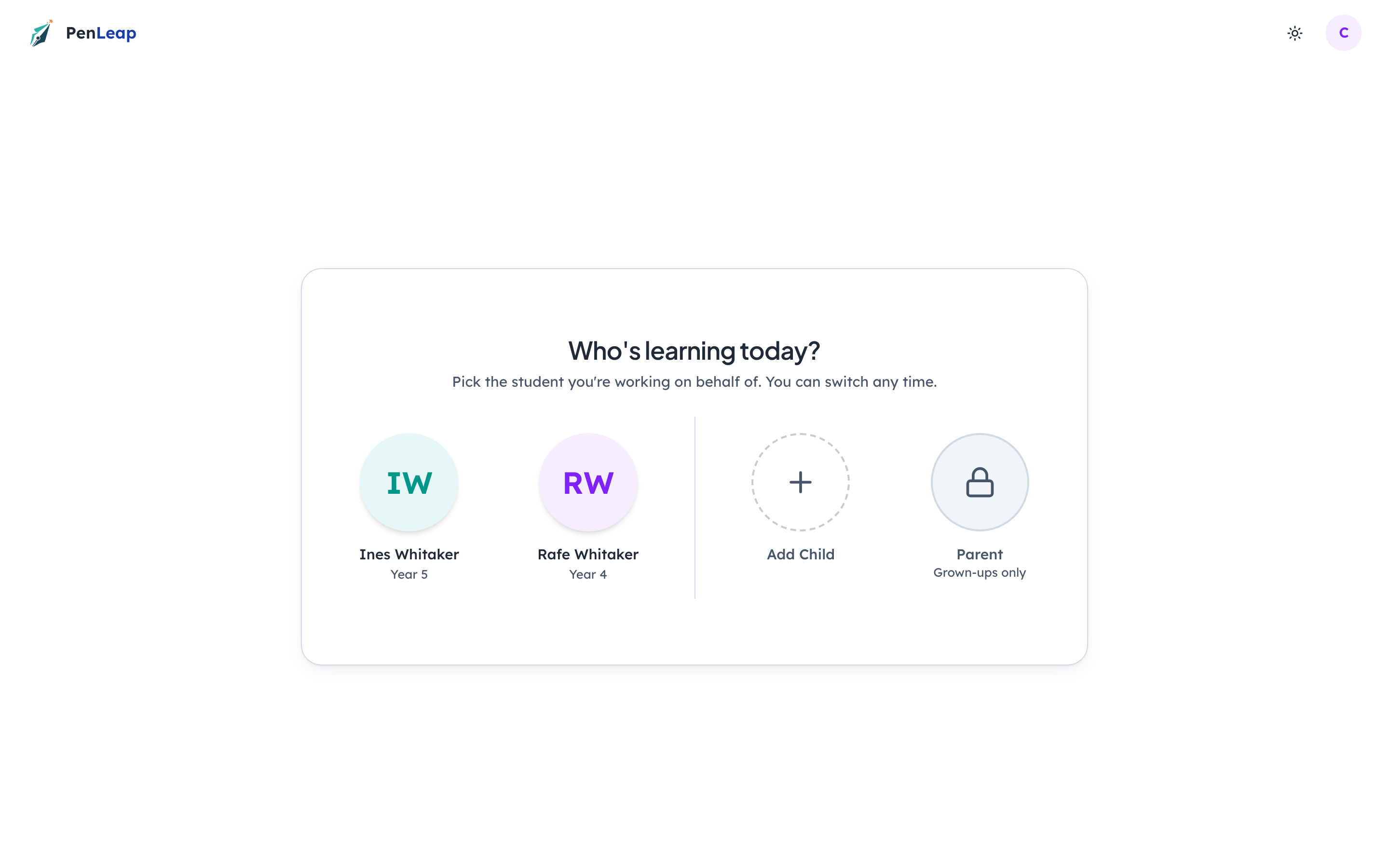
- 1Click: The child taps their name
- 2Notice: Back to the parent, behind a PIN
This is the screen a child sees. They tap their own name, enter their PIN, and everything from then on is theirs: their map, their practice, their homework. The grown-ups tile takes the parent back, behind the parent PIN.
- penleap.com/select-profileSigned in as Parent
13The child enters their PIN and is in 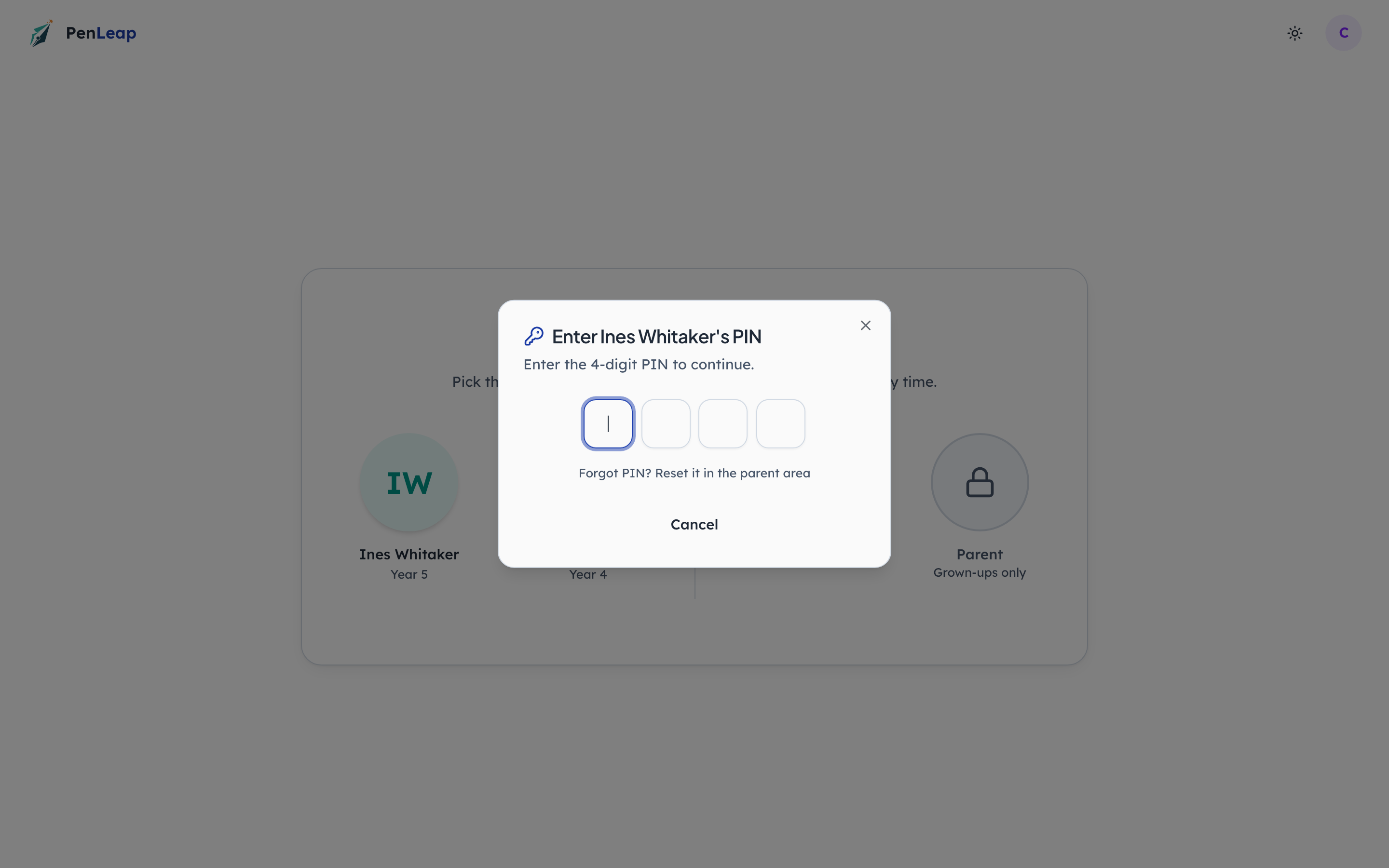
- 1Type in: Their four digits
- 2Notice: Reset from the parent area
No email, no password, nothing to remember beyond four digits. A shared family tablet works because of this screen.
Joining with a class code
VariantsParent- penleap.com/join/ASH11PNot signed in
V1What a parent sees when they open the join link 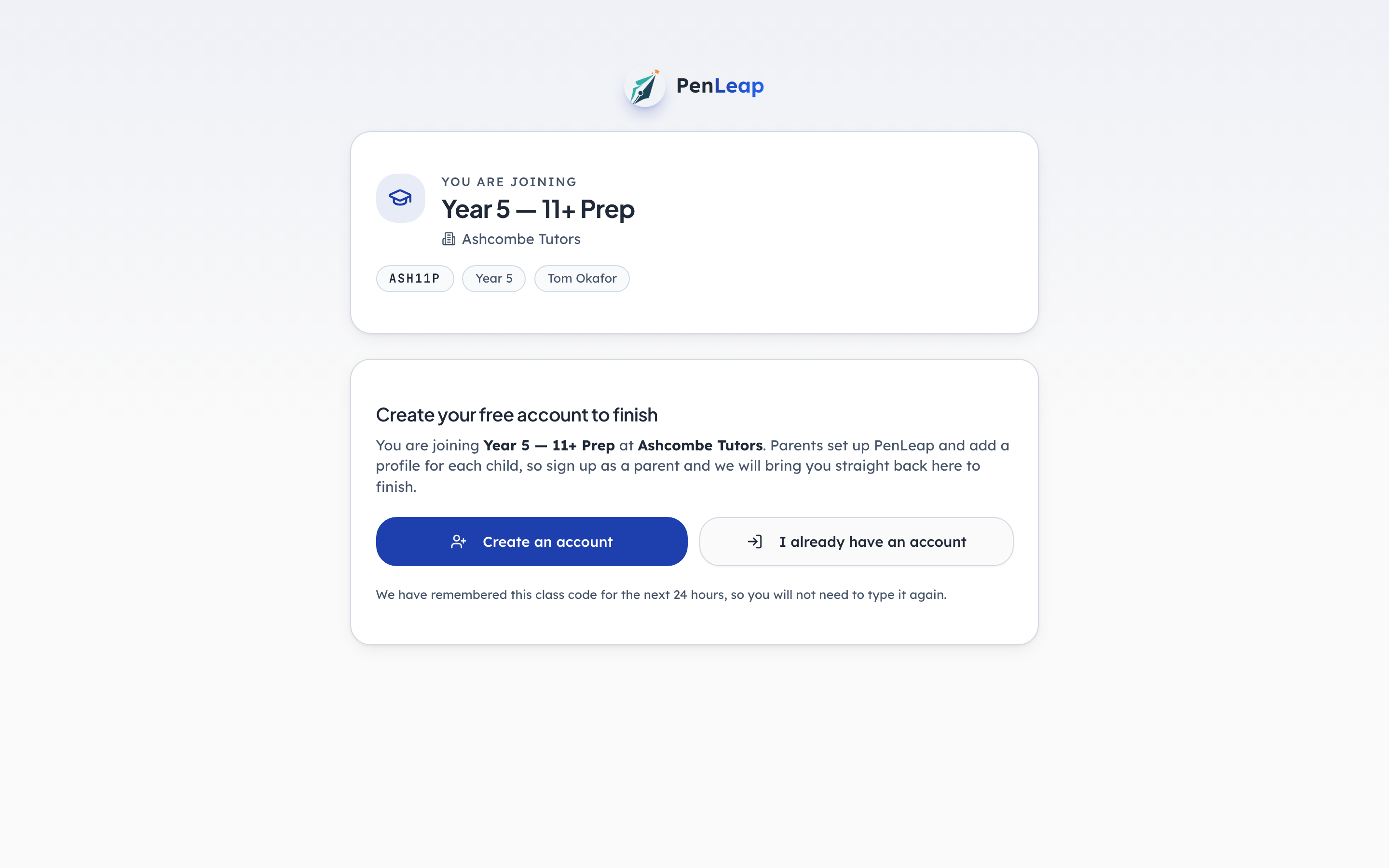
- 1Notice: Named, so it is the right class
- 2Click: New family
- 3Notice: Nothing to retype later
The link names the class so nobody joins the wrong one. A parent without an account creates one; the code is remembered for a day so they never have to type it. A parent who already has an account picks which child is joining. Either way the request lands with whoever owns the class.