
8 steps · 4 parts · 2 roles
Your first ten minutes: from applying to the screen you will live on
How a tuition centre actually starts: apply, get approved, activate an account through a link only you can use, and land on a dashboard already narrowed to your job.
Everything below is the real product, photographed automatically. The school, its staff and its pupils are invented for this walkthrough — no real family appears on this page.
Before anyone has an account
Steps 1–2Org Admin- penleap.com/startNot signed in
1Two doors, and the second one is the common one 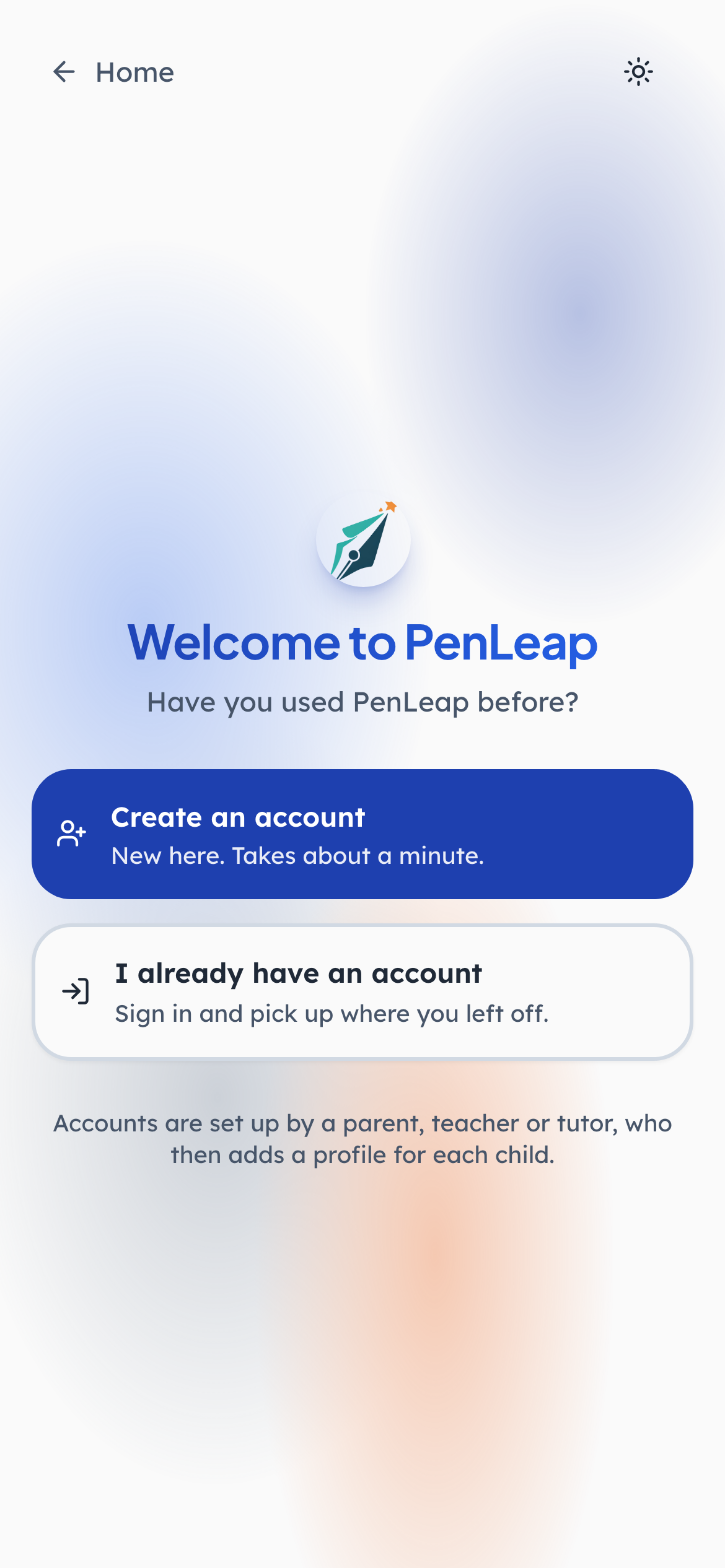
- 1Click: New here
- 2Click: Or pick up where you left off
- 3Notice: Children never sign themselves up
Worth reading the small print at the bottom: children do not sign themselves up. An account is created by a parent, a teacher or a tutor, who then adds a profile for each child. That single sentence is the whole account model, and it is the reason there is no age gate on this page — nobody under eleven ever reaches it.
- penleap.com/request-accessNot signed in
2A centre applies — it does not sign itself up 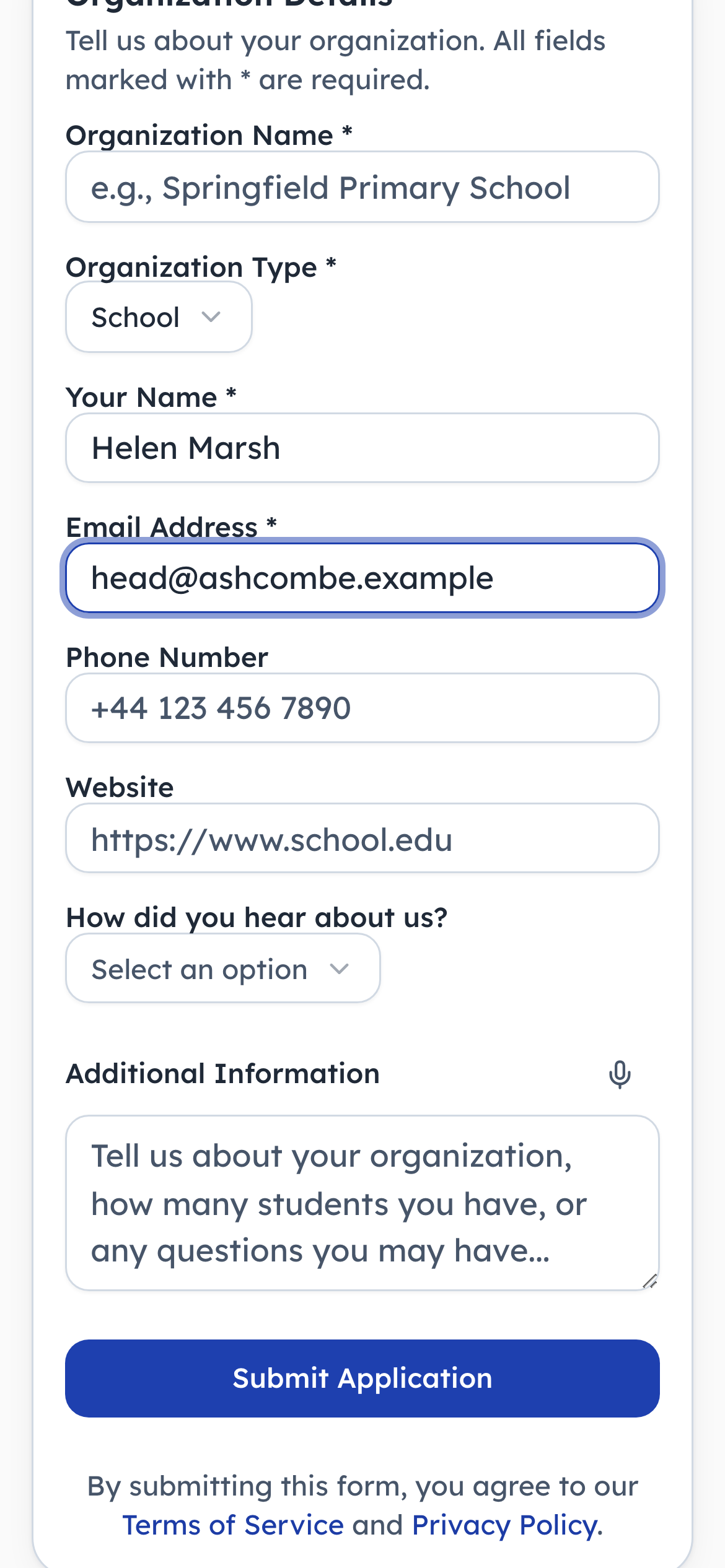
- 1Type in: The centre's name
- 2Type in: Who we reply to
- 3Click: A person reads this
This is the fork that matters for a school or a tutor. There is no self-serve trial that drops a stranger into a dashboard with other people's children in it: the application is read by a person, and the account is created on the other side of that decision. The type field is the one that changes what happens next — a school and a one-room tutor are set up differently.
The link that lets you in
Step 3Org Admin- penleap.com/setup/…Not signed in
3You set your own password — nobody sets it for you 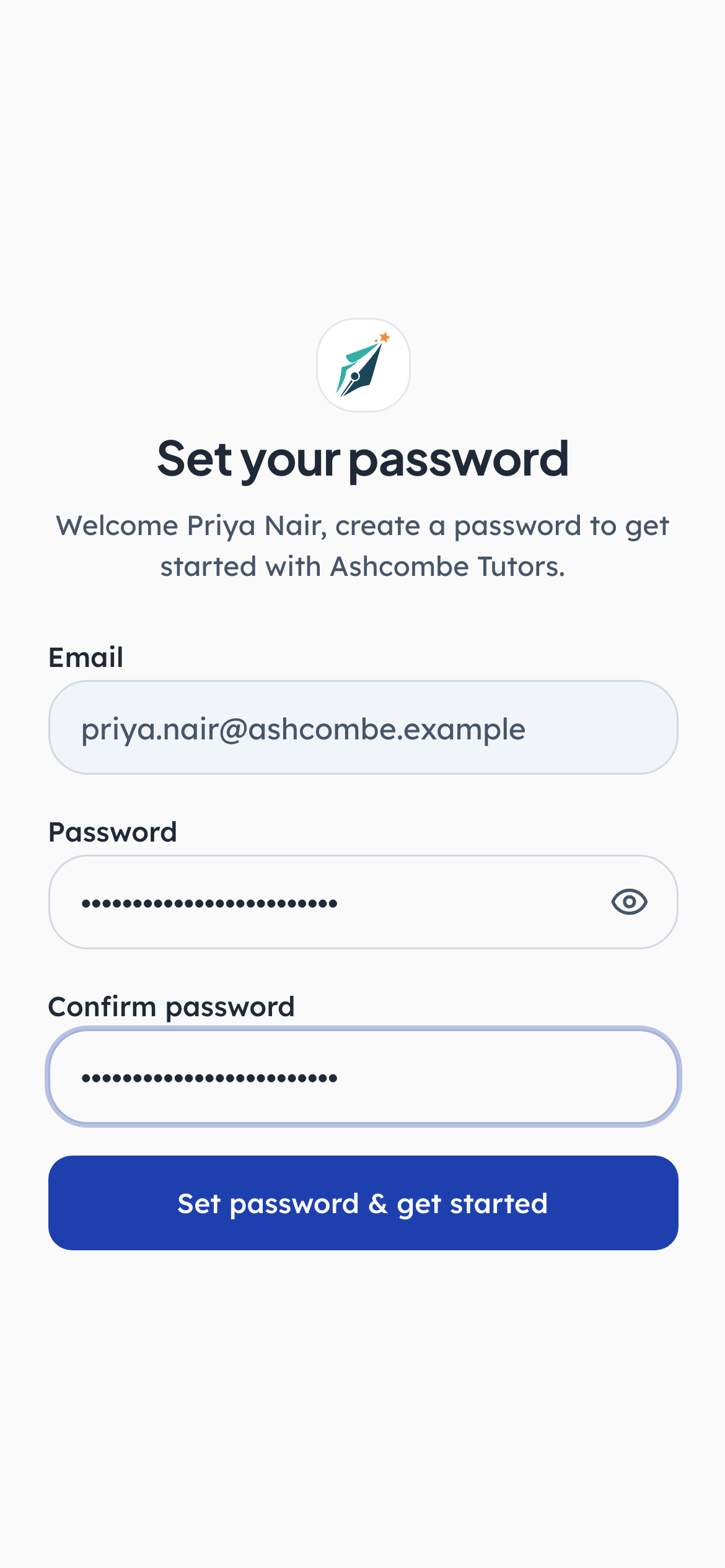
- 1Notice: Named for one person, and one centre
- 2Type in: Theirs, and only theirs
- 3Type in: Twice, because there is no undo
When the centre was approved, and every time an admin adds a member of staff afterwards, what gets produced is a link rather than a password. It lasts seven days, it names the person and the centre it was issued for, and only they can complete it. No password ever passes through the admin who invited them, which is why there is nothing for that admin to leak.
- penleap.com/setup/…Signed in as Org Admin
V1Opened on a laptop that is already signed in as someone else 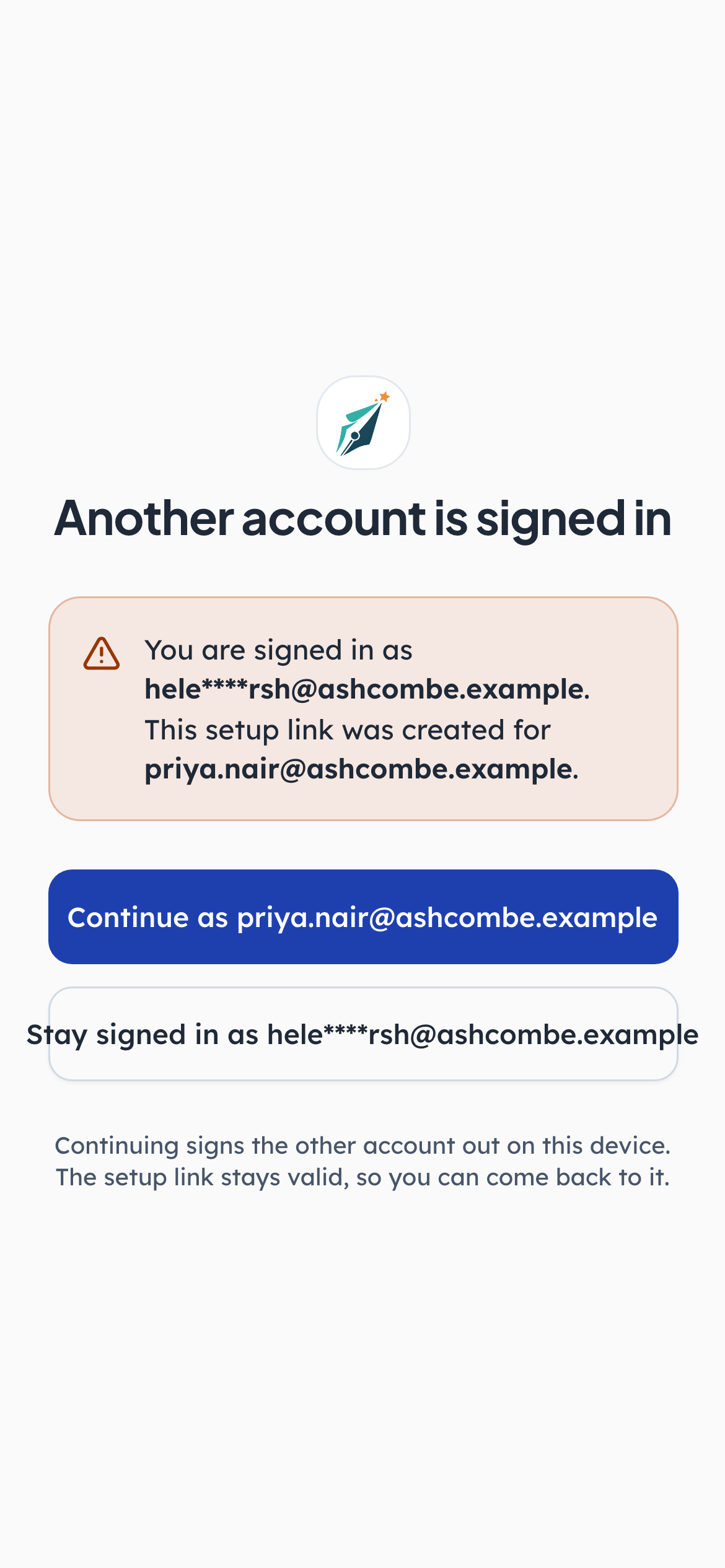
- 1Notice: It knows who is already signed in
The staff-room case, and the reason this page reads the session on the server before it paints anything. Someone forwards the link, it gets opened on a shared machine, and the page says whose account is already open here rather than showing a password form and pulling it away a second later. A small thing that stops a member of staff activating their colleague's account by accident.
The screen you will live on
Steps 4–7Org Admin- penleap.com/dashboardSigned in as Org Admin
4Three numbers, and the centre's name on the door 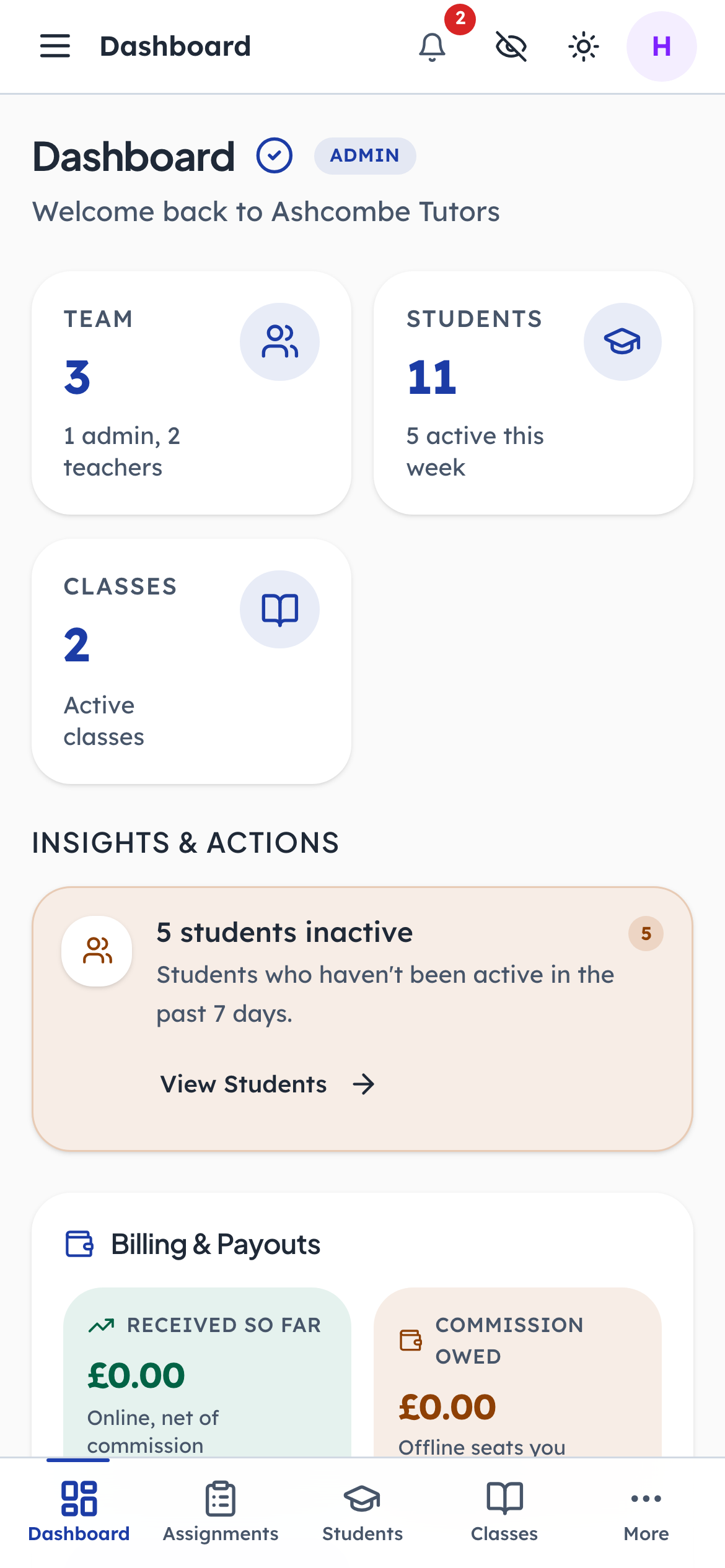
- 1Notice: Who works here
- 2Notice: And how many are active
- 3Notice: Which hat you are wearing
The first screen after signing in, and the one most people never really leave. Team, students and classes are the three counts a centre is actually run by, and each is a link rather than a decoration. The badge beside the heading says which hat you are wearing — it decides what the rest of this page contains.
- penleap.com/dashboardSigned in as Org Admin
5The one thing worth doing something about today 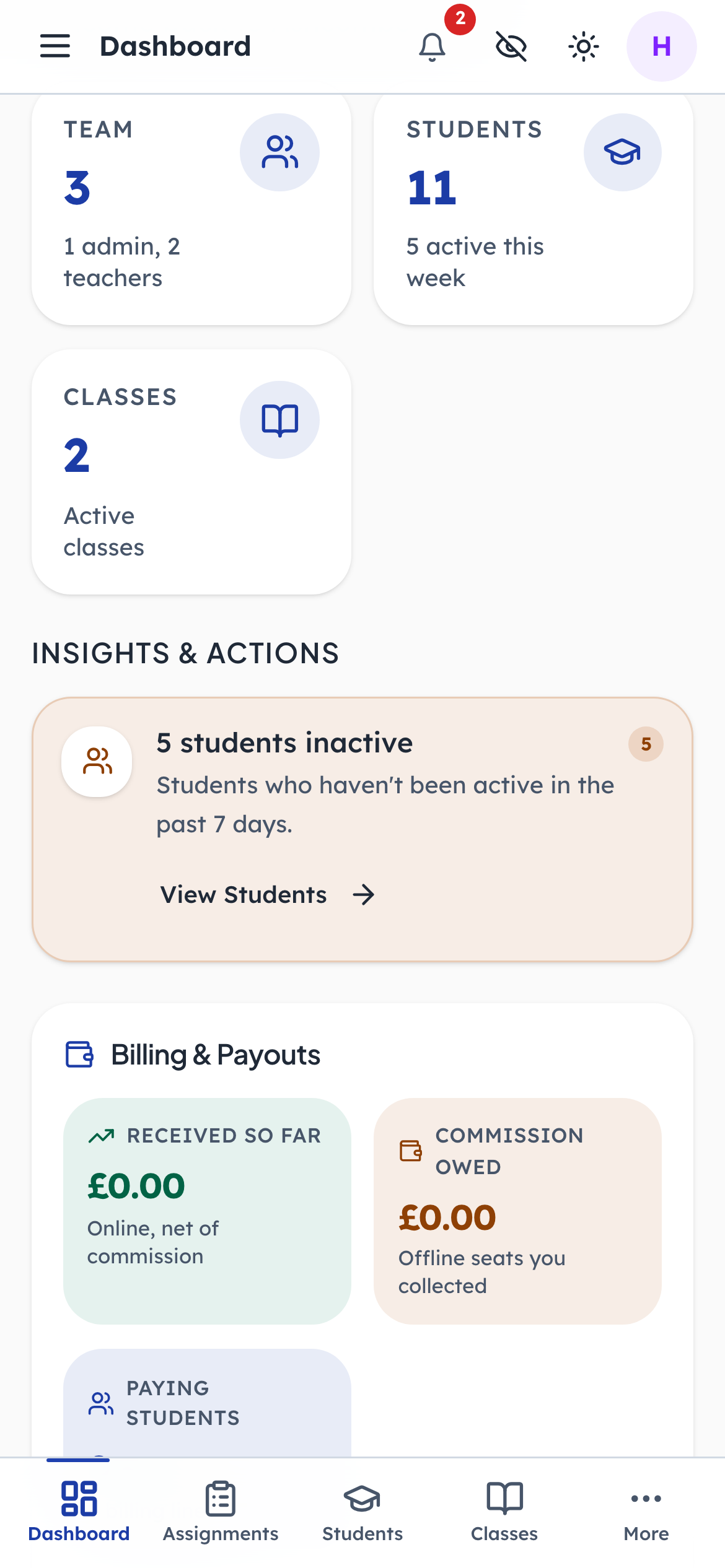
- 1Notice: Noticed for you
- 2Click: Straight to the list
Not a feed and not a notification bell — a short list of things the product has noticed and can hand you straight to. Children who have gone quiet for a week is the one that earns its place: it is invisible in every other view, because a child who does nothing generates nothing to look at.
- penleap.com/dashboardSigned in as Org Admin
6What the centre has taken, and what it owes 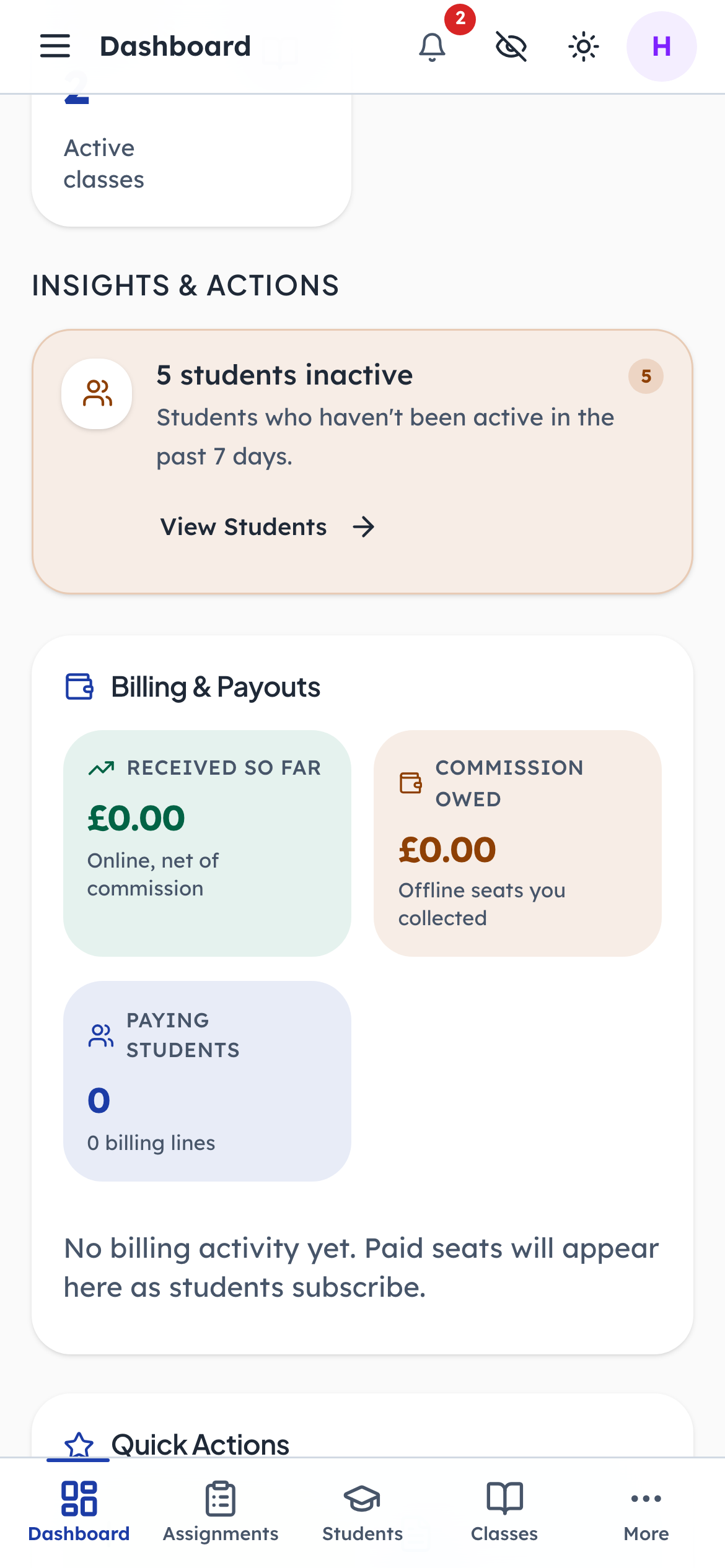
- 1Notice: Paid online, net of commission
- 2Notice: On seats you collected yourself
Two different kinds of money, kept apart on purpose: what families have paid online, net of commission, and the commission owed on seats the centre collected itself. A new centre sees zeroes and a sentence saying so, rather than an empty chart. The figures here are this centre's own; nothing on this card is a price list.
- penleap.com/dashboardSigned in as Org Admin
7Two steps, in the order that actually works 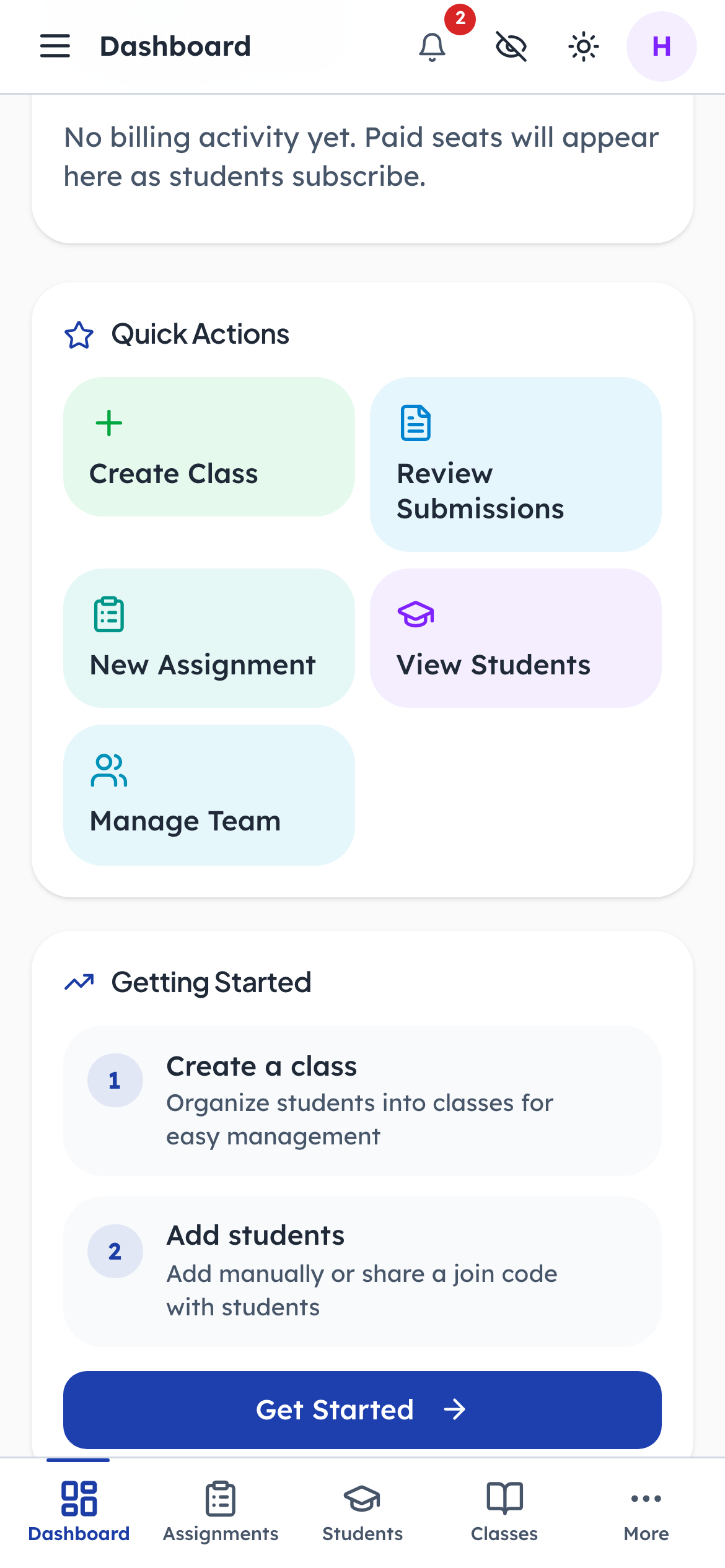
- 1Click: First, because everything hangs off it
- 2Click: Then the children
- 3Notice: The four you will use daily
Classes first, then children — not a preference, a dependency: a child is added into a class, and the join code a family uses belongs to one. Doing it the other way round leaves a roster of children who are not in anything. The quick actions beside it are the four things a centre does most, and they stay useful long after the checklist stops being interesting.
The same screen, a different job
Step 8Class Teacher- penleap.com/dashboardSigned in as Class Teacher
8A teacher opens the same address and sees their own groups 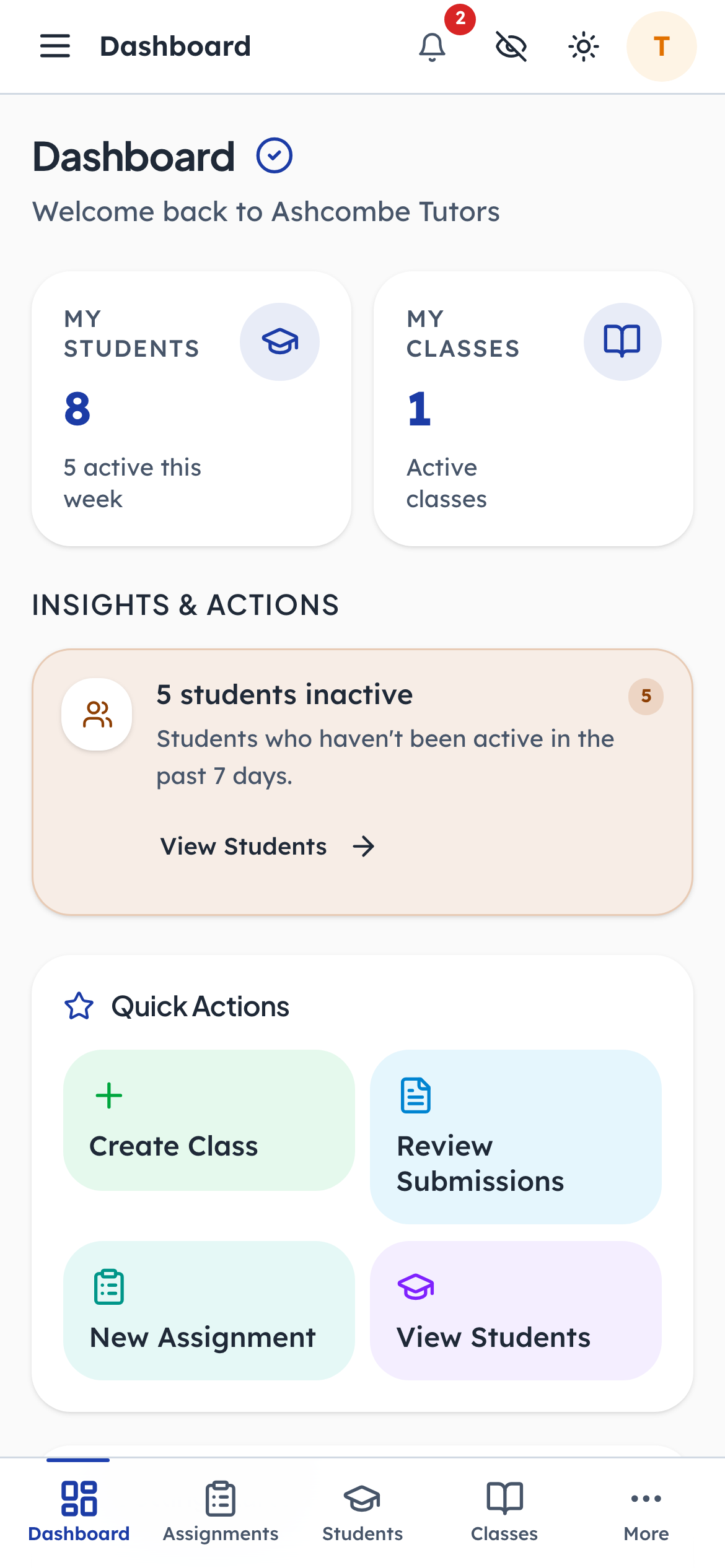
- 1Notice: Only the ones they teach
- 2Notice: Only their own groups
Same route, same code, different answer. My students and my classes rather than the centre's; no team card and no money. This is not a matter of hiding cards from somebody who could otherwise see them — the queries behind the page are scoped to the classes this person owns, so the figures a teacher is not entitled to are never sent to their browser in the first place. The sidebar narrows for the same reason.