
11 steps · 4 parts · 2 roles
Keeping families informed: announcements, notifications and support
The centre broadcasts an announcement to families, a parent sees it arrive with everything else that concerns their child, and raises a support ticket that staff answer in a thread.
Everything below is the real product, photographed automatically. The school, its staff and its pupils are invented for this walkthrough — no real family appears on this page.
The centre sends an announcement
Steps 1–4Org Admin- penleap.com/dashboard/announcementsSigned in as Org Admin
1Every announcement the centre has sent, and who it reached 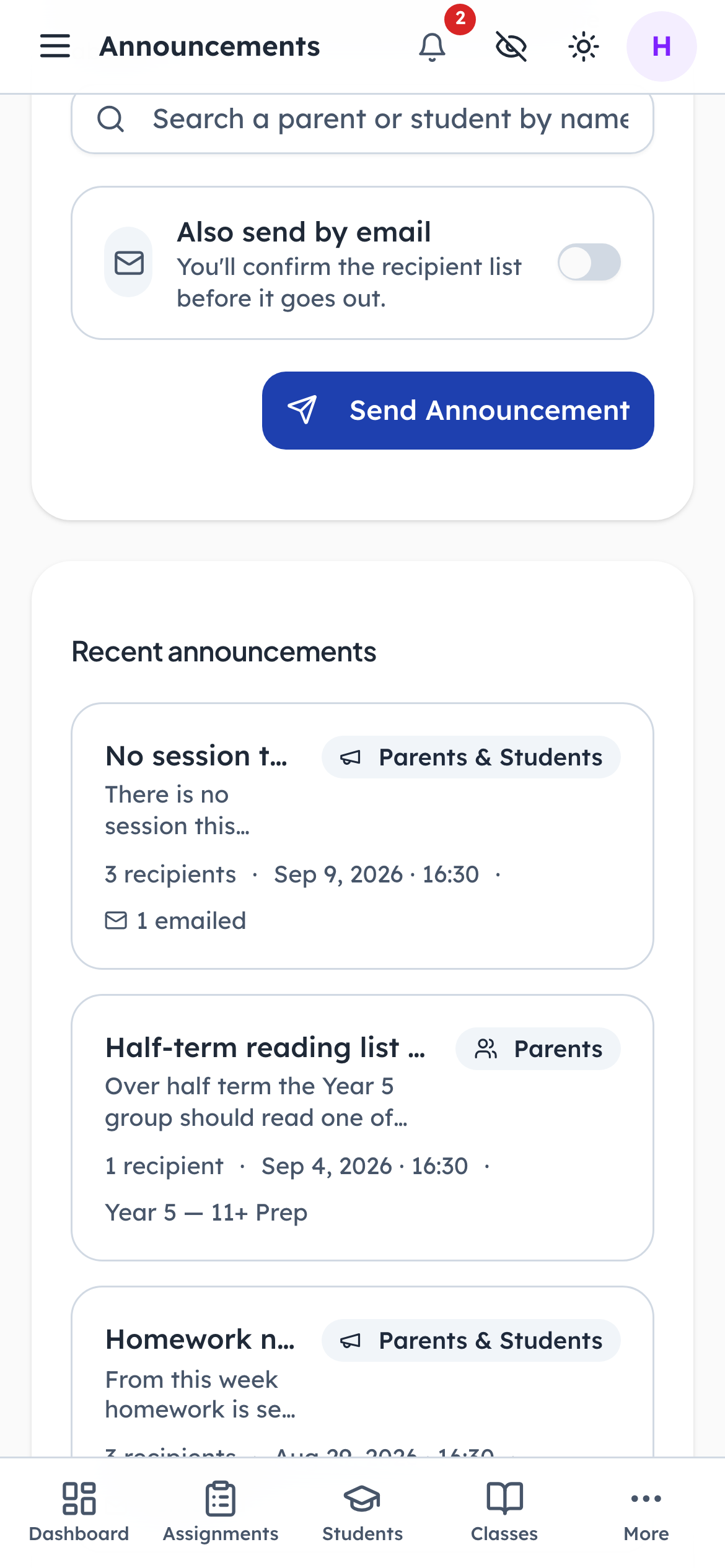
- 1Notice: The record of what went out
- 2Notice: Sent to everyone
- 3Notice: How many got the email too
Each row remembers its audience, how many people it reached, how many were emailed, and which classes it was limited to. The composer sits above the list, because the usual reason to open this page is to send the next one.
- penleap.com/dashboard/announcementsSigned in as Org Admin
2Writing one: who it is for, and what it says 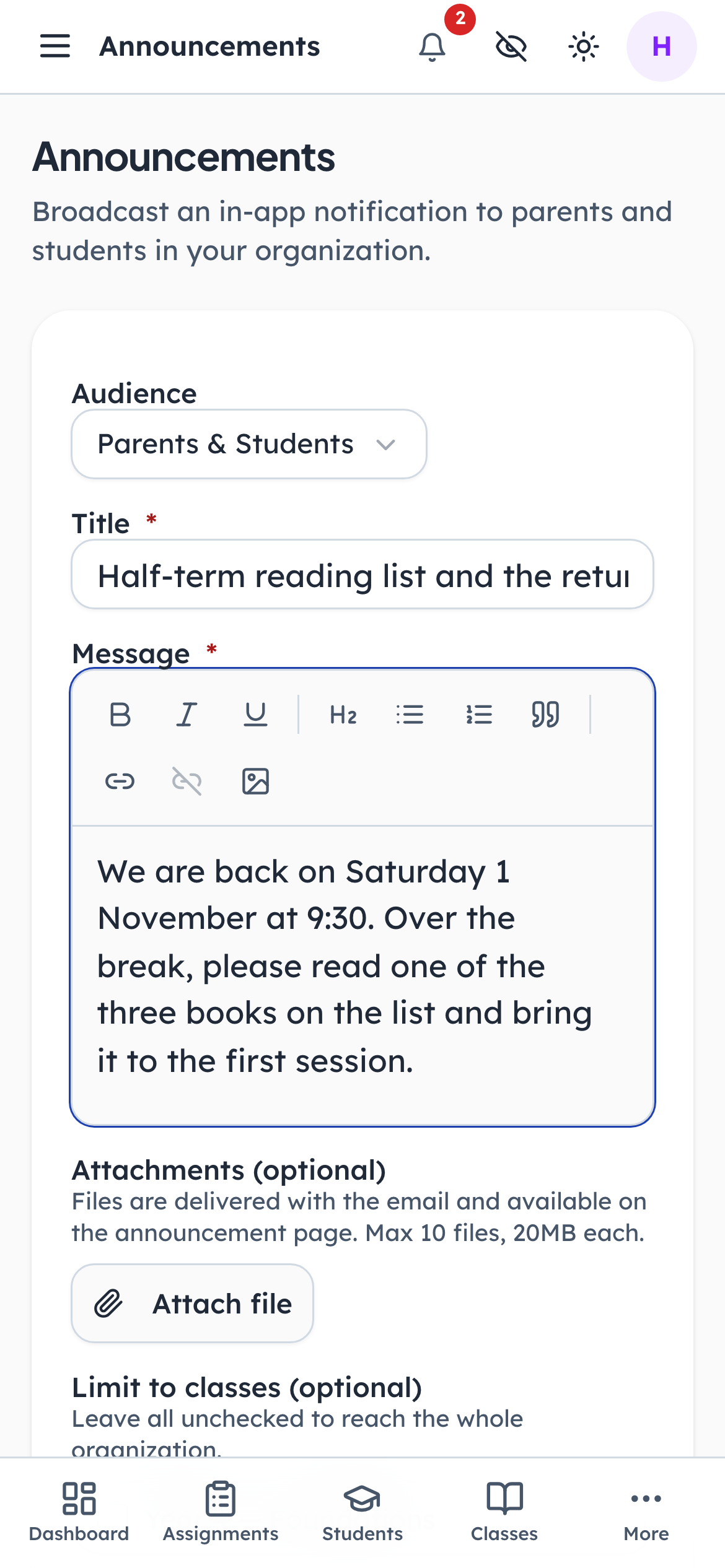
- 1Click: Parents, students, or both
- 2Type in: What the notification will say
- 3Type in: The message, with formatting
The audience is parents, students, or both. Announcements to students appear on the child's own screen; parents see them in their notifications. The message is rich text, so a list of dates reads as a list of dates.
- penleap.com/dashboard/announcementsSigned in as Org Admin
3Limit it to a class, add named people, and choose whether to email 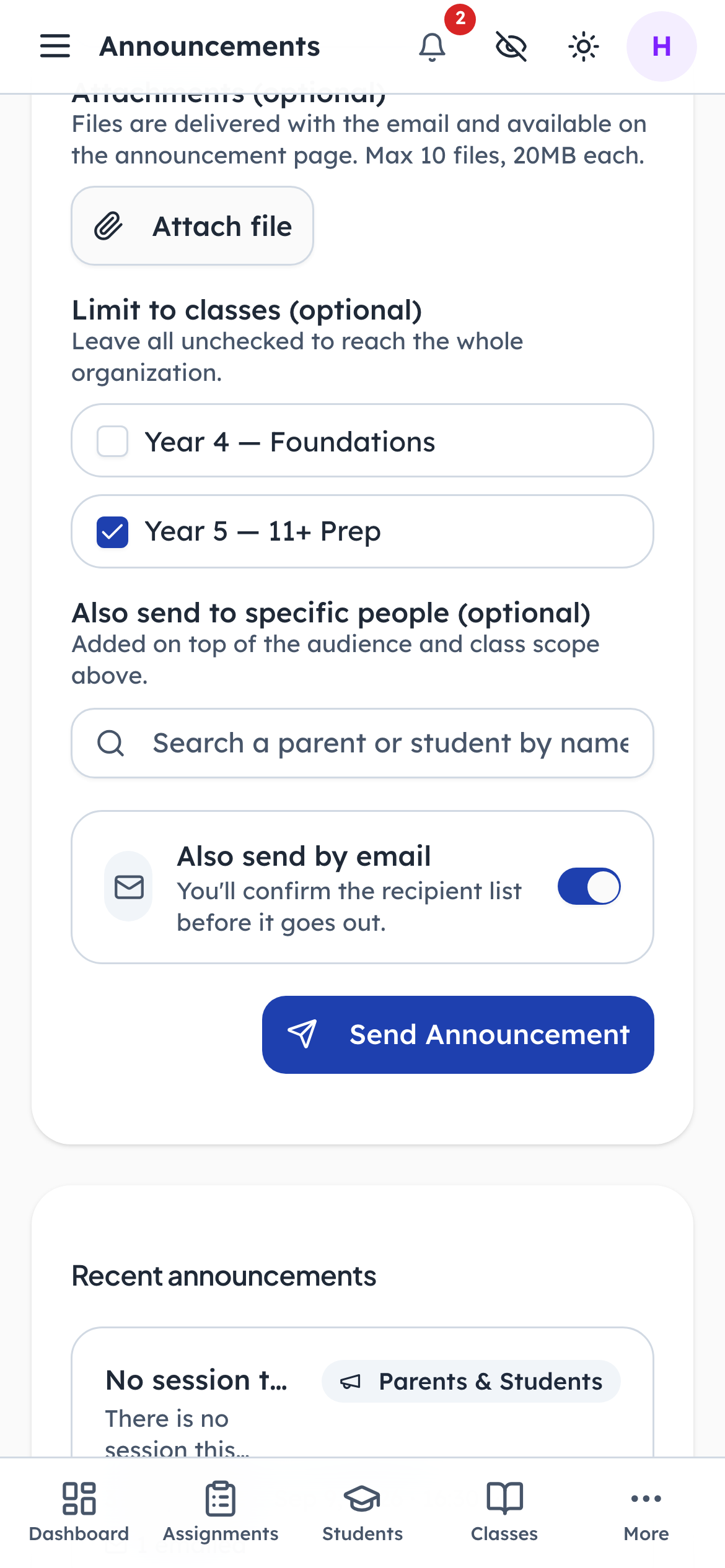
- 1Click: Just this class
- 2Notice: Plus named people
- 3Click: Email it as well
- 4Click: Send it
Leave every class unticked and the whole centre gets it. Tick one and only that class does. Named people are added on top of whatever scope you chose. Email is a switch, and turning it on shows you the recipient list before anything goes out.
- penleap.com/dashboard/announcementsSigned in as Org Admin
4Before an email goes out, the exact recipient count is shown 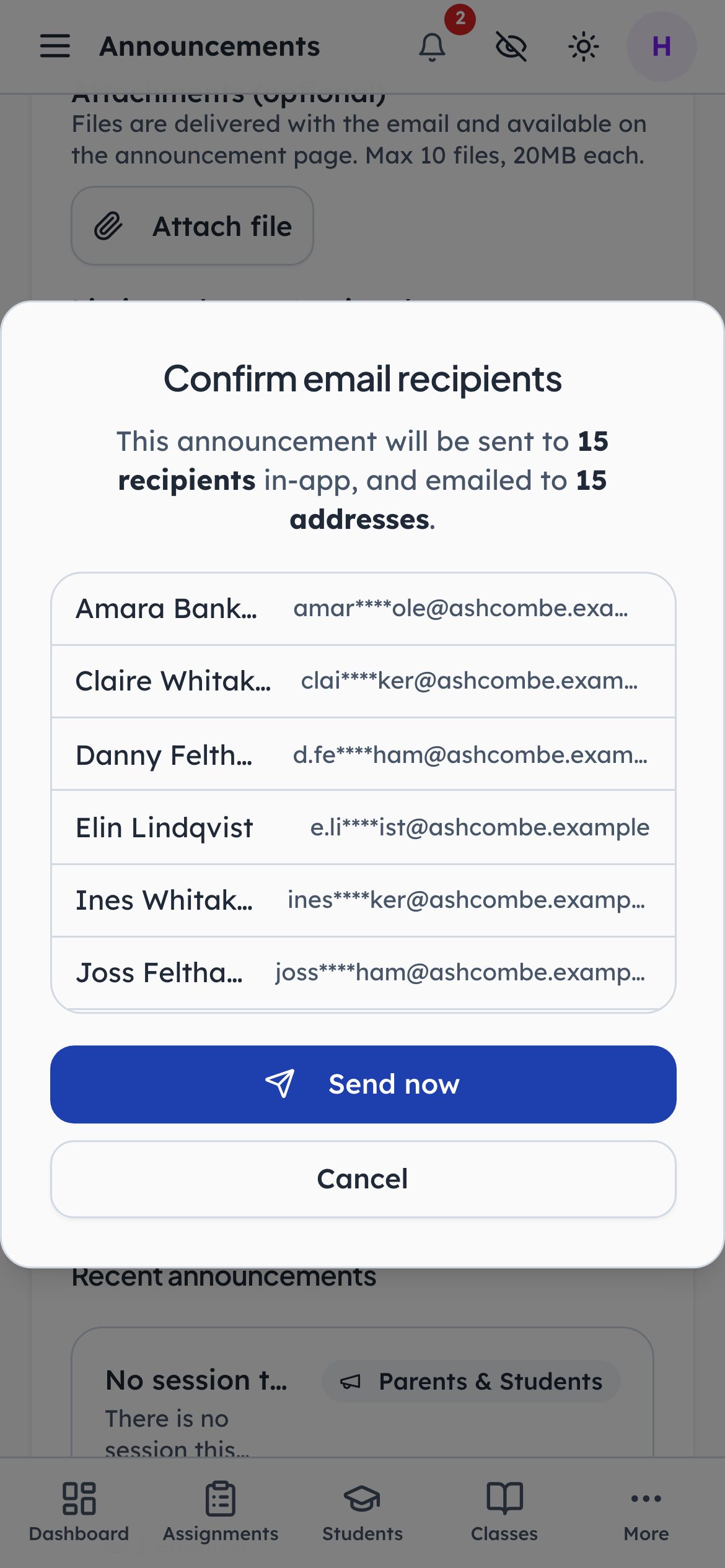
- 1Notice: A last check
- 2Click: Only now does it go
- 3Notice: Or go back and change it
In-app delivery is instant and free. Email goes to every recipient with an address on file, and the dialog says how many that is and how many will only see it in the app. Nothing is sent until Send now.
What arrives for the parent
Steps 5–6Parent- penleap.com/parent/notificationsSigned in as Parent
5One feed for everything that concerns the family 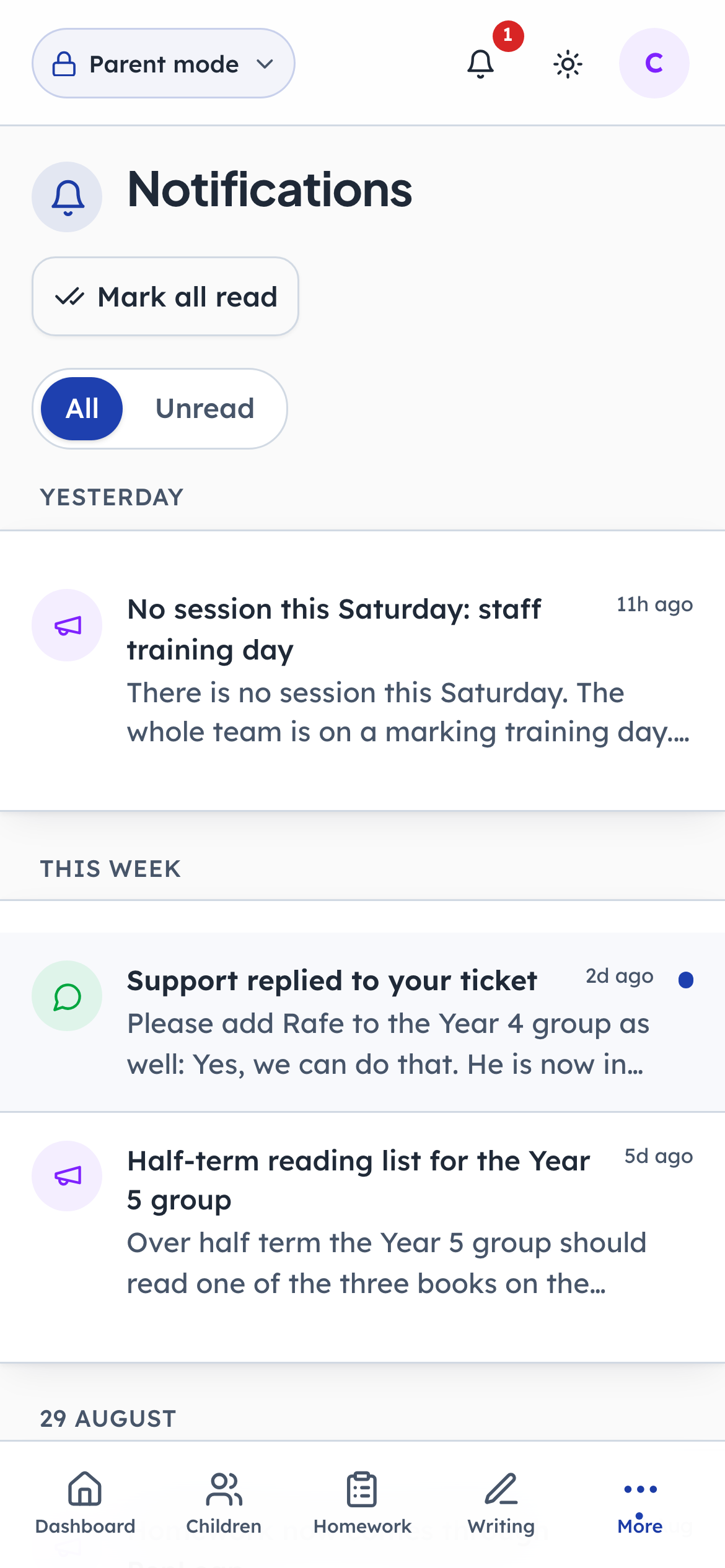
- 1Notice: Unread count, everywhere
- 2Click: An announcement, unread
- 3Notice: Clear the lot
Announcements from the centre, marked work, replies to a support ticket and weekly summaries all land here, grouped by day, with unread ones marked. The bell in the top bar carries the unread count everywhere else in the parent area.
- penleap.com/announcements/…Signed in as Parent
6The announcement itself, with its formatting and attachments 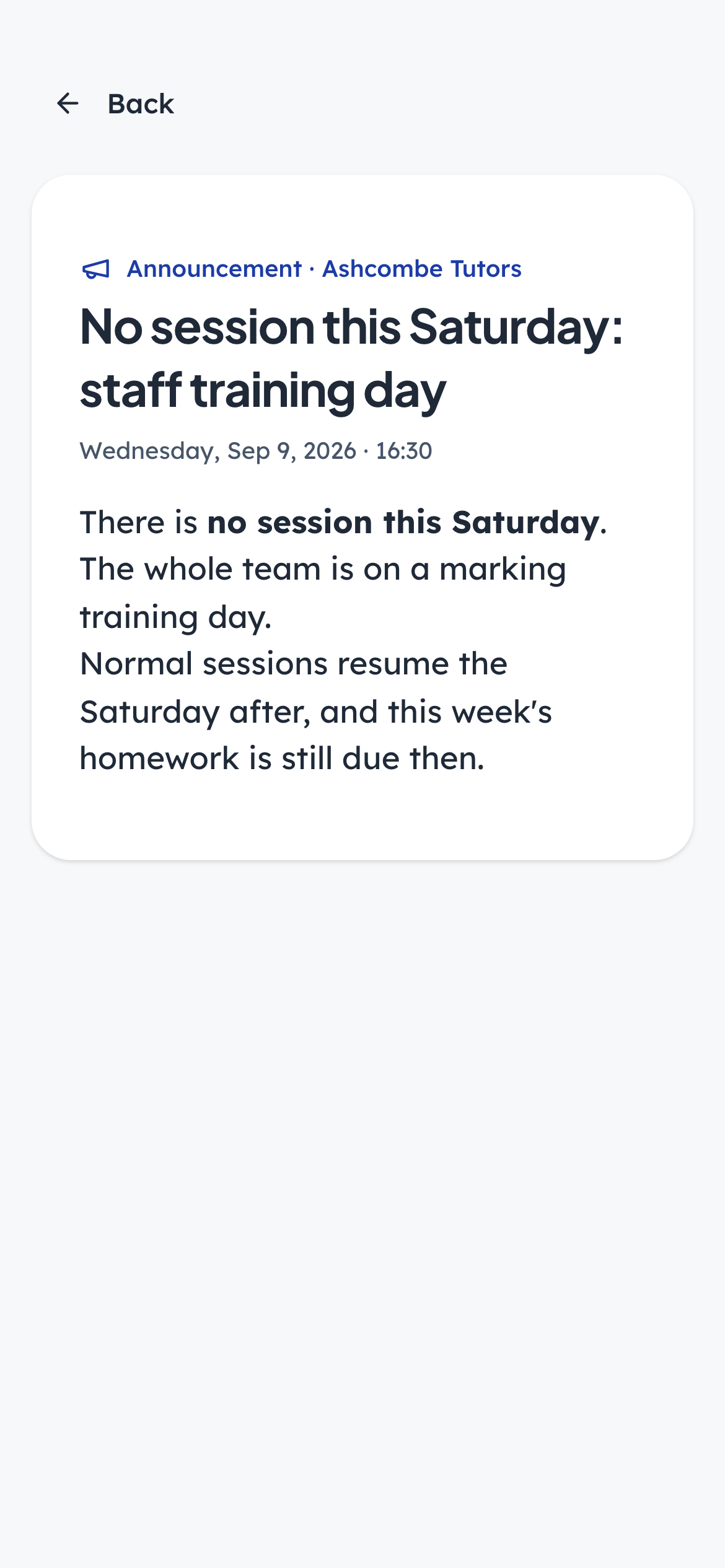
- 1Notice: As the centre wrote it
- 2Notice: Who it is from
Opening one shows the full message as the centre wrote it, with the date and the centre's name. A parent who was emailed sees exactly the same thing here, so nothing depends on an inbox.
A parent asks for help
Steps 7–9Parent- penleap.com/parent/supportSigned in as Parent
7A parent's tickets, each with a reference and a status 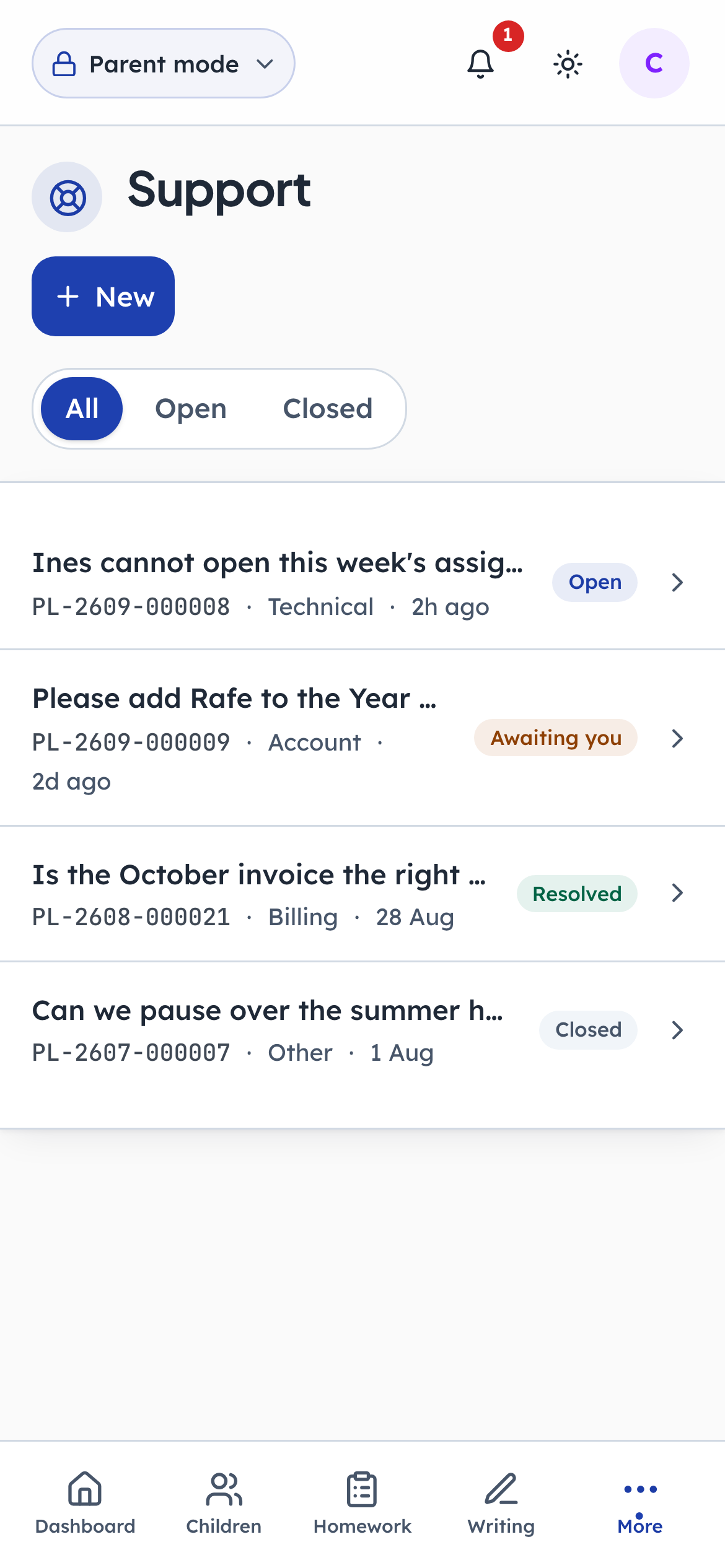
- 1Click: Raise one
- 2Notice: Waiting on the centre
- 3Notice: The centre has replied
Every ticket gets a reference the parent can quote, and a status that says whose move it is: Open, Awaiting you, Resolved or Closed. Old tickets stay readable, and a closed one can be reopened for a month.
- penleap.com/parent/supportSigned in as Parent
8Raising a ticket: a subject, a category, and the problem in their words 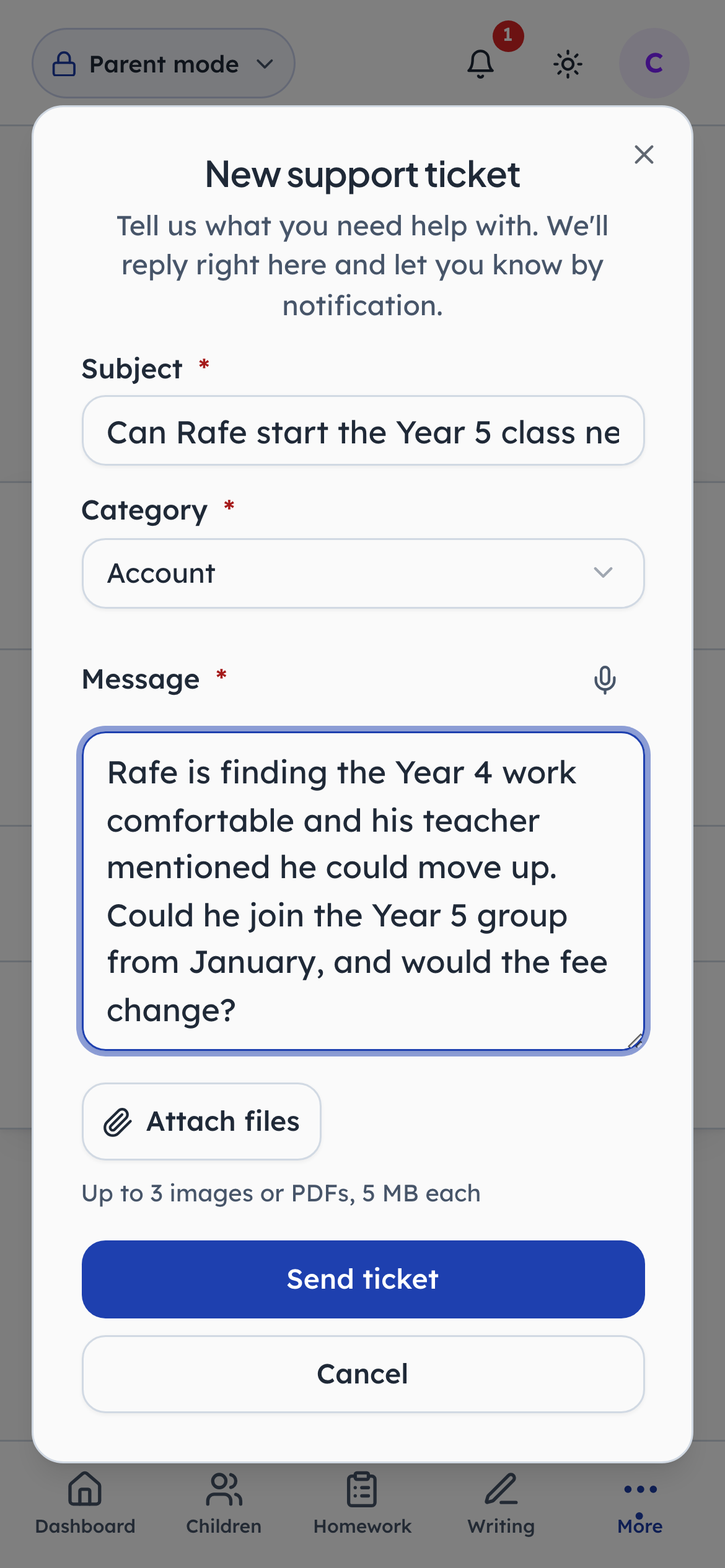
- 1Type in: In one line
- 2Click: Routes it to the right person
- 3Type in: The detail, typed or dictated
- 4Click: Send it
The category routes it to the right person at the centre. The message can be typed or dictated. Up to three photos or PDFs can be attached, which is how a confusing screen gets explained.
- penleap.com/parent/support/…Signed in as Parent
9The conversation, with the centre's replies 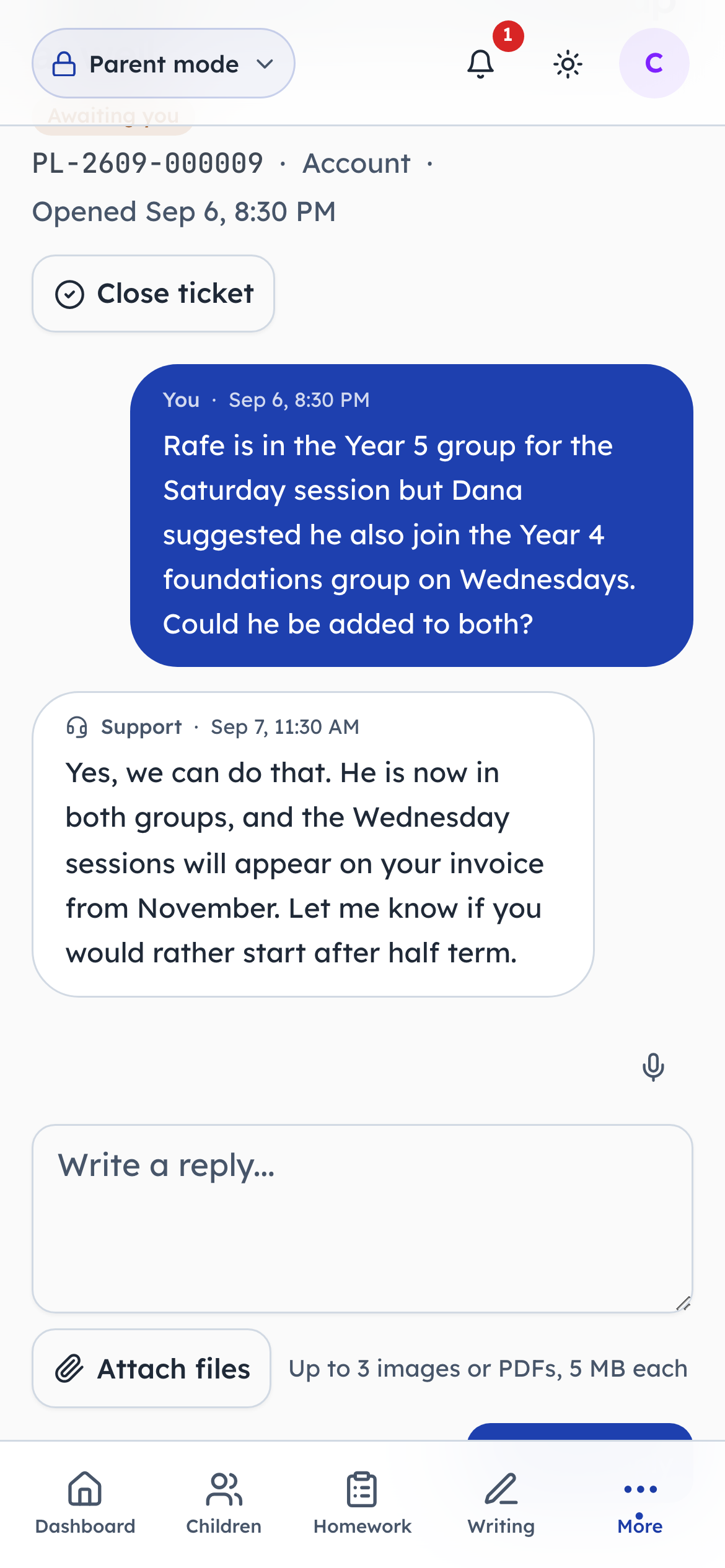
- 1Notice: The centre's reply
- 2Type in: Answer in the thread
- 3Notice: Done? Close it
Replies arrive here and as a notification. The parent can answer in the same thread, and close the ticket themselves when it is sorted.
The centre answers
Steps 10–11Org Admin- penleap.com/dashboard/supportSigned in as Org Admin
10Every ticket from every family, filtered by status 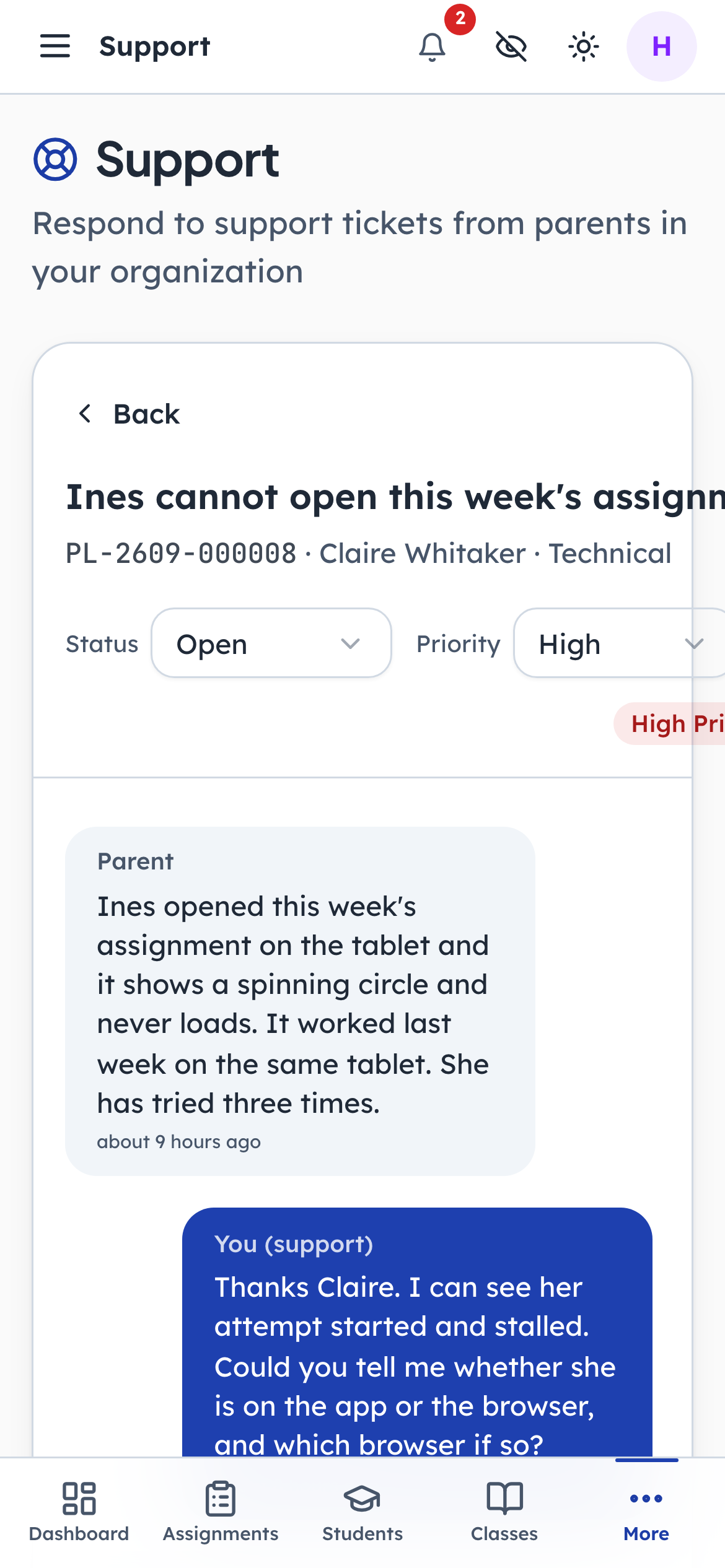
The inbox lists tickets newest first with their status and priority, and searches by reference, subject or parent. Selecting one opens the whole conversation alongside.
- penleap.com/dashboard/supportSigned in as Org Admin
11Reply to the parent, or leave a note only staff can see 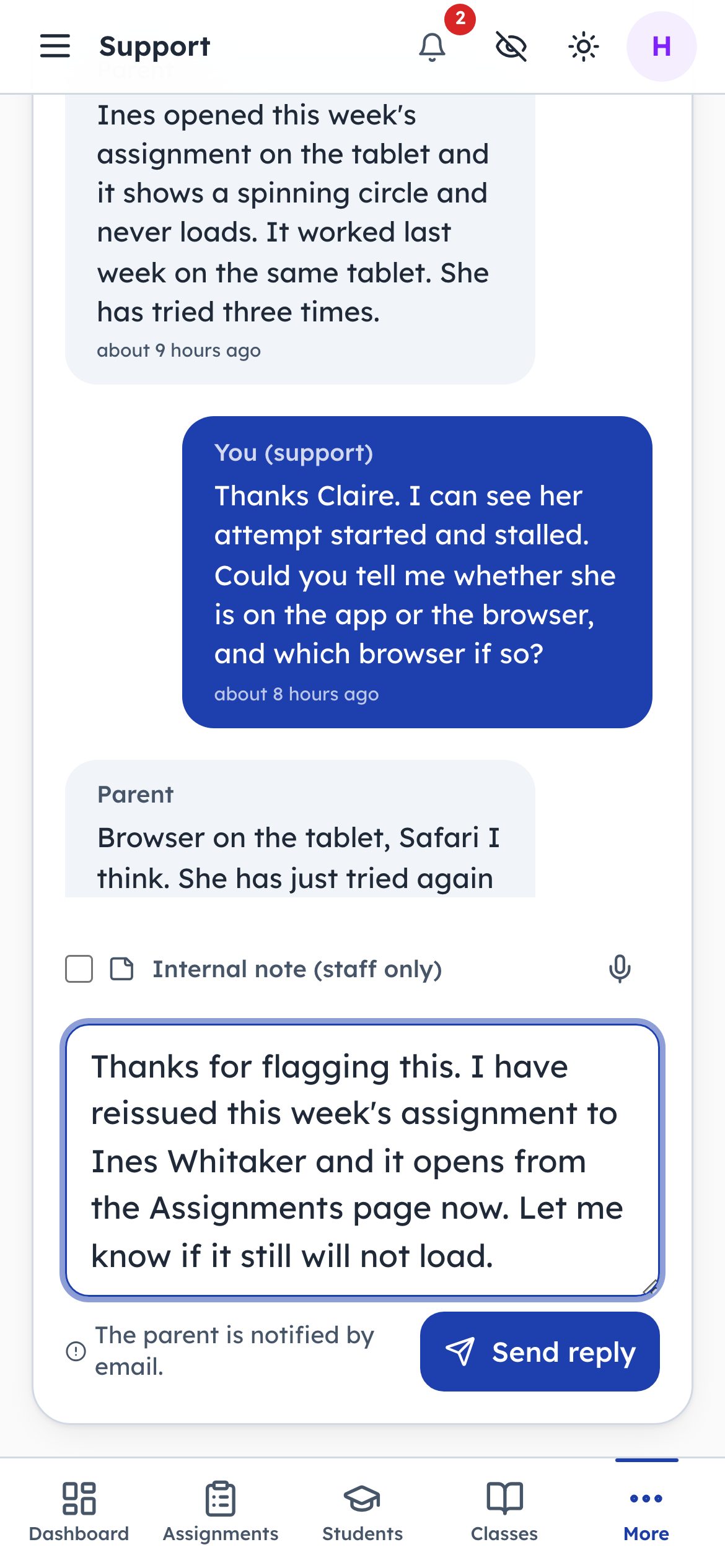
- 1Type in: The parent is notified
- 2Notice: Or a note the parent never sees
- 3Click: Send it
A reply goes to the parent and notifies them. An internal note stays in the thread for colleagues, and the parent never sees it, which is how a ticket gets handed between staff without the family reading the handover. Status and priority sit above the thread and change with one click.