
28 steps · 5 parts · 4 roles
How homework works, start to finish
A tutor sets the work, a family does it on paper and on screen, a teacher marks it, and the office keeps track. Every screen below is the real product.
Everything below is the real product, photographed automatically. The school, its staff and its pupils are invented for this walkthrough — no real family appears on this page.
The tutor sets the work
Steps 1–14Org Admin- penleap.com/loginNot signed in
1Sign in to your tuition centre account 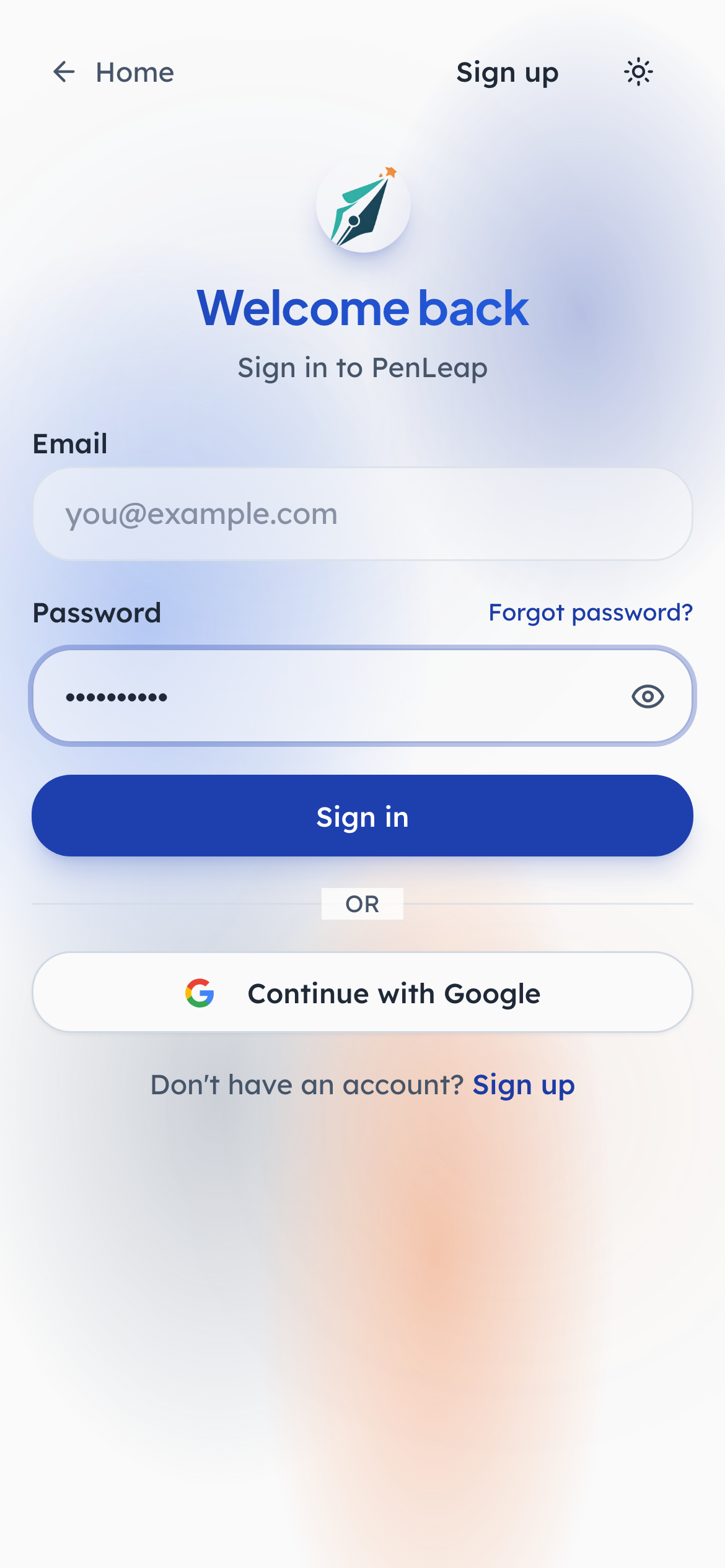
- 1Type in: Your work email
- 2Type in: Your password
- 3Click: Sign in
Everyone at the centre signs in at the same place. What you see next depends on your role rather than on a different address: an admin lands on the dashboard, a parent on their children, a marker on their queue.
- penleap.com/dashboard/assignmentsSigned in as Org Admin
2Everything you have set lives on one list 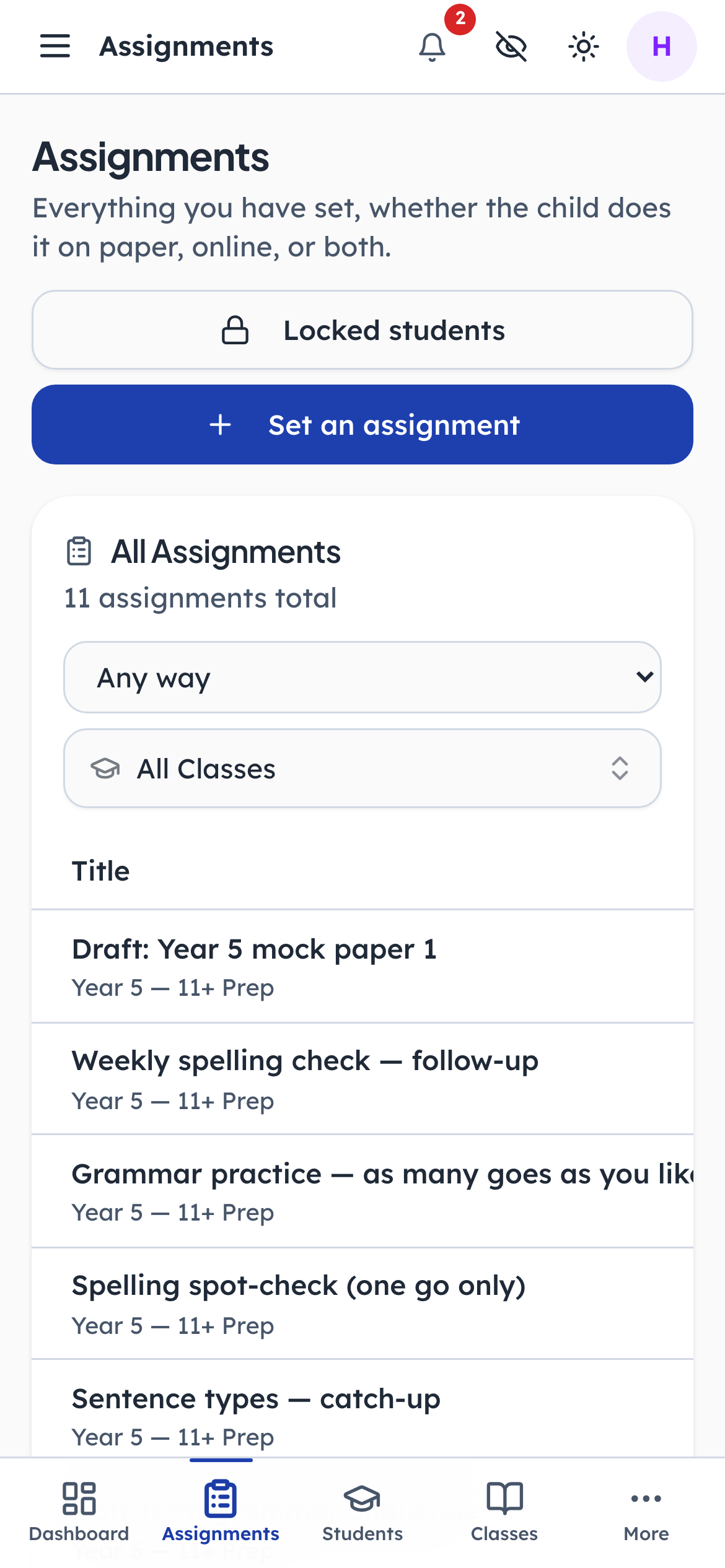
- 1Click: Start here
Paper work and online work sit together here. The How column is the thing to notice: it says whether a child does this on paper, on screen, or both. You are never asked to keep two lists in your head.
- penleap.com/dashboard/assignments/newSigned in as Org Admin
3First question: on paper, or on screen? 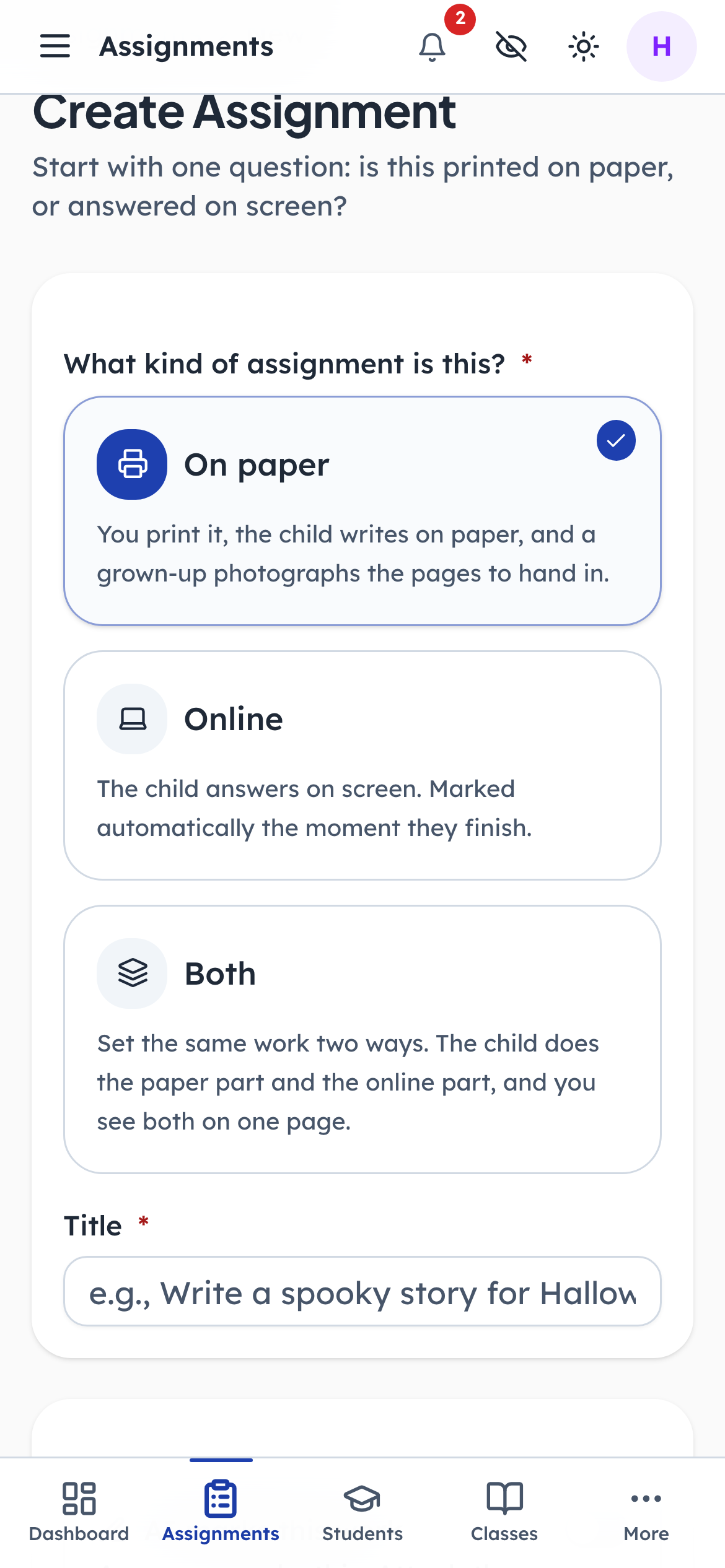
- 1Click: Printed and handed in
- 2Notice: Answered on screen
- 3Notice: A linked pair
This one choice decides everything that follows, because paper and online are genuinely different machines underneath. Paper gets printed, photographed, and marked by a person or by the AI. Online is drawn from a question pool and marked the moment the child presses submit. Both sets the same work two ways and keeps the halves linked.
- penleap.com/dashboard/assignments/newSigned in as Org Admin
4Name it, and say who marks it 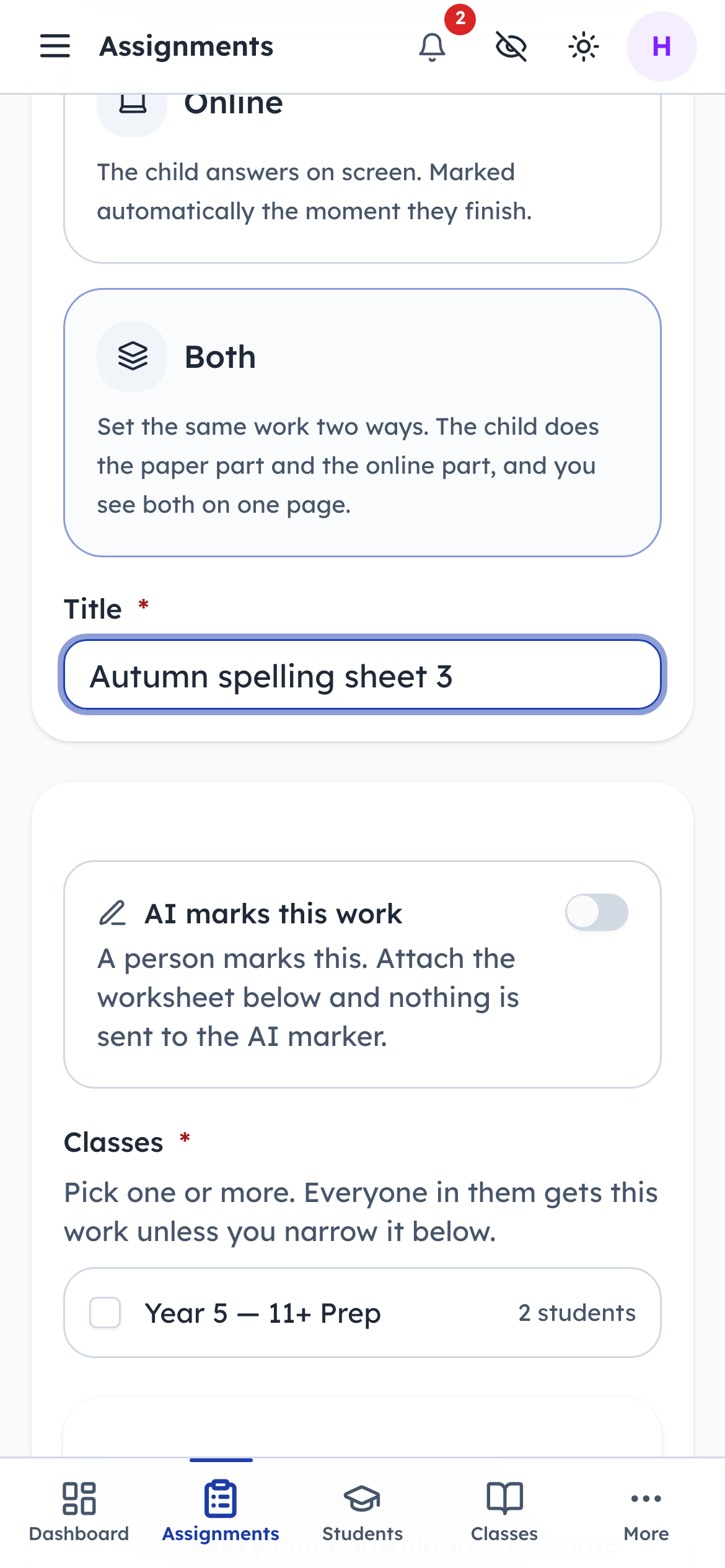
- 1Type in: Name the assignment
- 2Click: Off means a person marks it
Turning the switch off makes this a printable worksheet that comes back to a human. Leaving it on means the child's photographed pages are read and marked automatically. That is the second real fork, and it is one switch.
- penleap.com/dashboard/assignments/newSigned in as Org Admin
5Choose who gets it 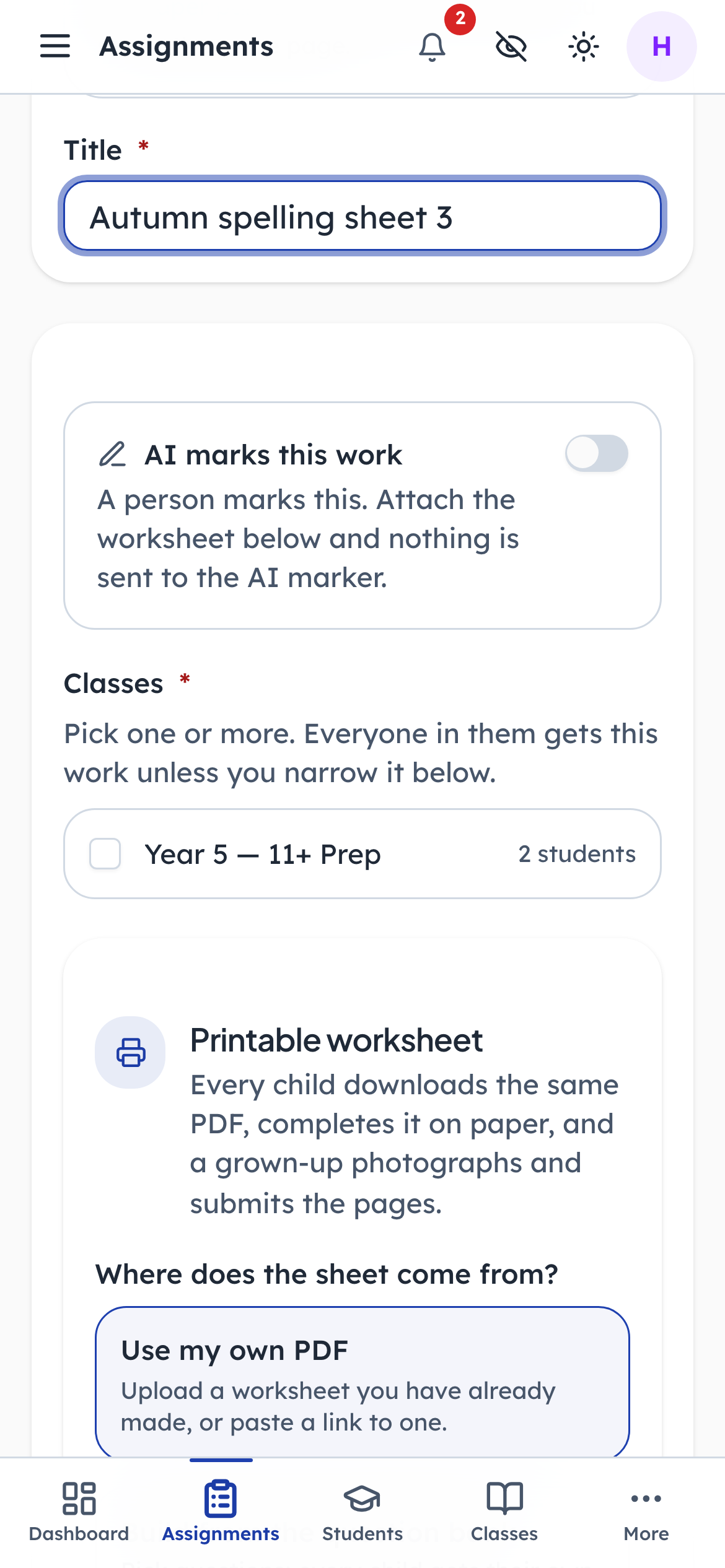
- 1Click: Send it to this class
- 2Notice: One or more classes
Assign it to a whole class, or narrow it to named children. Everyone in the class gets the work unless you say otherwise.
- penleap.com/dashboard/assignments/newSigned in as Org Admin
6Choose where the worksheet comes from 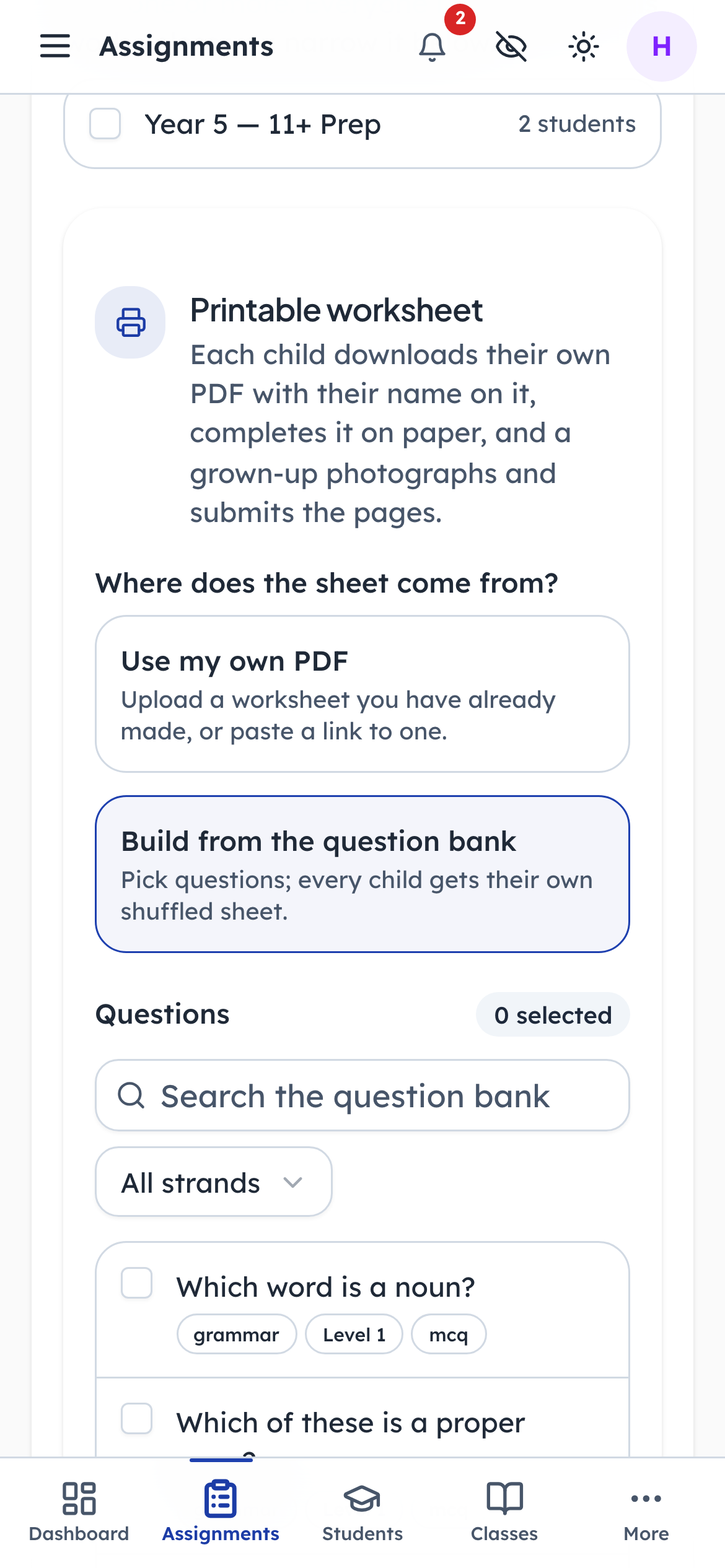
- 1Notice: Your own PDF
- 2Click: One shuffled sheet per child
Upload a sheet you already have, or build one from the question bank. Building it means every child gets their own shuffled sheet with their name printed on it, which is what makes the pages identifiable when they come back as photographs.
- penleap.com/dashboard/assignments/newSigned in as Org Admin
7Decide how the finished work comes back 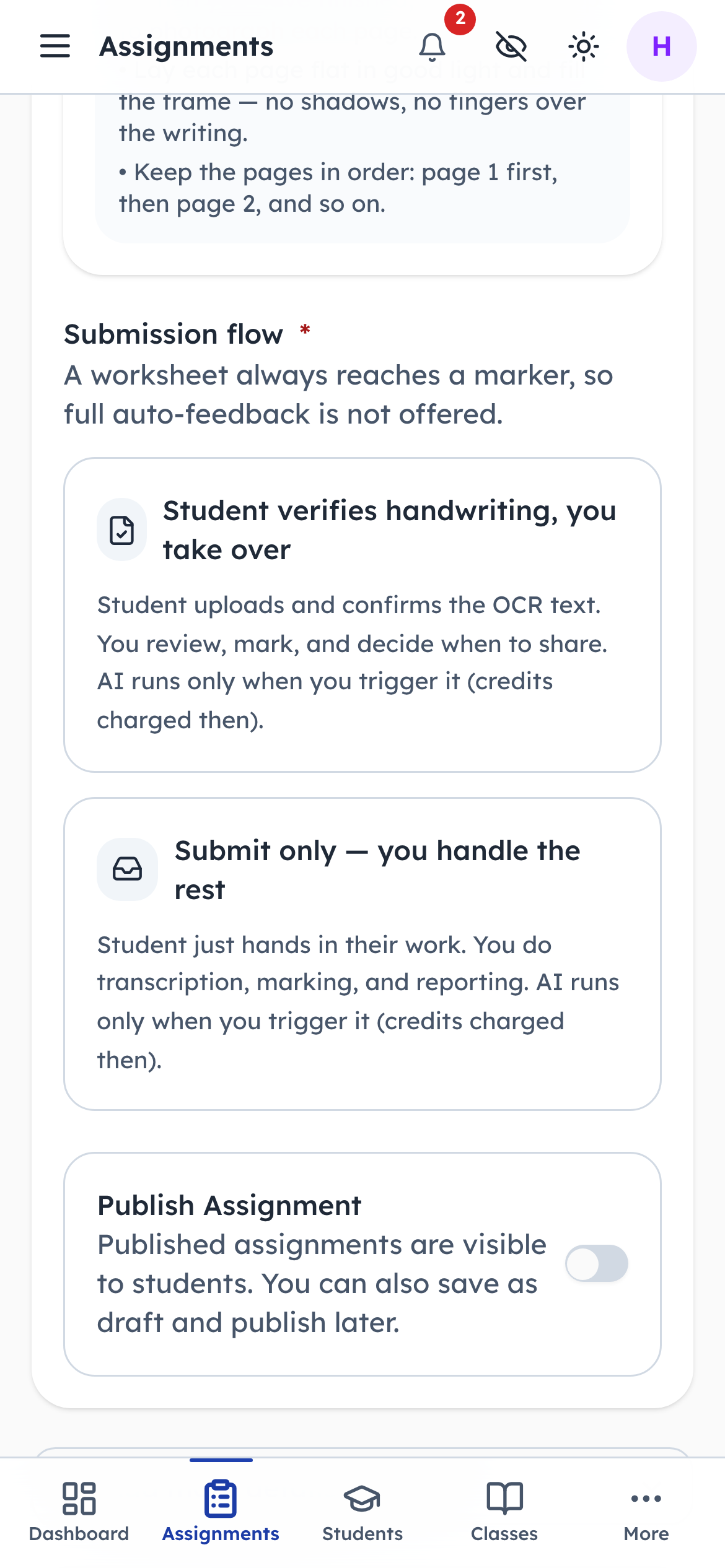
- 1Notice: Child confirms the text first
- 2Click: They hand in, you mark
Either the child confirms the typed-up version of their handwriting before you see it, or they simply hand in the pages and you do the rest. A printed worksheet never goes to the AI marker, so these are the only two options here.
- penleap.com/dashboard/assignments/newSigned in as Org Admin
8Publish it 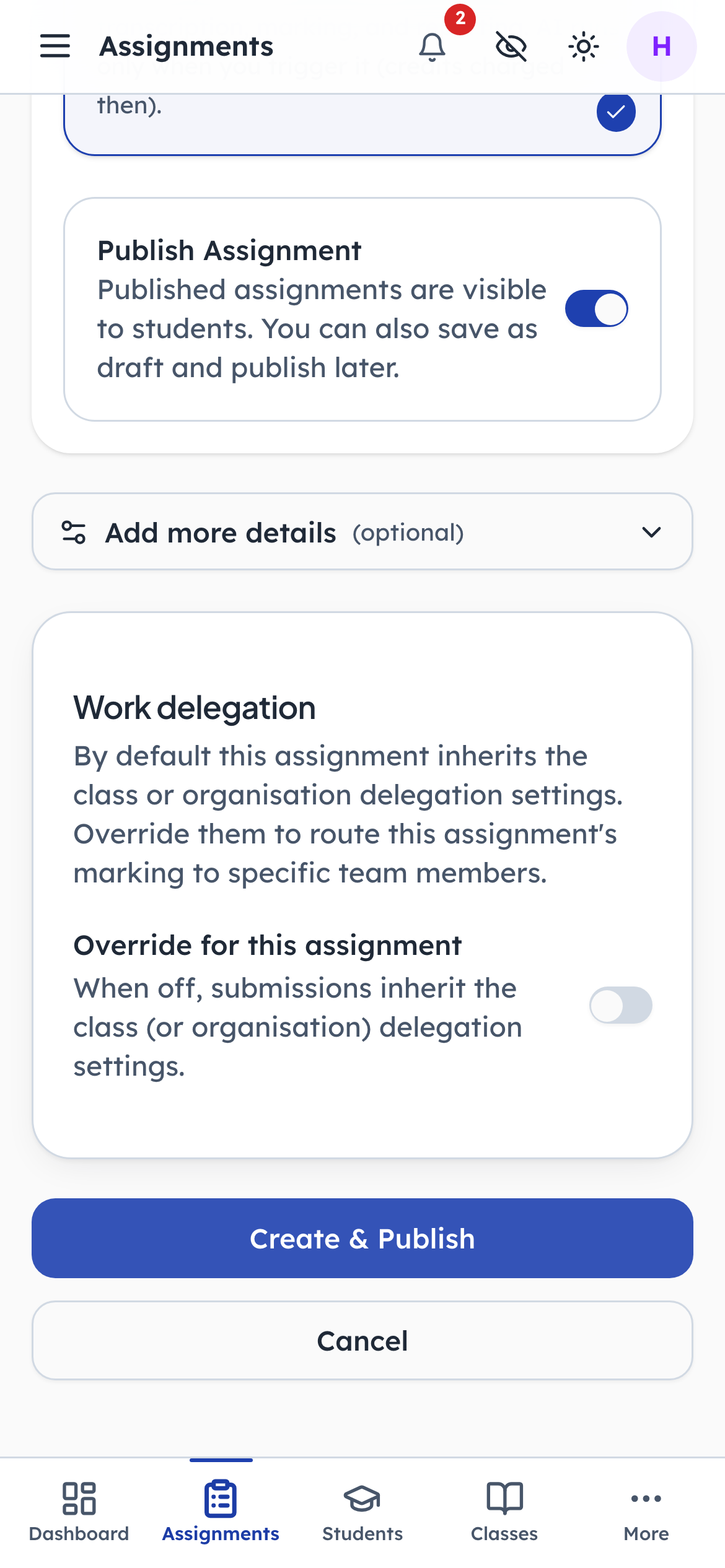
- 1Click: Make it live
- 2Click: Publish it
Publishing makes it visible to children and parents straight away. Saving a draft keeps it to yourself until you are ready.
- penleap.com/dashboard/assignmentsSigned in as Org Admin
9It is live, and the family can see it 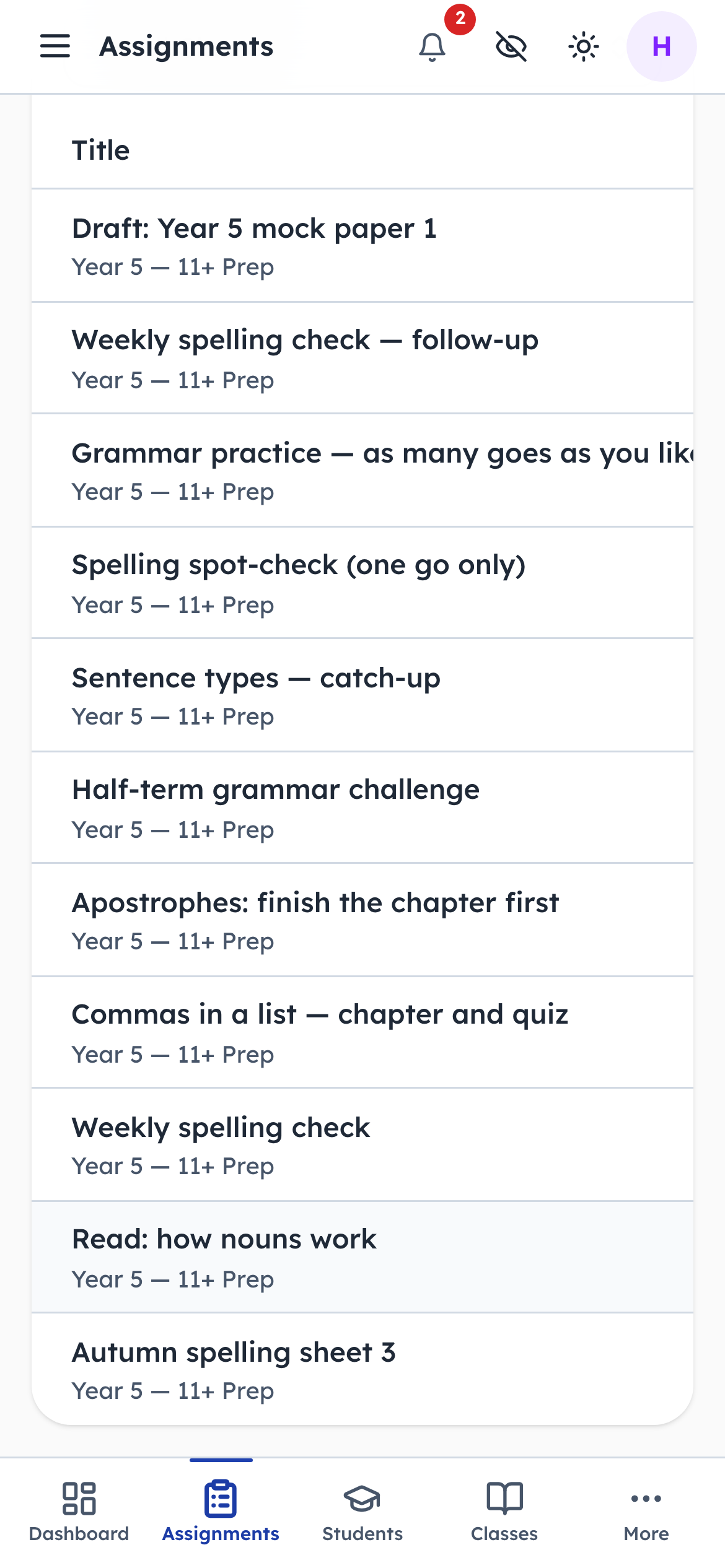
- 1Notice: Your new assignment
The new row joins the list straight away. The How column reads On paper, so at a glance you know this one comes back as photographed pages rather than as a score.
- penleap.com/dashboard/assignments/newSigned in as Org Admin
10Setting work that is answered on screen 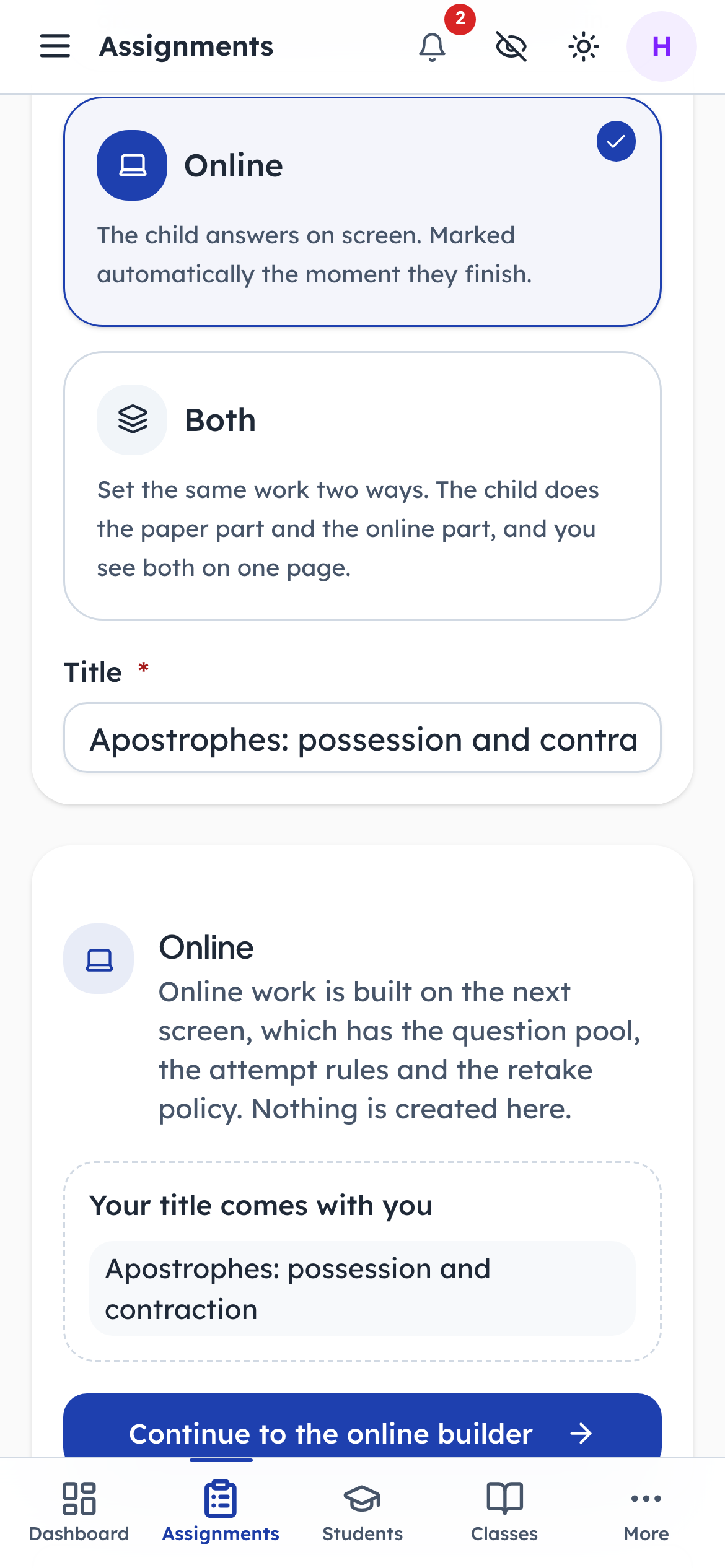
- 1Click: Answered on screen
- 2Click: On to the quiz builder
Choosing Online hands you straight to the quiz builder, because an online assignment needs things a paper one does not: a bank of questions, a pass mark, and a rule about how many goes a child gets.
- penleap.com/dashboard/homework/new?title=Apostrophes%3A%20possession%20and%20contractionSigned in as Org Admin
11Describe the work, and point it at a chapter 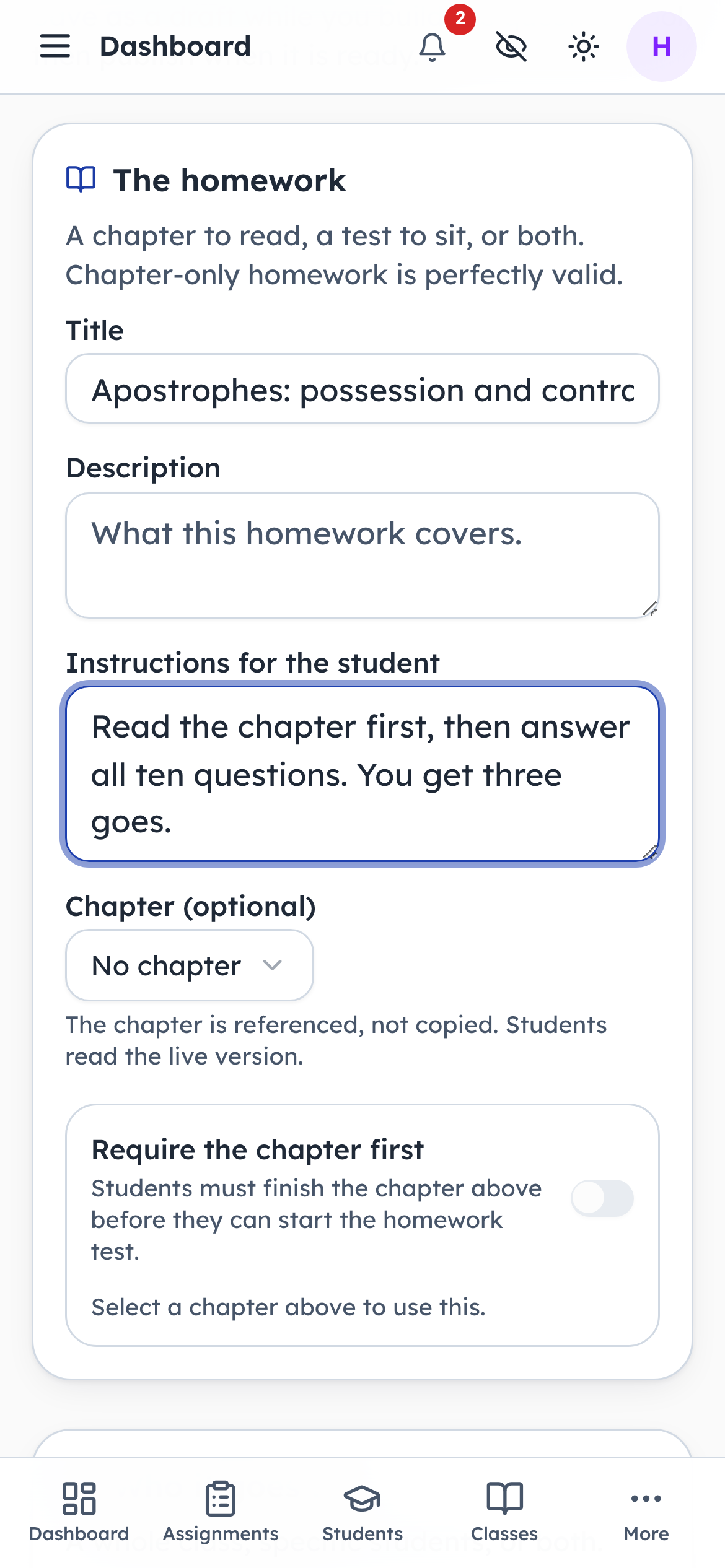
- 1Type in: Name it
- 2Type in: What the child reads first
- 3Notice: Insist on the chapter
The instructions are what the child reads before they start. Linking a chapter is optional, but it lets you insist they read the teaching first, which is the difference between homework that tests and homework that teaches.
- penleap.com/dashboard/homework/new?title=Apostrophes%3A%20possession%20and%20contractionSigned in as Org Admin
12Send it to the class, and set a deadline 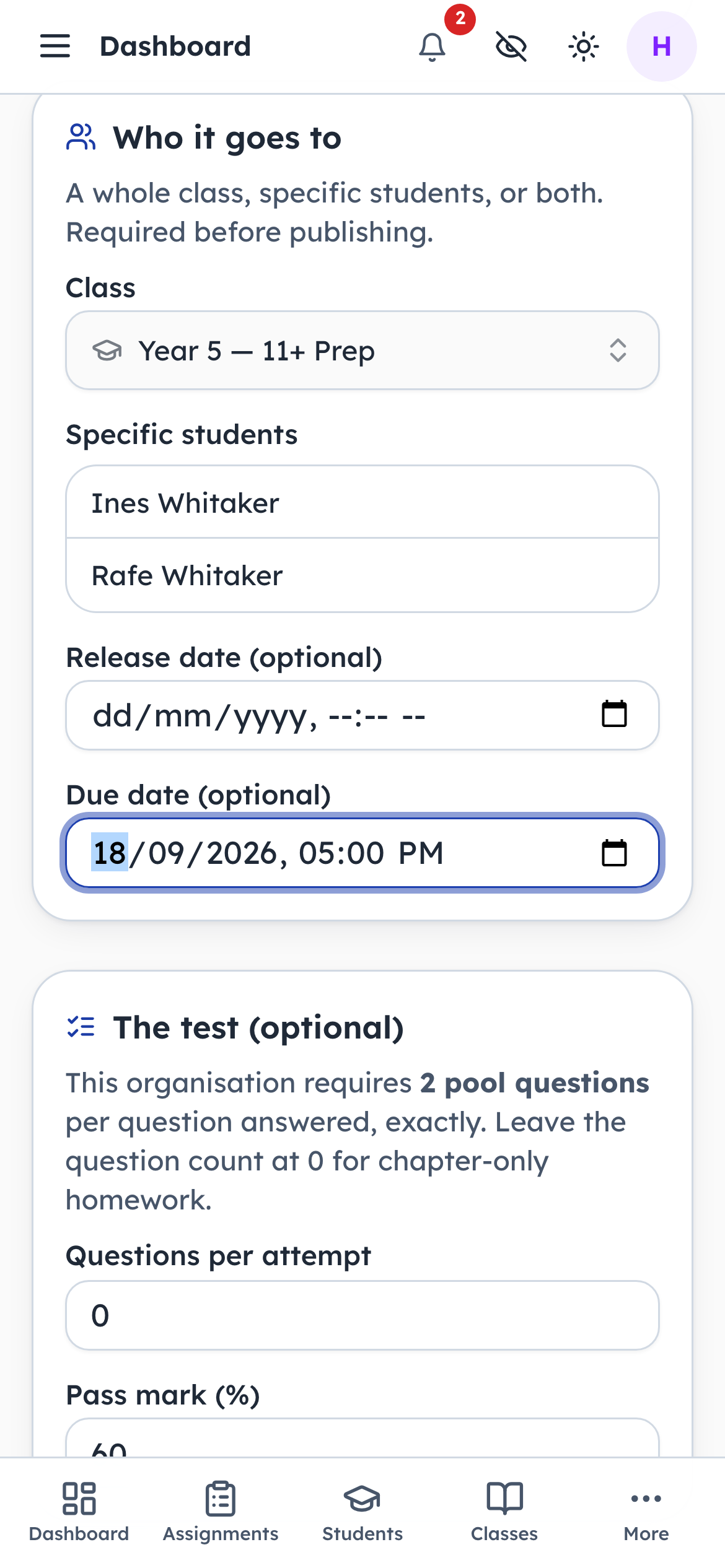
- 1Type in: Due date
- 2Notice: Hide it until this date
A release date keeps the work hidden until the day you choose. A due date only flags late work for you. It never blocks a child from handing something in, which is deliberate: a missed deadline should start a conversation, not close a door.
- penleap.com/dashboard/homework/new?title=Apostrophes%3A%20possession%20and%20contractionSigned in as Org Admin
13Pick the questions the quiz draws from 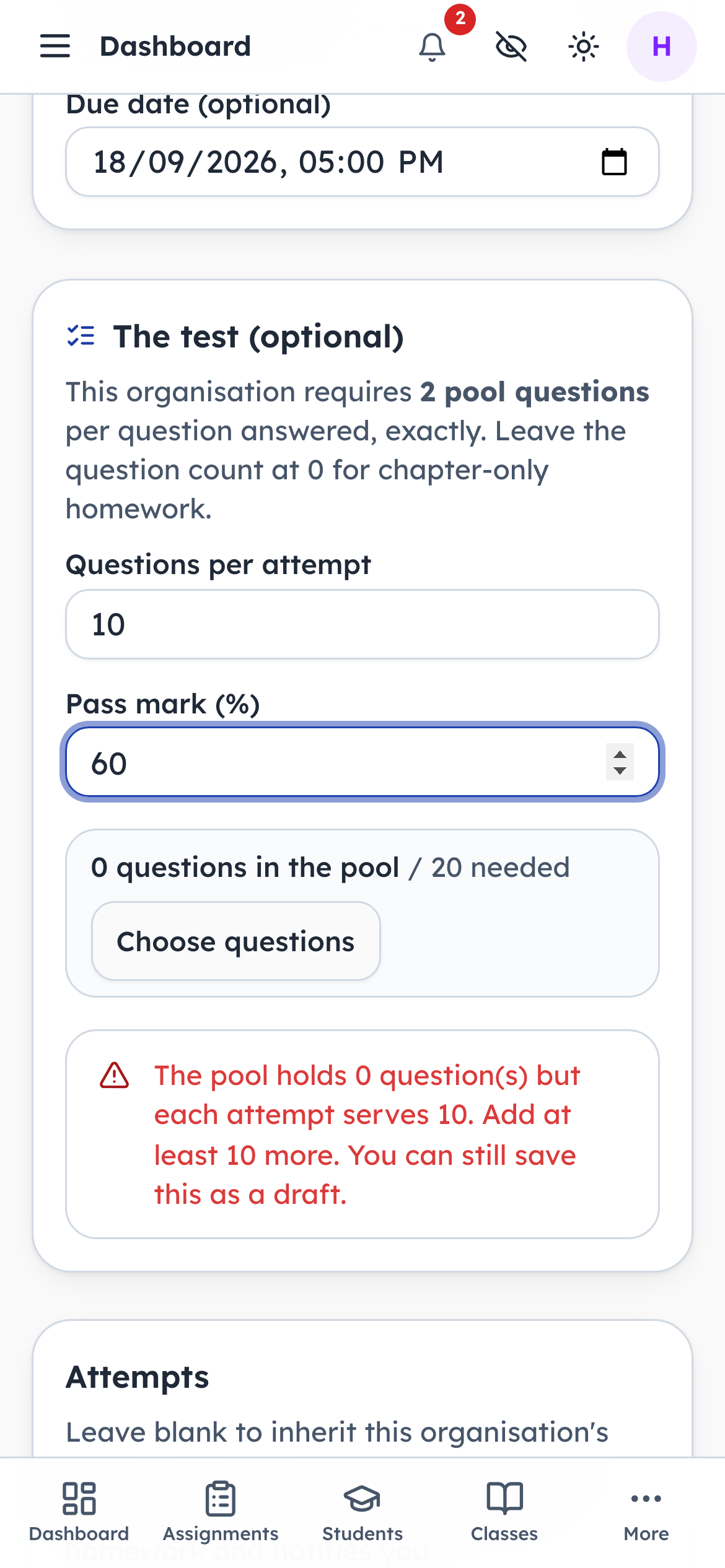
- 1Type in: Questions per go
- 2Type in: Pass mark
- 3Click: Open the question bank
You choose a pool, and each child's attempt is drawn from it. The pool has to be bigger than the number of questions asked, so that a second go is not the same paper again. Publish stays disabled until the pool is big enough, and the page tells you how short you are.
- penleap.com/dashboard/homework/new?title=Apostrophes%3A%20possession%20and%20contractionSigned in as Org Admin
14Decide how many goes a child gets 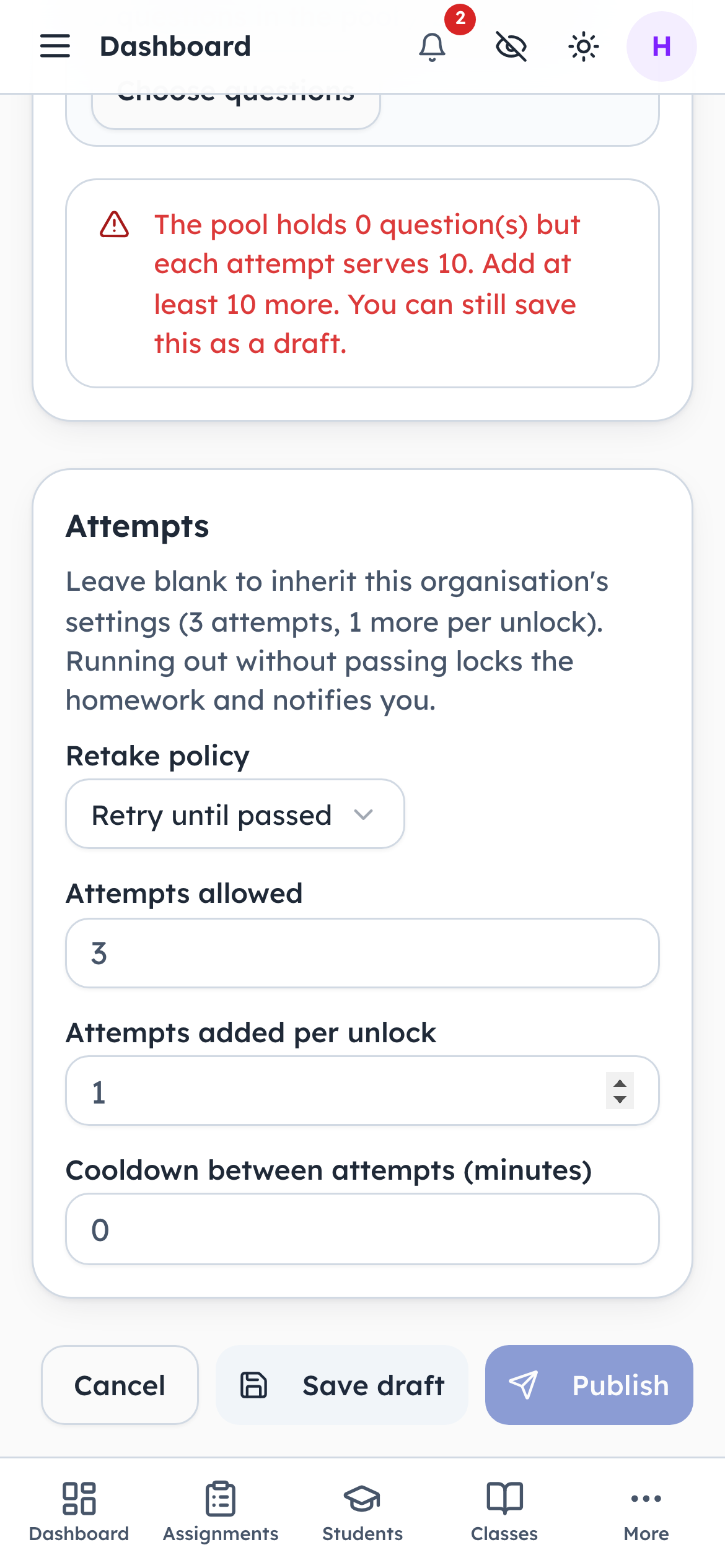
- 1Notice: Goes allowed
- 2Notice: Goes added per unlock
- 3Notice: Wait between goes
Retry until passed is the usual choice. When a child runs out of goes the work locks itself and you are told, so nobody is quietly stuck. Unlocking adds goes; it never wipes the record of what happened.
A parent hands in the paper work
Steps 15–17Parent- penleap.com/parent/homeworkSigned in as Parent
15What the family has been set 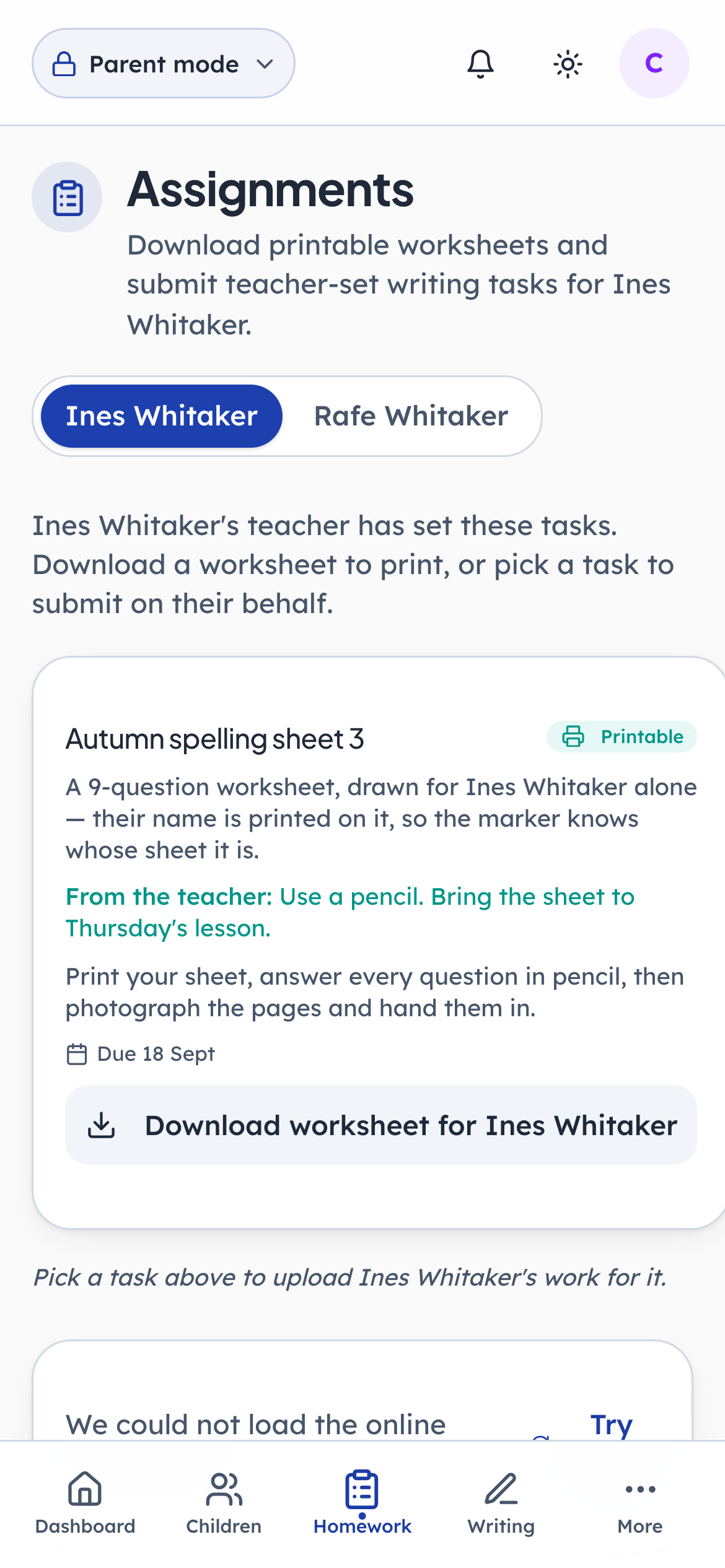
- 1Notice: Whose work is this
- 2Click: The sheet that was set
A parent sees the same work from the other side. The switcher at the top says whose work this is, which matters in a family with more than one child: everything below it changes when you switch.
- penleap.com/parent/homeworkSigned in as Parent
16Download the sheet, printed for this child 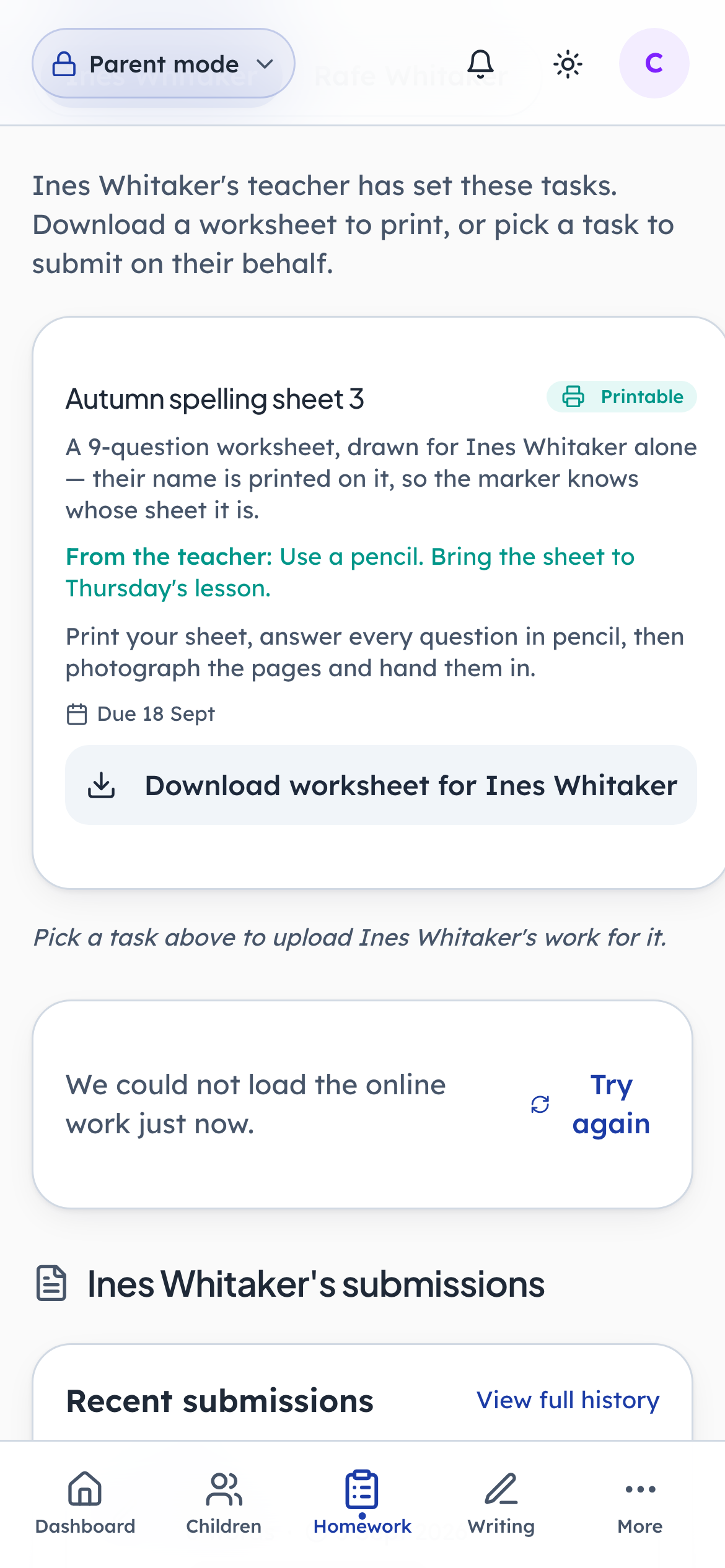
- 1Click: Get the printable sheet
The worksheet is generated for one child and carries their name, so when the pages come back as photographs there is never a question about whose they are. Each child in the class gets their own shuffle of the same questions.
- penleap.com/parent/homeworkSigned in as Parent
17Photograph the finished pages and hand them in 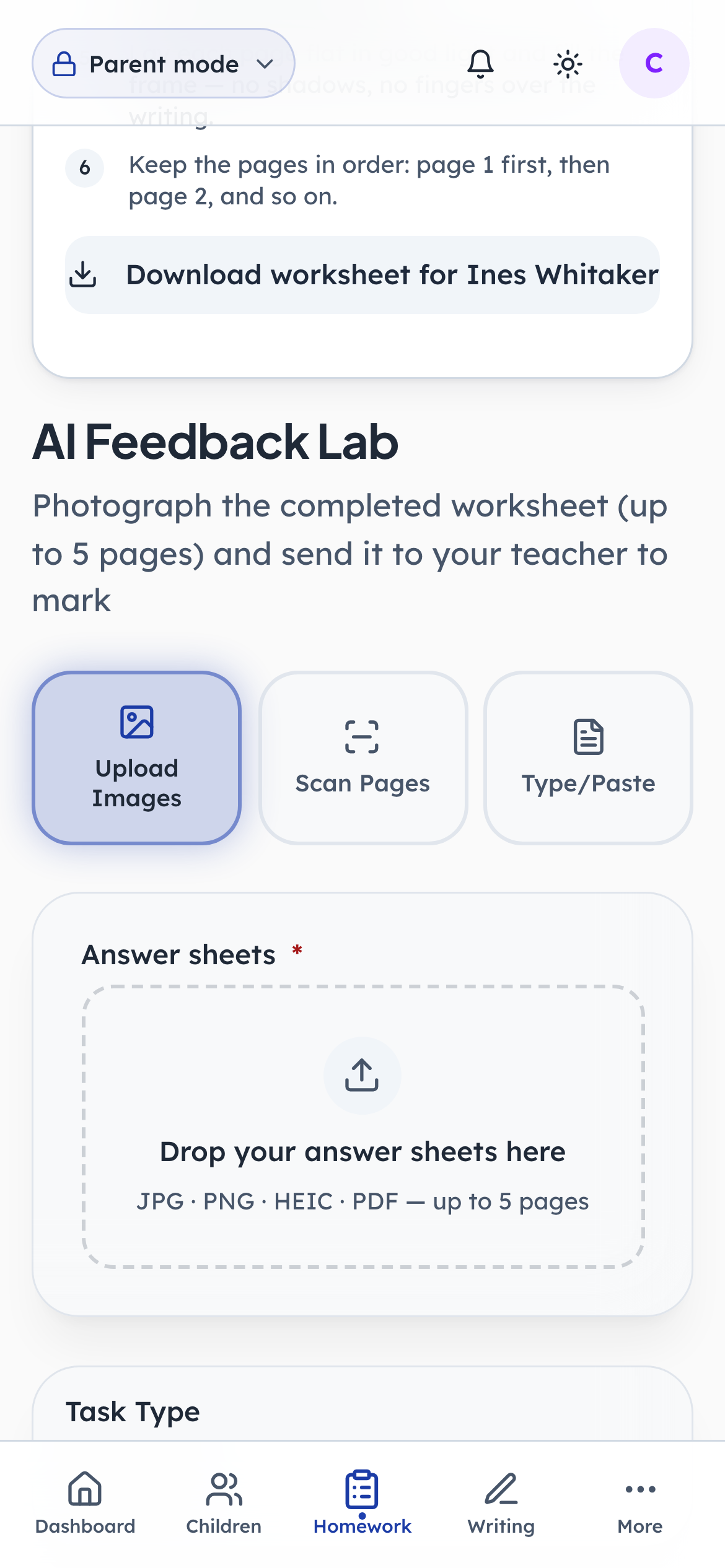
- 1Notice: Photos you already took
- 2Click: Scan with the camera
Three ways in: photograph the pages, scan them with the camera so they are cropped and straightened automatically, or type the answers. Up to five pages are merged into one document for whoever marks it.
- penleap.com/parent/homeworkSigned in as Parent
V1A parent can follow the online work too 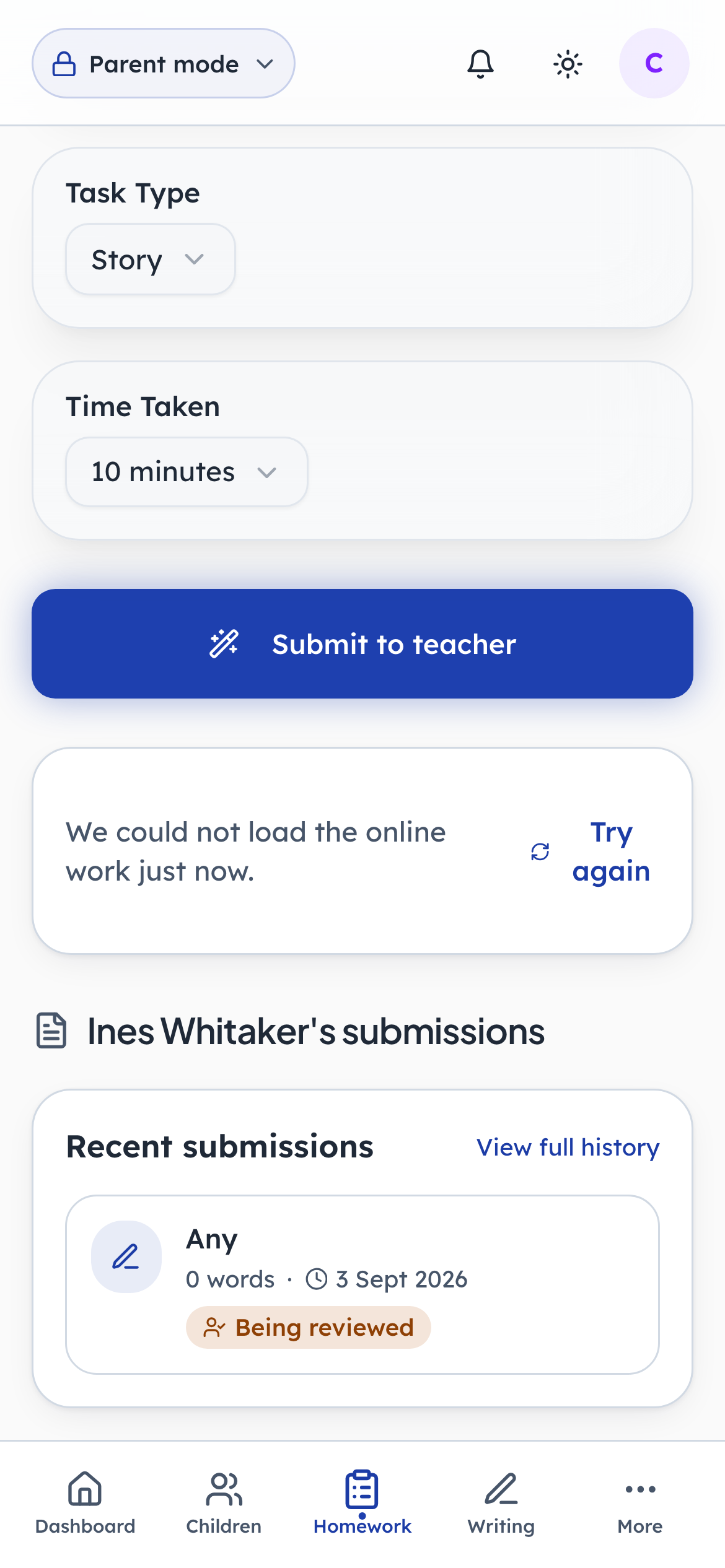
- 1Notice: Everything handed in so far
Further down the same page is a read-only view of the work the child does on screen. A parent can see how it is going but cannot sit it for them, which is the point.
The child sits the online test
Steps 18–24Child- penleap.com/select-profileSigned in as Child
18The child takes over 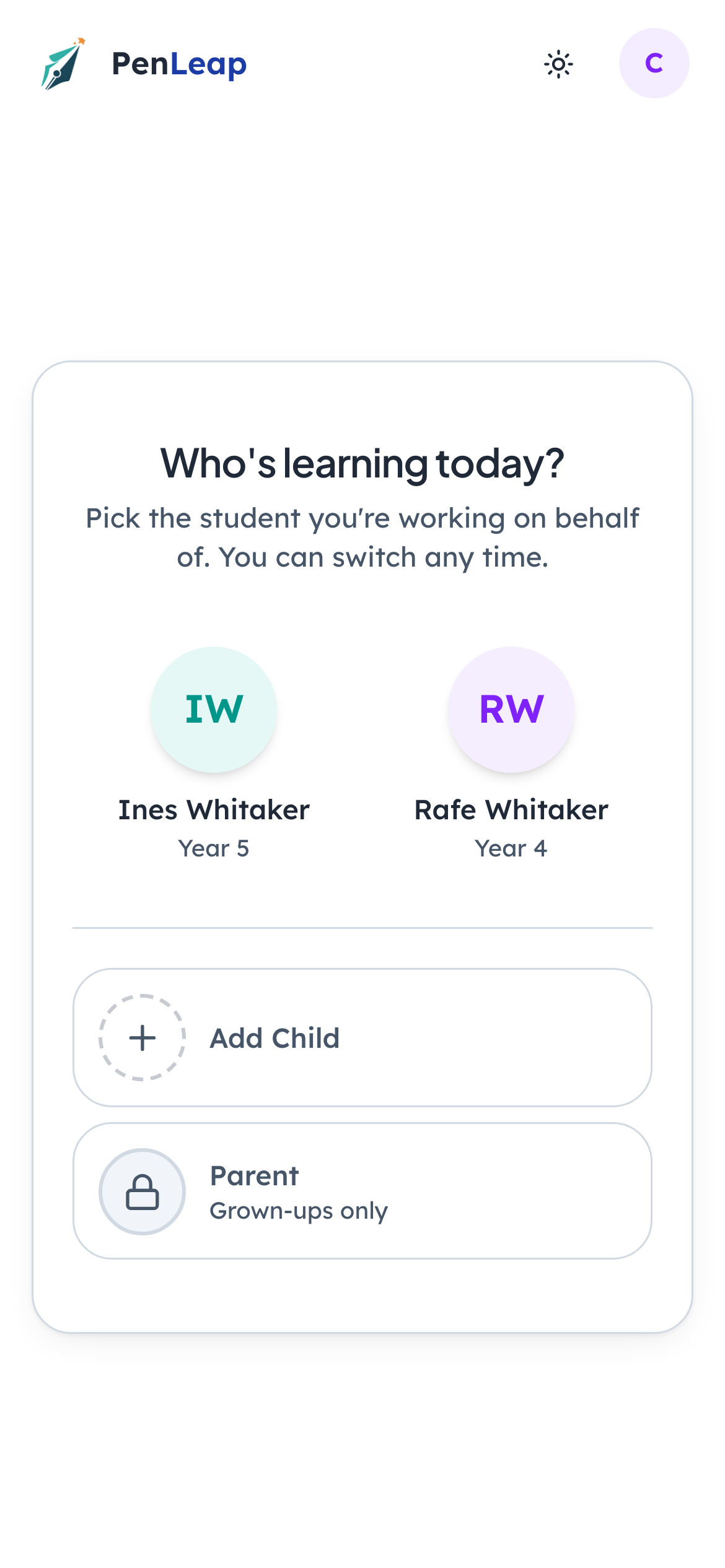
- 1Click: Tap your name
Children in a school account have no separate login. The grown-up signs in, then hands the device over here. Everything past this point is the child's own view.
- penleap.com/select-profileSigned in as Child
19Enter your four-digit PIN 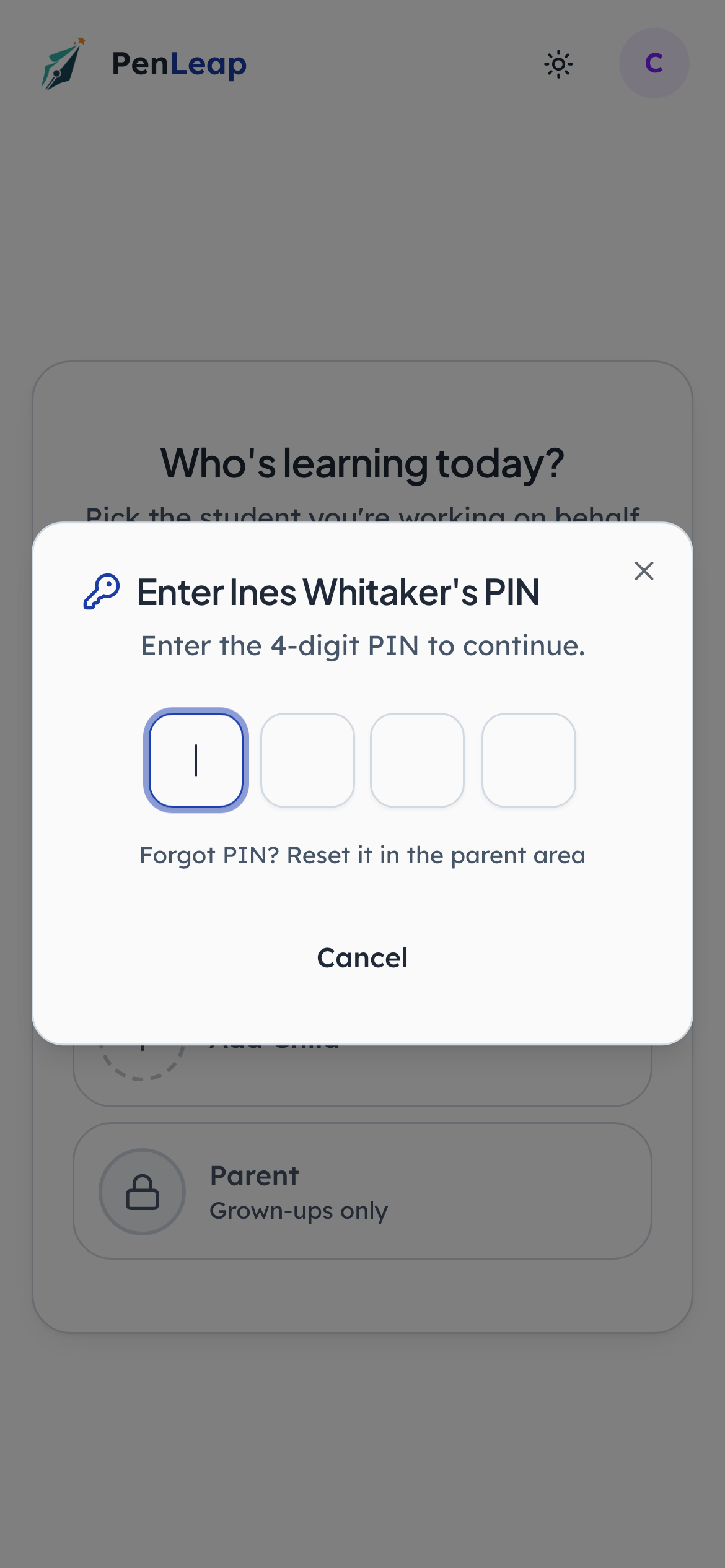
- 1Type in: Four digits
The PIN keeps one child out of another child's work on a shared tablet. A parent sets it, and can reset it from the parent area.
- penleap.com/learn/homeworkSigned in as Child
20Everything set for me, and where each one stands 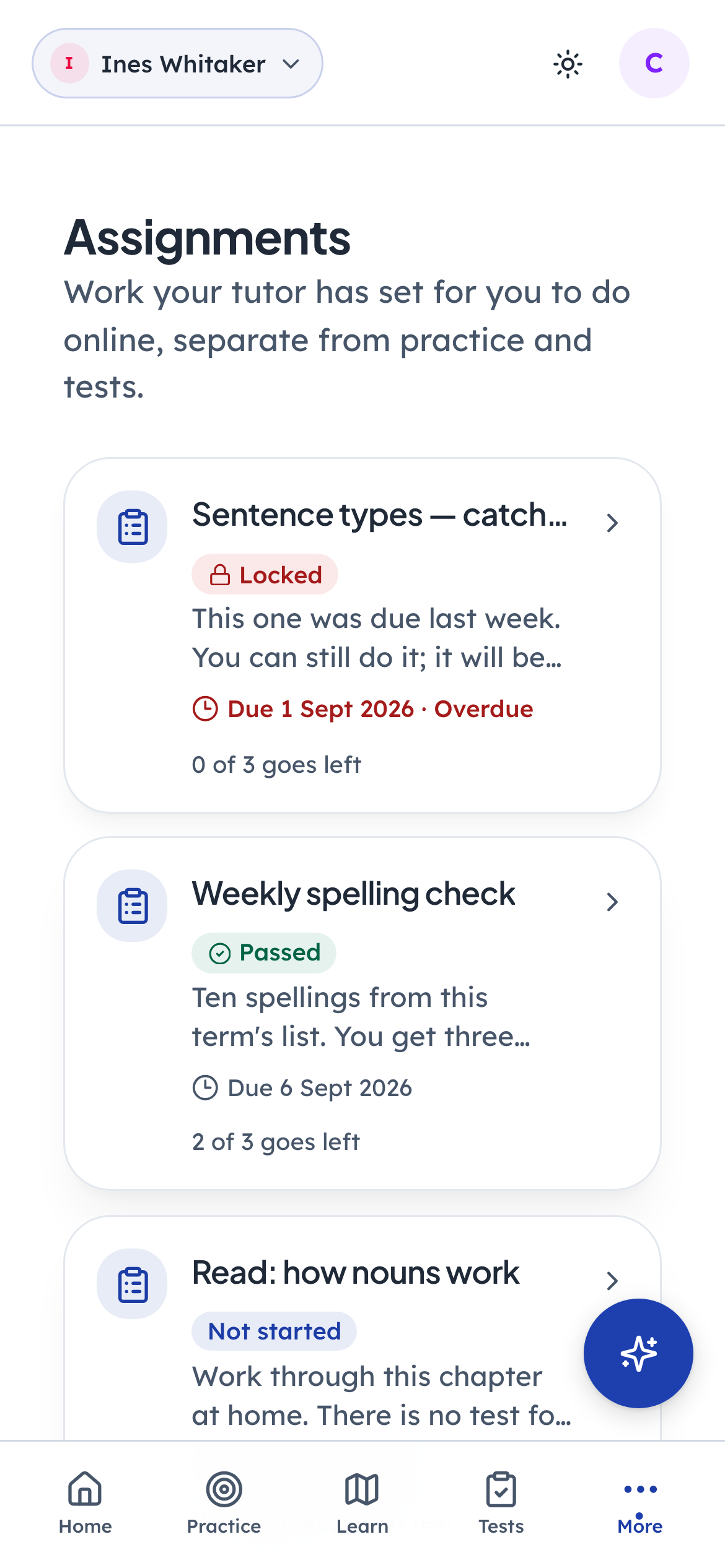
- 1Click: Open a piece of work
- 2Notice: Set by your tutor
One row per piece of work, each carrying its own state: not started, in progress, passed, locked, or not open yet. A child never has to work out what is outstanding.
- penleap.com/learn/homework/…Signed in as Child
21What you are about to do, before you start 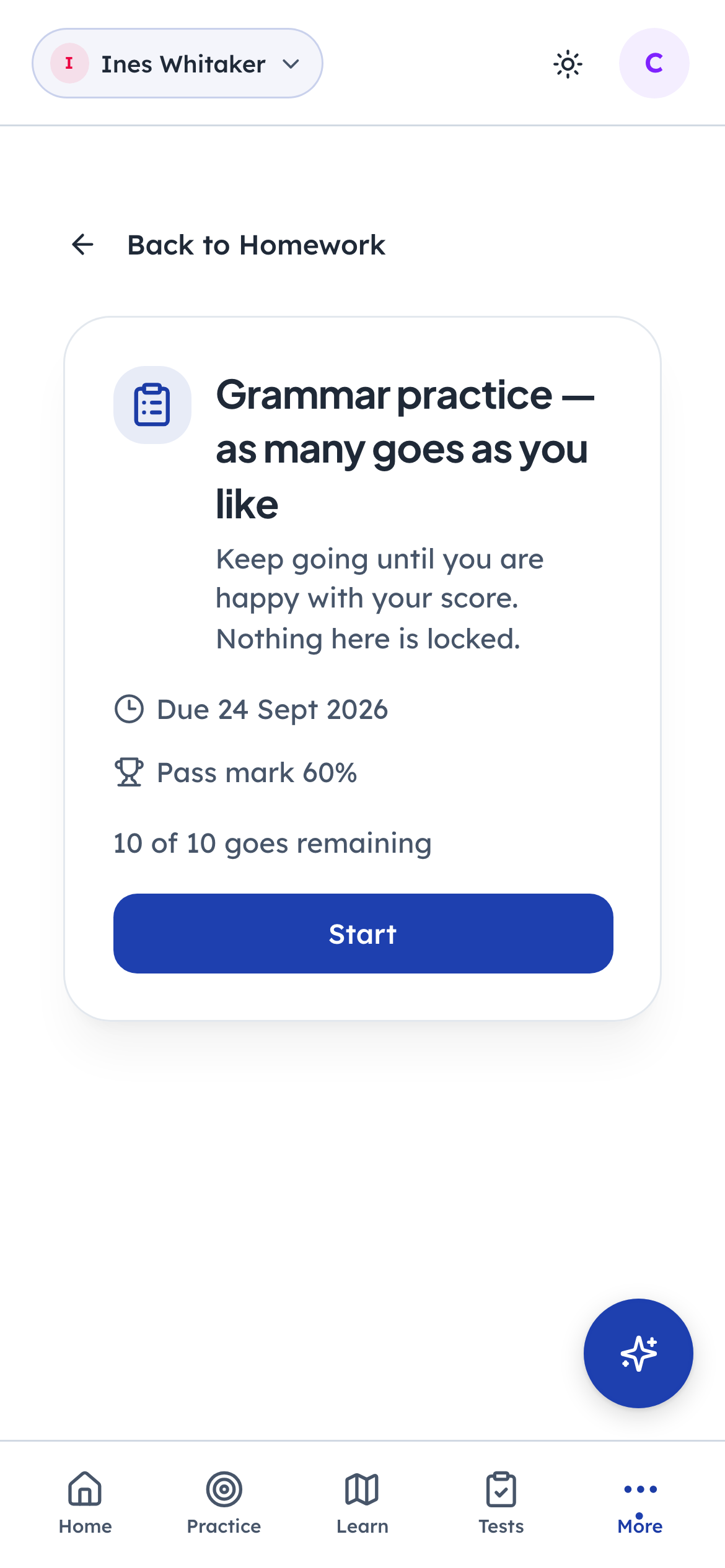
- 1Click: Begin
The due date, the pass mark, and how many goes are left are all on screen before the first question. Nothing about the deal is hidden until afterwards.
- penleap.com/learn/homework/…Signed in as Child
22One question at a time 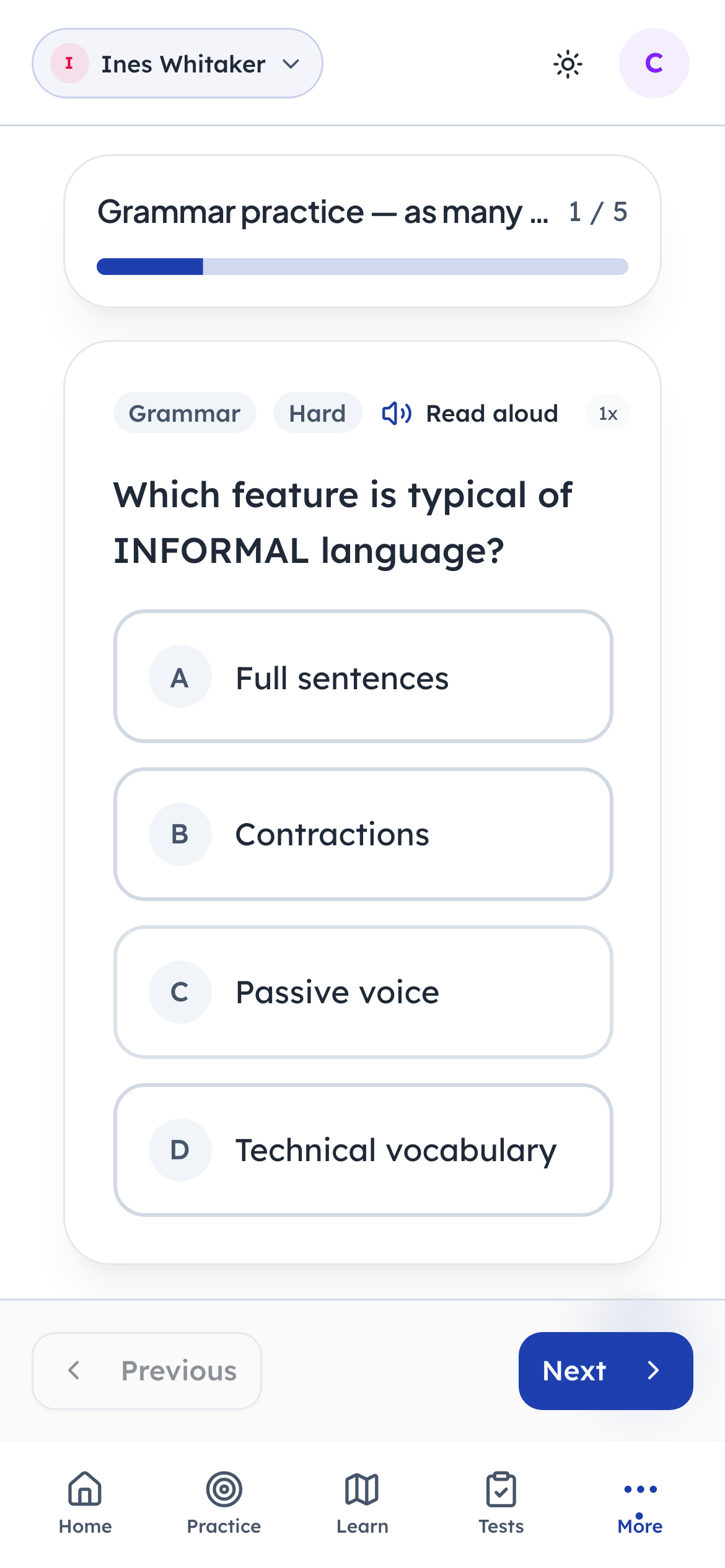
- 1Notice: Where you are
- 2Click: Next question
A progress bar, and next and previous. Questions are drawn from the pool the tutor chose, so a second go is a fresh paper rather than the same one again.
- penleap.com/learn/homework/…Signed in as Child
23On the last question, Next becomes Submit 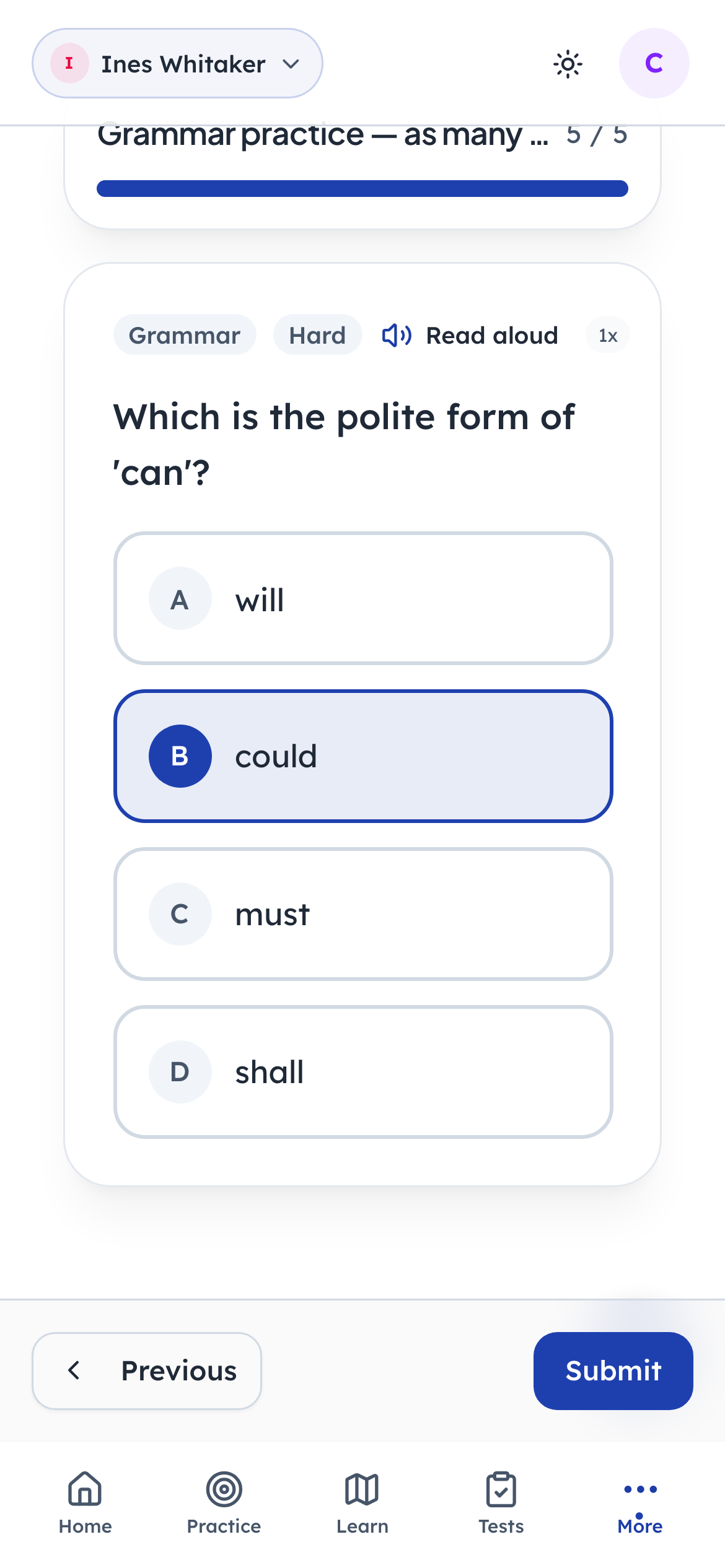
- 1Click: Hand it in
Nothing is sent until then, so a child can go back and change an answer. There is no per-question commit to regret.
- penleap.com/learn/homework/…Signed in as Child
24Marked the moment you press submit 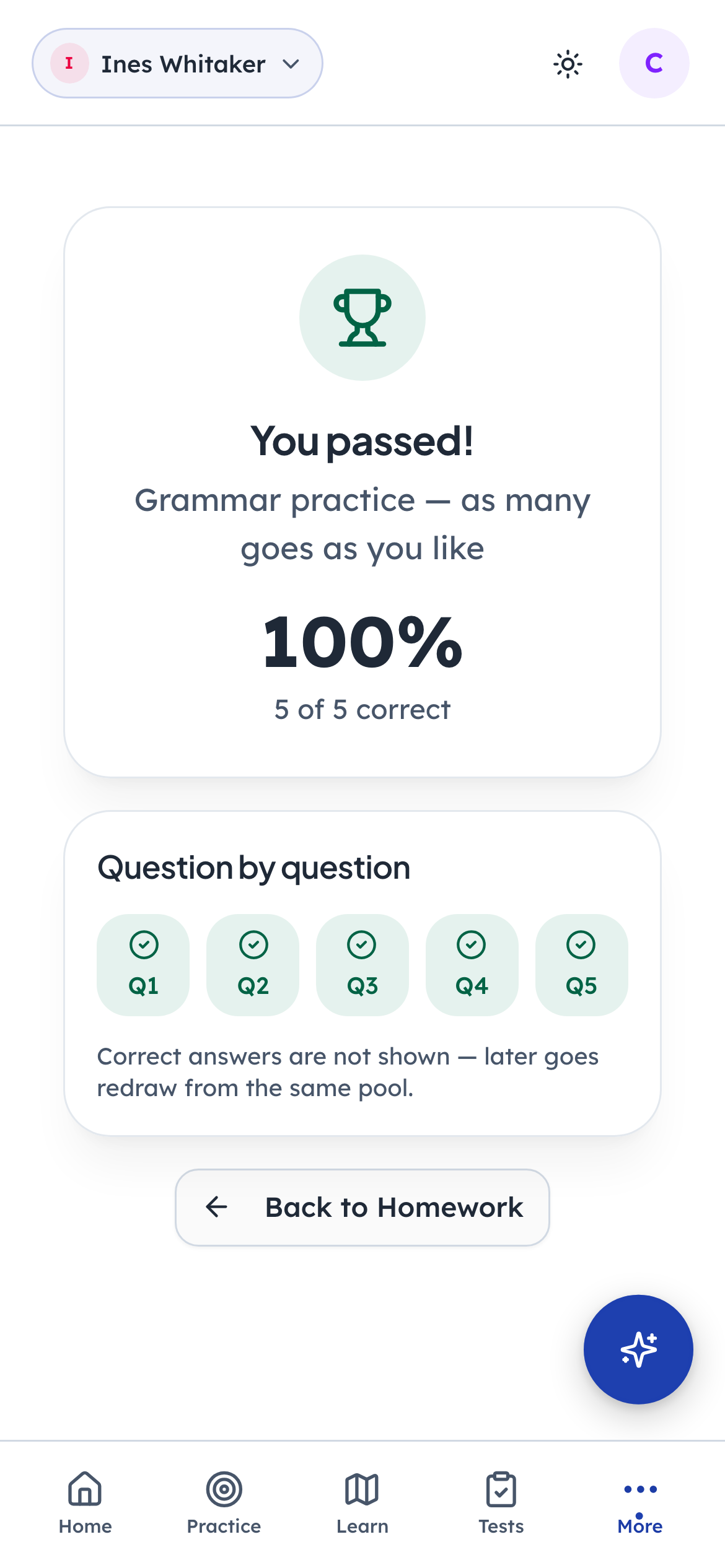
- 1Notice: Marked already
- 2Notice: Every question, right or wrong
- 3Click: Done
No waiting, and no teacher in the loop. The score, the pass mark, and a question by question grid appear straight away. Correct answers stay hidden, because a later go redraws from the same pool and showing them would give the next paper away.
- penleap.com/learn/homework/…Signed in as Child
V2When a child runs out of goes 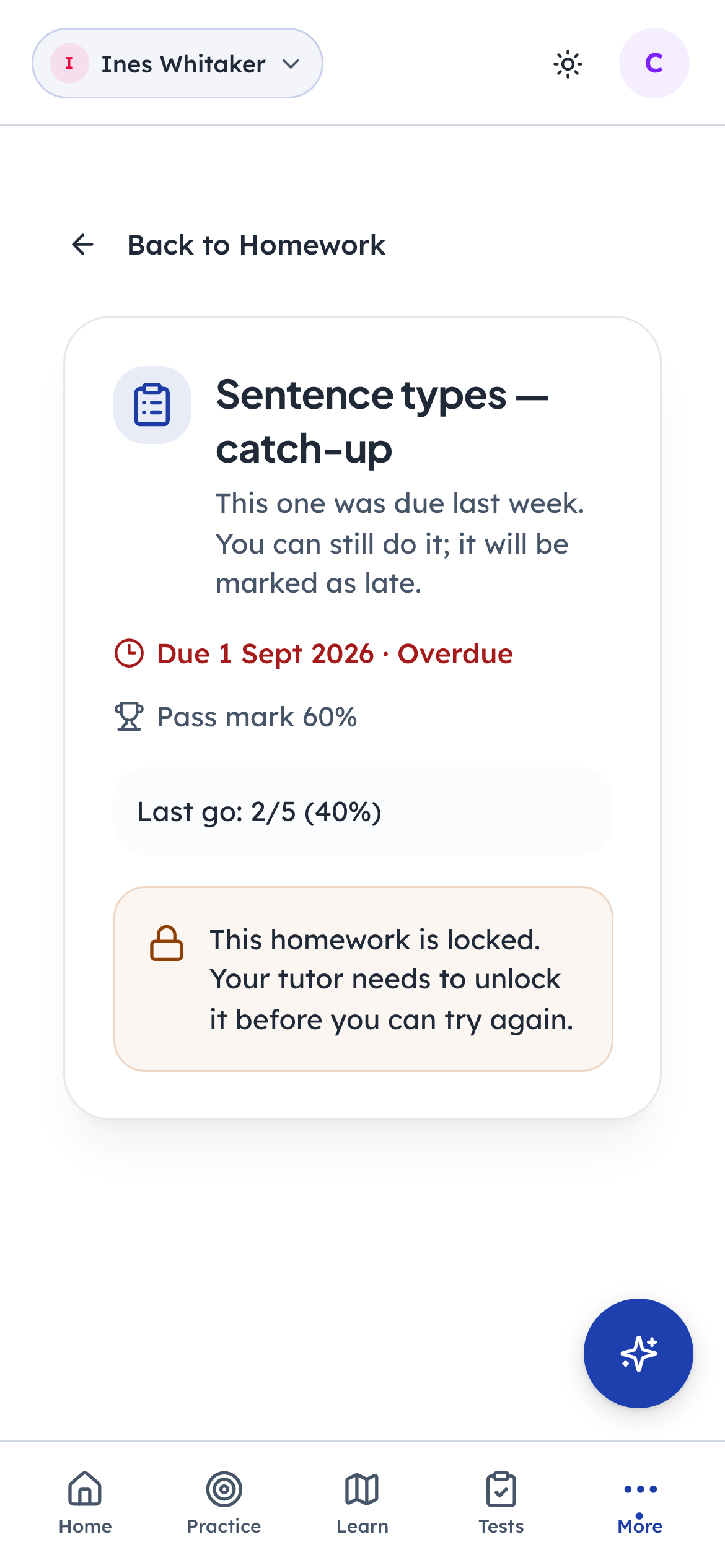
- 1Notice: Locked, and why
Work locks itself once the allowance is used without passing, and whoever set it is told. The child is not left staring at a dead button: the screen says what happened and who can reopen it.
- penleap.com/learn/homework/…Signed in as Child
V3Some work asks you to read first 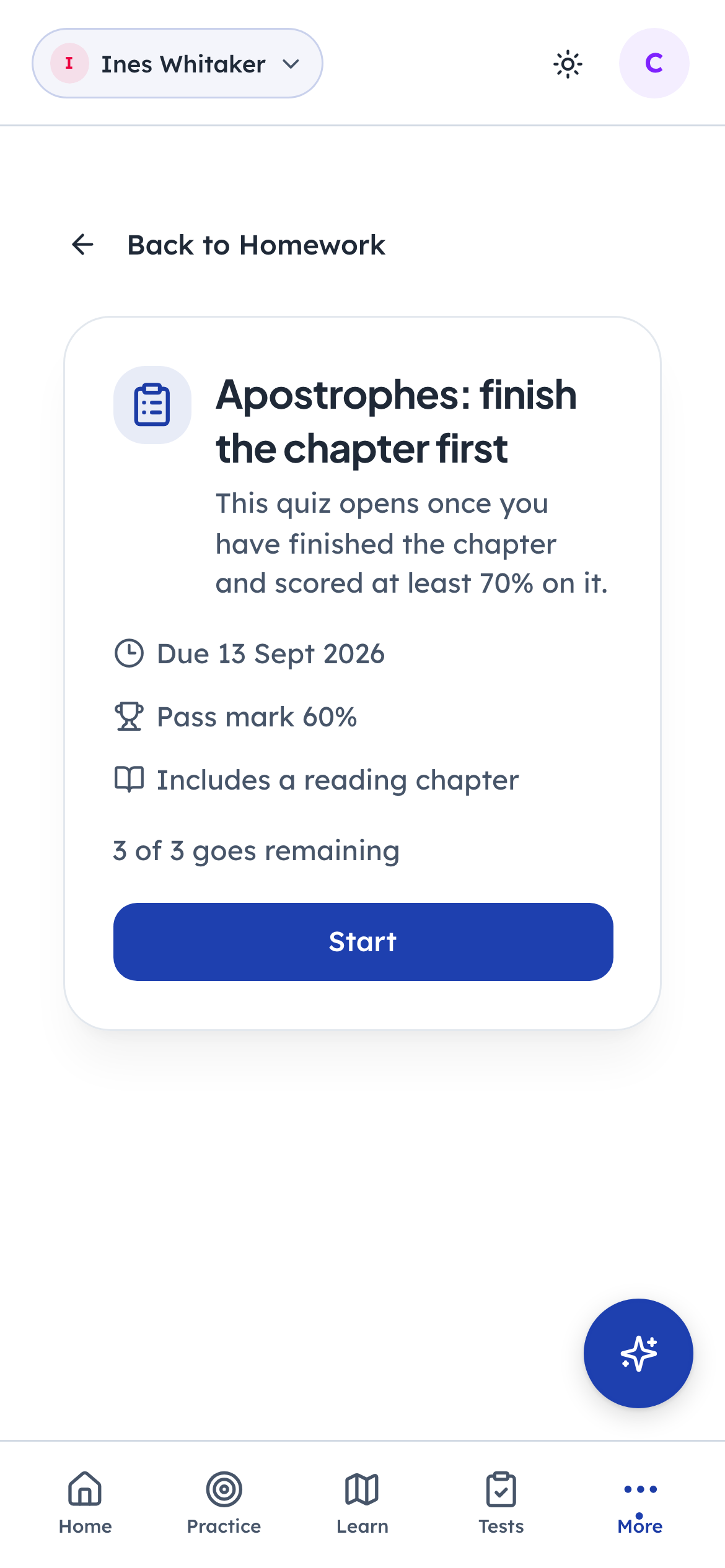
- 1Notice: Read the chapter first
A tutor can tie a quiz to a chapter and insist it is finished first, optionally above a minimum score. Until then the test will not open. This is the difference between homework that tests and homework that teaches.
A teacher marks the paper work
Steps 25–27Class Teacher- penleap.com/dashboard/submissionsSigned in as Class Teacher
25The marking queue 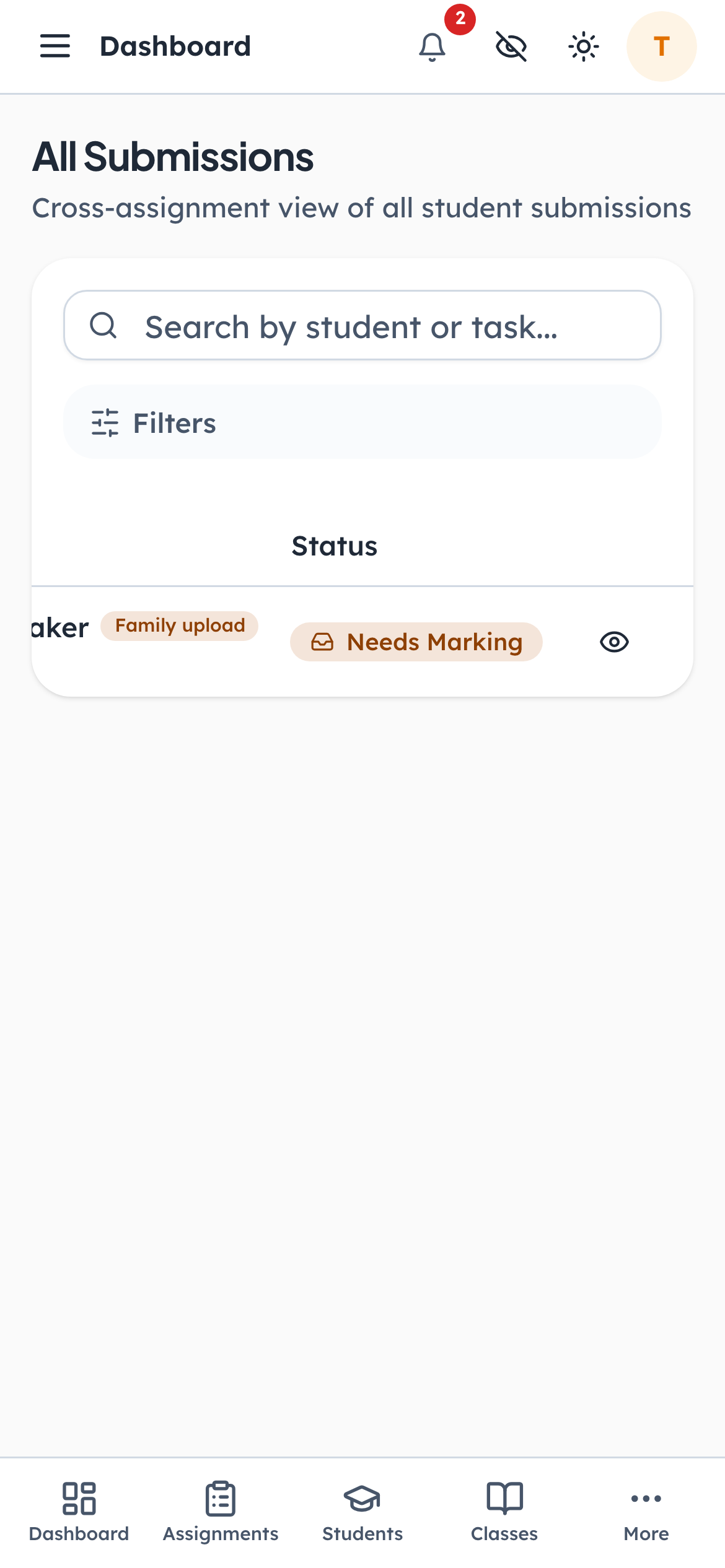
- 1Click: Open the handed-in work
Work handed in on paper arrives here. The filters narrow it to a class, a kind of work, or a stage, so a marker sees what is waiting on them rather than everything the centre has ever set.
- penleap.com/dashboard/submissions/…Signed in as Class Teacher
26The pages the family photographed 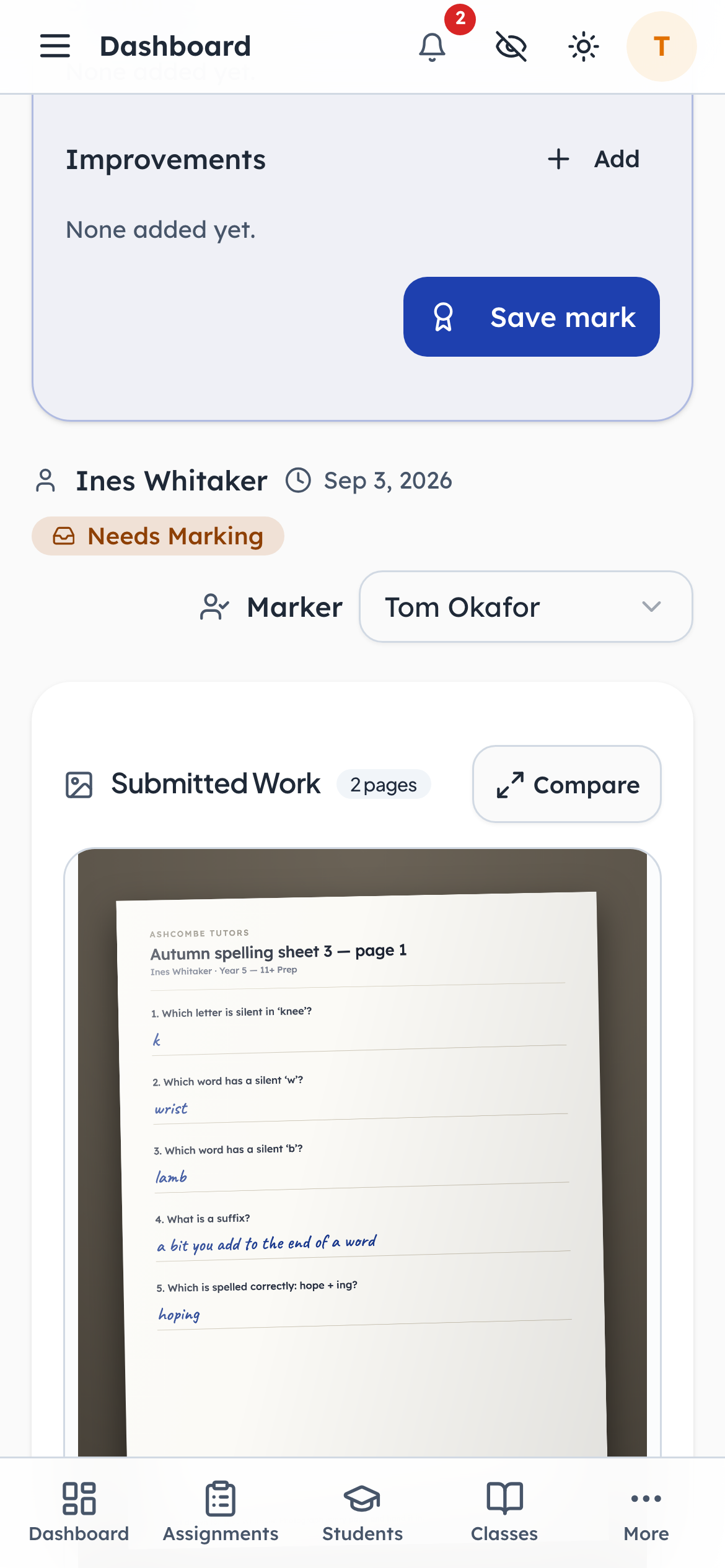
- 1Notice: Two pages, one piece of work
- 2Click: Read alongside the transcript
Both pages arrive as one piece of work with the child's name on it. Compare opens them side by side with the transcript, so a marker can read the handwriting and type what it says without switching windows.
- penleap.com/dashboard/submissions/…Signed in as Class Teacher
27Give it a mark 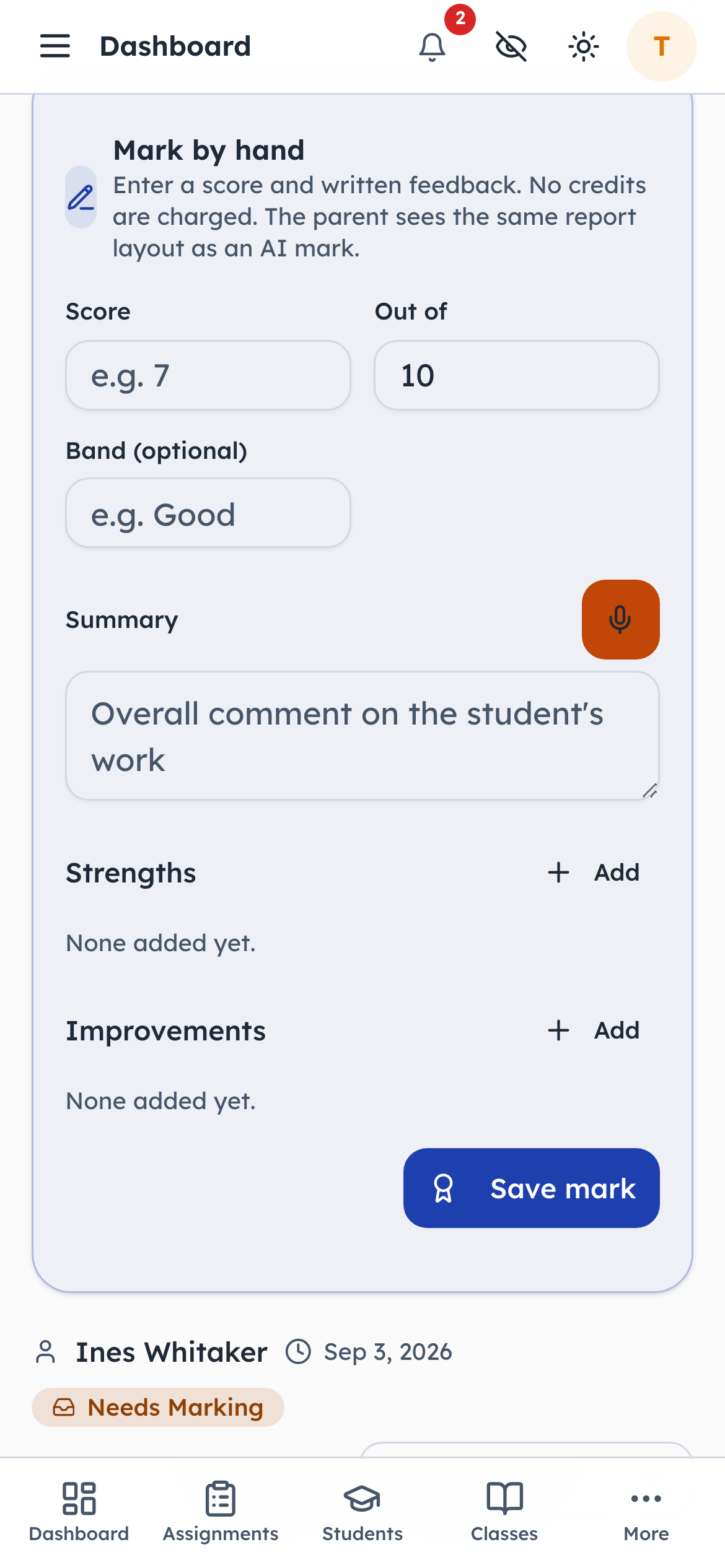
- 1Type in: The score
- 2Type in: What you want them to know
- 3Click: Save it
A score out of whatever the work is worth, a band, and a comment the family will read. Marking by hand costs no credits: only sending work to the AI marker does, and a printed worksheet never goes near it.
- penleap.com/dashboard/submissions/…Signed in as Class Teacher
V4Or pass it to a colleague 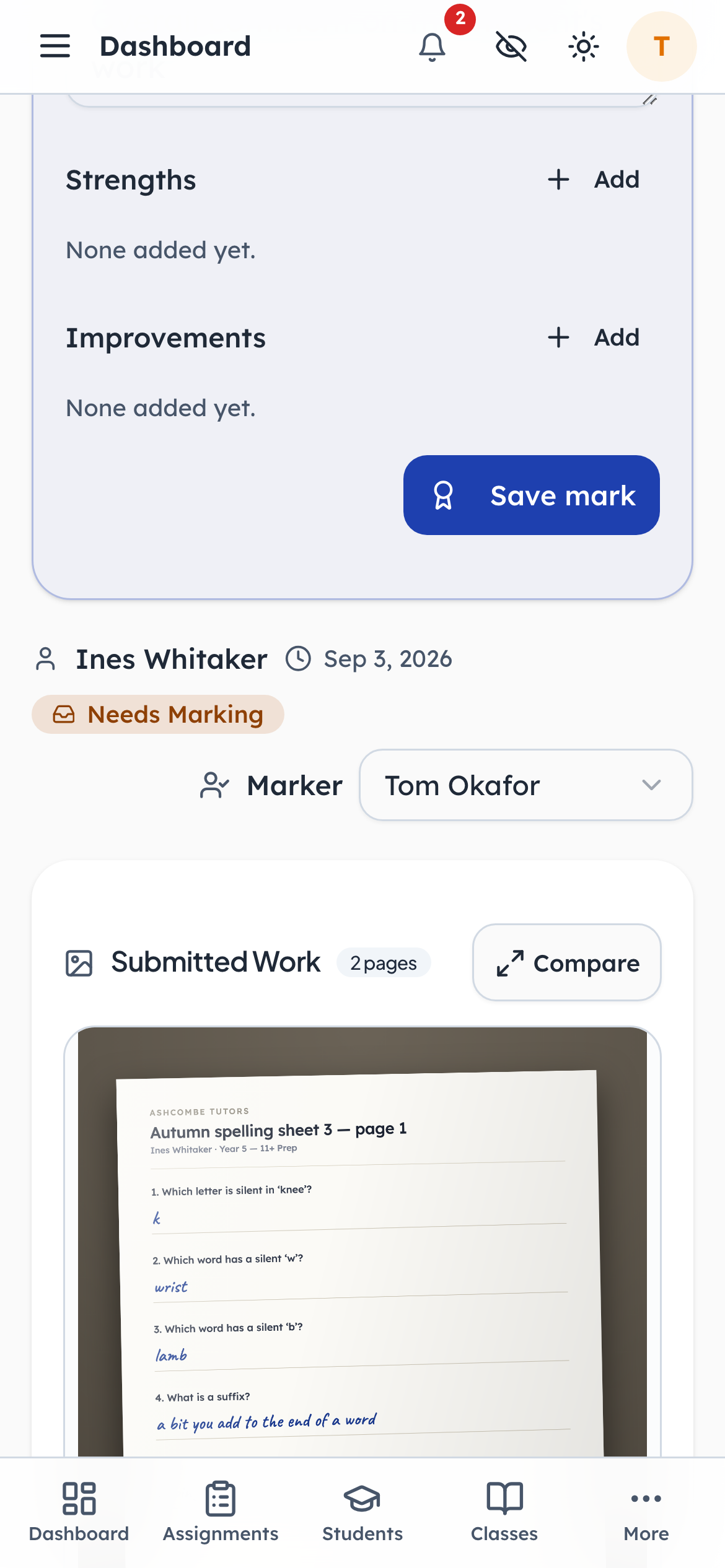
- 1Click: Choose another marker
Work can be reassigned to whoever should mark it. That is how a centre spreads marking across a team without anyone hunting through a shared inbox.
The office keeps track
Step 28Org Admin- penleap.com/dashboard/homeworkSigned in as Org Admin
28Every piece of online work, in every state at once 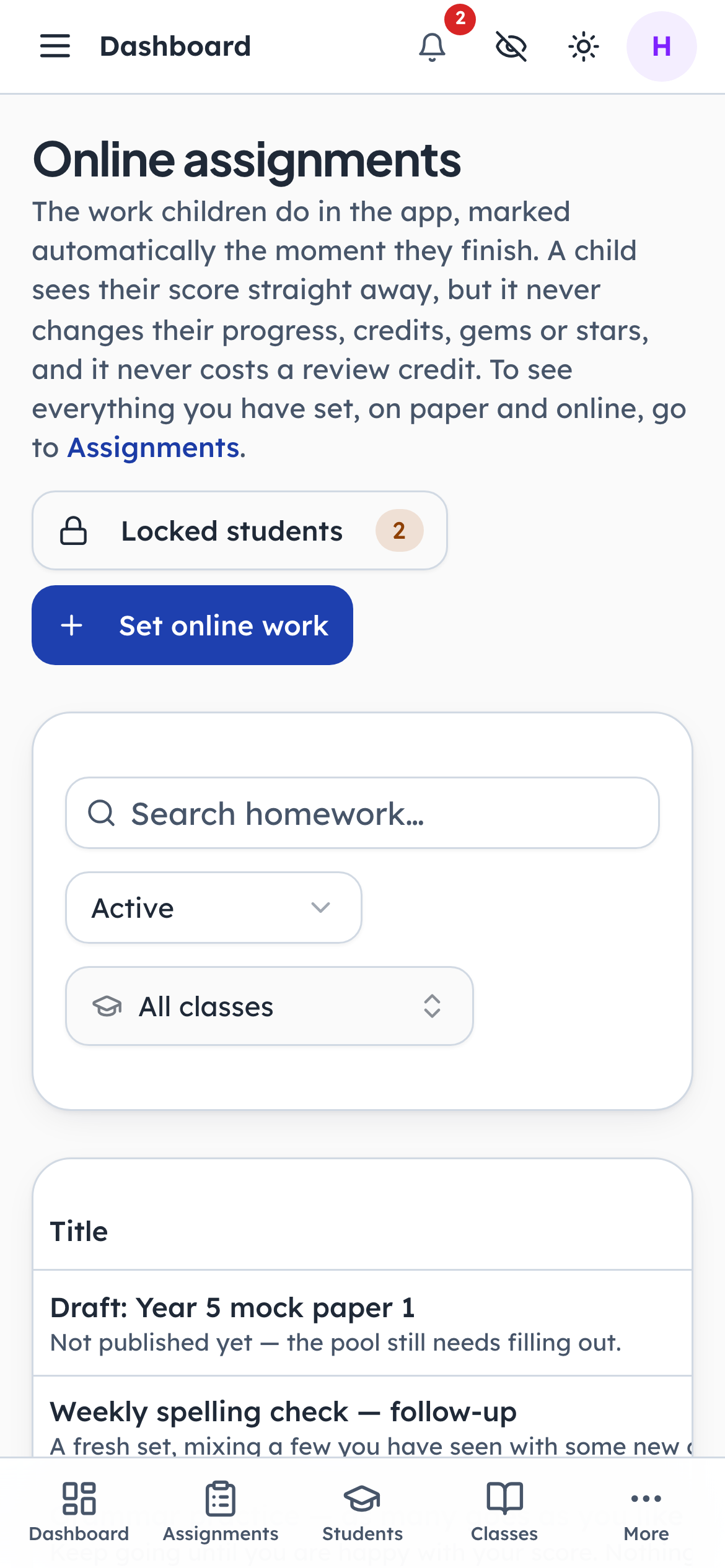
- 1Click: Children who are stuck
Drafts, published work, work not yet released, work already overdue, and follow-ups all sit on one list. The Test column reads as questions drawn out of pool size, so you can see at a glance which assignments are reading only and which have a quiz behind them.
- penleap.com/dashboard/homework/locksSigned in as Org Admin
V5Children who have run out of goes 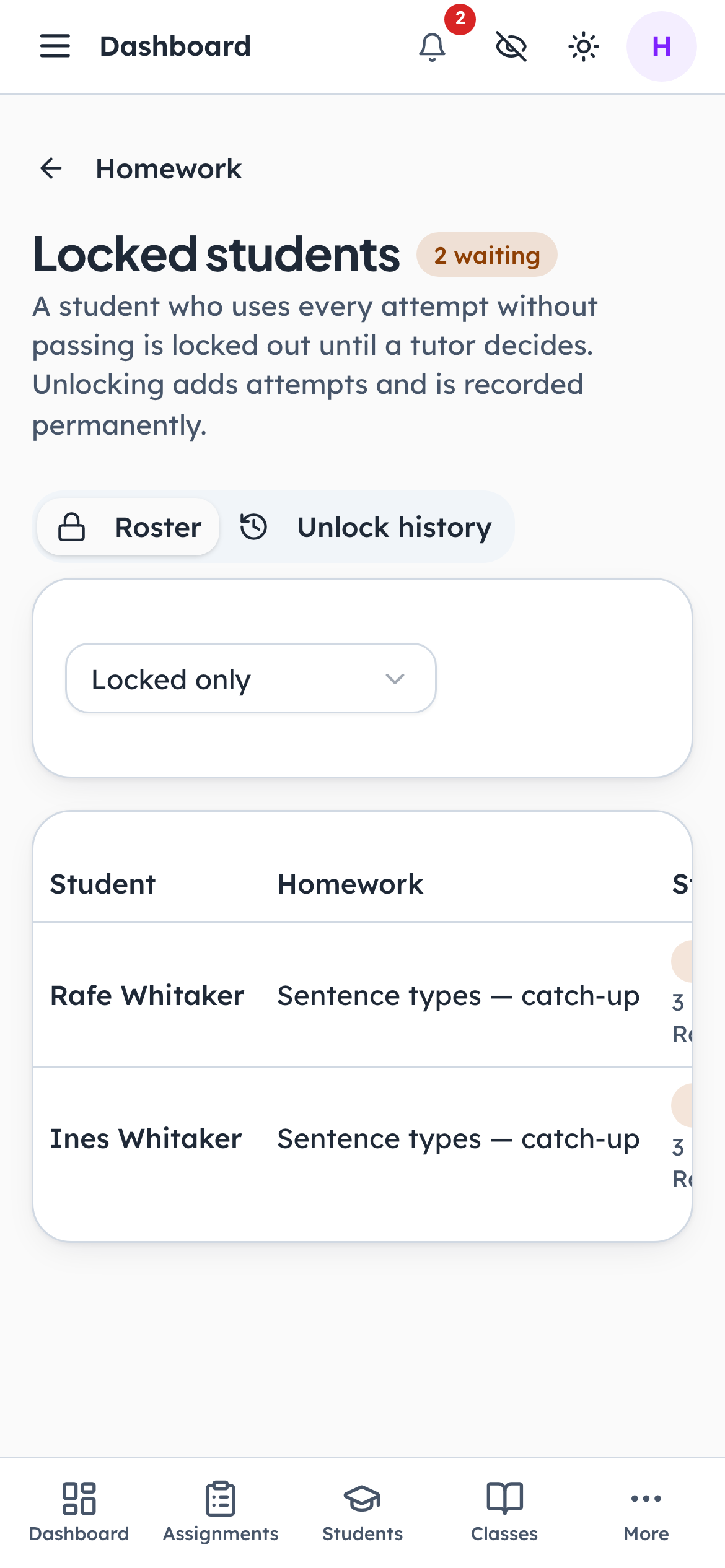
- 1Notice: The stuck queue
When a child uses every attempt without passing, the work locks and whoever set it is notified. This is the queue of those children. It exists so that being stuck is visible to a person rather than silently absorbed by the child.